Audits
Record an engagement, freeze what was in scope and how ready it was, and track what the auditor asked you to fix.
An audit here is a record of one engagement. One framework, one period, a status that follows your own review steps, and a verdict that says what the auditor concluded. Around that record sit the evidence package, the auditor's sample, the roster of auditors, a history of every move, and the follow-ups that outlive the engagement.
The evidence package is a snapshot. When you assemble it, the platform writes down which controls were in scope and how ready each one was on that date. It keeps showing you live readiness next to the frozen reading, so drift is visible without anyone tracking it by hand.
An outside audit firm can appear in two unrelated ways. As an auditor record, which is a contact card with a name, an email and a firm, and grants no login. Or as a person invited into your organisation with the auditor role, who signs in and can read everything and change nothing. Being one does not make someone the other.
Who uses this
Admin
Can create and delete audits, edit the engagement, move the status, record the verdict, assemble and re-snapshot the package, draw the sample, add and remove controls, manage the auditor roster, and raise and delete follow-ups
Cannot edit a completed audit without reopening it first, or validate an audit they submitted for review themselves
Member
Can open every audit screen, read every number, download the ZIP and the CSV, and edit an existing follow-up
Cannot create or delete an audit, or touch the package, the sample, the roster, the verdict or the status, or raise a follow-up
Approver
Can read everything a member reads
Cannot change anything in this area. The follow-up edit controls appear on screen and the server then refuses them
Auditor
Can read the engagement, the package, the drawn sample, the history and the follow-ups, and take the ZIP and the CSV
Cannot change anything at all. Every write is refused with "Auditors have read-only access"
Outside party: an external audit firm
Can be listed on the roster as a contact, and, with a separate invitation, sign in with the auditor role and read the whole audit
Cannot get in from the roster alone. An auditor record grants no login
The screens
Audits
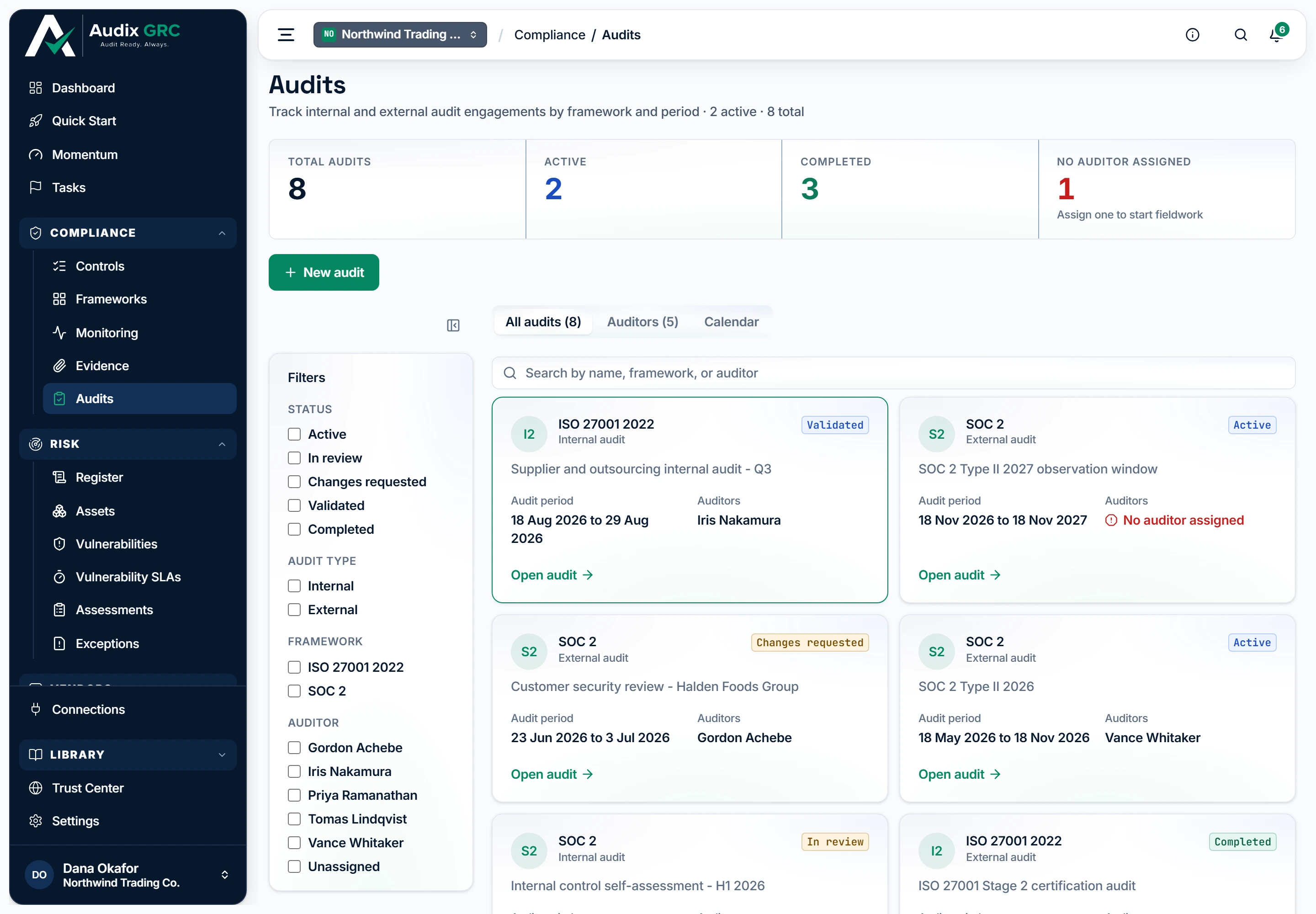
- Every engagement, counted. Total, active, completed, and the ones nobody has been assigned to, which is the count that stops fieldwork starting.
- Start an engagement. Admins only. A four-step wizard records the audit and can assemble its evidence package in the same pass.
- Three views of the same audits. A list, the same audits grouped by the auditor running them, or their periods drawn on a month grid.
How an audit lands in each tile
Tiles for Total audits, Active, Completed and No auditor assigned, a filter rail, a search box, and one card per engagement. New audit shows for admins only.
Auditors tab
The engagements grouped by the auditor named on each one, with their status pills.
Calendar tab
A month grid with one band per audit period, coloured by status. Audits with no period are listed underneath.
Audit detail
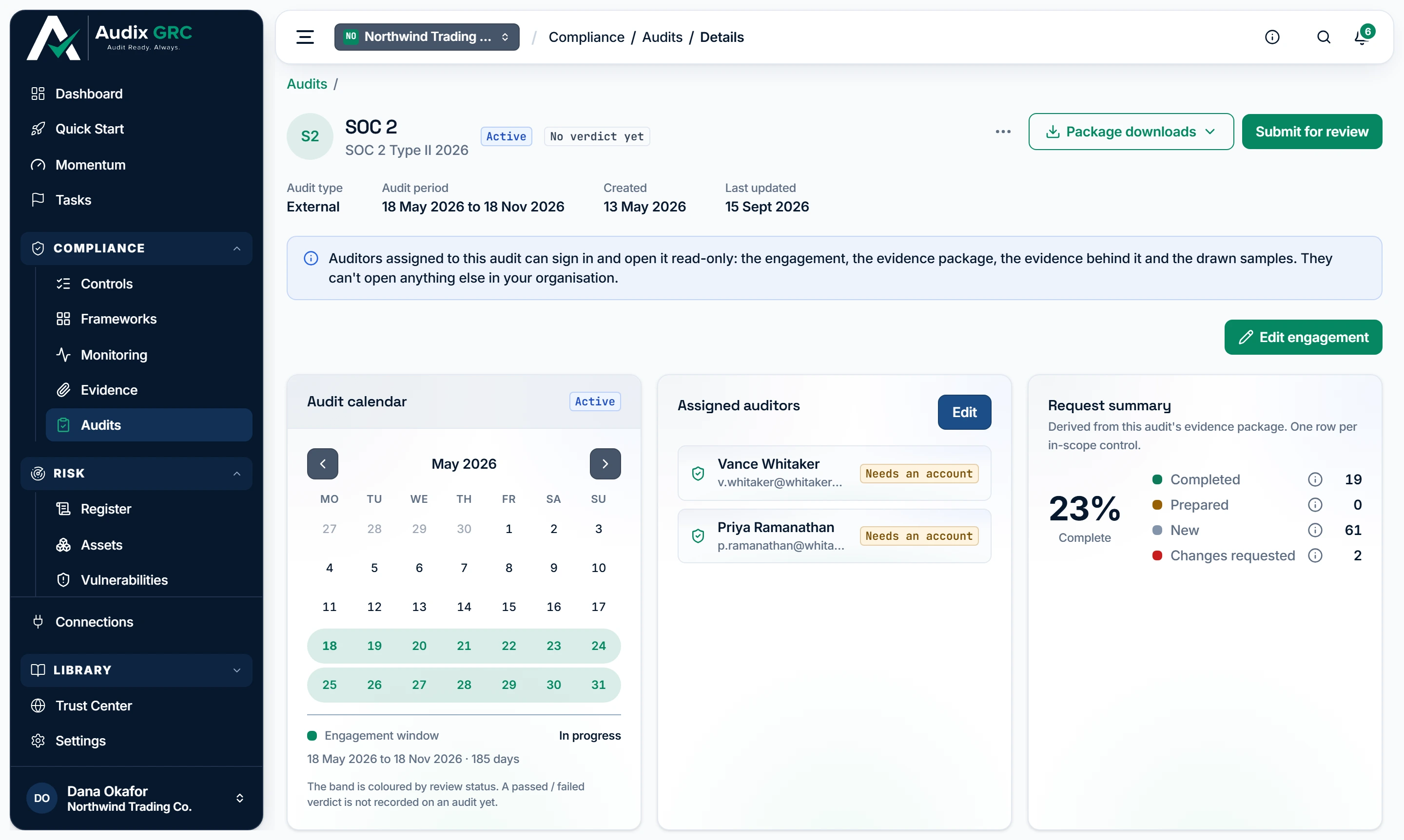
- The auditor's verdict. A separate fact from the review status beside it: a person records what the auditor concluded, and it is never worked out from how ready your controls are.
- Hand the package over. A ZIP manifest of the in-scope controls and the same list as a CSV, both of which an outside auditor can take for themselves.
- Your own review steps. Submitting records who submitted it, and the platform then refuses to let that same person validate it.
- Who is working on it. Auditor records are contact cards. Being on this roster grants no login; that comes only from an invitation with the auditor role.
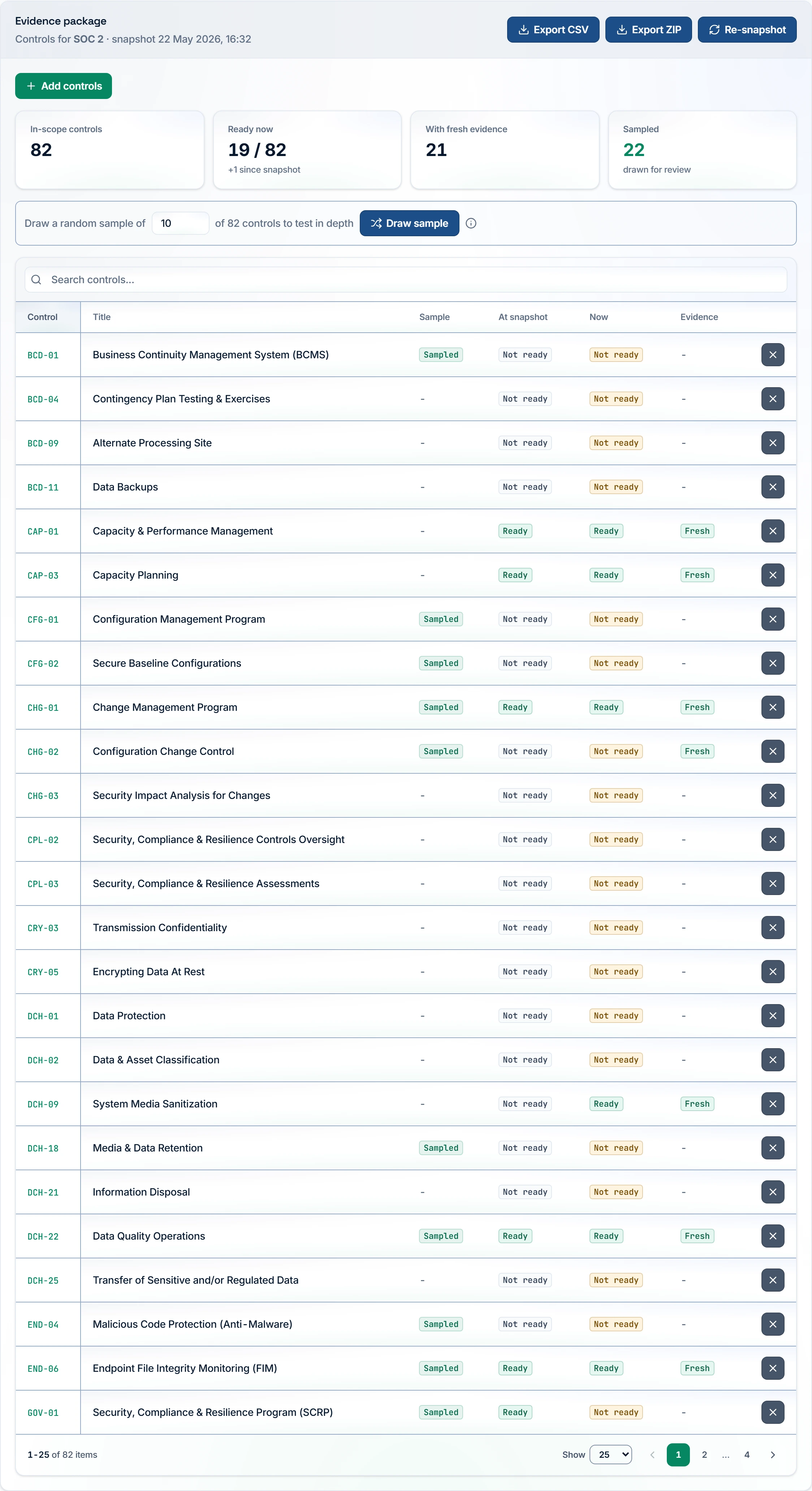
- Drift, without anyone tracking it. Readiness was written down on the snapshot date; this says how far it has moved since.
- The auditor's sample. Picks that many in-scope controls at random to be tested in depth, so nobody in your organisation chooses which ones get examined.
- Frozen beside live. Every control carries how ready it was when the package was assembled and how ready it is right now, side by side.
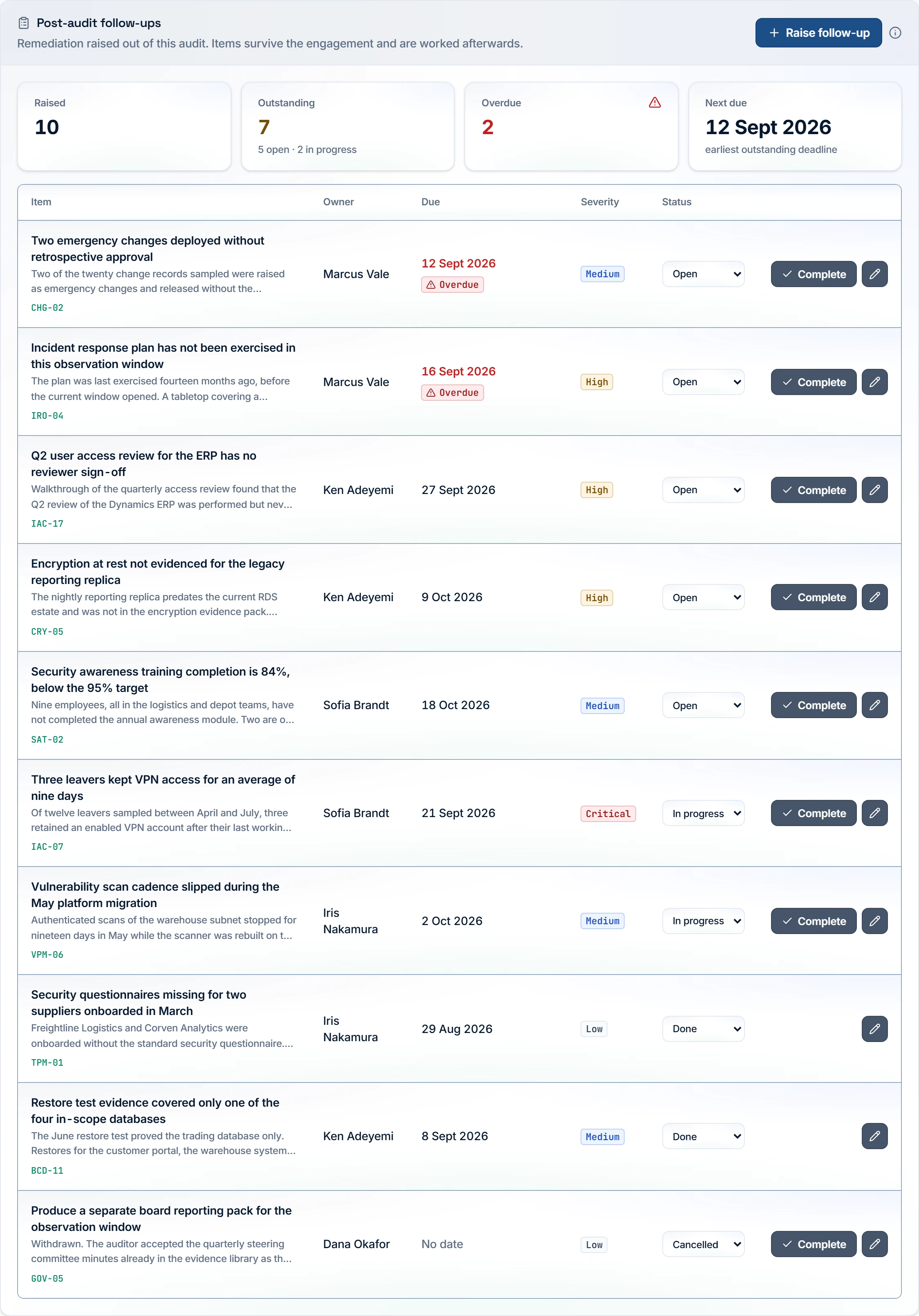
- Record what the auditor asked for. An admin adds the item with an owner, a due date, a severity and, if it belongs to one, a control from this audit's package.
- What is late. Open or in progress with a due date in the past. An item that is done or cancelled is never overdue.
- Anyone can move one along. Editing a follow-up is the one thing in this area a member can do; the engagement, the package and the roster are admin only.
What completing an audit freezes
The engagement header with status and verdict, the calendar, assigned auditors and request summary cards, then the evidence package, the history and the follow-ups.
Evidence package download
Nothing. It returns the ZIP as a file.
Members
Where a person is given the auditor role, by invitation or by changing an existing member's role. It is the only way to create a read-only auditor login.
What you can do
Find an engagementLive
One place to see every audit, who is running it, when it runs and where it stands.
As a member
- Open Compliance, then Audits.
- Type in Search by name, framework, or auditor.
- Tick options in the filter rail. It offers Status, Audit type, Framework and Auditor, including Unassigned. Your choices appear as chips under the search with a Clear all link.
- Switch to Auditors to group the same audits by the auditor named on them, or to Calendar to see the periods on a month grid. Click a band to open that audit.
- Click Open audit on a card.
As an admin
- Same as a member, plus New audit above the tabs.
Rules that apply
- The Active tile counts audits whose status is exactly Active. An audit that is In review, Changes requested or Validated is counted in neither Active nor Completed.
- The auditor shown on a card, and the Auditor filter, read the first auditor assigned to that audit. A second or third auditor appears on the audit page and nowhere else.
- No auditor assigned is painted red on a card, with the line "Assign one to start fieldwork".
- An audit with no period set is not drawn on the month grid. It is listed in a dashed card underneath instead.
- A filter appears only once there is more than one value to pick from.
Set up a new auditLive
Record the engagement and, in the same pass, assemble its evidence package and draw the auditor's sample.
As a member
- Not available. Only an admin can create an audit.
As an admin
- Click New audit. A four step card opens.
- Audit type: choose External audit or Internal audit, then Continue.
- Audit details: fill Audit name and Framework, both required. The framework box suggests catalog names with their requirement count. Add Period start, Period end, Auditor name, Auditor email and Status.
- Sample: leave Assemble the evidence package now ticked. Tick Draw the auditor's sample and set a Sample size between 1 and 1000 if you want one.
- Review: read the summary back, then click Create audit.
Rules that apply
- The framework name has to match a catalog framework exactly. If it does not, the form says so before you submit: the audit is fine, but its evidence package cannot be assembled from it.
- Choosing Completed (backfill) creates a locked record. No package, no engagement edit, no roster edit, until an admin clicks Reopen.
- Typing an Auditor name creates a real auditor record and assigns it. A name with an email matches on the email or creates a new record. An email with no name creates nothing.
- If the audit is created but the package cannot be assembled, you get an Audit created card with the reason and an Open audit link. The audit is kept, not rolled back.
- Period end cannot be earlier than period start.
Keep the engagement details rightLive
Correct the name, framework, type or period while the engagement is open, and delete an audit that was created by mistake.
As a member
- Read the header and the meta row: Audit type, Audit period, Created and Last updated. There is no edit or delete control.
As an admin
- Click Edit engagement. It shows only while the audit is not completed.
- Change Name, Framework, Type, Period start or Period end, then click Save changes.
- To remove the audit, open the ... menu, click Delete audit, then confirm. You land back on the audits list.
Rules that apply
- A completed audit refuses the edit with "This audit is completed; its engagement details are locked." The button is hidden in that state.
- This form does not touch the auditor roster. Assign auditors from the Assigned auditors card instead.
- Delete audit is disabled on a completed audit, with the note "Completed audits are locked records and cannot be deleted. Reopen it first."
- Deleting an audit takes its evidence package, its sample, its follow-ups and its auditor assignments with it.
- Renaming an audit is not written into the audit history. A status change is.
Move the audit through reviewLive
Walk the engagement through your own review steps, with a check that stops one person doing both halves, and lock the record at the end.
As a member
- Read the status pill in the header and the moves in Audit history. There are no buttons.
As an admin
- On an Active audit click Submit for review. The status becomes In review and you are recorded as the submitter.
- A second admin opens the audit and clicks Validate or Request changes.
- On a Changes requested audit click Re-submit for review.
- On a Validated audit click Lock package to complete it, or Reopen to send it back.
- On a Completed audit click Reopen to return it to Active. The recorded submitter and reviewer are cleared.
Rules that apply
- Reopen works from any state after Active, not only from Completed. It always returns the audit to Active and clears the recorded submitter and reviewer.
- Validate is refused for the person who submitted, with "Separation of duty: the person who validates must differ from the one who submitted for review". Both people have to be admins, because only an admin can move the status.
- An action from the wrong state is refused next to the buttons, for example "Cannot validate an audit that is 'active'".
- Completed locks the engagement details, the roster, the package, the sample and adding or removing controls. Reopen is the only way back.
- The verdict can still be recorded on a completed audit, and follow-ups can still be raised and edited.
- Every move is written into the audit history with who, when, and the states it moved between.
Record what the auditor concludedLive
The verdict is a separate fact from the review status. It says what the auditor decided. The history keeps every move anyone made.
As a member
- Read the verdict pill in the header and on the Audit history card. It reads No verdict yet, Passed or Failed.
- Read Auditor's wording underneath when a note was recorded, with the date it was recorded.
- Read the timeline. Each entry names the person, the move and the date, and shows the states it moved between.
As an admin
- Click Record verdict on the Audit history card.
- Choose No verdict yet, Passed or Failed.
- Type the auditor's wording, up to 4000 characters, then click Record verdict.
- The pill, the wording line and the timeline update.
Rules that apply
- The verdict can be changed at any time and in any direction, including back to No verdict yet. It is a record of what the auditor said, not a one-way gate.
- A person types the verdict in. It is never worked out from how ready your controls are.
- A verdict can be recorded at any time, including on a completed audit.
- Changing the verdict later adds another entry. Nothing in the history is overwritten, and nobody can edit or delete an entry.
- If moves happened before the history started recording states, a footnote at the bottom says how many.
Freeze what was in scopeLive
Write down which controls were in scope and how ready each one was on a given date, then keep showing how readiness has moved since.
As a member
- Open the audit and read Evidence package. The header names the framework and the snapshot date.
- Read the stats: In-scope controls, Ready now, With fresh evidence and Sampled. Drift reads no drift, +N since snapshot or -N since snapshot.
- Read the table. Each row carries the control code, the title with a Custom pill where it applies, an At snapshot reading, a Now reading and whether the evidence is Fresh. Narrow it with Search controls....
- Click a control code to open that control and read its evidence there.
- Read the Request summary card for a % Complete figure and the four buckets Completed, Prepared, New and Changes requested.
As an admin
- Click Assemble package the first time, or Re-snapshot afterwards.
- The platform reads the framework's requirements, follows them to their controls, keeps the ones your organisation has adopted, and writes down how ready each one is at that moment.
- The page reloads with the stats and the table filled in.
Rules that apply
- Assembly needs a framework name that matches the catalog exactly. Otherwise it is refused with "No catalog framework named ...".
- Controls your organisation has marked Not applicable are left out.
- Re-snapshot rebuilds the package from nothing. Controls you added by hand, custom controls included, are dropped, and every Sampled mark is cleared. Draw the sample again afterwards.
- Assembly is refused on a completed audit with "This audit is completed; its evidence package is locked."
- The buckets work like this. Completed is ready now with fresh evidence. Prepared is ready now without it. Changes requested was ready at the snapshot and is not ready now. New is everything else.
Draw the auditor's sampleLive
Pick a random subset of in-scope controls for the auditor to test in depth, so nobody in your organisation chooses which controls get examined.
As a member
- Read the Sampled pill on a row and the Sampled stat, which reads either "N drawn for review" or "none drawn".
As an admin
- In Evidence package, set the number in Draw a random sample of N of M controls to test in depth. It starts at 10.
- Click Draw sample. What does Draw sample do? explains the same thing on screen.
- The rows picked show a Sampled pill and the count updates.
Rules that apply
- Every draw clears the previous marks and picks again. There is no way to add to an existing sample.
- Ask for more controls than the package holds and you get the whole package.
- Sampling an empty package is refused with "Assemble the package before sampling. There are no in-scope controls to draw from."
- Refused on a completed audit.
- A Re-snapshot clears the sample.
Put a control in or take one out by handLive
Add a control the framework cannot reach on its own, most often a custom control, or take out one that does not belong in this engagement.
As a member
- Not available. Rows carry no remove control for a member.
As an admin
- Click Add controls. It shows only when at least one adopted control is not already in the package and the audit is not completed.
- Search by code or title, tick what you need, then click Add N controls. Each new row starts unsampled with its readiness frozen at that moment.
- To take one out, click the X on the row.
- The dialog Remove this control from the audit? spells out what changes in this audit's own numbers: the in-scope count, the sample count, the loss of the frozen reading, how many follow-ups point at that control, and whether Re-snapshot would bring it back.
- Click Remove <code> from this audit, or Keep it in scope to back out.
Rules that apply
- No evidence, test result or control is deleted. Only this audit's row goes.
- Adding a control that is already in the package does nothing.
- Both actions are refused on a completed audit.
- A Re-snapshot does not bring back a custom control. Add it again.
Hand the package over as a fileLive
Take the package out of the product as a file the auditor can archive.
As a member
- Open Package downloads in the audit header.
- Click Pre-audit package (ZIP) for the control manifest and the readiness summary.
- Click Control list (CSV) for one row per in-scope control, with SCF ID, Title, Sampled, Ready at snapshot, Ready now and Fresh evidence.
- The same two files sit as Export ZIP and Export CSV at the top of the Evidence package section once it has rows.
Rules that apply
- The ZIP holds two files. A manifest with the audit details, the snapshot date, the summary counts and every control row, and a plain text summary marking each control as sampled, ready or not ready, and with fresh evidence or without. It contains no evidence files.
- Both items are disabled until the package is assembled. The menu says "Assemble the evidence package first. There is nothing to download yet."
- Every ZIP download is recorded with the person who took it and the number of controls at that moment. An auditor's download is recorded the same way.
- The CSV is built in your browser, so it is never recorded. No screen shows the download record either way.
Keep a directory of auditorsPartial
Keep the people and firms you engage as reusable records, and say which of them are working on each audit.
As a member
- Read the Assigned auditors card on the audit. Each person shows as a name with their email and firm underneath, or the card reads "No auditors assigned."
- Read the Auditors tab on the audits list to see the engagements grouped by auditor.
As an admin
- On an audit that is not completed, click Edit on Assigned auditors.
- Search with Search auditors... and tick the people on this engagement.
- If someone is missing, click Add new external auditor, fill Name, which is required, plus Email and Firm, then click Add auditor. The record is created at once and ticked, but nothing is assigned until you save.
- Click Save. The hint underneath tells you what will happen: "N selected", "None selected." or "Saving now unassigns everyone."
Rules that apply
- Saving replaces the whole roster with what is ticked. Saving with nothing ticked unassigns everyone.
- An email address belongs to one auditor record. A second record with the same email is refused, naming the record that already has it.
- An auditor assigned to any audit cannot be deleted until they are unassigned, and the message says how many audits they are on.
- Roster edits are refused on a completed audit.
- An auditor record is a contact card. It grants no login. A login comes only from an invitation with the auditor role in Settings.
- The audits list, its filters and the ZIP manifest show the first auditor assigned. Re-saving the roster does not change who that is.
Track what the auditor asked you to fixLive
Keep the auditor's remediation items on the record after the engagement, each with an owner, a deadline, a severity and a status.
As a member
- Read Post-audit follow-ups. Four stats show Raised, Outstanding, Overdue and Next due.
- Read the table: Item, Owner, Due, Severity and Status. An item past its date carries an Overdue pill.
- Change the Status select on a row, or click Complete to set it to Done.
- Click the title or the pencil to open the item, change any field, then click Save changes.
As an admin
- Click Raise follow-up.
- Fill Title, which is required and capped at 300 characters, plus Description, Owner from your members, Due date, Severity and Status.
- Pick Against control (optional). Only the controls in this audit's package are offered.
- Click Raise follow-up.
- To remove an item, open it and click Delete in the drawer footer.
Rules that apply
- Overdue means Open or In progress with a due date in the past. A Done or Cancelled item is never overdue.
- Cancelled items stay on the record, because the next auditor will ask about them.
- Follow-ups are not locked when the audit is completed. They can still be raised, edited and deleted.
- Moving an item out of Done clears the date it was completed.
- If the list cannot be loaded the section says so rather than showing an empty table.
Give an outside auditor a read-only loginLive
Let an external auditor sign in and read the whole engagement without being able to change a thing.
As a member
- Not available. Only an admin can set someone's role.
As an admin
- Go to Settings, then Members.
- Invite the auditor by email with the role auditor, or change an existing member's role select to auditor.
- Nothing else is needed. The audit itself grants no access.
Rules that apply
- Every write is refused with "Auditors have read-only access", whatever else the person has been granted. The role is a ceiling, not a starting point.
- The audit page shows no ... menu, no lifecycle buttons, no Edit engagement, no Assemble package, no Draw sample, no Record verdict and no Raise follow-up. The follow-up Status column is a pill instead of a select.
- A ZIP taken by an auditor is recorded against their name.
- Being on the auditor roster and holding the auditor role are two different things. Neither one implies the other.
Scope a control out, and sample peoplePreview
Two things exist in the API and have no screen yet. Scoping a control out of an audit with a written reason, and drawing a random set of current employees to evidence a workforce control.
As a member
- Not available. Neither has a screen.
As an admin
- Not available from any screen. Both can only be reached through the API.
Rules that apply
- An exclusion needs a written reason of 1 to 2000 characters. The control stays in the package and appears in the ZIP marked as excluded, with its reason.
- An excluded control is not eligible for the sample and does not count towards the readiness figures.
- The In-scope controls stat and the CSV both count an excluded control as if it were still in scope. Only the ZIP marks it. This matters only if an exclusion was made through the API.
- A personnel draw takes current employees at random, copies their name, email and job title at that moment, and replaces the previous draw. It is refused on an excluded control and on an empty roster.