How it all works
The parts that sit under every other section: what your role lets you do, how your data is kept apart from everyone else's, how the score is built, and what the platform does while nobody is looking.
Every other section of this guide covers one product area. This one covers the machinery all of them share. Four things run underneath the whole platform: the role you hold, which decides what the buttons actually do; the separation that keeps your organization's data unreachable from any other; the engine that turns a connected account into a number you can defend; and the plumbing that sends the emails, holds the files, calls the AI model and records who changed what.
You will meet these ideas everywhere. A control turns green because a check ran in the background. A colleague cannot press Approve because they are a member rather than an admin. An auditor you invited can read every screen and change nothing. A vendor with no account can still fill in your questionnaire, because their link is scoped to exactly one record and nothing else.
The second half of this section walks five journeys end to end. Each one crosses several product areas, so no single section owns it. Read them when you want to see how the pieces connect, then follow the pointers into the section that owns each step.
Who uses this
Member
Can read every screen in the organization and do the day-to-day work: upload evidence, tick control checklist items, attest a manual check, raise an exception and submit it, edit an audit follow-up, edit an evidence request
Cannot connect a tool, invite anyone, change a role, approve anything, or change organization settings
Approver
Can everything a member can do, plus four things and no more: sign off a submitted vendor questionnaire, and open, reply to and resolve reviewer comment threads on one
Cannot approve an exception, approve a control, or administer anything. The Members panel cannot even assign this role
Auditor
Can read the same screens a member reads, including Events, the evidence library and the audit package
Cannot change anything at all. Every create, edit and delete is refused before the platform even looks at what was asked for
Outside parties
Can an invited colleague opens an invitation link, a vendor answers a questionnaire on a private link, and a trust-center visitor requests access to your documents. None of them holds an account in your organization
Cannot see anything their one link does not cover. Each link resolves exactly one record
The screens
Events
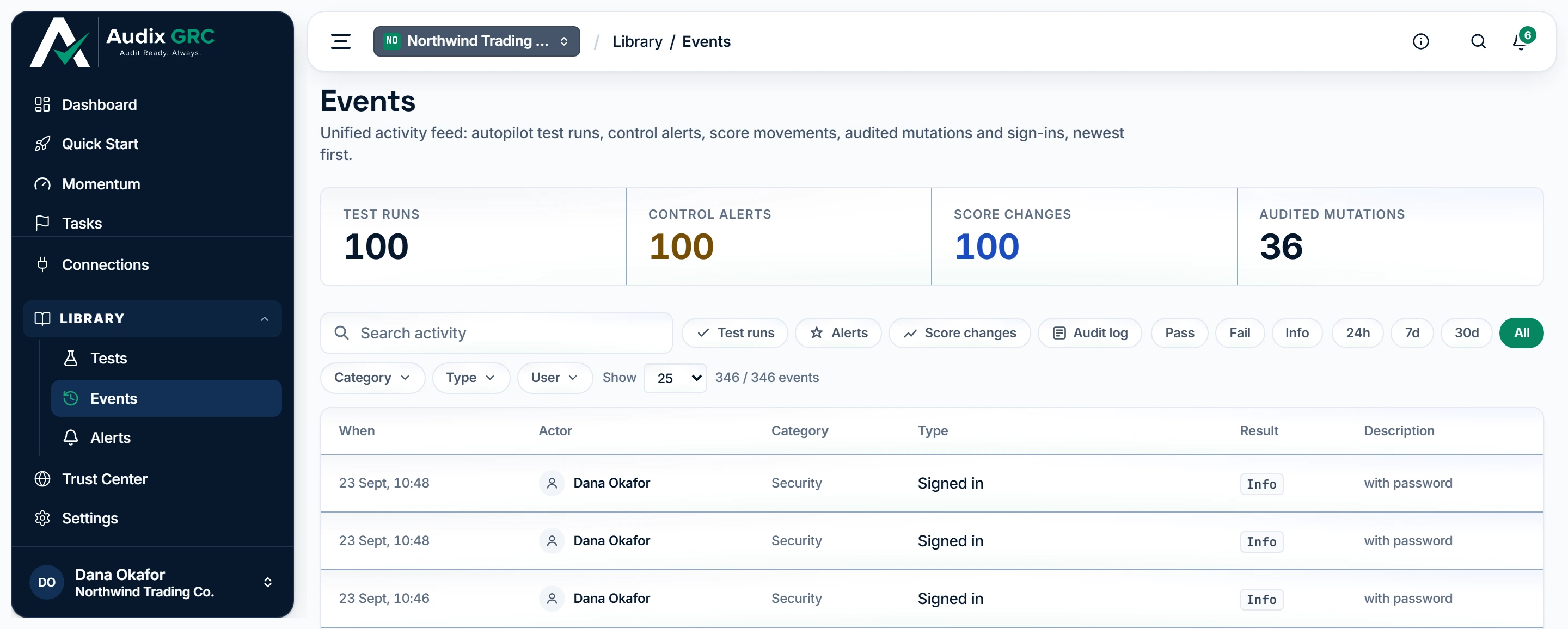
- Four kinds of activity. Automated test runs, control alerts, score movements and the audited record of every change a person made, each counted for the feed below. Sign-ins are in the feed too, but they are not changes and the last counter does not count them.
- Narrow the feed. Filter by where a row came from, whether it passed, how recently it happened, or who was responsible, so one feed answers both "what did the platform do" and "what did my colleague do".
- Who did it. Every row names an actor: a person by name, Autopilot for work the schedule ran, or System for the platform's own bookkeeping.
The five streams behind one feed
One feed of everything that happened, newest first: check runs, control alerts, score movements, the audited record of every change somebody made, and sign-ins. This is where the background work becomes visible.
Settings, Members
Tiles for Members, Active and Pending invites, the roster with a Role and a Status column, and a Pending invitations table with Revoke.
Settings, Role administration
A folder tree with one group per role. The header states the rule plainly: "Grants are account-wide: a role given through any folder applies across this workspace."
Settings, Scoring
The factor weights, state weights, evidence weights and thresholds that turn checks and evidence into a number, and how far each one has drifted from the shipped default. Non-admins see "Scoring configuration is managed by workspace admins."
Dashboard

- One number, computed. The average of the framework postures you selected, weighted by how many requirements each framework has, so a large framework is not drowned out by a small one.
Why the number moves when nobody touched it
The organization score, framework readiness, connection health and the latest check results. Every number on it is the output of the engine described in this section.
What you can do
The approver role, in fullPartial
Give somebody the authority to sign off vendor work without giving them the authority to do the work or run the organization.
As a member
- If you hold this role you will notice no difference on most screens. Everywhere except vendor questionnaires you behave exactly like a member.
- On a submitted questionnaire you can record the review decision, and you can open a comment thread against any single answer, reply on it and mark it resolved.
As an admin
- Create one in Settings, Role administration: pick a folder, find its Approver group, add the person.
- The role then applies across the whole organization, not just that folder.
- The Members panel keeps showing that person's membership role. The approver grant comes from the group, not from the roster.
Rules that apply
- The approver role has exactly four grants in the entire platform, all on vendor questionnaires: sign off a submitted questionnaire, open a reviewer comment thread, reply on a thread, and resolve a thread.
- It has no grant on exceptions, no grant on control approval, and no grant on anything administrative. Two areas say so in their own code comments rather than leaving it to be discovered.
- Everything else an approver can do, they can do because the route carries no role restriction at all, the same as a member.
- The Members panel offers Admin, Member and Auditor only. It cannot assign approver.
Why an auditor can never change anythingLive
Hand an outside reviewer a real login into the record they are reviewing, with no way for them to alter it.
As a member
- Nothing to do. An auditor sees what you see.
- If you are the auditor, every screen loads and every action that would write is refused with "Auditors have read-only access".
As an admin
- Open Settings, Members and set the person's Role to Auditor, or send the invitation with the Auditor role already chosen.
- From that moment their reads work everywhere and every write is refused, on every screen, without you configuring anything else.
Rules that apply
- The read-only rule is applied before the role check, not after it. The platform refuses the request on the verb alone, and never gets as far as asking whether the role would have allowed it.
- The test runs against the person's membership role, not their combined roles. Adding an auditor to a folder's Member group does not give them write access. This was a real hole once and is now closed on purpose.
- The refusal covers any request that creates, edits or deletes. A handful of read-shaped actions are built as writes and are refused too: the AI suggestions on the add-vendor form, the AI second opinion on a check, and recording that an audit package was exported.
- One consequence worth knowing: an auditor's own package export never appears in the download trail, because recording it would be a write.
How your organization is kept apart from every otherLive
Make one organization's data unreachable from another, at the database rather than by remembering to filter.
As a member
- Nothing to do. Everything you open is already limited to the organization you are currently in.
- If you belong to more than one organization, the switcher moves you between them. Each one is a separate world, with its own controls, evidence, vendors, score and people.
As an admin
- Nothing to configure. Separation is not a setting and cannot be switched off for your organization.
- Every credential you save for a connected tool is encrypted before it is written down, and is never shown again by any screen.
Rules that apply
- Every request carries a header naming the organization it is for. That header is treated as a claim, not as proof. Before anything happens the platform checks that you hold an active membership in that organization, and refuses with "You are not an active member of the requested tenant" if you do not.
- The organization is then stamped on the database transaction itself, for that one transaction only, so it can never carry over to the next request on a shared connection.
- Around 90 tables carry a rule the database enforces on its own: a row is visible only when it belongs to the stamped organization. If the application ever forgot a filter, the database still returns nothing. Memberships, invitations, the record of who did what, tokens, vendors, questionnaires, check results and the score tables all carry it.
- A request with no organization stamped reads nothing rather than everything. It fails closed.
- Every stored secret gets its own fresh key, sealed under a master key. The seal is tied to your organization and, for a connector credential, to the exact connection. A row moved to another organization does not open. Evidence files are sealed the same way, tied to your organization.
- Six narrow openings exist for people with no account, each read-only and each keyed on the one link they hold: an invitation token, a questionnaire answer link, a questionnaire clarification link, the public trust page address, a trust access link, and an API token. The answer link and the clarification link use different keys on purpose, so one cannot be used as the other.
- An API token you create is pinned to the organization it was made in. It ignores the organization header entirely, so a token cannot be pointed somewhere else.
How a score is builtLive
Turn check results, evidence and your own implementation work into one number per control, per framework and for the organization, with every weight in your hands.
As a member
- Nothing to calculate. Open the Dashboard for the organization score, or Frameworks for one framework, or a control page for its health.
- Ticking a checklist item on a control, uploading evidence, or attesting a check all move the number. You see it move within a minute or so.
As an admin
- Open Settings, Scoring to change any weight or threshold. The panel shows how far each one sits from the shipped default.
- Three factor weights decide how much checks, evidence and implementation each count. Two thresholds decide when a control counts as ready and when a framework counts as ready.
- Save, and every score in the organization is recalculated against the new weights.
Rules that apply
- Control health is a weighted average of three factors: the check factor, weighted passes over weighted determinate results; the evidence factor, from whether the control's evidence is fresh, expired or missing; and the implementation factor, checked checklist items over total, or the weight of the control's implementation state when it has no checklist.
- A factor that has nothing to say is left out rather than counted as zero. Checks that abstained, found no data, errored or never ran are excluded, never treated as failures. A control with no factor carrying weight is marked as not scorable, so a health of 0 reads as "nothing to score" rather than "failing".
- The shipped defaults: checks 50, evidence 30, implementation 20. Evidence fresh 100, expired 0, missing 0. Implementation planned 0, in progress 50, implemented 100. A control is ready at 80. A framework is ready at 80. A requirement is met when every mapped control is ready.
- A passing check result older than 30 days is treated as a failure. A connector that quietly stopped working ages your score down instead of leaving it green.
- Framework readiness is reported three ways: ready controls over the framework's full control set, requirements met over its full requirement set, and posture, the average satisfaction across every requirement in the framework. Every framework in the catalogue is reported, so one you have adopted nothing for reads 0 rather than vanishing.
- Both framework percentages stop at 99 unless everything is genuinely ready, so rounding can never imply you are finished.
- The organization score averages the framework postures you have selected, weighted by how many requirements each framework has, so a large framework is not drowned out by a small one. It also reports "N of M ready".
- The bands: Not started at 0. In progress above 0 and below 50. Mostly ready from 50 up to the ready threshold. Ready at the ready threshold and above, 80 by default.
- Every recalculation compares against the previous one and records what moved. Those entries appear on Events as score changes.
- The score screens are never served from a cache. A stale compliance number is worse than a slow page.
What runs in the background, and whenLive
Keep the picture current without anybody remembering to press anything.
As a member
- Nothing to do. You see the score move on the dashboard the next time you look, and the reason for the move on Events.
As an admin
- Nothing to schedule. The timings below are fixed for every organization.
- You can always force the work early: Sync now on a connection, Run checks on Monitoring, or a recompute from the scoring screen.
- If a connection has stopped collecting, its card says so and its last sync time stops moving. That is the signal to look, rather than a silently green score.
Rules that apply
- Collection never runs inside the web application. It runs in separate worker processes, one queue per connected tool, each with that tool's own rate limit, so a burst against one provider cannot starve another.
- A run ends as succeeded, partial or failed. Partial means one area of the provider reported a problem, so nothing in that area is treated as deleted. A run left hanging by a crashed worker is closed out rather than left running forever.
- Queueing a recalculation is best effort. If the queue is briefly unreachable your click still succeeds, and the nightly recalculation catches up.
- A recalculation runs under a per-organization lock and reads all of its inputs from one consistent snapshot, so two of them cannot interleave and produce a half-updated score.
- A suspended organization keeps working for people signed into it, but its background work stops.
- Anything triggered by a change you made, for example adopting a control or approving an exception, is queued immediately rather than waiting for the next scheduled pass.
What gets emailed, and to whomLive
Know which actions leave the product as an email, and who receives each one.
As a member
- You receive an invitation when somebody adds you to an organization, a six-digit code when you verify your email or reset your password, and the daily digest of what is due.
- Open Settings, Notifications to set your own preferences.
As an admin
- Open Settings, Notification Rules to say where drift alerts go: a Slack webhook, one or more email addresses, or both.
- You receive an email whenever somebody requests access to your Trust Center, and whenever an outside party asks a question there.
- If an email cannot be sent, the action still succeeds. On an invitation the screen says "Invitation created, but the email could not be sent, so share this link" and gives you the link to send yourself.
Rules that apply
- Twelve kinds of email leave the product: an invitation, an invitation to somebody who already has an account, a declined-invitation notice, a verification code, a password reset code, a drift alert, a deadline digest, a questionnaire invitation, a trust access request, a trust access grant, a trust question received, and a trust answer.
- No email is ever allowed to fail the action that triggered it. Every send reports back whether it went out, and the screen tells you when it did not.
- Drift alerts are sent after the check run has been committed, never during it. At most 50 go out per run, and each is stamped once sent so a retry cannot send it twice. Nothing is sent at all until you have set a Slack webhook or at least one email address.
- Drift alert routing is all or nothing today. Every alert goes to the same place.
- Links in emails point at your platform address. Nothing in an email carries data beyond what the link opens.
Where your files are kept, and what protects themLive
Hold evidence artifacts, vendor documents, policy documents and Trust Center documents without any of them leaking.
As a member
- Upload evidence from the evidence library or from a control. Files up to 5 MB are accepted.
- Download anything you uploaded. If the file has been altered anywhere in storage, the download is refused rather than served.
- Some file types are refused on the way in. If you have an HTML export, save it as PDF and upload that.
As an admin
- Nothing to configure. Storage is set up for you and encryption is not optional.
- You can delete an evidence artifact and detach it from its controls. A member cannot.
Rules that apply
- Evidence files are stored under your organization only, named by a fingerprint of the file's contents, and the bytes written down are encrypted with your organization's own key.
- On download the file is unsealed, re-fingerprinted, and refused if the fingerprint does not match the record. A file that changed underneath the platform is never handed back.
- An existing file is never silently overwritten. Uploading the same file twice reuses the one already there.
- Manual evidence is capped at 5 MB.
- File types that can run in a browser are refused outright: HTML, XHTML, SVG and the JavaScript types. Everything else is allowed, because a document library has to hold an open-ended variety of real formats.
- The first bytes of every upload are read and compared with the type it claims to be. A file that contradicts itself is refused. This check applies to a vendor's attachment too, which is why it was built to depend on nothing.
- Evidence added as a link rather than a file goes through a guard that refuses addresses on internal networks.
- If object storage is unreachable when the platform starts, it logs the problem and keeps running rather than taking every other screen down with it.
Where AI is used, and where it deliberately is notLive
Draft prose and summarise posture, with a named human between the model and anything that leaves your organization.
As a member
- Read the plain-English summary of where you stand on the dashboard.
- Take or ignore the single coaching suggestion the dashboard offers.
- On the add-vendor form, start typing a company name and take a suggestion.
- On a check, ask for a second opinion on whether the evidence supports the automated verdict.
As an admin
- Open Settings, AI Settings to switch it on or off for the whole organization and to pick the model. The panel says "It powers posture summaries and questionnaire drafting."
- On a Trust Center question, generate a draft answer, then edit it and send it under your own name.
- Turning it off removes the summaries and the assistant. Nothing else changes.
Rules that apply
- The model is Google Gemini by default, or Anthropic Claude. The default model is the fast Gemini one.
- The API key belongs to the platform, not to your organization. Your organization stores only the on-off switch and the chosen model. There is no place for you to paste a key, on purpose.
- Five places call a model: the posture summary, the dashboard coaching nudge, company suggestions on the add-vendor form, a second opinion on a check, and the Trust Center, where it powers the public assistant, the page summary and a draft answer to a customer question.
- A model never speaks to an outside party unreviewed. On a Trust Center question the model can only fill in the draft. What the visitor receives is the final answer, which only a signed-in admin can write. The database refuses to hold a sent answer that has no named human reviewer.
- The draft is kept after you send, so the record shows what the model proposed next to what a person actually sent.
- Drafting a vendor's questionnaire answers was removed. An answer to a questionnaire is an assertion the vendor makes about their own controls, and model prose there is indistinguishable from their own words.
- The public assistant is bounded three ways: a rate limit per visitor, a daily allowance per page, and a cap on how long one conversation can run. What it is allowed to say comes from a fixed list of published facts, not from your data.
- A practice line still reading Not published or Not assessed, and any card whose lines all read that, are left out of the facts the model is given, so the Trust Center summary describes only what the organization has actually published.
- The coaching nudge is cached, so opening the dashboard repeatedly does not call the model again.
Journey: connect AWS and watch the score moveLive
Follow one connected account all the way to a moved number on the dashboard.
As a member
- You cannot start this. Open Connections to see what is connected and when it last synced.
- Afterwards you see the result: a control turns green on Controls, a framework badge moves on Frameworks, the organization score moves on the Dashboard, and Events lists the change with its reason.
As an admin
- Open Connections and click + Add connection, then pick AWS.
- The wizard shows the identifier and the account your AWS side has to trust. Create the read-only role in your own AWS console using those values.
- Come back, paste the role details, and click Connect. The platform calls AWS with them before saving anything. If AWS says no, you get the message AWS gave and nothing is stored.
- Click Sync now, or leave it and the next scheduled scan picks it up within 15 minutes.
- Watch the connection page. It refreshes itself while the collection runs, and shows a row per data type.
Rules that apply
- Nothing is written back into your AWS account. The credential is read-only and the platform only reads.
- The whole chain after Connect is automatic. You do not run the checks or the scoring by hand unless you want to see the result sooner.
- A check that cannot read something records that it abstained. It does not pass and does not fail, and it does not drag the score either way.
- A control only turns green when its health reaches the ready threshold, 80 by default. Evidence and implementation count towards that alongside the checks.
- You can connect AWS more than once, for example one connection per account.
- If one area of the account cannot be read, the run ends as partial and nothing in that area is treated as deleted.
Journey: a questionnaire becomes an approval decisionLive
Follow a vendor from a link in their inbox to a risk band, a sign-off and an approval you can defend.
As a member
- You cannot send one. Open the vendor's record to read the answers once they are in, and the approval checklist to see what is still blocking.
- You can read every comment thread on a submission, but only an admin or an approver can open, reply on or resolve one.
As an admin
- Open the vendor and click Send questionnaire, or send the same one to several vendors at once.
- The template's questions are copied onto this instance, so editing the template later does not change what this vendor was asked.
- Watch the status move from Sent to In progress to Submitted as they work.
- On a submission, open a comment thread against any single answer to ask for clarification. The vendor gets a separate link for replies.
- Record the decision: Approved, Conditionally approved or Not approved.
- Open the vendor's approval checklist to see exactly which gates are met and which are blocking.
Rules that apply
- Scoring is a weighted roll-up to a number out of 100. Yes and no questions and select questions carry the weight. Free text and file questions are excluded entirely, because a question with weight and no score would water down the result.
- A question left unanswered still carries its weight and contributes no score, so skipping questions lowers the number rather than hiding from it.
- If less than half the scorable weight was answered, the submission gets a score but no band, and it does not move the vendor's residual risk. A near-empty questionnaire cannot make a vendor look safe.
- With a band, the vendor's residual risk is set from it, the last review date is stamped, and the next review date is worked out from your review cadence for that band.
- Sign-off is one of the four approver grants in the whole platform. An admin can do it too.
- The approval checklist always requires a completed security review, a rated inherent risk, a named owner, a description of the services, and a next review date. If the vendor holds personal data or is a subprocessor, it also requires what data is stored and where. If inherent risk is High or Critical, it also requires at least one questionnaire on file.
- The approval call names the outstanding gates, so nobody has to guess why the button is refused.
Journey: a stranger becomes an approved reviewerLive
Follow somebody from your public trust page, through an access request and an NDA, to an account that can read your gated documents.
As a member
- You cannot handle access requests. Open Trust Center and you get the preview of the public page and nothing else.
- Ask an admin to approve or deny. Everything about the queue is theirs.
As an admin
- You get an email as soon as somebody requests access, and it is marked as a reminder if the same person asks again while their request is unanswered.
- Open Trust Center, find the request, and read who they are and why they are asking.
- Click Approve to send them a link that lasts thirty days, or Deny.
- Read back the exact agreement wording they signed, as it stood on the day they signed it.
- Answer their questions from the same queue. You write the answer that goes out, under your own name.
Rules that apply
- The public page publishes document titles. The files themselves are not published, and there is no route that serves a document without a granted link. The route was deleted rather than guarded.
- The agreement wording is copied onto the record at the moment it is accepted. If you rewrite your template afterwards, what they signed is still exactly what an admin can read back.
- Creating the account is refused until the agreement is accepted, with "Accept the non-disclosure agreement before creating your account."
- Setting the password again is how a reviewer resets it, on purpose. Whoever holds a live access link controls the mailbox it was sent to.
- On sign-in, a wrong password and an account that was never created are refused identically, so nobody can use the page to find out who you approved.
- The request form, the sign-in and the questions each carry a rate limit, because each one sends email or calls a model.
- The reviewer's account lives on the access record. It is not a member of your organization, holds no role, and appears nowhere in Settings, Members.
Journey: an exception is approved, and what changesLive
Follow a decision to accept a gap, and see exactly what it does to the control and to every framework percentage.
As a member
- Open Exceptions and click to request a waiver. Fill in Control, Reason and Ends.
- The end date has to be in the future and after the start date, or the request is refused.
- It saves as a draft. You can keep editing your own draft.
- Click Send for approval. It moves to review and waits for an admin.
- You cannot approve it, including your own.
As an admin
- Approve, reject or revoke any request from Exceptions.
- On your own request, with the window still open, the button reads Approve and apply now and it takes effect immediately. The row is marked Self-approved so nobody has to ask later whether a second pair of eyes was involved. Everything else is marked Two-person.
- Approving into a window that has already closed is refused with "This exception has already lapsed. Extend the end date before approving".
- Revoke ends an active waiver early. The control returns to being scored normally on the next recalculation.
Rules that apply
- While the waiver is in force, the control's check factor is dropped from its health. The accepted gap stops dragging the number down.
- The raw passes and fails are untouched. The control page still shows what is actually happening, and the record notes that it is waived.
- In every framework percentage the control leaves both the top and the bottom of the sum, for as long as the waiver holds. Taking it off the top alone would make waiving a control hurt your score. Leaving it on both would make the waiver do nothing.
- A requirement whose every mapped control is waived leaves the sum too. A requirement with no adopted control at all still counts as unmet, because nobody accepted that risk in writing.
- "In force" is worked out from the dates every time, never stored. A waiver dated for next month scores as normal today, and an expired one scores as normal again the day it lapses. There is no nightly job that can fall behind and leave a control suppressed.
- Crossing into or out of the window queues a recalculation. The nightly pass is the backstop.
- An approved waiver cannot be deleted, only revoked, so nobody can make a control's health jump without leaving a trace.