Connections
Plug in the tools you already run, and let the platform gather the evidence instead of you.
A connection is a read-only credential for one of your tools. You hand it over once. From then on the platform pulls that tool's current state on a schedule, turns it into evidence, and re-runs the checks that depend on it.
Nothing here writes back into your systems. Every credential is read-only, encrypted before it is stored, and never shown again after you save it.
Who uses this
Admin
Can add, validate, sync, reconfigure and disconnect tools, choose which GitHub repositories are tested, and match devices to people
Cannot make a connector write anything back to your tool
Member
Can open every Connections screen and read the catalogue, sync status, checks and device list
Cannot add or sync a connection. The buttons appear but the server refuses them
Approver
Can everything a member can
Cannot anything extra here
Auditor
Can read the same screens as a member
Cannot change anything at all
Outside party: whoever holds your cloud console
Can create the read-only role or token in the tool being connected
Cannot see anything in this platform. They never log in
The screens
Connections
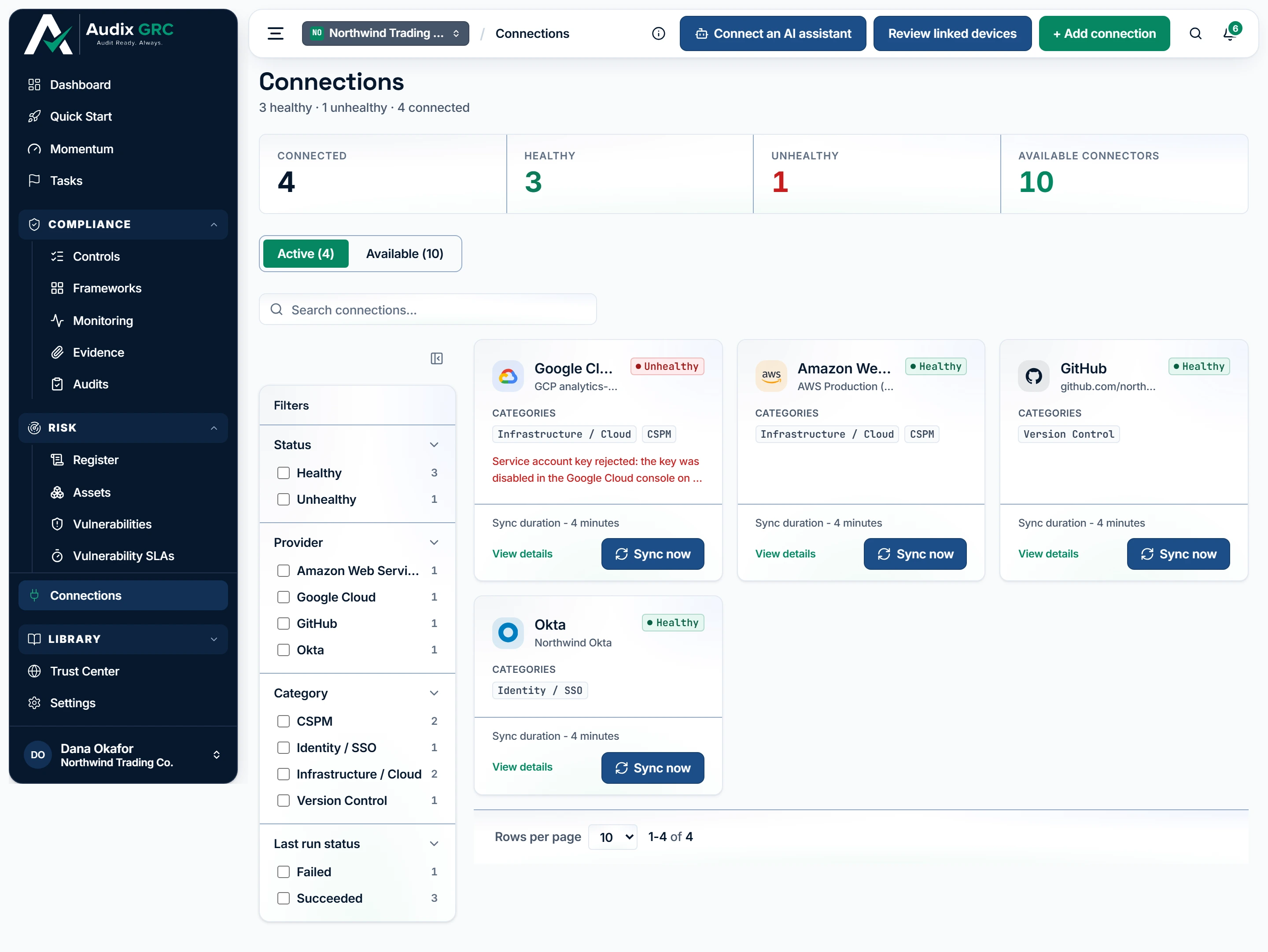
- Connected, and still working. A credential that has stopped being accepted is counted as unhealthy here, so you learn it from this page rather than from checks that quietly stopped passing.
- Add a connection. Only an admin sees this: a member can read every screen in this section but cannot add a tool or start a sync.
What a connection does once it exists
Your connected tools with health, category and last sync. Tiles for Connected, Healthy, Unhealthy and Available. Add connection and Sync now show for admins only.
Available tab
The full catalogue grouped by category, each card saying how it authenticates and how many checks and controls it switches on.
Add a connection
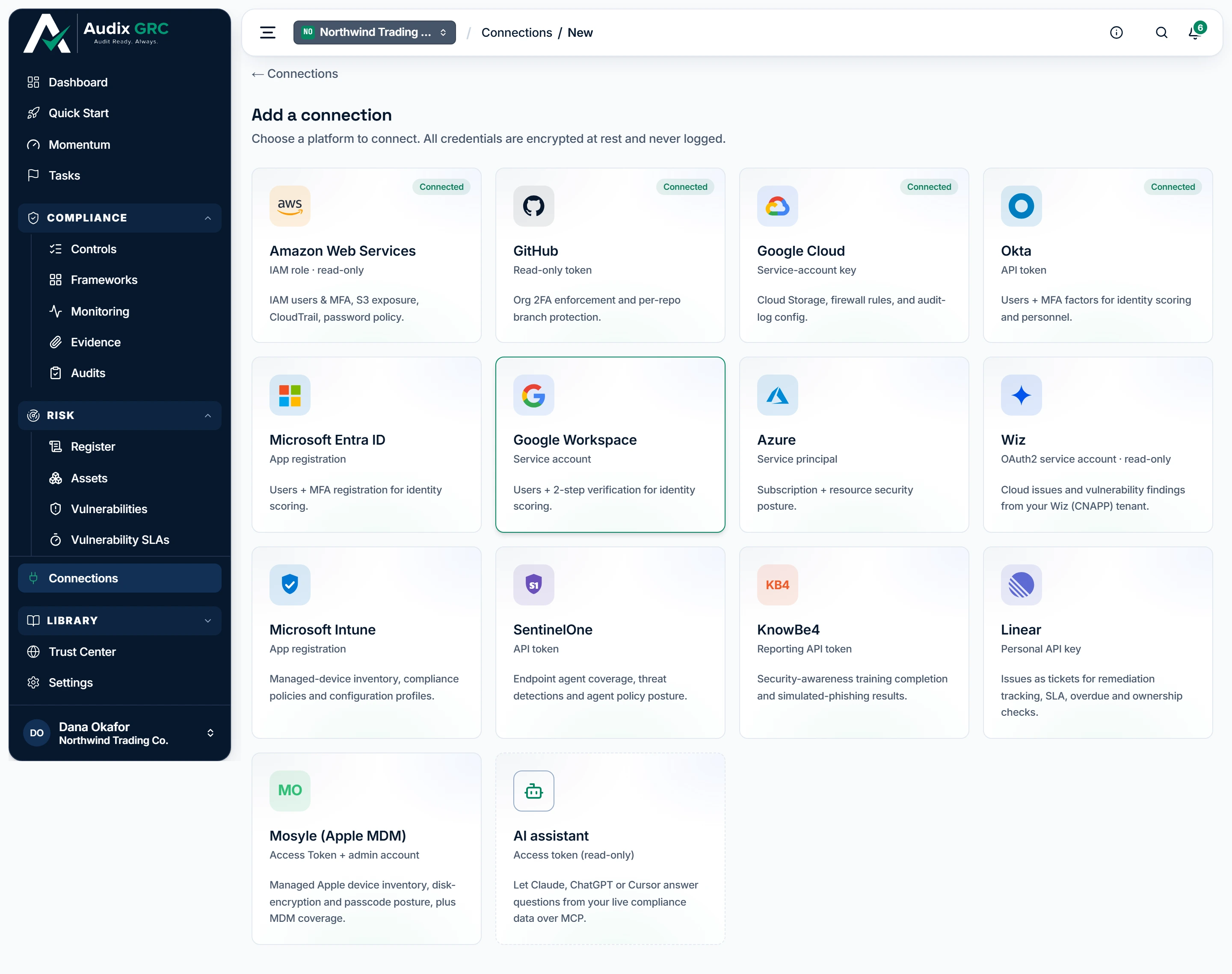
- Already connected. A tool you have connected stays in the picker, because you can connect the same one twice - two AWS accounts, say.
- Not only cloud platforms. Device managers, endpoint agents, training tools and ticketing systems are connected the same way, and every card states what it will read.
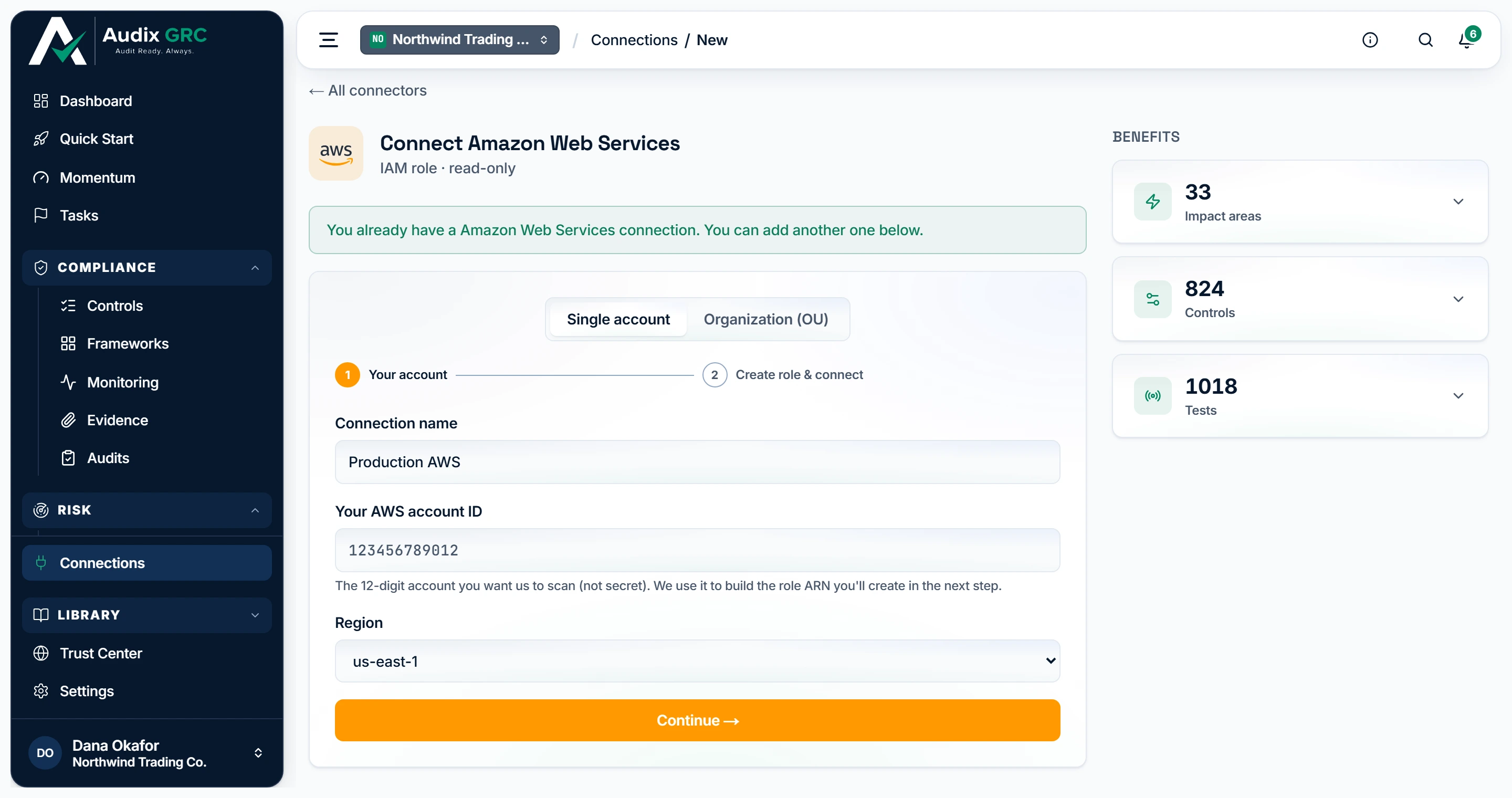
- What connecting it switches on. The controls and tests this one tool would start evidencing, counted before you connect it, and each number opens to the list behind it.
- The role lives in your account. Step two hands you a CloudFormation template that creates a read-only role trusting this platform, so no AWS key is ever typed in here or stored.
Nothing is stored until the credential works
The tool picker, then a three step form: Provider, Capabilities, Connect.
Connection detail
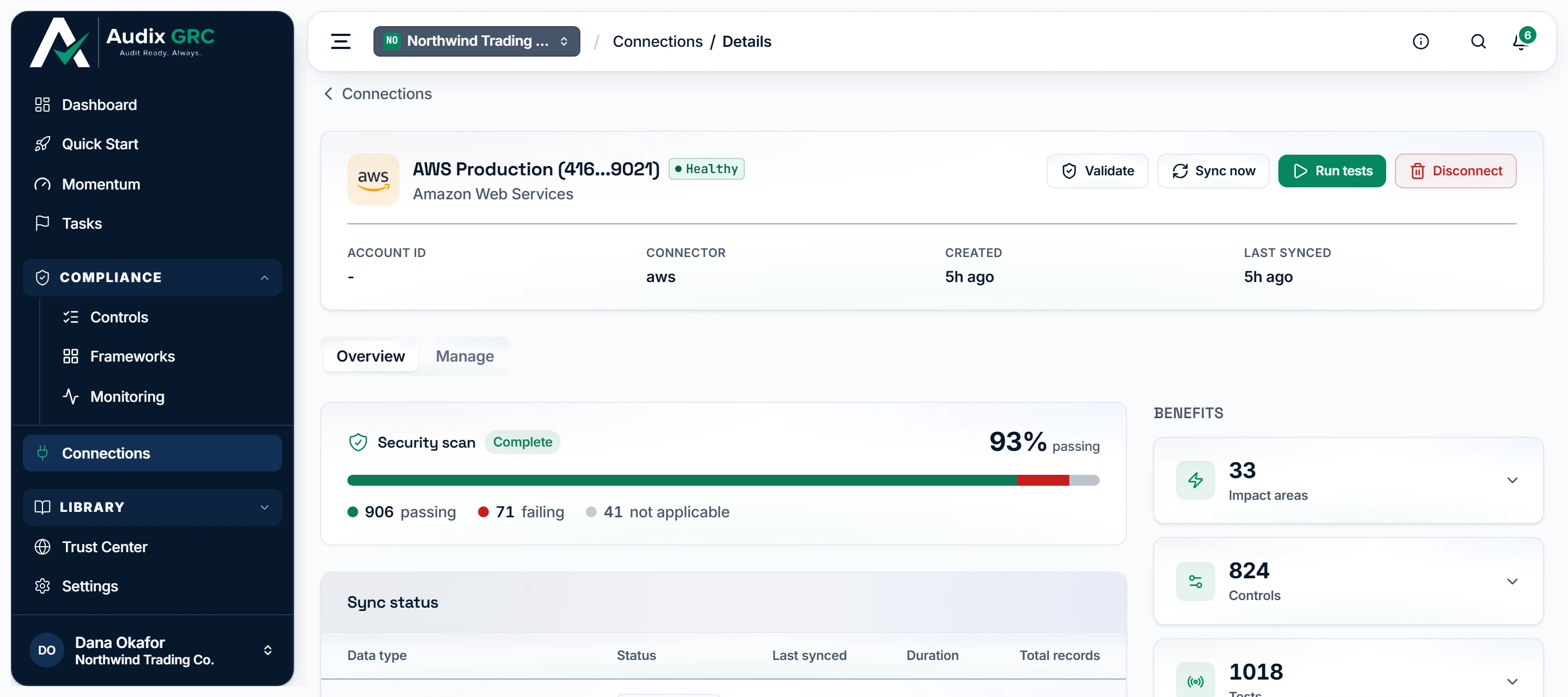
- What this tool's checks say. The share of this connection's checks currently passing, with the failing and not-applicable counts beside it, re-evaluated every time it collects.
- Collect now. Collection happens on its own every fifteen minutes; this is for when you have just fixed something in the tool and do not want to wait.
Security scan results, a per data type sync table, what this connection covers, and the list of checks it runs. A Manage tab holds setup details.
Review linked devices
Every device your device tools report and which person it belongs to, with the unmatched ones called out.
What you can do
Connect a toolLive
Hand over one read-only credential and start collecting.
As a member
- Not available. The page explains that only admins can add connections and suggests asking one.
As an admin
- Click Add connection and pick the tool.
- Step Provider confirms what you are connecting and how it authenticates.
- Step Capabilities lists the data types this tool will collect. They are all read-only and all on.
- Step Connect asks for the credential. How do I get this? expands into numbered instructions with a link to the tool's own documentation.
- Click Connect. The platform calls your tool with the credential before storing anything. If it does not work you get the provider's own message and nothing is saved.
- On success the first sync starts straight away and you land on the connection page, which refreshes itself while the scan runs.
Rules that apply
- The credential is encrypted before it is written down and is never returned by any screen or API after that.
- You can connect the same tool more than once, for example two AWS accounts.
- If the credential stops working the connection goes Unhealthy and says why.
Connect AWS without handing over keysPartial
Connect an AWS account using a role that trusts this platform, so no AWS keys are ever stored anywhere.
As a member
- Not available.
As an admin
- Choose AWS. The page shows an External ID that belongs only to your organisation, plus the platform's own account number.
- Click Launch CloudFormation stack, or download the template and run it yourself.
- In your AWS console, create the stack. It makes a read-only role that trusts the platform account, and only when the request carries your External ID.
- Wait for the stack to finish, come back, and click Connect AWS.
- The platform assumes that role to prove it works, then starts collecting.
Rules that apply
- No AWS access keys are stored. The platform borrows a role for the length of each call.
- The External ID is unique to your organisation and cannot be guessed for anyone else's.
- To revoke access, delete the stack. Nothing else is needed.
- There is also an Organization mode for scanning many accounts at once. The screens are finished but the connection itself is not accepted yet, so use single account for now.
Keeping it in syncLive
Keep the evidence current without anybody remembering to refresh it.
As a member
- Nothing to do. The connection card shows Syncing while a run is happening and how long the last one took.
- The connection page refreshes itself while a scan is in progress.
As an admin
- Syncs run on their own every fifteen minutes. You do not need to do anything.
- To collect now, click Sync now on the card or the connection page.
- Watch the Sync status table fill in per data type, with a record count and duration for each.
- When a sync finishes, every check that depends on that tool is re-evaluated automatically and your scores move.
Rules that apply
- A Partial run means one part of the tool could not be read, for example a repository that has been deleted. What was collected is kept and the rest is retried.
- A failed run is retried automatically with a growing gap between attempts. A connection that failed is still picked up by the next scheduled sync.
- A run that hangs for more than an hour is abandoned and the connection is marked unhealthy, rather than sitting on Syncing forever.
- Changes between syncs are recorded, so you can see what was created, changed or removed.
What one connection coversLive
See in one place how healthy a connection is, how deep the last sync went, and how its checks are doing.
As a member
- Click View details on any connection.
- Security scan shows how many of this tool's checks pass, fail, or do not apply.
- Sync status lists each data type with a status, a record count and a duration.
- The side panel breaks down what this connection switches on: impact areas, controls and tests. Each links through to the real thing.
- The checks table lists every check this tool runs. Click a row for a plain English summary, the raw evidence behind it, and an optional AI review.
As an admin
- Same as a member, plus Validate, Sync now, Run tests and Disconnect in the header.
Rules that apply
- A result of Inconclusive means the check could not read what it needed. It is never counted as a pass.
- Not collected and No records mean different things. The first says the sync did not get that far, the second says the tool genuinely has none.
- Run tests re-evaluates every check in your organisation, not only this connection's.
Choose which GitHub repositories are testedLive
Stop archived or irrelevant repositories from dragging your results down.
As a member
- Open the Manage tab to see which repositories are included. The tick boxes are read-only.
As an admin
- Run at least one sync so the repository list exists.
- Open Manage, tick the repositories you want tested, untick the rest.
- Click Save selection, then Sync now to apply it.
Rules that apply
- If you select nothing, every repository the token can see is tested.
- The change takes effect on the next sync, not immediately.
Match devices to peopleLive
Make sure every laptop your device tools report is attached to the right person, so disk encryption and endpoint coverage count towards someone.
As a member
- Click Review linked devices on the Connections page.
- Four tiles show how many devices were collected, linked, unlinked and excluded.
- A banner explains why the unmatched ones are unmatched, in plain words. For example "this tool sends no user with the device, so nothing can be matched on".
- Filter by device status or search by person, device or user.
As an admin
- Same as a member, plus an action on every row.
- On an unmatched device, click Link device and pick the person from your roster.
- If it is a server or a kiosk rather than someone's laptop, click Not a person and say why.
- On a linked device, use Change to link it to someone else, unlink it, or exclude it.
- Most devices link themselves by the email the tool reports. That happens when you recompute personnel compliance.
Rules that apply
- A link you make by hand survives every later recompute, even if the device's reported email later changes.
- Unlinking an automatic match is temporary. The next recompute will link it again. To detach it for good, mark it Not a person.
- Devices already collected stay on this list even after you disconnect the tool that reported them, and the page says so.
Disconnect a toolLive
Remove a connection and the credential behind it.
As a member
- No button.
As an admin
- Open the connection and click Disconnect.
- Confirm. The credential, its sync history and its collected state are removed.
- Delete the token or CloudFormation stack in your own tool as well. The platform cannot revoke it for you.
Rules that apply
- Checks that depended on that tool stop having anything to read and go back to being unassessed.
- Devices collected earlier remain on the device list, marked as coming from a tool that is no longer connected.