Dashboard and setup
The four screens at the front of the platform: where you stand, what to set up, whether you are improving, and what is on your plate.
The Dashboard says where you stand. Quick Start says what to set up. Momentum says whether you are getting better and what is worth doing next. Tasks says what is on your plate.
None of these screens keeps records of its own, apart from two ticks on Quick Start. Every number is read back from Scoring, Connections, Evidence, Personnel, Policies and Deadlines. Change something in one of those modules and these screens change with it.
A number that cannot be read is never shown as a zero. The platform says the read failed and leaves the tile out.
Who uses this
Admin
Can read all four screens, tick the two manual Quick Start steps, fill in the organization profile, set a control's owner from Tasks, send an evidence request, and invite someone by email
Cannot change the scoring weights from here. That happens in Settings
Member
Can read the Dashboard, Quick Start, Momentum and Tasks in full, run the Flight plan, and generate the AI posture summary
Cannot tick a manual Quick Start step, set a control's owner, or send an evidence request
Approver
Can everything a member can
Cannot anything extra. No screen here treats an approver differently from a member
Auditor
Can open and read all four screens
Cannot change anything. Every write is refused with "Auditors have read-only access"
Outside party: someone an admin invites by email
Can receive an invitation link from the Tasks assignee popover and accept it
Cannot see any of these screens, or be assigned work, until they accept and sign in
The screens
Compliance Overview
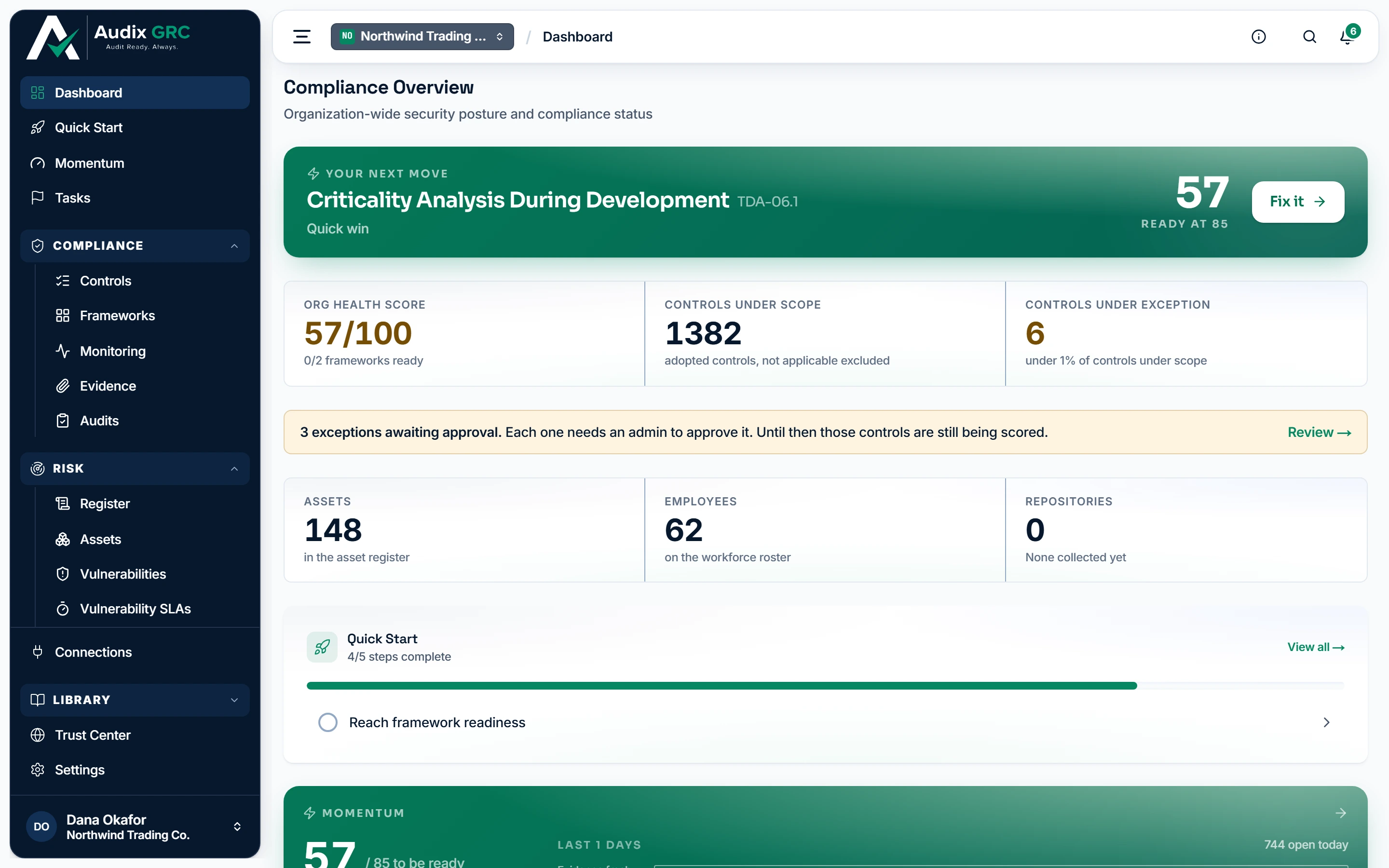
- Your next move. The single highest-impact action available right now, with the score it would gain.
- Readiness score. Calculated from controls, their evidence and their policies. It moves on its own as checks run.
Where the readiness score comes from
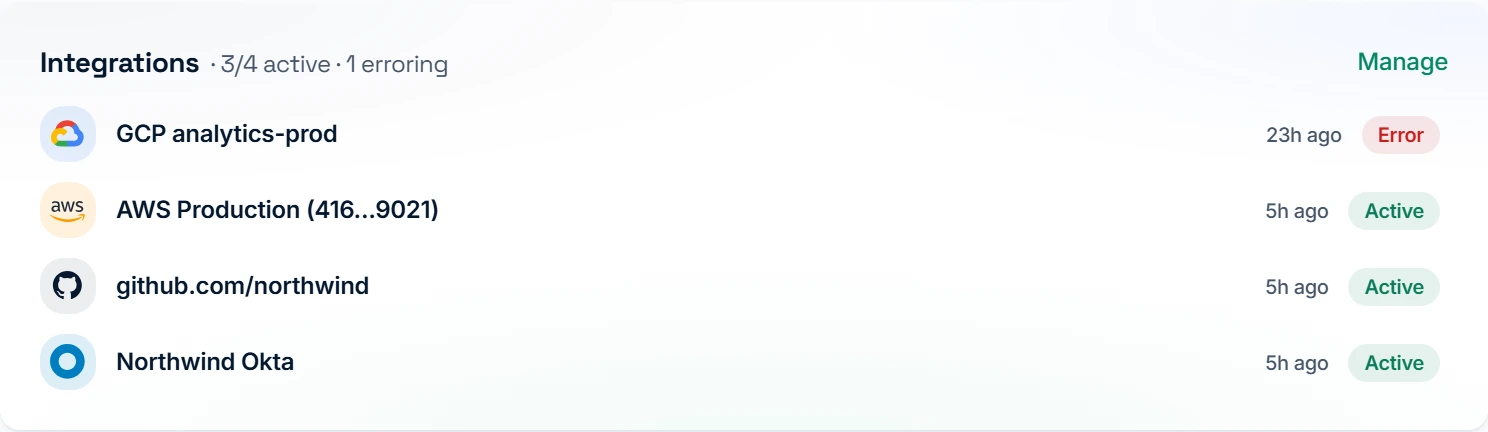
The posture band, the register band, the Quick Start widget, the Momentum card, automated tests, the framework rail, the AI summary, the posture trend, upcoming work, integrations, personnel, policies, evidence status and the worst controls.
Choose frameworks
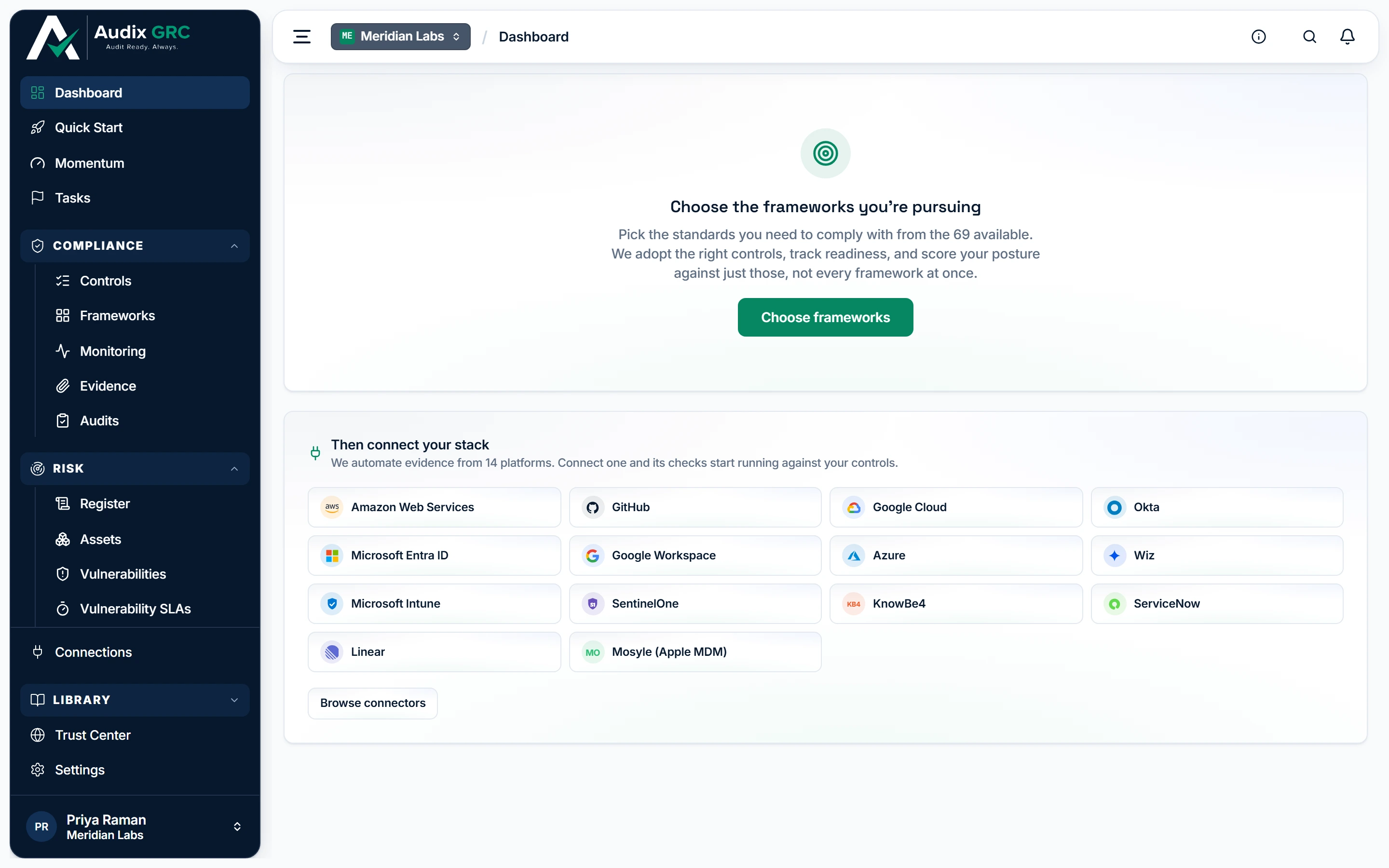
- Choose a framework first. Audix adopts the controls it requires and scores you against those, rather than every framework at once.
- Then connect your stack. Checks start collecting evidence on a schedule.
What setup actually does
Replaces the whole dashboard with two panels: Choose the frameworks you're pursuing and Then connect your stack.
Quick Start
Six collapsible sections of setup steps with live sub-checks, an overall percentage, and the organization profile form.
Momentum
Five stacked panels: Momentum, Mission Control, Crew, Coverage from your integrations, and How you compare.
Tasks
A scope switch, stat tiles, a filter rail, and a table of every control that is not ready.
Request evidence
A drawer with What's needed, Control, Assign to and Due date.
Assignee popover
The member list, Unassign, and a row to invite someone by email.
Scoring Configuration
A read-only view of the thresholds and weights behind your score.
Drift
Nothing. It sends you to Events.
What you can do
See where you standLive
One screen that states your compliance position and links every number to the page that produced it.
As a member
- Sign in. The dashboard is the landing page.
- Read the top band: Org Health Score out of 100 with N/M frameworks ready under it, Controls under scope, and Controls under exception with the waived percentage.
- Read the register band: Assets, Employees, Repositories.
- Scroll the cards: automated tests, frameworks, posture trend, upcoming work, integrations, personnel, policies, evidence status and the worst controls.
- Click a tile to drill in. Org Health Score opens Frameworks, Controls under scope opens the in-scope controls, Controls under exception opens the active exceptions, Assets opens the asset register, Employees opens Personnel.
As an admin
- Everything a member does.
- Act on the amber strip N exceptions awaiting approval. It opens the pending list, and approving an exception is admin-only.
Rules that apply
- A read that fails is never shown as a zero. If the register counts cannot be read, the whole band is replaced by a line saying they were left out rather than shown as zeros.
- The score covers only the frameworks you selected. 0/2 means your two, not two out of the whole catalog.
- Until you select a framework, the whole dashboard is replaced by the Choose the frameworks you're pursuing panel.
- Automated test results are filtered to checks that can actually run. A check for a platform you never connected is dropped, not counted as not applicable.
- Repositories is the only tile with no link. No page in the app lists every repository.
- When a test result lands after the last score was calculated, a banner says the score is recomputing and the page reloads itself once.
Read the score and watch it moveLive
Turn the whole control estate into one number, and show whether that number is going up.
As a member
- Read Org Health Score in the top band. It is green at 80 or more, amber from 50 to 79, red below 50.
- Open How is organization posture calculated? under Details. A control counts as ready when its automated test passes, its evidence is fresh and it is marked implemented, weighted 50, 30 and 20 by default.
- Read the Frameworks rail. Each row gives the framework, its percentage, a colored bar, a band pill of Ready, Mostly ready, In progress or Not started, and how many controls and requirements are met.
- Read Posture trend and pick 30D, 90D, 180D or 360D. A range stays disabled until enough daily snapshots exist to fill it.
As an admin
- Everything a member does.
- Change the weights and thresholds in Settings. Saving there recalculates every score.
Rules that apply
- Posture is snapshotted once a day. On a new organization the trend card says the first point appears after tonight's run.
- A manual recompute updates the control, framework and organization scores but writes no history point, so it does not add to the trend.
- The band cut-offs follow your own ready threshold. In progress runs up to 50 or the ready threshold, whichever is lower.
Work through Quick StartLive
A sequenced setup path where the platform watches your progress instead of asking you to claim it.
As a member
- Open Quick Start from the sidebar. The header reads N% completed and N of M steps.
- Expand a section. The six are Provide basic info, Make connections to power automation, Establish continuous compliance for your frameworks, Ensure your personnel stays compliant, Set up your policies and What's next.
- Expand a step. Each gives Prep work:, Expected time:, sometimes Unlocks:, then a Progress list of sub-checks with live counts, an in-place panel, or an explanation.
- Click the step's button, for example Go to Connections or Go to Personnel, and do the work in the module that owns it.
- Come back. The tick is already there, because the underlying data changed.
- On Tell us about your organization you can read the saved answers and the framework ranking. The form itself is read-only for you.
As an admin
- Everything a member does.
- You also get the step Enter your company info, which members do not see.
- On Review gaps and plan remediation action and Verify employment status of personnel, click Mark complete. Click Mark not complete to clear it.
- On Tell us about your organization, answer the five questions and click Save and continue, or Save answers once a profile exists.
Rules that apply
- Only two steps can be ticked by a person. Every other tick is derived from live data and cannot be set by hand.
- A tick belongs to the whole organization, not to you. Everyone in the workspace sees it.
- Marking the same step twice changes nothing. The first person and time are kept.
- Steps in a section your workspace has switched off are dropped from the list and from the percentage.
- Enter your company info is left out for members because the read behind it is admin-only, so their progress could not be observed.
- If part of the page could not be read, a line says the steps may show less progress than you have actually made.
Track setup from the dashboardLive
A five item summary of setup, on the dashboard itself, so you do not have to open Quick Start to see how far you are.
As a member
- Find the Quick Start card. It reads N/5 steps complete with a bar.
- Up to three unfinished steps are listed, drawn from Connect a platform, Adopt controls, Run continuous tests, Collect evidence and Reach framework readiness.
- Click one to go straight to the page that finishes it.
- Click View all to open the full Quick Start.
Rules that apply
- The card disappears from the dashboard once all five are done.
- Its five steps are a shorter, different list from the steps on Quick Start, so the two percentages measure different things and will not agree.
Get told your next moveLive
Put one instruction at the top of the dashboard: the single open control that would move your health score most.
As a member
- Land on the dashboard. The dark banner sits above everything else.
- Read the eyebrow: Your next move, Nothing blocking you, or Momentum unavailable.
- Read the control title and reference, then the effort line: Quick win, Worth a session or Bigger job, followed by which of your frameworks the fix moves.
- Read the score on the right. It counts up once, then shows an arrow to the projected score with +N from this or Ready at N under it.
- Click Fix it to open that control.
Rules that apply
- A failed read is reported, not defaulted. The score renders as a dash rather than 0, and the copy says this is a gap in the reading and not a clean bill of health.
- Nothing blocking you is the real case where everything is ready or waived. It is not the same as a failed read.
- The ranking behind this banner is the same one Momentum shows, calculated once and held for a minute.
Hear when something crosses a lineLive
Say out loud when something that was passing stopped passing, and mark the moment a framework first reaches ready.
As a member
- Land on the dashboard.
- If controls or frameworks lost readiness since this browser last looked, a red strip appears: N things stopped meeting their bar. Click Look at it to open Monitoring, or dismiss it.
- If a framework gained readiness, a full screen dialog appears with the eyebrow Cleared for go, the framework name, and See the framework. Press Escape or click the backdrop to close it.
Rules that apply
- Nothing fires on a first visit. The browser records where it got to and announces nothing.
- A crossing is marked as seen the moment it is read, not when you dismiss it.
- A loss gets an inline strip. Only a framework reaching ready takes the whole screen.
- This memory is per browser. A second machine announces a crossing it never showed you.
Measure progress against your own pastLive
Show whether you are improving compared with your own history, and rank the open work by what the scorer says each item is worth.
As a member
- On the dashboard, read the Momentum card: the score, / N to be ready, the 30 day change, an N-day streak flame when a run is live, and Best N.
- Read the day grid under Last N days. Three rows, Evidence fresh, Checks green and Nothing overdue, one cell per day. Filled means the run held, hollow means it broke, faint means the day was not measured.
- Click the card to open Momentum.
- Read the dial: the score, the projected arc for the best next move, the altitude band (On the pad, Taxiing, Climbing, Cruising, Cleared) and Ready at N.
- Read the three streak rows, each with its own 30 cell strip, and the coaching sentence above them when one is offered.
- Read the milestone list: the ones already banked, the next open one, and how many follow.
- Read Worth doing next: the impact against effort chart, up to four ranked rows, and the Flight plan under them.
Rules that apply
- Streaks are measured from the daily snapshots, not from signing in. A day with no snapshot ends the run instead of being counted through. There is no login streak, on purpose.
- Each day has three states, not two: the run held, the run broke, or the day was not measured. That keeps a streak of zero apart from not having watched long enough.
- The milestones are first framework ready, health past 25, 50 and 75, and a clear month each on evidence, checks and deadlines. A milestone is claimed only once the history shows the crossing.
- Best N is the largest 30 day gain in your own history. A personal best needs the current 30 day change to be positive and at least as large.
- The ranking is not a guess. The scorer is run once for each candidate control to get its exact projected gain.
- Effort comes from the control's own state. A check that is already wired and failing is the cheapest fix. Missing or stale evidence sits in the middle. A control with no automated check at all is the most expensive.
- A momentum read that fails says so. It is never shown as a score of zero.
Plan a combination of fixesLive
Answer what it would take to reach a given score, for several fixes together rather than one at a time.
As a member
- On Momentum, scroll to Flight plan under the ranked list.
- Tick up to eight controls. Each row shows its reference, its title, and either +N on its own or No change on its own.
- The footer recalculates: N selected, the score you are on and the score you would land at, and Lands at with the altitude band.
- If the plan unlocks requirements, a line says how many, across how many frameworks.
Rules that apply
- Each tick sends the same change the ranked row was labelled with, so the total is built from the same arithmetic as the per row figures above it.
- The result is not the sum of the individual gains. Two fixes that feed the same requirement gain less together than their two numbers added up.
- The board takes eight controls at a time.
Answer whether you could go todayLive
Say per framework whether you would pass right now, show what recently crossed a threshold, and count down the nearest open audit.
As a member
- On Momentum, read the countdown card when an audit is open: Launch window closes, the audit name and close date, the days left, then your measured pace and the score you arrive at.
- Read Go / No-Go with N/M GO beside the title. Each framework you are pursuing is one row reading GO or NO-GO, with either All N mapped controls ready. or N of M controls still holding it.
- Read Flight recorder: up to twelve recent crossings, each as the subject plus reached GO, dropped to NO-GO, came online, went offline or moved N to M, with a relative time.
Rules that apply
- The board lists only the frameworks you selected. Without that filter it would read NO-GO against hundreds of standards nobody chose.
- The countdown picks the soonest audit that is active, in review or awaiting changes and has an end date.
- The arrival estimate is a straight line drawn from your measured 30 day pace, held between 0 and 100, and shown only while the audit is still ahead. It is an extrapolation, not the scorer's forecast.
- The pace can be negative, and the card says so rather than only congratulating you.
- Every line in the flight recorder is a crossing written by the scorer. None of them records someone opening a page.
See who owns what is openLive
Show who is accountable for the work still outstanding, and how much of it has nobody's name on it.
As a member
- On Momentum, read the Crew card.
- If there is unowned work, a strip says N of M open controls have no owner. Click Assign them to open Controls.
- Read the rows. One person per row: their name, N open, N holding.
- Holding means ready controls this person owns, the work already standing up.
As an admin
- Everything a member does.
- Assign an owner from Controls or from Tasks. Both are admin-only writes.
Rules that apply
- The list is alphabetical, on purpose. There is no rank and no score per person.
- Controls marked not applicable are skipped entirely.
- An owner who has left the organization is shown as Former member rather than dropped.
See what each integration coversLive
Say what each connected tool covers of the controls you have adopted, and what connecting one more would add.
As a member
- On Momentum, read Coverage from your integrations.
- The bar splits your adopted controls into automated and manual.
- Under Connected, each live tool shows how many controls it covers and the passing, failing and awaiting data split.
- Under Would add coverage, up to four tools you have not connected show Connect <name> and +N controls. Click one to start.
- Counts are net: only controls you have adopted that nothing already connected can check.
As an admin
- Everything a member does.
- You are the only one who can finish the connection.
Rules that apply
- A connection that is erroring still counts as connected, so it does not reappear as something to go and set up.
- The controls covered figure cannot be added up across tools. Two tools can cover the same control.
- Putting a control under a check does not make it pass.
- The whole card is hidden until you have adopted controls, because there would be no honest denominator.
Compare yourself with similar organizationsLive
Place your organization on a scale against comparable ones, without naming any of them.
As a member
- On Momentum, read How you compare.
- The sentence names your standing: in the lower quarter, below the middle, above the middle, or in the top quarter of your cohort, for your industry and headcount band.
- Read the axis under it. A box covers the middle half of the cohort, a tick marks the median, a dot marks you, labelled p25, median and p75.
- Read the footnote for the cohort size and the snapshot date.
- If there is no cohort, the panel says which of three reasons applies: no organization profile yet, with a link to Quick Start, a cohort too small to publish, or no score yet.
Rules that apply
- There is no rank and no list of peers. Three quantiles and your own dot, nothing more.
- There is no opt-in switch. Taking part is agreed in the master service agreement.
- If the comparison cannot be read, the panel shows nothing at all rather than claiming you are not taking part.
Get an AI read on your postureLive
Two different AI reads: a paragraph on demand on the dashboard, and at most one coaching sentence on Momentum.
As a member
- On the dashboard, find AI posture summary and click Generate, or Regenerate once one exists.
- While it runs the card reads Reading your scores and drafting an executive summary...
- Read the result, and the line under it: AI can make mistakes, so check it against the underlying controls.
- On Momentum, a coaching sentence appears above the streaks when there is something to say. Click Open it to go to the control it names.
Rules that apply
- The coaching sentence has no regenerate button. It is held against the facts behind it and changes when your posture changes.
- If AI is switched off, unkeyed, erroring, or has nothing to say, the coaching panel renders nothing at all rather than an empty box.
- The next move banner does not use the coaching sentence. They are two separate reads.
Work your queueLive
One live queue of the controls that are not ready, filtered to the work that is yours.
As a member
- Open Tasks. It starts on Assigned to me. The switch also offers Unassigned and Everything, each with a count.
- If nothing is yours, the page says so, explains that work reaches you when someone makes you a control's owner or sends you an evidence request, and offers Show unassigned work and Show everything.
- Read the tiles: Assigned to me or Open tasks, then Evidence missing, Evidence expired, Requested and Implementation gaps. Everything adds Unassigned.
- Filter from the rail: Status, Evidence, Assignee, Risk (health), Due date, Issue type. Options inside one group widen the result, options across groups narrow it.
- Search with Search tasks.
- Read the table: Control, Issue, Evidence, Status, Assignee, Health. Hover Health for the three factors behind it.
- Click a control code or its issue to open the control and do the work. Assignee is plain text for you: a name, or Unassigned.
As an admin
- Everything a member does.
- Click the Assignee cell, search the member list and pick someone, or pick Unassign. This sets the control's owner.
- To bring in someone new, type their email in the invite row. The result says whether the email went out, and that they become assignable once they accept.
- Click Request evidence in the header. Fill What's needed, pick a Control, optionally Assign to and a Due date, then click Send request.
- The control's row then carries a Requested pill.
Rules that apply
- There is no separate list of tasks. Every row is a control that is not ready, plus whatever assignment exists against it.
- Assigned to me matches two things: controls you own, and open evidence requests assigned to you.
- Controls marked not applicable never appear. Ready controls are carried through as Completed and stay hidden until you pick that status filter.
- Every tile counts only the rows in the scope you are looking at, so a tile cannot disagree with the table under it.
- The evidence drawer only offers controls that are not finished and have no open request already. When none qualify it says every open control already has a request out.
- If the platform cannot tell who you are signed in as, the page says so instead of showing you an empty queue.
- Rows are sorted by control code, so a row keeps its place after you act on it.
Check how the score is calculatedLive
Read back, without being able to change it, exactly how your posture score is worked out.
As a member
- Type
/scoringin the address bar. Nothing in the app links to this page. - Read the four tiles: Control Ready, Framework Ready, Requirement Met and Evidence TTL.
- Read the four panels: Factor Weights, Implementation State Weights, Evidence Weights, and Thresholds & Settings with a Risk Weighting pill reading Enabled or Disabled.
As an admin
- Identical. This page has no editor.
- Change any of it in Settings instead.
Rules that apply
- If nobody has changed the settings, the page shows the platform defaults rather than an empty screen.
- If the settings cannot be read at all, the page shows the error. If there are none for this organization, it says scoring settings are not available yet.