Trust Center
Publish one public page that answers a security reviewer's questions, and handle everything they ask next in a single queue.
Every organization gets a Trust Center the moment it is created, at a web address of its own. The page carries an overview, the certifications you hold, the documents you keep, cards describing how you work, and an assistant that answers from those published facts and nothing else.
Document titles are public. The files are not. To take a copy, a reader asks for access, waits for an admin to approve them, accepts a non-disclosure agreement, and sets a password for that one page.
Approved reviewers also get a written channel. They ask a question, request a document, or send you a questionnaire. All of it lands in one admin-only queue, where an admin writes or edits the answer and approves the exact wording before it is emailed. No machine-written text reaches an outside party without a named admin approving it.
Who uses this
Admin
Can configure the page, upload and delete documents, edit practice cards, pick badges, set where notifications go, approve or deny access requests, read the accepted agreement, and answer everything in the questionnaire queue
Cannot touch another organization's Trust Center
Member
Can open Trust Center and read the published page exactly as a visitor sees it
Cannot open the configuration form or the questionnaire queue. Configure shows a notice, and Questionnaires never appears in the menu
Approver
Can everything a member can
Cannot anything extra. No screen in this area treats an approver differently
Auditor
Can read the Trust Center page inside the app
Cannot change anything, and nothing else here is open to an auditor
Outside party: a visitor with the link
Can read the page, search it, ask the assistant, see every document title, raise a question, and request access
Cannot download a single file
Outside party: an approved reviewer
Can download documents, ask the assistant about the documents their access covers, ask questions in writing, send a questionnaire, and read their own thread
Cannot see anything you have not published. Control results, findings, evidence and staff are never part of it
The screens
Trust Center
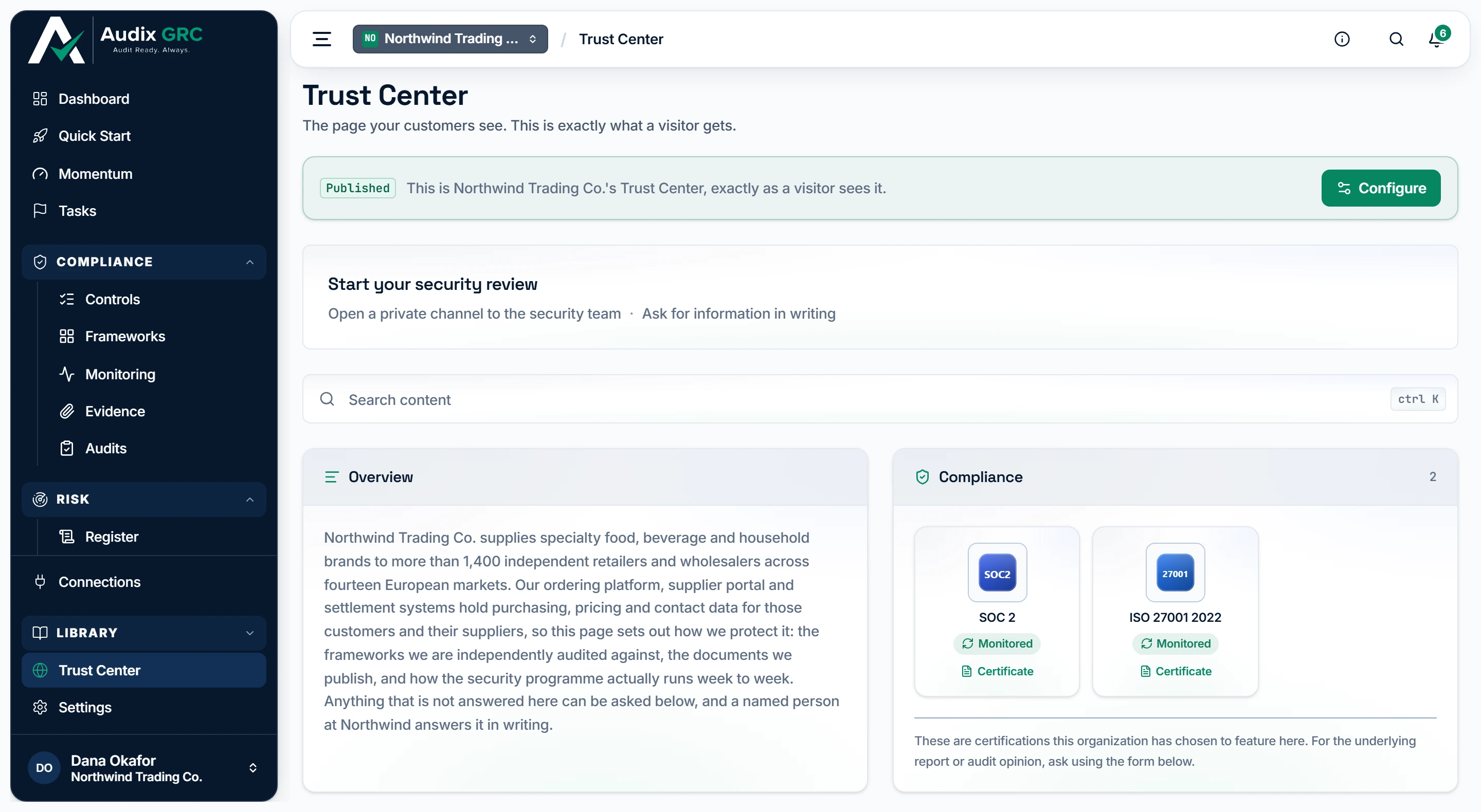
- Published, or a draft. Draft is a label for your own team rather than a lock, because anyone holding the address can already open the page.
- The way in to change it. Only an admin is offered this; every other member gets a link that opens the live page instead.
What the public page is published from, and what never reaches it
A Published or Draft banner, then your real public page rendered inline. Admins get Configure, everyone else gets Open live page.
Configure Trust Center
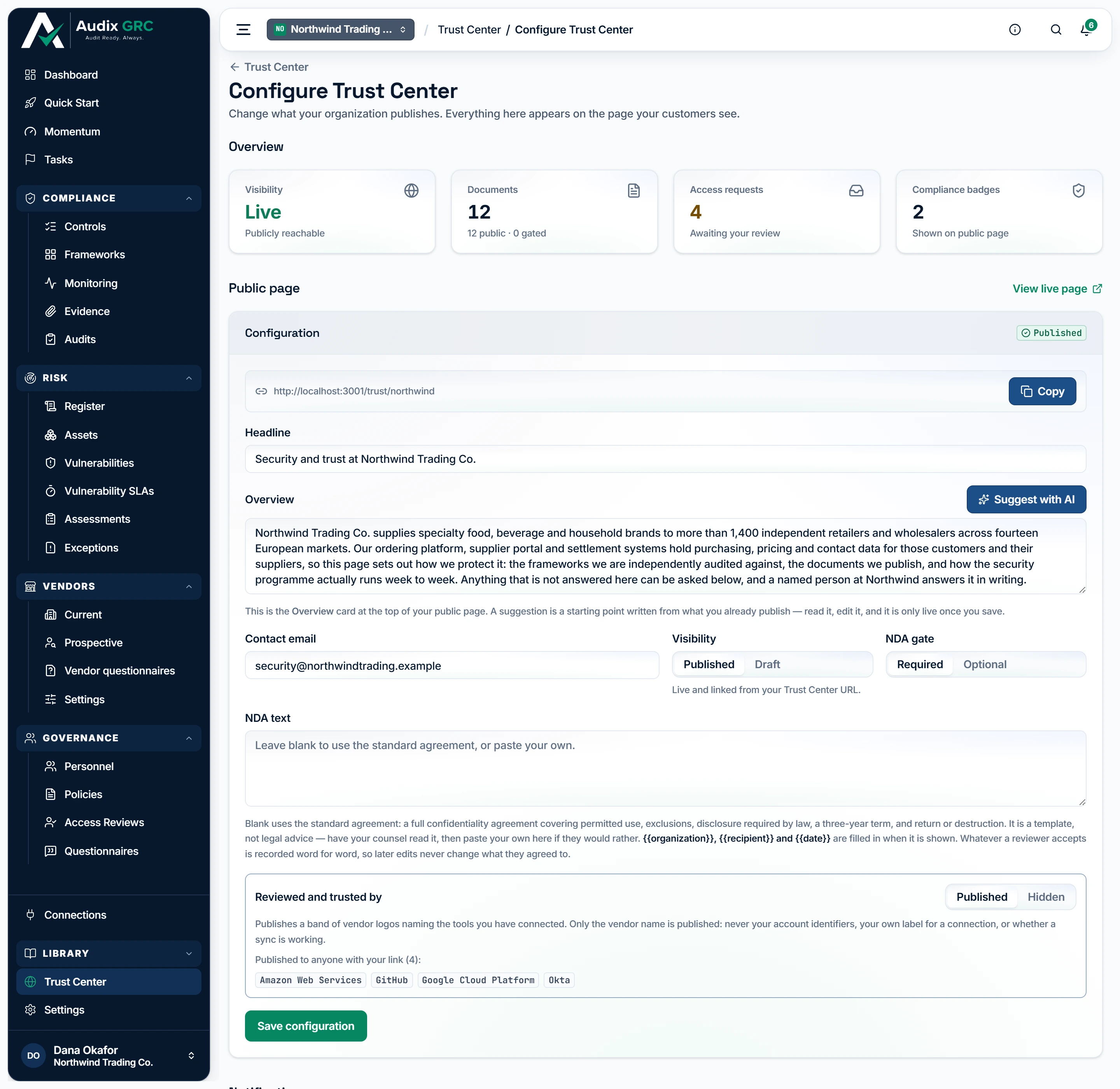
- The overview a reviewer reads first. Suggest with AI drafts it from what you already publish, and nothing is live until you save it yourself.
- The agreement that stands before a download. Left blank it serves a full standard agreement, and whatever a reviewer accepts is stored word for word so a later edit cannot change what they agreed to.
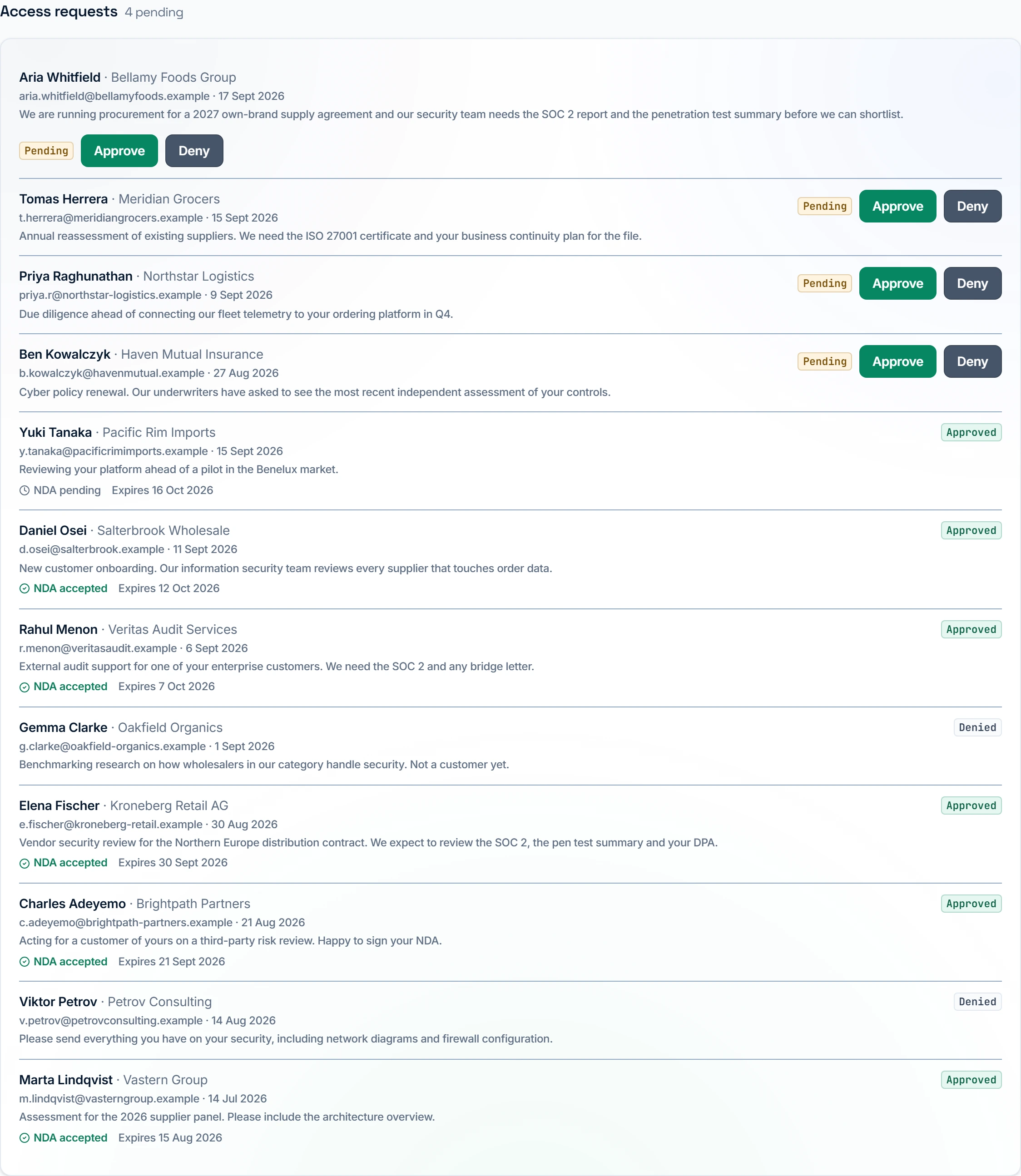
The public page settings, then Notifications, Compliance badges, Practice cards, Documents and Access requests.
Questionnaires
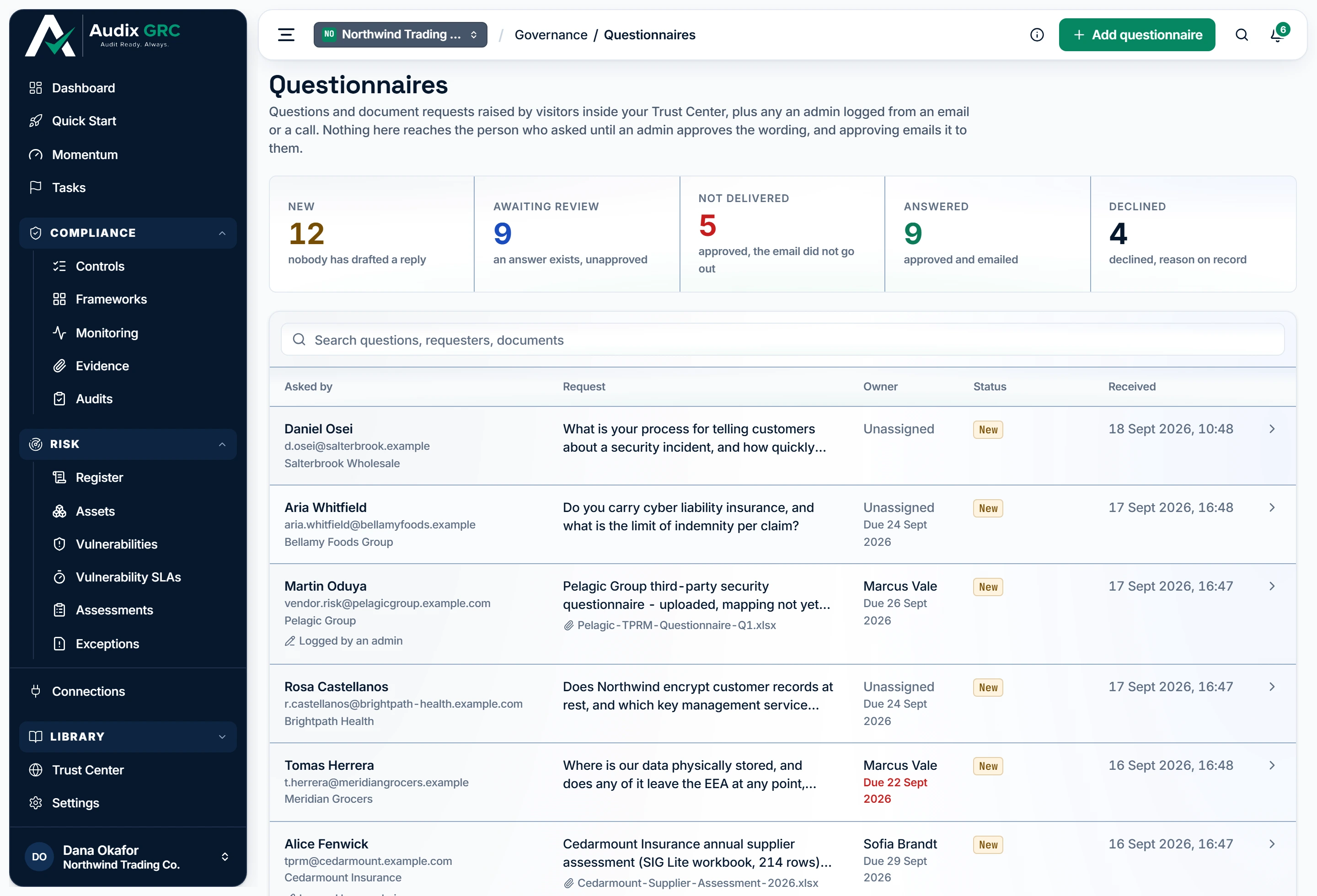
- Five buckets, whole-queue counts. Every question and document request an outside party raised sits in one of these, and the counts always describe the whole queue rather than the filter you are reading.
- Log one that arrived elsewhere. A questionnaire that came as an email attachment, or that lives in the customer's own portal, goes through exactly the same review as one raised on your page.
Three ways in, one queue, one gate
Five buckets, a search box, and a table of who asked, what they asked, the owner, the status and the date.
Your public Trust Center
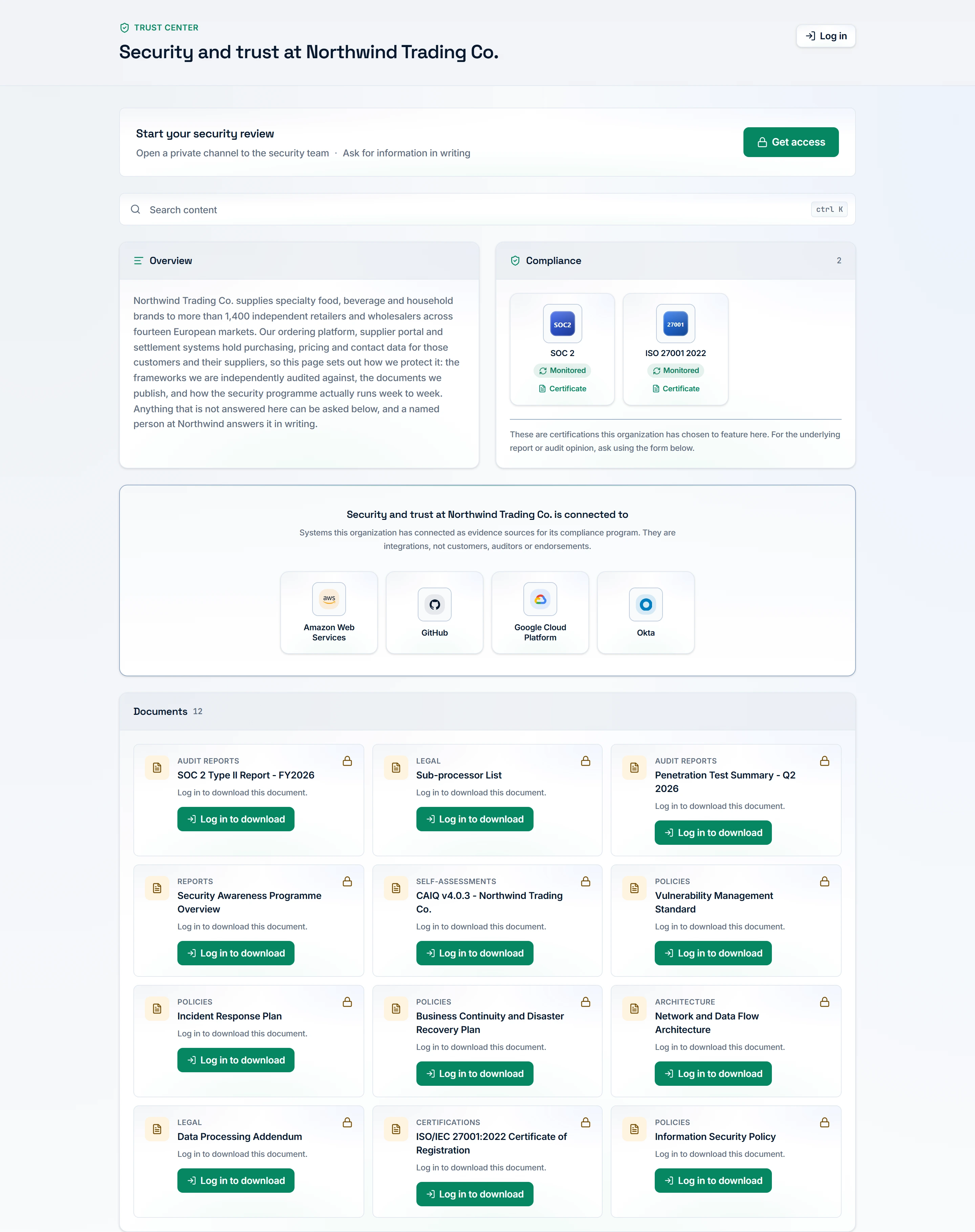
The masthead, At a glance, search, Overview, Compliance, the connected-tool band, Documents, practice cards, Ask the assistant and Ask a person.
Reviewer portal
The agreement, then account creation, then documents, the assistant and the question thread.
What you can do
Publish your Trust Center pageLive
Give reviewers one address that answers their security questions, so reviews stop arriving as email threads.
As a member
- Open Trust Center in the sidebar.
- Read the banner. It says Published or Draft, and prints the page's own address.
- Read the page below it. That is what a visitor sees.
- Click Open live page to open the real thing in a new tab.
As an admin
- Click Configure.
- Fill in Headline and Overview, or press Suggest with AI to draft the overview from what is already published, then edit it.
- Set a Contact email if you want one.
- Set Visibility to Published or Draft.
- Set the NDA gate to Required or Optional, and paste your own NDA text if you have one.
- Decide whether Reviewed and trusted by is Published or Hidden. The exact vendor names that would go out are printed beside the switch.
- Press Save configuration.
Rules that apply
- Draft does not mean private. The address opens for anyone who has it in either state. Draft is a label for your team, and the console says so.
- The address is issued when your organization is created and there is no field to change it. It is unique across the platform.
- Reviewed and trusted by starts hidden for every organization, because that band names the tools you connected.
- When it is published, the band says in as many words that these are systems you connected as evidence sources, and that they are integrations rather than customers, auditors or endorsements.
- Overview holds 4,000 characters, Headline 200, NDA text 20,000. The overview prints as plain paragraphs, so links and headings do not work there.
- The At a glance summary is written by a model from the page's published facts, and rewritten when those facts change, when you switch AI off or pick a different model, and when the platform changes how the summary is written. A practice line still reading Not published or Not assessed is not among the facts it is given, and neither is a card whose lines all read that, so the summary describes only what you have actually published.
- Setting a Contact email replaces the Request access button under Ask a person with Email the security team.
- The request buttons are missing from the in-app view on purpose, so you cannot file an access request against your own page.
Publish the certifications you holdLive
Show the frameworks you are certified against, with the certificate behind each one where you have the file.
As a member
- They appear in the Compliance card on the page. Nothing to do.
As an admin
- On Configure, scroll to Compliance badges.
- Search the picker and add a framework.
- Reorder with the up and down arrows, or press Remove.
- Pick a certificate for a badge from the documents you already uploaded. The row offers No certificate plus every document.
- Press Save badges, or Save configuration, which sends the same field.
Rules that apply
- Twelve badges is the limit.
- No readiness score, band or percentage is ever published. You choose the list by hand.
- A framework that is no longer one of your scored frameworks is dropped from the list on save, rather than failing the whole form.
- Attaching a certificate saves at once, separately from the settings form.
- With no badges the card reads "This organization has not published any certifications here."
Describe how you work with practice cardsLive
A grid of short statements about your security practices, written by an admin and printed word for word on the public page.
As a member
- They appear as cards on the page. Nothing to do.
As an admin
- Open Configure and scroll to Practice cards.
- Press Add card, or Add the six standard cards on an empty page.
- Set a Card title, an Icon, and Lines on the card. A line with a value prints as a label and a value. A line without one prints as a ticked capability.
- Press Suggest with AI to draft a value for each empty line from the documents you uploaded. Nothing it writes is saved until you save the card.
- Press Save and publish, or Save without publishing when the card has no lines.
- Hide a card to take it off the page without losing its lines.
Rules that apply
- Twenty four cards per organization, twenty lines per card.
- A card stays off the public page while it is hidden, and while it has no lines.
- Saving a card replaces its whole line list. Hiding uses a separate control, so it never rewrites what the card says.
- Every new organization is seeded with the standard set of cards, each line carrying the value Not published, so a fresh page claims nothing until you edit it.
- A line left at Not published or Not assessed is not given to the model that writes At a glance, and a card whose every line reads that is left out of it altogether. The card itself still prints on the page.
- The AI suggestion reads at most eight documents, newest first.
- Everything you write here is public. The panel says so.
Publish the title, gate the fileLive
Let a reader see what evidence you hold, and make anyone who takes a copy identify themselves first.
As a member
- The Documents card lists every document. Nothing to do.
As an admin
- On Configure, in Documents, fill in Title and Category, choose a File, and press Upload.
- Each row shows a Public pill, a download icon and a delete button.
- Use the download icon to read a file back yourself.
Rules that apply
- 5 MB per file.
- HTML, SVG and JavaScript files are refused, with the message "That file type is not accepted. Upload a document, spreadsheet, or image."
- There is no way to download a file without signing in. Titles are public, files are not.
- A document marked confidential still needs an accepted agreement before it will download through an access link.
- The Audix datasheet downloads through an access link only.
- Download all fetches each file separately, so your browser may ask you to allow multiple downloads.
Turn a stranger into an approved reviewerLive
Take an anonymous reader through approval, an agreement and an account, so they can download files and hold a written conversation with your team.
As a member
- Not available. Only an admin can see or answer an access request.
As an admin
- A bell notification and an email arrive saying Trust Center access requested, linking straight to Access requests on the configure page.
- Read the name, company, email, date and stated purpose.
- Press Approve or Deny.
- On approval the console either confirms the requester was emailed their link, or tells you email is unavailable and prints a copyable One-time access link for you to send yourself.
- Once they accept the agreement the row shows NDA accepted. Click it to read the exact text they saw, with the date.
Rules that apply
- The order is fixed and enforced on the server. Approval, then the agreement, then the account. Creating an account first is refused with "Accept the non-disclosure agreement before creating your account."
- The Trust Center password is not an Audix login. It works on that one organization's page and opens nothing else.
- Asking again from the same address never creates a second row. Within six hours nothing happens. After six hours your admins are re-notified that the request is still waiting. What the visitor sees is identical either way.
- An access link expires 30 days after approval.
- The agreement is stored word for word at the moment it is accepted, with the organization, recipient and date already filled in, so editing the template later cannot change what somebody agreed to. Requests accepted before that was recorded say plainly that no copy was kept.
- Leaving NDA text blank serves a full default agreement, not a placeholder.
- Approving also drops an in-app notification carrying the link into the reviewer's own account, when they happen to have one.
Sign back in laterLive
Get an approved reviewer back into the portal after they close the tab or lose the link.
As a member
- Not available. This is for outside reviewers.
Rules that apply
- Your session lives in the browser tab. Closing the tab, or moving to another device, means signing in again.
- Every failed sign-in returns the same message, "Those credentials do not have access to this Trust Center.", so the page cannot be used to find out who a company has approved.
- A new link replaces the old one. The previous link stops working the moment a new one is issued.
- One new link per reviewer every fifteen minutes.
- The confirmation is worded as a condition either way, so it never reveals whether an address has access.
- A reviewer with neither their password nor their email is locked out until an admin approves them again.
Let the assistant answer firstLive
Answer a reviewer's question in seconds from the page's own published facts, and hand them to a person when that is not enough.
As a member
- Open Trust Center and read the Ask the assistant panel as a visitor sees it.
- Whether the panel appears at all is set under Settings, AI. There is nothing to configure on this page.
Rules that apply
- The assistant only ever reads the published page. Control results, findings, evidence and personnel are never part of what it is given.
- 200 answers per page per day, 80 per approved reviewer, and 12 turns in one conversation. After that the box is disabled and says why.
- A question runs from 5 to 1,000 characters.
- In the reviewer portal the assistant is grounded on the documents that reviewer's access covers, and there is no escalation form, because they already have a question thread.
- A reviewer who has not accepted the agreement is shown only the document titles that are not marked confidential, because knowing which documents exist is itself covered by the agreement.
- The panel is absent when AI is switched off or the deployment has no key. A visitor is not told which.
- A question raised from the open page is capped at 15 per page per day, and the same address asking the same thing twice is not duplicated.
Answer what an outside party asksLive
Take everything an outside party asks in writing into one queue, and make a named person approve the wording of every reply before it goes out.
As a member
- Not available. Questionnaires does not appear in the menu for a member, and the page shows a lock panel.
As an admin
- Open Governance, then Questionnaires.
- Click a bucket to filter: New, Awaiting review, Not delivered, Answered or Declined. Or use the search box.
- Click a row to open the review drawer and read What was asked.
- Under Assignment set an Owner and a Due date, then press Save assignment.
- Press Draft with AI. It reads Draft from documents when AI is off, and Draft again once a draft exists.
- Edit the answer. Press Save without sending to stop there.
- Press Approve and send, read the confirmation, and press Approve and email. Or press Decline, give a reason, and press Decline.
Rules that apply
- Not delivered means an admin signed the wording off and the email did not leave. Press Approve and send again to retry it.
- Approving an empty answer is refused: "Write or edit the answer before approving it. An AI draft is not an approved answer." Only the text in the answer box is ever sent.
- The draft tries your document catalogue before it calls a model, and only for a document request. Two possible matches means no answer. Digits always count as distinguishing, so "SOC 3" cannot match a SOC 2 report.
- The row records how the sender was identified. A question typed into the open page carries a name and email nobody verified, and the drawer warns you before you email an answer there.
- A reviewer's thread only ever shows the approved, sent wording. Everything before that reads With the reviewer.
- A sent answer cannot be edited. A declined question cannot be reopened, and the requester is not emailed. Ask them to raise it again.
- 20 questions per reviewer per day, 15 from the open page per day. Questions run to 4,000 characters, answers to 8,000, decline reasons to 2,000.
- Owner and due date can be set on any row in any status, including a sent one. The due date is advisory. Nothing escalates or blocks on it.
- The counts on the buckets always cover the whole queue, never the filter you are looking at.
Log a questionnaire that arrived elsewhereLive
Put a questionnaire that came as an email attachment, or as a link to the customer's own portal, through the same review as one raised on your Trust Center.
As a member
- Not available. Only an admin can open the queue.
As an admin
- On Questionnaires, press Add questionnaire.
- Choose the File or Portal tile.
- Attach the file, or paste the Questionnaire URL.
- Fill in Display name if you want one, and Email, which is required because approving emails the answer there.
- Pick an Account from the vendor picker. The form will not submit without one.
- Pick a Questionnaire owner and a Due date if you know them.
- Press Add, Add and continue, or, in Portal mode, Add and go to portal, which also opens the URL in a new tab.
Rules that apply
- Attachments are capped at 5 MB and refuse the same file types documents do.
- A row you log yourself is marked as typed by an operator and records your name. Creating one is refused if you cannot be identified.
- A portal link is folded into the question text, so the stored record always names the portal.
- An owner has to be an active member of your organization, otherwise you get "That person is not an active member of this organization".
- Picking a vendor copies that vendor's current name onto the row. Renaming the vendor later does not change it.
- Logging a row raises no alert. You are standing right there.
- A reviewer sending their own questionnaire is never asked for an email, an account or an owner. The address comes off their approved access and anything the form claims is ignored.
Know what your brand does and does not showLive
Your legal name, email domain and logo live under Settings. Almost none of it reaches the public page.
As a member
- Open Settings to read the organization profile.
As an admin
- Edit the legal name, email domain, logo and compliance profile under Settings. No Trust Center screen touches them.
Rules that apply
- No logo, legal name or brand colour appears on your public page. The masthead prints the Trust Center Headline, falling back to "Security & Trust".
- The one place your organization name is used is the non-disclosure agreement, which fills in the name held on the organization record rather than the branding legal name.