Controls and Frameworks
Do the control work once and get credit for it against every framework you are pursuing.
Everything in this area sits on one shared catalogue of about 1,468 controls. Each control is crosswalked to the requirements of many frameworks. You adopt a framework, the platform brings every control that framework needs into your scope, and from then on work on a control counts towards every framework it touches.
A control carries an owner, an implementation state, a checklist of what good looks like, automated checks, manual checks, evidence and the policies that document it. Those inputs produce a health score out of 100, which rolls up into a readiness percentage per framework and one score for the organisation.
Scores recompute on their own whenever an input changes, and again every night. The control page works out its own number as you work; the list and the dashboard read a stored copy that catches up a second or two later.
Who uses this
Admin
Can adopt and un-adopt frameworks and controls, set owner and implementation state, add checklist items and manual checks, map checks and policies, create custom controls, and set the scoring weights and thresholds
Cannot change a catalogue control's name, code or description, or edit the crosswalk
Member
Can read every screen, tick checklist items, record a manual check as Pass or Fail, upload evidence, mark an assigned evidence request Fulfilled, and request an exception
Cannot adopt anything, set an owner or a state, map a check or a policy, or create a custom control
Approver
Can read the same screens as a member
Cannot do anything extra here. The checklist boxes and the Pass and Fail buttons are disabled on screen
Auditor
Can open every list, control, framework and score, including the requirement breakdowns
Cannot change anything at all. Every write is refused with "Auditors have read-only access"
The screens
Controls
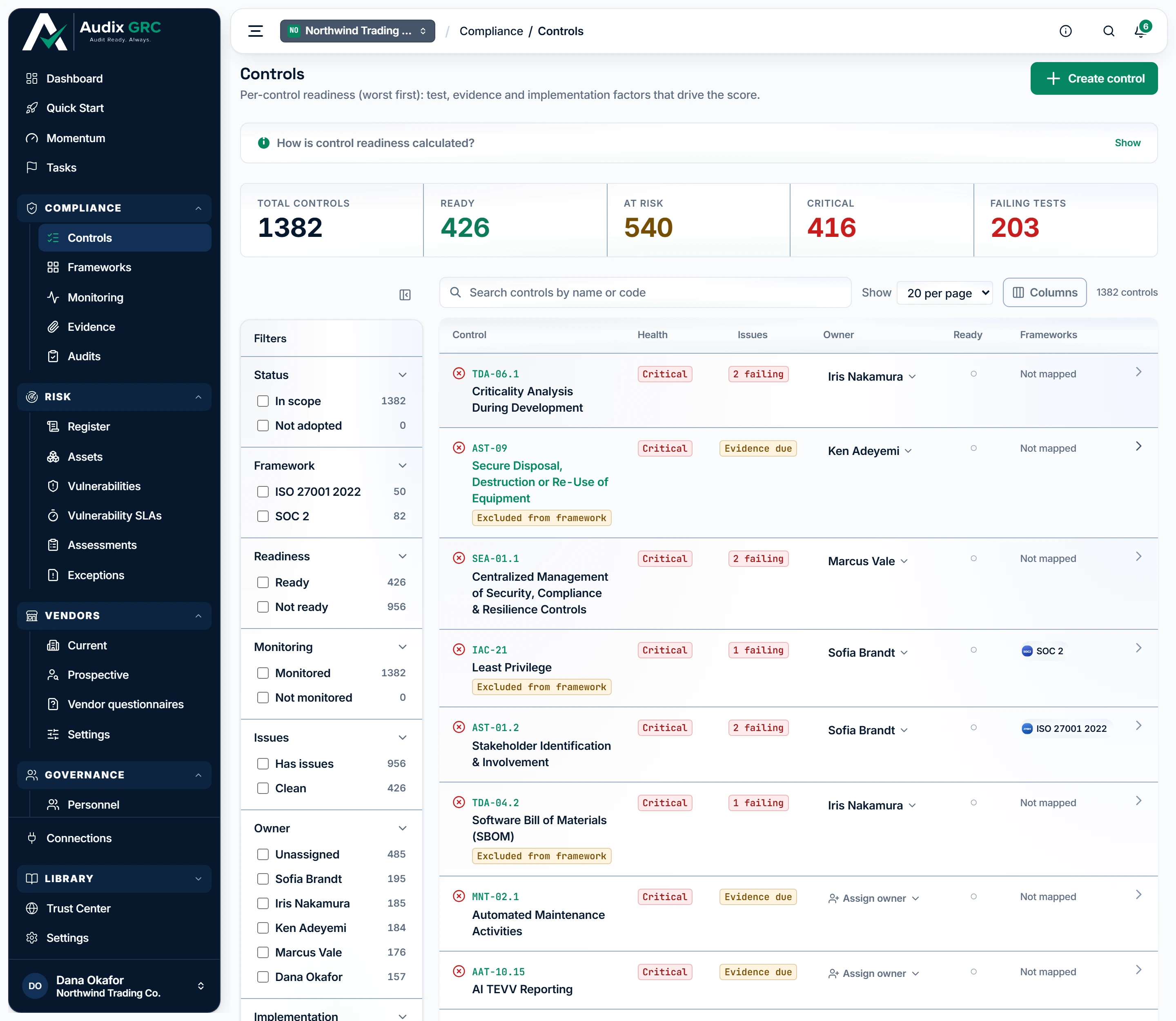
- Where the whole estate stands. Every control in scope counted by health band, so you know how much is ready before opening anything.
- Narrow it to the work in front of you. Each filter carries its own count, so you can see how many controls are unowned or failing before you click.
Every control in scope, worst health first, with tiles for Total controls, Ready, At risk, Critical and Failing tests, a filter rail, search, sortable columns and a preview drawer.
Control detail
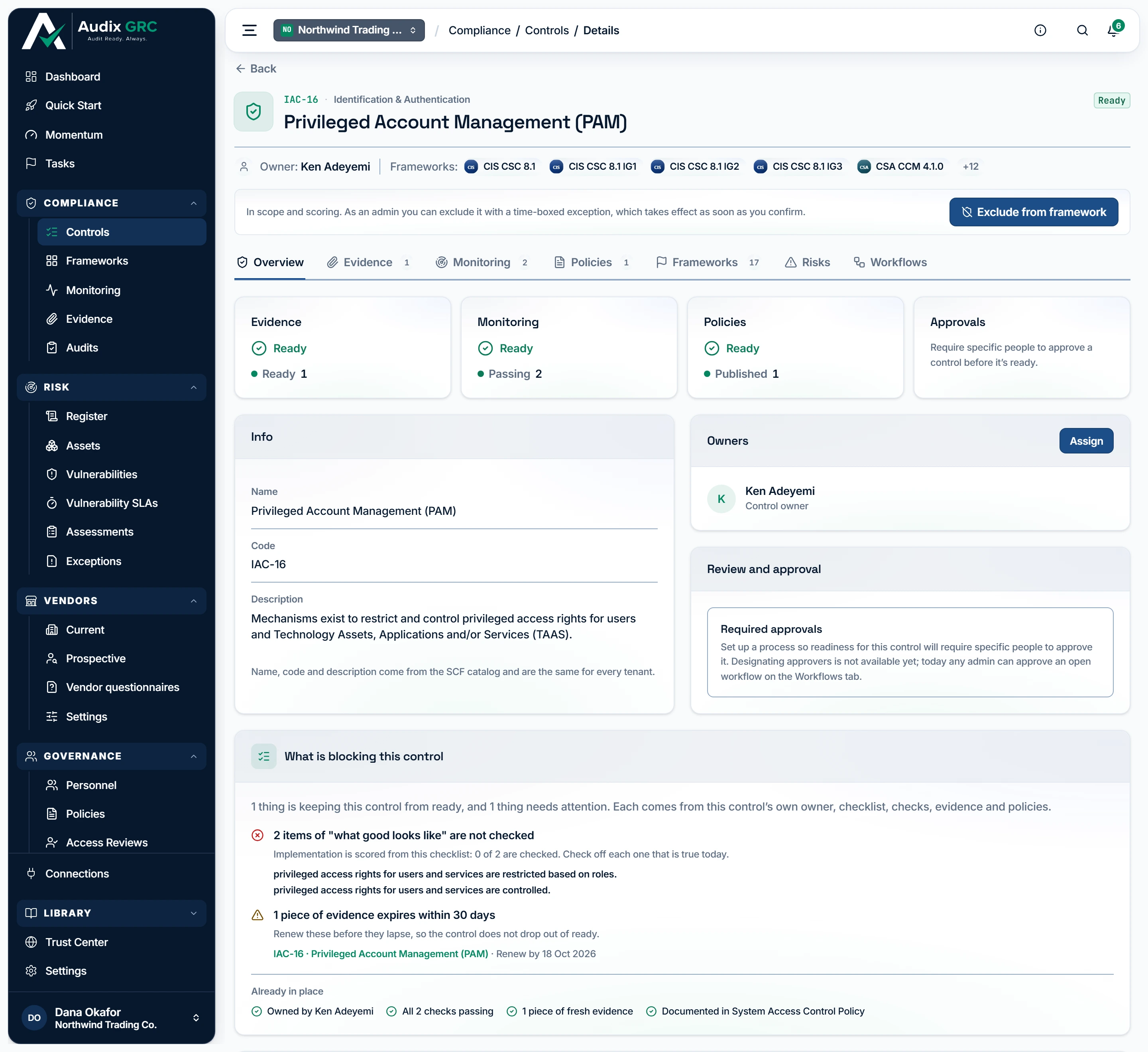
One control across seven tabs: Overview, Evidence, Monitoring, Policies, Frameworks, Risks and Workflows.
Control by code
Nothing of its own. It resolves an SCF code such as IAC-01 to that control's page, or sends you back to Controls.
Frameworks
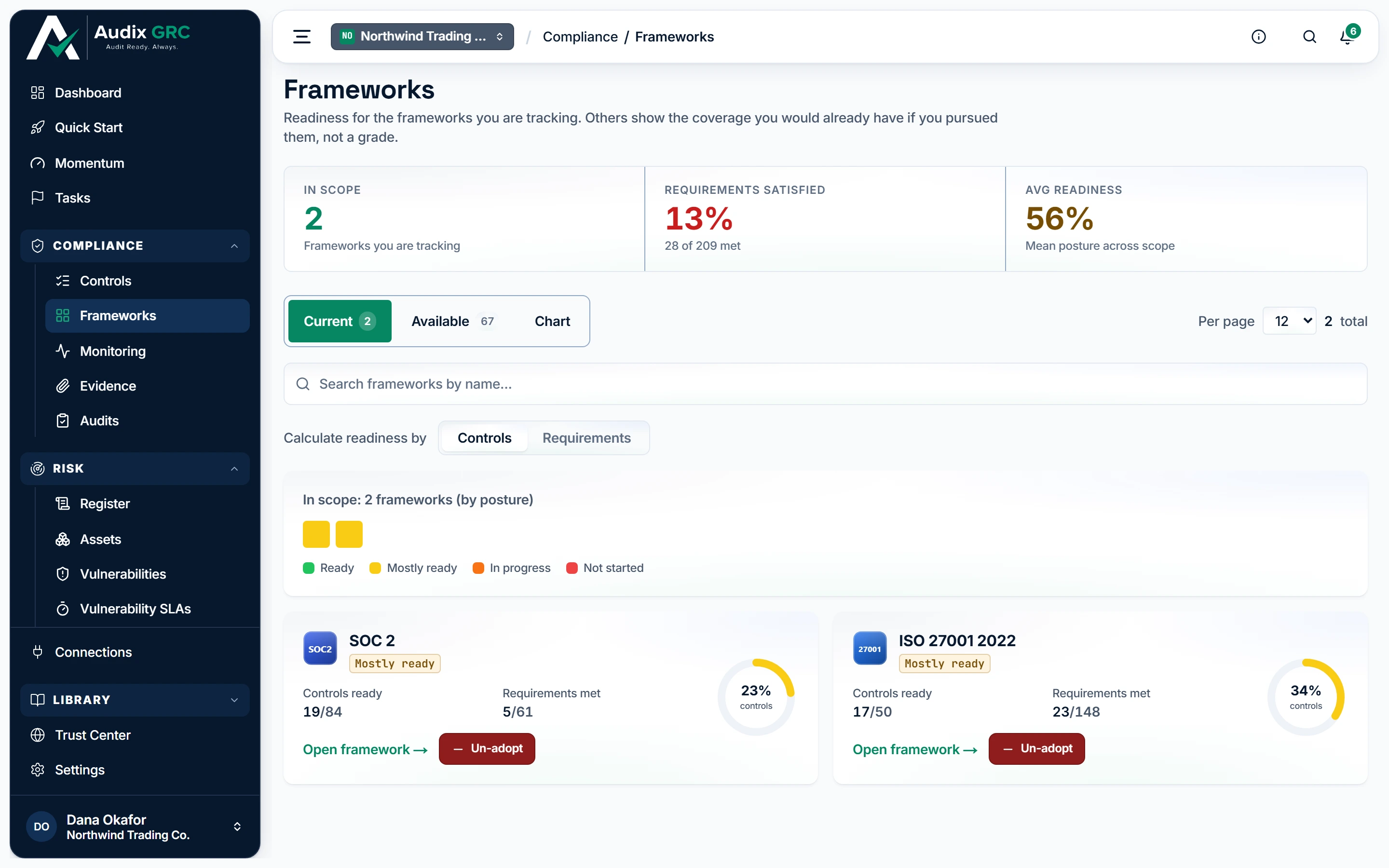
- One gauge per framework. Each is worked out from the same control work, so a second framework is never a second pass at the same evidence.
Why the same control counts more than once
Tabs for Current, Available and Chart, with a readiness gauge on every card. Adopt and Un-adopt show for admins only.
Framework detail
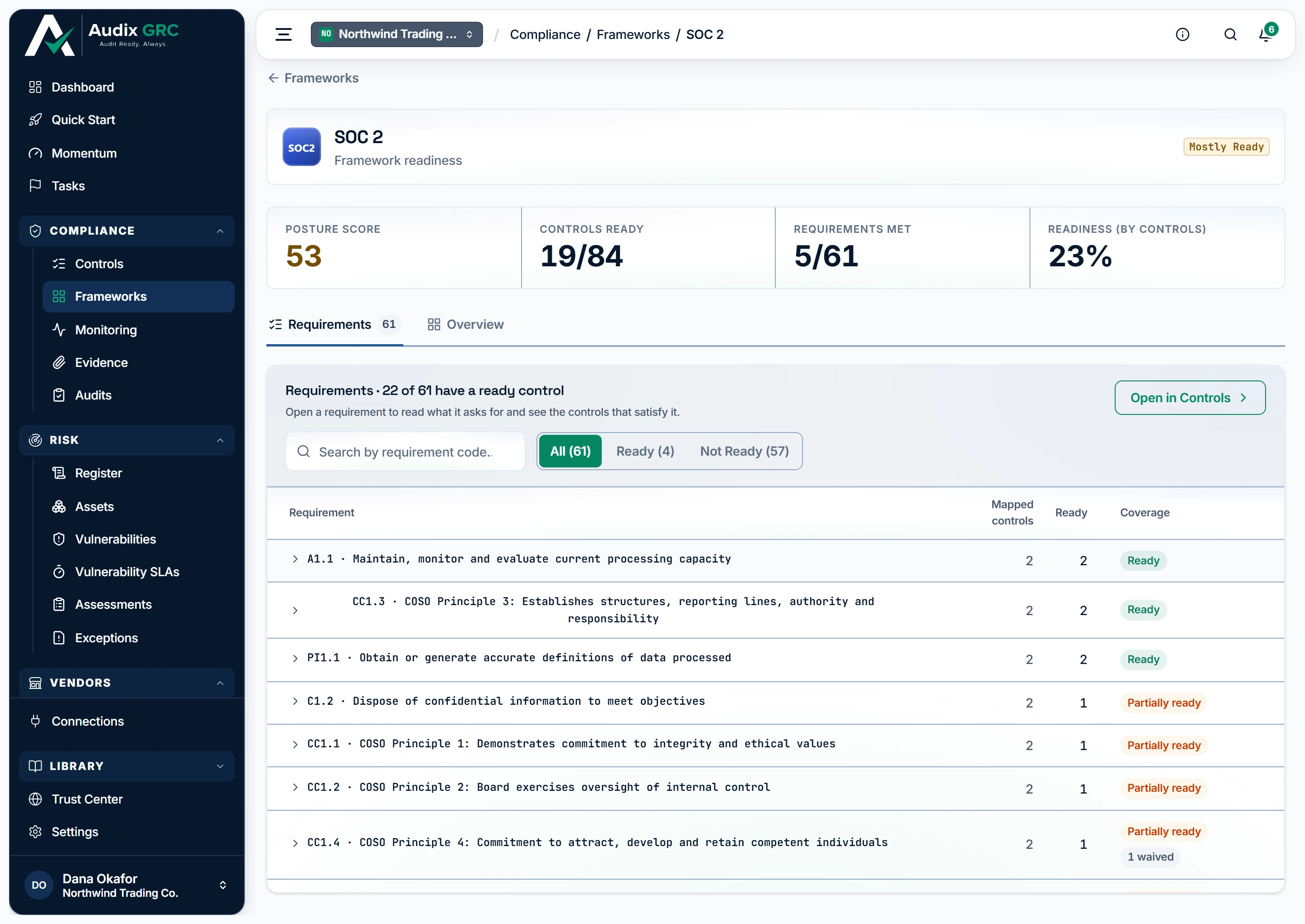
Two readiness numbers, and why they disagree
Posture score, controls ready, requirements met and readiness, then the requirement list and an Overview tab with the guide and the trend.
Scoring settings
Factor weights, the ready and met thresholds, the test result age limit, risk weighting and per-framework scales.
Implementation groups
Named subsets of a framework's requirements, each with its own readiness.
What you can do
Choose the frameworks you are working towardsLive
Adopting a framework records that you are pursuing it and brings every control it requires into your scope in one action.
As a member
- Open Frameworks. The Current tab lists what is in scope. The Available tab lists everything else, with the coverage your existing controls would already give it.
- Switch Calculate readiness by between Controls and Requirements to change what the gauges count.
- Search by name, or filter by readiness and mapping.
- Click Open framework to read it requirement by requirement.
- You cannot adopt or un-adopt. The buttons do not appear for you.
As an admin
- On the Available tab, click Adopt on a card.
- Every control that framework maps to is brought into scope in state Planned. Controls you already had keep their owner, state and score.
- You get "Adopted <name>. It now appears under Current." and the page reloads.
- To drop one, click Un-adopt on the Current tab and confirm. The dialog says the framework stops being scored and leaves the dashboard, and that your controls stay adopted.
- Put it back at any time from Available.
Rules that apply
- Un-adopting removes only controls nobody touched: still Planned, no owner, no notes. Anything you worked on stays in scope and stays on the Controls list.
- A large framework brings in hundreds of controls at once. They all start at Planned and count against your readiness from that moment.
- If the page cannot read your current scope, both buttons refuse: saving would drop the frameworks it could not see.
- Adopting or un-adopting queues a rescore, so the dashboard moves within a few seconds.
Find the control you needLive
The working list of every control in scope, worst health first, with the filters to find what is broken, unowned or waived.
As a member
- Open Controls. Read the tiles: Total controls, Ready, At risk, Critical, Failing tests.
- Filter with the rail: Status, Framework, Readiness, Monitoring, Issues, Owner, Implementation and Exception. Each option carries its own count, and applied filters show as chips with Clear all.
- Search by code or title in Search controls by name or code.
- Sort by clicking a column header: Control, Health, Issues, Owner, Ready, Monitoring or Frameworks.
- Use Columns to show or hide Health, Issues, Owners, Monitoring, Frameworks and Description, and to switch between comfortable and compact rows.
- Click a row for the preview drawer, or the control name for the full page. On a phone the table becomes cards.
As an admin
- Same as a member, plus Create control in the header.
- Set an owner straight from the Owner cell without opening the control.
- Use Exclude from framework in the preview drawer to start an exception.
Rules that apply
- The list holds only controls that carry a score. A control set to Not applicable drops off it at the next rescore, and so does one you un-adopt.
- Monitored means at least one bound check has produced a result. Issues means failing checks, or evidence that is not fresh.
- The Description column is empty on every row, which is why it is hidden by default.
- The list stops at 2,000 controls and says "showing first 2,000" when it does.
- Health bands here are Healthy at 80 and up, At risk 50 to 79, Critical below 50. The control page uses different cut points.
- A link to a framework you have not adopted shows a panel with the control count it would bring, instead of an empty table.
- Your column and density choices are remembered in your own browser.
Work one control until it is readyLive
The control page gathers everything that decides whether a control passes, and tells you what is still missing.
As a member
- Open a control. The header carries its code, domain, title, readiness pill, owner and up to five framework chips.
- Read the four tiles: Evidence, Monitoring, Policies and Approvals.
- Follow the steps card: give this control an owner, say how it is implemented, attach the policy that documents it, capture evidence that it is working, get its automated checks passing. Each step says whether it is done and links to the right tab.
- Read Readiness: one bar each for Test, Evidence and Implementation, then "Overall health N% · <label>".
- Attach a file as evidence from Manage this control. The cap is 5 MB and the file is stored encrypted against this control.
As an admin
- Same as a member, plus Assign in the Owners card. Only an active member of your workspace can be picked.
- Set the implementation state in Manage this control: Planned, In progress, Implemented or Not applicable.
- The state is for your own tracking and filtering. On a control that has checklist items it does not move the Implementation bar.
- Un-adopt the control from the same card.
Rules that apply
- The control page works out the score from what is on screen now. The Controls list, the dashboard and the frameworks page read a stored copy, so they lag by a second or two after a change.
- Not applicable takes the control out of scoring at the next rescore and off the Controls list.
- The state can move in any direction. There is no order to follow.
- Readiness labels here are Ready at 80 and above, In progress 40 to 79, At risk above 0, Not started at 0.
- Name, code and description come from the catalogue and are the same for every organisation.
Tick off what good looks likeLive
The checklist on a control is what drives its Implementation score. Every member can work it, not only an admin.
As a member
- Open the Overview tab and find What good looks like.
- Tick an item when it is true. The line above reads "N of M complete · K verified by tests" and the Implementation bar moves straight away.
- An item marked Satisfied by test was ticked by a passing automated check. You cannot untick it by hand.
- An item with a Default chip comes from the platform catalogue. Tick it like any other.
As an admin
- Same as a member, plus Add a checklist item (e.g. MFA enforced for all admins) at the bottom of the list.
- Remove an item you added with the bin icon. Catalogue items cannot be removed.
Rules that apply
- Implementation health is ticked items over total items. On a control with no checklist at all, the implementation state stands in: Planned scores 0, In progress 50, Implemented 100.
- Ticking an item that a test had already ticked turns it into a manual tick, and the check runner will not clear it again.
- The checklist merges three sources: the catalogue's assessment objectives, the platform's default items and the items you add.
- Every tick queues a rescore.
Record a manual checkLive
Some controls cannot be proved by a machine. A manual check is a named review someone signs off Pass or Fail, and it counts in the Test score exactly like an automated one.
As a member
- Open Manual checks on the Overview tab.
- Type a reviewer note if you want to explain the verdict. The note is optional.
- Click Pass or Fail. The pill reads Passing, Failing or Not reviewed.
- The summary reads "N of M passing · K not yet reviewed".
- Use the pencil to change a verdict you already recorded.
As an admin
- Same as a member, plus Add a manual check (e.g. Access reviews run quarterly).
- Remove a check with the bin icon.
Rules that apply
- A manual check carries the same weight in the Test factor as an automated one. The latest verdict is the one that counts.
- Every verdict is kept. The control's history chart counts manual verdicts alongside automated runs.
- Only manual checks can be removed here. Removing an automated check is refused.
- A Pass older than the test result age limit, 30 days by default, counts as a fail.
See what fixing a control is worthLive
Ask what a control would move before you spend time on it.
As a member
- On the control page, find the Impact card and click Forecast.
- The question reads "What is fixing the failing checks worth?", or "What is fully implementing this worth?" when nothing is failing.
- Read organisation health from and to, "Satisfies N further requirements", and which of the frameworks you are pursuing would move.
- Expand the untracked list to see what it would do for frameworks you have not adopted.
Rules that apply
- The forecast is exact. The platform runs the real scoring with one input flipped and writes nothing down.
- A forecast that names no change is refused.
- It covers up to 25 controls at a time.
Attach proof to a controlLive
The Evidence tab holds the proof attached to this control, and the requests for proof that are still owed.
As a member
- Open the Evidence tab. Each row shows the artifact, its source, Fresh or Expired, the owner and the renewal date, with "overdue" where it has passed.
- Preview text, CSV, JSON, PDF and image files in place. Anything else downloads.
- Click Add evidence and choose File or URL. Files are capped at 5 MB. A URL is stored as a link, not a copy.
- Under Evidence requests, a request assigned to you carries a You chip. Click Fulfilled once you have handed the proof over.
As an admin
- Same as a member, plus the bin icon to delete an artifact.
- Create a request: fill What's needed, Assign to and Due date, then click Request.
- Mark any open request Fulfilled, or cancel it.
Rules that apply
- The tab lists evidence you attached by hand plus the evidence the control's automated checks collected on their last run.
- The Evidence score reads fresh when any linked artifact is fresh, expired when one is expired and none is fresh, and missing when there is nothing.
- Deleting an artifact queues a rescore, so health can drop straight after.
- An evidence request mirrors into Tasks for the person it is assigned to.
See the automated checks behind a controlLive
Which automated checks prove this control, what they said last, and how they have trended.
As a member
- Open the Monitoring tab. If a failing check has fix steps written for it, they appear first.
- Read Automated tests (N): name, category, the connections it reads, result, findings and last run. A red line names how many failing checks with how many findings are keeping the control not ready.
- Click a row for the drawer: days passed, failing and excluded resources, test details, history over 30, 90 or 180 days, an AI review and the other controls the check is mapped to. Use the arrows to page between checks, or Open for the check's own page.
- Click Download under Historical results to save a CSV with one row per month and one column per result kind.
As an admin
- Same as a member, plus Map test: pick one of your automated checks and click Map.
- Unbind a check with the X on its row, then confirm.
Rules that apply
- Checks whose tool is not connected are hidden here and from the picker. Connect the tool and they appear.
- You cannot unbind a check from its last remaining control. The refusal says it would leave the check running with nothing to score.
- Mapping rewrites that check's whole binding list. Two admins editing the same check at the same time can lose one of the edits.
- The Test score takes the latest result per check. A pass counts for it, a fail counts against it, and an error or a check that never ran is ignored.
- The check's evaluation logic is not shown on this page.
- The picker lists up to 500 checks.
Show the policies, requirements and risks behind a controlLive
Three tabs answer what documents the control, what it satisfies, and what it protects against.
As a member
- Policies lists the governing documents with version, status, renewal date and owner, under a Policy in place or No published policy pill. Each row opens the policy.
- Frameworks lists one row per requirement the control satisfies, with the framework, the requirement code and this control's readiness repeated.
- Risks lists the risks the control mitigates with reference, inherent score and status. The empty state links to the risk register.
As an admin
- Same as a member, plus Map policy on the Policies tab: pick a policy and click Map.
Rules that apply
- Every requirement row reads "Wording not published in the crosswalk". The crosswalk carries codes and mappings, not the standards body's text.
- The Frameworks tab does not exist on a custom control, because a custom control has no crosswalk.
- Risks are attached from the risk's own page, not from here.
- The requirement fan-out is pinned to the catalogue version the control came from.
Get a control approvedPartial
The Workflows tab records an approval against the control, with a timeline of who did what.
As a member
- Open the Workflows tab to read the open workflow and its events.
- You cannot start, approve or reject one.
As an admin
- Start a workflow from the same tab.
- Approve it, reject it, or add a comment.
- The workflow closes as soon as one admin approves.
Rules that apply
- Multi-step approvals are switched off. The first approval ends the workflow.
- Named approvers per control are not available. The Review and approval card says so, and today any admin can approve an open workflow.
- The Approvals tile on the Overview tab shows no status for the same reason.
Track a control the catalogue does not haveLive
Record and score a control of your own that no framework in the catalogue asks for.
As a member
- A custom control carries a Custom pill and the banner "Not counted toward framework readiness yet."
- Work its checklist, manual checks and evidence like any other control.
- You cannot create, edit or delete one.
As an admin
- On Controls, click Create control.
- Fill Code, which must be unique in your workspace and at most 64 characters, and Title, at most 200. Control statement, Description and Weight from 1 to 100 are optional.
- Click Create control. It is created, adopted for you, and you land on its page.
- Use Edit on the Info card to change it, then Save changes.
- Use Delete and confirm to remove it.
Rules that apply
- A duplicate code is refused with "A custom control with code '<code>' already exists".
- A custom control has no crosswalk, so it never moves a framework percentage or the organisation score, and it has no Frameworks tab.
- Its checklist starts empty. Nothing is inherited from the catalogue.
- Delete removes the adoption, the checklist, the manual checks, the check bindings, the evidence links and the score, then returns you to Controls.
Read a framework requirement by requirementLive
See a framework two ways, by control and by requirement, and drill from a requirement to the controls that satisfy it.
As a member
- Open a framework. The strip shows Posture score, Controls ready, Requirements met and Readiness by controls.
- The Requirements tab lists every requirement with its mapped controls, how many are ready, and a coverage label of Unmapped, Ready, Partially ready or Not ready. "N waived" appears where an approved exception holds controls out.
- Click a requirement to expand it. You get the controls that map to it, each marked Ready, In progress or Not adopted, and each linking to its own page.
- Search by requirement code, and filter with All, Ready and Not Ready.
- Click Open in Controls to see the same framework in the Controls list.
- The Overview tab holds the written guide, the posture trend, the readiness breakdown in both modes, and when it was last computed.
Rules that apply
- The search matches the requirement code only. Requirement text is not on the platform.
- A requirement reads Ready here when every mapped control is ready. The "requirements met" figure in the score uses your own threshold over risk-weighted controls, so the two numbers can differ.
- The posture trend needs two daily snapshots. Until then it reads "Not enough history yet."
- A written guide exists for some frameworks. The rest carry a generic one saying a framework specific guide is being written.
- The requirement table stops at 1,000 rows.
- There is no controls tab on a framework. Open in Controls filters the real list instead.
Score part of a frameworkLive
Score a named subset of a framework's requirements, such as the first tier of an implementation profile, without treating the whole framework as the target.
As a member
- Open Settings and the Implementation Groups panel.
- Pick a framework. Only frameworks in scope are offered. Otherwise you get "No frameworks are in scope yet. Select frameworks on the Frameworks page first."
- Read each group's name, its "% ready" pill and how many requirements it covers.
- You cannot create or delete a group. The panel says implementation groups are defined by workspace admins.
As an admin
- Same as a member, plus the New group form.
- Enter a Name, an optional Description, then tick the requirements the group covers. Each requirement shows how many of its controls are ready.
- Click Create group. At least one requirement is needed.
- Delete a group with the bin icon.
Rules that apply
- A group's readiness is the share of its requirements whose mapped controls are all ready. It is worked out fresh on every read, so a group has no history and no trend.
- Requirements that do not belong to the framework you picked are dropped without a message.
- There is no edit screen. To change a group, delete it and build it again.
- A group takes up to 2,000 requirements.
Set how health is scoredLive
One explainable number per control, rolled up into framework readiness and one organisation score, with the weights and thresholds in your hands.
As a member
- Read "How is control readiness calculated?" on the Controls page. Health from 0 to 100 blends three factors, Test, Evidence and Implementation, weighted 50, 30 and 20 by default.
- Open Settings and the Scoring panel to read the current numbers.
- You cannot change them. Only an admin gets the form.
As an admin
- Open Settings, Scoring.
- Set the factor weights for Test, Evidence and Implementation.
- Set Control ready ≥, 80 by default, Framework ready ≥, 80, Requirement met ≥, 100, and Test result TTL (days), 30.
- Turn risk weighting on to weight each control by its own weight and the strength of its mapping to the requirement.
- Override one framework under Per-framework scales with its own Ready %, Req met % and Label.
- Save. Everything rescores, and the panel shows where you have drifted from the defaults.
Rules that apply
- A factor with nothing to measure is left out, and the remaining weights are shared over what is left. A control with no check, no evidence and no checklist scores 0 and is not ready.
- A passing check older than the test result age limit counts as a fail.
- An approved exception takes the Test factor out of the control's score for as long as the exception runs, and holds the control out of both halves of framework readiness.
- A framework percentage only reads 100 when everything is ready. Anything short is capped at 99.
- Framework readiness by controls counts your ready controls against every control the framework maps to, including ones you have not adopted.
- A rescore is queued on every change: adopting, state, checklist, manual checks, evidence, check runs, custom controls and these settings. A full recompute also runs every night and writes the daily point the trend charts read.