Activity and settings
The record of everything that happened in your workspace, and the controls that decide who is allowed to change it.
Three feeds cover activity. Events merges everything that happened. Alerts narrows to control health. The bell in the header holds the notices addressed to you personally.
Settings is one page with a rail down the left, in three groups: Personal, Organization and Configuration. Almost every editing control is admin-only. A member opens the same panels and sees the forms locked, with one sentence saying who can change them.
The Library lists every automated check the workspace can run, and says plainly which of them cannot run because the connector is missing.
Who uses this
Admin
Can open everything here and change every workspace setting: members, roles, invitations, branding, scoring, implementation groups, folder grants, AI and alert routing
Cannot demote or remove the last active admin, or leave while they are the last one
Member
Can read every screen in this area, manage their own API tokens, mark their own notices read, and leave the organization
Cannot invite anybody, change a role, or edit branding, scoring, AI or alert routing
Approver
Can everything a member can
Cannot anything extra here. The role is never offered on the members screen
Auditor
Can read the Events feed, Alerts, the check library and their own inbox
Cannot change anything at all, including marking a notification read. Leaving the organization is the one exception
Platform staff
Can see a Superadmin badge on their profile and open a separate operator console
Cannot do anything inside your workspace on the strength of that badge
Outside party: somebody you invited
Can open the invitation link without signing in and read the organization, the role, the address it was sent to and the expiry
Cannot see anything else in the workspace until they accept
The screens
Events
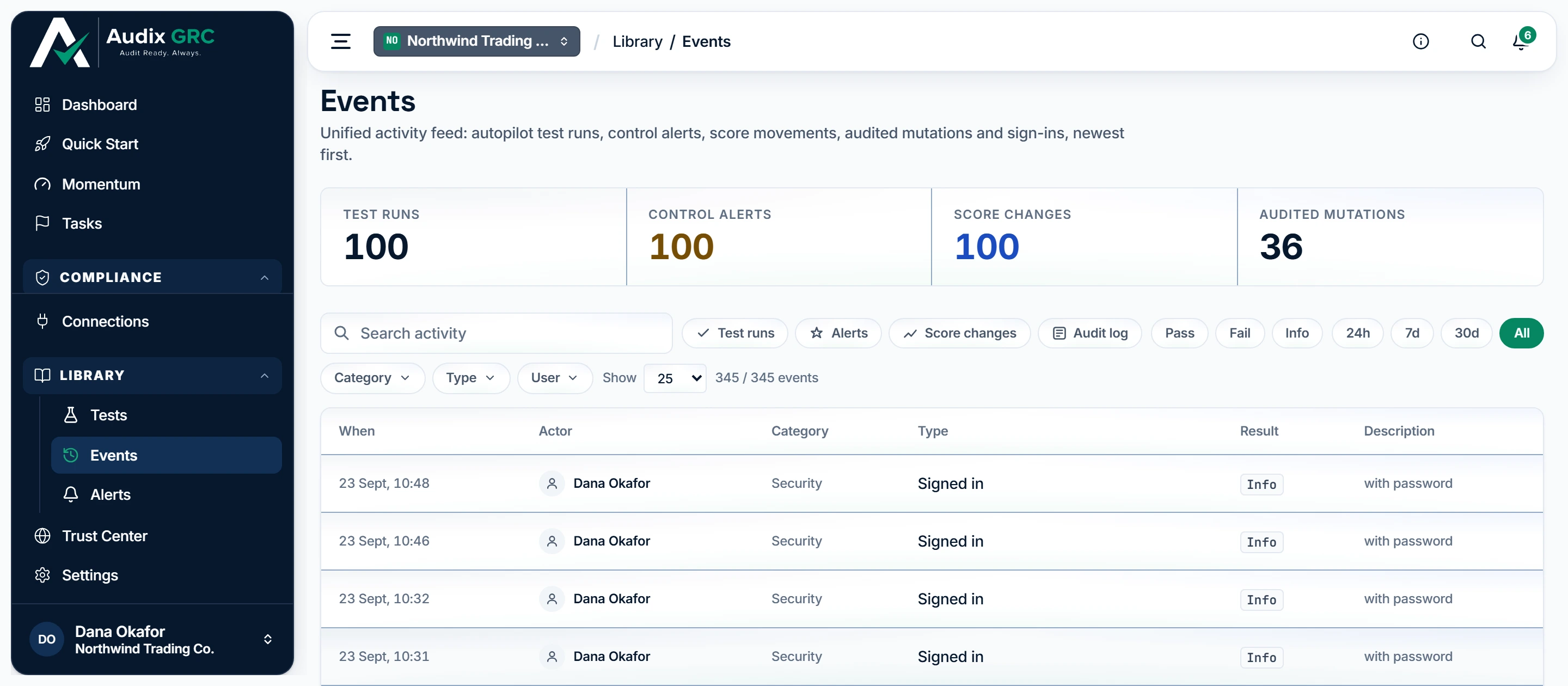
- Four logs, counted. Automated test runs, control-health alerts, score movements and the audited record of every change somebody made. Audited mutations counts changes only: a sign-in is listed in the table below but is not a change, and counting it there would inflate what people did.
- Narrow it to the question you have. Cut the feed by which log a row came from, whether it passed, and how recently it happened; the Category, Type and User dropdowns cut it further without leaving the page. Sign-ins arrive under the Audit log chip with the category Security.
- Who did it. Every row names somebody: a person by name — including the person a sign-in belongs to — Autopilot where the schedule ran the work, or System for the platform's own bookkeeping, so unattended work is never presented as though a colleague did it.
One table merging test runs, control alerts, score changes, audited writes and sign-ins, newest first, with search, source chips, result chips, time chips and Category, Type, User and Trigger dropdowns.
Control alerts
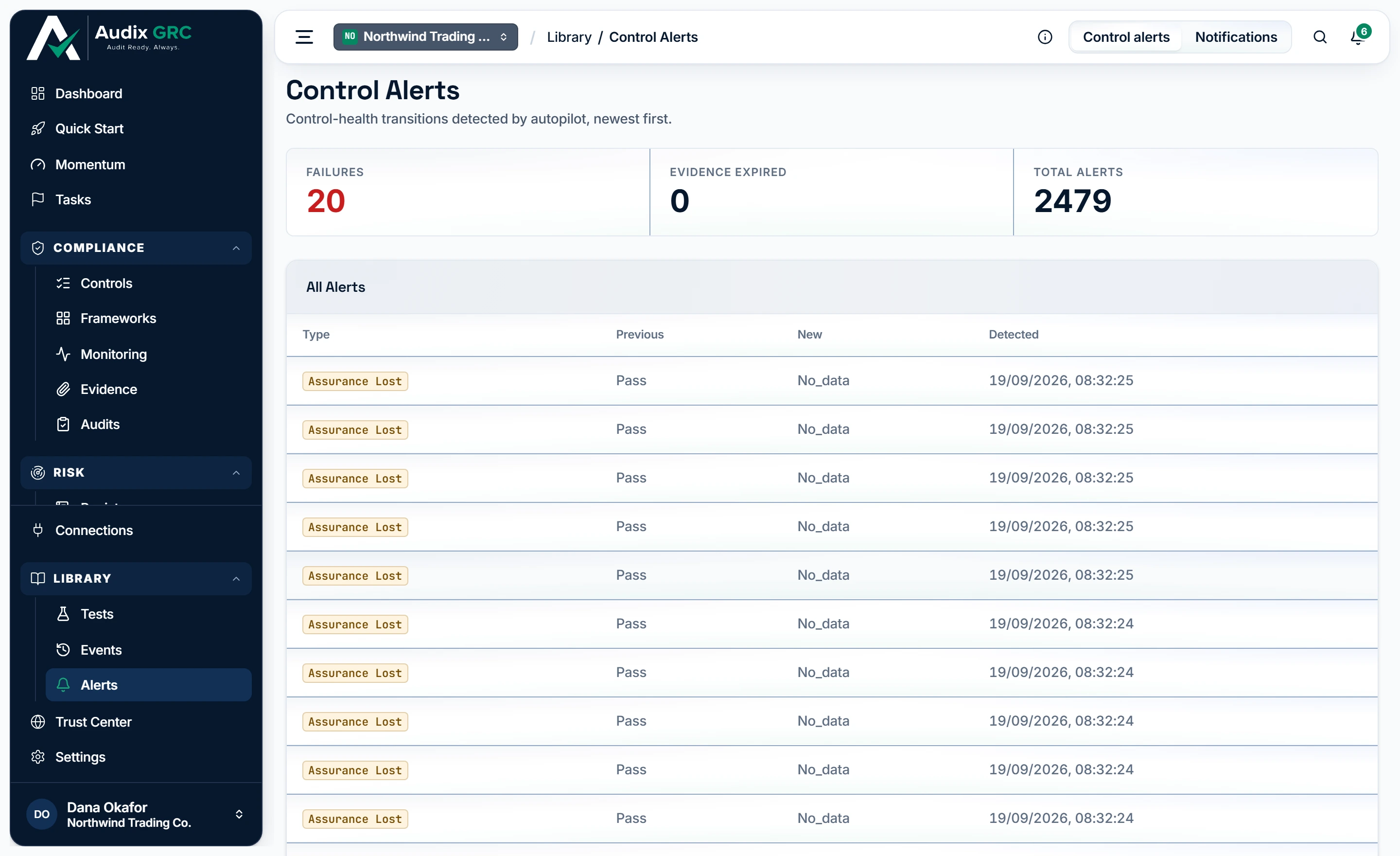
- How much is actually broken. Failures counts the checks that stopped passing, Evidence expired counts the artifacts that went stale; the two are separated because different people fix them.
- Both sides of every change. A row records what the control health was, what it became and when that was noticed, so a recovery is written down as plainly as a failure. Nothing on this page creates or dismisses an alert.
Every control-health transition, with tiles for Failures, Evidence expired and Total alerts. A switcher at the top moves between this and Notifications.
Notifications
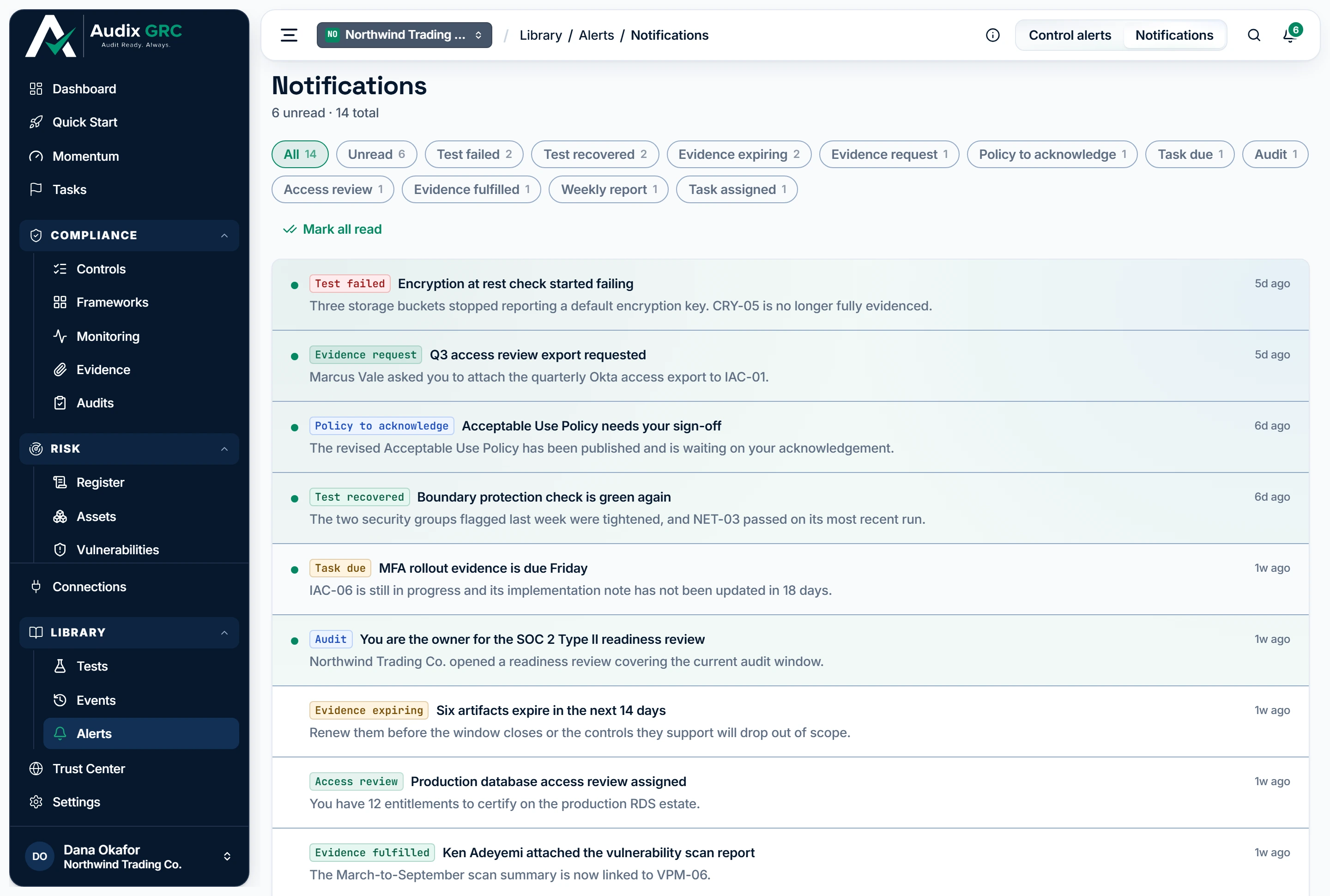
- Two feeds, one page. Control alerts is what happened to the controls; Notifications is what was addressed to you personally. The bell's "View all notifications" link lands on the other tab, so this switcher is how you get here.
- Filter by state, or by kind. Each chip counts what is behind it, so an evidence request waiting on you is one click away from a weekly summary you can ignore.
- Clear the unread state. Your notices are yours alone: nobody else can see or clear them, and clearing them changes nothing in anyone else's inbox.
Where a notice comes from, and what reading it does
Your own notices, newest first, with All, Unread and per-kind chips and a Mark all read button.
Tests
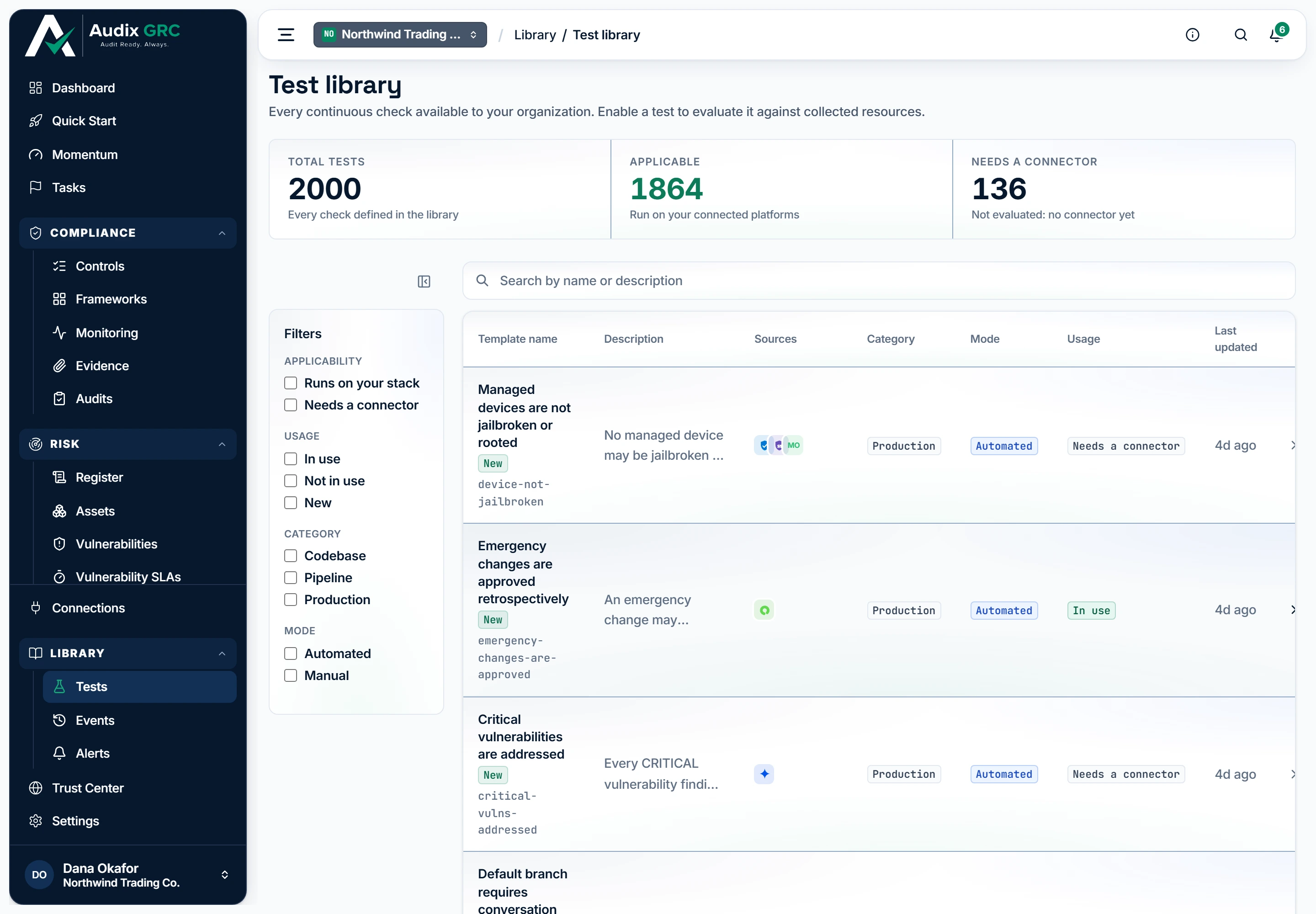
- Every check, and whether it can run. The library holds every check defined for the workspace and separates the ones your connected platforms can answer from the ones still waiting on a connector, which are never evaluated and never scored.
- Find a check, or narrow the list. Search covers a check's name, description and key; the rail on the left cuts by applicability, whether the check is in use, its category, and whether it runs automatically or is performed by hand.
Why a check says "Needs a connector"
Every check defined for the workspace, with Applicability, Usage, Category and Mode filters and tiles for Total tests, Applicable and Needs a connector.
Settings
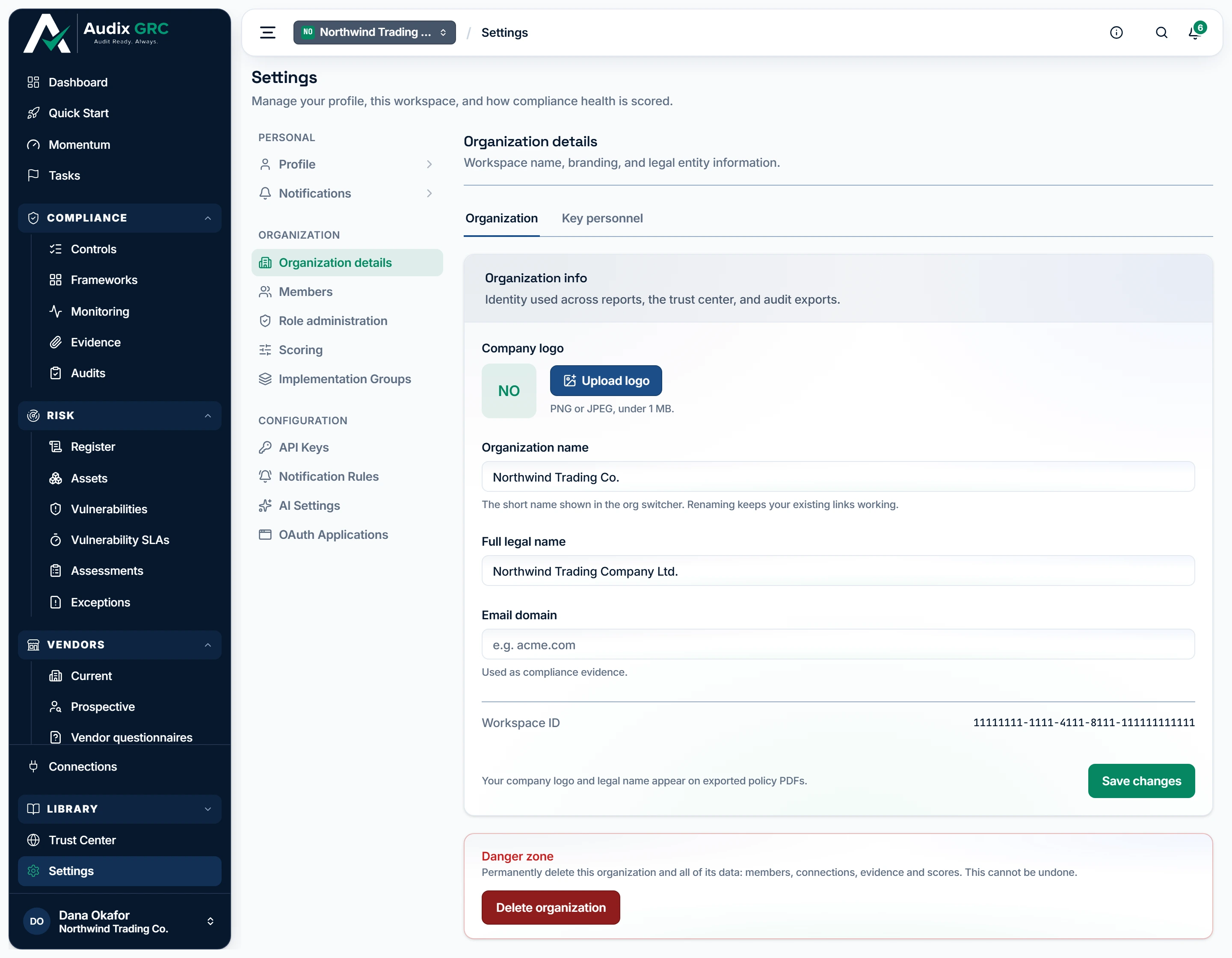
- Three groups, one page. Personal is about you, Organization is about the workspace, Configuration is about how it behaves. The list swaps the panel beside it instead of navigating, so almost every setting shares this one address.
- Branding that leaves the product. The logo and the full legal name set here are what appear on exported policy PDFs and on the public trust center, so they are the organization's identity to an outside reader.
- Deleting is deliberately hard. The dialog makes an admin type the organization name exactly before this turns on, because the delete takes members, connections, controls, scores and evidence with it.
A rail of panels grouped as Personal, Organization and Configuration, opening on Organization details.
Notification settings
The drift-alert routing form on its own page: an enable box, a Slack webhook URL and email recipients.
Profile
Your name, email and role, the organizations you belong to, and a masked user id.
Invitation
The organization, the role, the address the invitation was sent to, the expiry, and one way forward: accept, sign in, create an account, or switch account.
What you can do
Find out what happenedLive
One table merging test runs, control alerts, score changes, audited writes and sign-ins, so a change can be reconstructed without opening five screens.
As a member
- Open Events under Library.
- Four tiles count what loaded: "Test runs", "Control alerts", "Score changes" and "Audited mutations".
- Filter with the search box, the source chips (Test runs, Alerts, Score changes, Audit log), the result chips (
pass,fail,info) and the time chips (24h, 7d, 30d, All). - Narrow further with the Category, Type and User dropdowns. Trigger appears when the loaded test rows carry more than one trigger.
- Each row shows When, Actor, Category, Type, Result and Description.
- A sign-in reads Signed in under Type, with the person under Actor and
securityunder Category. Password changed, Password reset by email code and Sign-in locked after repeated failures read the same way, and all of them arrive under the Audit log source chip. - Set the page size with Show (25, 50 or 100). Clear resets every filter at once.
As an admin
- Same as a member. There is no extra control on this page.
Rules that apply
- Each of the four sources loads its most recent 100 rows. This is a recent window, not a full history, and the tiles count what loaded rather than what exists.
- When one source cannot be read the page says "Some activity could not be read, so this log is incomplete." An unreadable log is never drawn as an empty one.
- Rows with no person behind them are labelled honestly. A scheduled check reads Autopilot, a manual run reads Autopilot, manual run, a score change reads System.
- A row whose name cannot be resolved reads A teammate, never an internal id.
- An audited write is marked
failwhen the request came back 400 or above, and so are the two entries that are never good news: an account locked after repeated failures, and an AI assistant whose access was revoked for a reused credential. - Sign-ins show in the table but not in the Audited mutations tile, which counts changes only.
- A sign-in row carries no IP address and no browser. Those are kept only on the platform's own security log, which is not part of your organization's record.
- The change rows leave out the bookkeeping entry the app writes each time it loads which areas are switched on, so what is left is what people did.
Watch control health changeLive
The narrow log of control-health transitions: a check that started failing, one that recovered, a control that became unverifiable, evidence that expired or was renewed.
As a member
- Open Alerts under Library, or click the Control alerts tab at the top right.
- Read the tiles "Failures", "Evidence expired" and "Total alerts".
- Read the All Alerts table: Type, Previous, New, Detected.
- Page through with the pager. The sizes are 5, 10, 20 and 25, and it opens on 20.
As an admin
- Same as a member.
Rules that apply
- Nothing on this page creates or dismisses an alert. It is a record of transitions that already happened.
- The five kinds are Test Failed, Test Recovered, Assurance Lost, Evidence Expired and Evidence Renewed.
- Assurance Lost means a passing check stopped returning a usable answer. That is different from failing.
- Only three test transitions raise a row: pass to fail, fail to pass, and pass to an unusable result. Everything else is silent.
- The empty state reads "No alerts at this time".
Read the notices addressed to youLive
A per-person feed: an evidence request assigned to you, an invitation you sent being answered, a Trust Center visitor asking a question, the weekly summary.
As a member
- Click the bell in the header. The badge counts your unread notices plus any invitations waiting for you.
- Click a notice. It is marked read, and if it links somewhere you are taken there.
- Click Mark all read to clear the unread state in one go.
- Open the Notifications tab on the Alerts page for the full feed, with All, Unread and per-kind chips.
- The empty state reads "You're all caught up".
As an admin
- Same as a member. Admins also receive Trust Center access requests and questions, because those are addressed to admins by name.
Rules that apply
- The feed holds the fifty most recent notices. The badge uses the full server count, so the two never disagree.
- Nobody else can see or clear your notices, and you cannot clear theirs.
- The bell refreshes every twenty seconds while the tab is visible, stops while it is hidden, and refreshes at once when you come back to it.
- An auditor cannot mark anything read. The row looks read until the next refresh puts it back.
- View all notifications at the foot of the bell panel opens the Control alerts page, not this feed. Use the Notifications tab from there.
Send drift alerts to Slack and emailLive
Push control drift out of the product, so a failing control is noticed without anyone opening the app.
As a member
- Open Settings, then Notification Rules, or Notifications under Personal.
- Read the current Slack URL and email recipients. The form is locked and the page says "Only an admin can change notification settings."
As an admin
- Open the same panel.
- Tick "Send drift alerts to the destinations below".
- Paste a Slack incoming webhook URL into Slack Incoming Webhook URL, or leave it blank to skip Slack.
- Type comma-separated addresses into Email recipients, or leave it blank to skip email.
- Click Save. The page confirms "Notification settings saved."
Rules that apply
- Delivery is off until you turn it on and give at least one destination. With neither, nothing is ever sent.
- Only a Slack URL starting
https://hooks.slack.com/services/is accepted, and it is checked again at the moment of posting. - At most 25 email recipients, each checked as a real address.
- At most 50 alerts go out per run. An alert is marked as sent only when a channel accepted it, so a total outage leaves them for the next run.
- This sits under Personal in the rail but it is workspace-wide and admin-owned. Every drift alert goes to the same destinations. Per-control and per-severity routing does not exist.
Automatic reminders and the weekly summaryLive
Two things arrive without anyone logging in. A daily digest of dated work that is close or late, and a weekly note saying what actually moved.
As a member
- There is nothing to set up. The daily deadline digest goes to the same Slack and email destinations as the drift alerts.
- The weekly summary lands in your notification inbox, titled "Your week: +N to X" or "Your week: holding at X".
- Both link to the dashboard, whose upcoming-work card is the only screen that shows every source in the digest.
As an admin
- Same as a member. The only control is the drift-alert form, which decides whether the daily digest is delivered at all.
Rules that apply
- The digest looks thirty days ahead. Anything already overdue is always included, however old.
- Each item is chased at most once per threshold. The thresholds are overdue, one day out, seven days out and thirty days out.
- It covers open evidence requests, unsubmitted questionnaires, unresolved vendor follow-ups, access-review campaigns, policy renewals, vendor review dates, vendor documents and vendor contracts.
- A vendor contract is dated at the last day you can still give notice, not at the renewal date.
- The weekly summary is built only from score movement. A quiet week sends nothing, and losses are reported next to gains.
Prove the record was not alteredLive
Every write inside the workspace is recorded and chained to the one before it, so an inserted, deleted, reordered or edited row can be spotted.
As a member
- Open Events and click the Audit log chip to see only audited writes.
- Each row names the person, or System where there is none, the kind of thing that changed, the request that changed it, and the response code.
As an admin
- Same on screen. The check that verifies the chain runs on the API and has no button anywhere in the product.
Rules that apply
- Every create, update and delete inside the workspace is recorded, and the record is written in the same transaction as the change it describes.
- Only named fields are kept, never the whole request. Renaming the organization records the new name and nothing else.
- A few actions run outside a single workspace and are recorded by name instead: leaving, accepting or declining an invitation, and folder group changes.
- Each row carries a hash covering its own contents, the row before it, its place in the order and the time it was written, plus a signature made with a key the product never hands out. The signature names the format it covers, so a row cannot be relabelled as an older, weaker one. Two writes at the same moment cannot fork the chain.
- A separate table holds each row's position in the chain, so deleting a row, or deleting a position, is caught rather than closed over quietly.
- Verification names the first row it cannot account for and why: a row was inserted, deleted or reordered, a row was edited, a row is missing its position, a row with a position was deleted, or a signature is invalid.
- Rows written from 22 September 2026 are proved in full. Older ones are proved by recomputing the hash they were given across the field orders the database did not keep, and are reported as unproven, rather than as proved, only when they are too large to search. Nothing was rewritten to make older rows fit the newer format.
- Before that date the check reported tampering on untouched rows in every organization, because the hash covered the order the database happened to hand a field back in. It does not any more.
Decide who is in the workspaceLive
The member list, the role on each row, and the way out.
As a member
- Open Settings, then Members.
- Read the tiles "Members", "Active" and "Pending invites", then the table. Your own row is marked "(you)".
- The one action you have is Leave on your own row. It asks "Leave this organization? You will lose access unless re-invited."
As an admin
- Same as a member, plus a Role dropdown on every row except your own. It offers Admin, Member and Auditor.
- Remove somebody with the trash button. It asks you to confirm by name.
- Invite somebody with Invite by email, a role, then Invite.
- Revoke a still-pending invitation from the Pending invitations table.
Rules that apply
- The last active admin cannot be demoted, removed, or leave. Promote somebody else first. Two admins trying it at the same moment cannot both succeed.
- A role change or a removal takes effect on that person's very next request.
- Approver is never offered here on purpose. It carries no grants on this screen, so parking somebody in it would leave them with nothing.
- An auditor is refused every create, update and delete across the product, with "Auditors have read-only access". Leaving the organization is the one exception.
- After you leave or delete an organization you land in another one you belong to, not on a picker.
Invite somebody who has no account yetLive
Add a person to the workspace without an admin ever handling their password.
As a member
- Not available. Only an admin can invite, and only an admin sees the pending invitations.
As an admin
- In Settings, Members, type an address into Invite by email and pick Admin, Member or Auditor.
- Click Invite. The button reads "Inviting..." while it runs.
- The page shows the accept link once, with either "Invitation emailed. You can also share this link (valid 7 days):" or a line saying the email failed and you have to share the link yourself. Copy it with the button beside it.
- The invitation appears under Pending invitations with Email, Role, Expires and a Revoke button.
Rules that apply
- An invitation is good for seven days. After that the accept is refused with "This invitation has expired".
- The signed-in email must match the address the invitation was sent to. A forwarded link does not let the wrong person in.
- The link is shown once, at creation. If you lose it, revoke the invitation and send a new one.
- Inviting an existing member is refused with "That person is already a member". A second invitation to the same address is refused with "A pending invitation already exists for that email".
- Accepting never changes an existing member's role. Somebody who was already invited or suspended comes back at the role they already had.
Name and brand the workspaceLive
The name in the switcher, the legal name and logo used on exported PDFs and the trust center, and the email domain.
As a member
- Open Settings. Organization details opens by default.
- Read the organization name and the workspace id.
- "Full legal name" and "Email domain" show as "-" for you. Only an admin can read those two fields.
- Below the card: "Only organization admins can delete this workspace."
As an admin
- The same panel, now editable.
- Click Upload logo, or Replace logo once one is set. PNG or JPEG only, under 1 MB.
- Edit Organization name, Full legal name and Email domain.
- Click Save changes. A message confirms either the rename or the details save.
- Key personnel is an informational tab. It says key personnel live in Governance and links there.
- Delete organization sits in a red Danger zone card. The dialog makes you type the organization name exactly before the button turns on.
Rules that apply
- Renaming does not change the workspace address, so existing links keep working. The name must be 2 to 200 characters.
- SVG logos are refused. The PDF renderer cannot embed them.
- Clearing the legal name or the email domain empties the value rather than leaving the old one in place.
- A rejected name aborts the whole save, so a half-saved panel is never reported as saved.
- Deleting the organization removes members, connections, controls, scores and evidence. It cannot be undone.
Grant roles through foldersLive
A folder tree with one group per role, used to hand somebody an extra role on top of their workspace role.
As a member
- The panel shows one sentence: "Access control is managed by workspace admins. Roles granted through folders are applied across this workspace."
As an admin
- Open Settings, then Role administration.
- Read the yellow warning first. Folders group people, not permissions.
- Create a folder: type a Folder name, pick a Type (Global root, Domain or Enclave), pick a Parent if you want one, click Add folder.
- Select the folder in the tree. Its four groups appear: Admin, Approver, Member, Auditor.
- Add somebody with the Add a member... dropdown, which lists active members not already in that group. Remove them with the x on their chip.
- Delete a folder with Remove, then confirm with Delete folder + subtree.
Rules that apply
- A folder grant is not scoped to the folder. Adding somebody to any folder's Admin group makes them an admin of the entire workspace. Grant the lowest role that does the job.
- A new folder arrives with four empty groups. Creating a folder on its own changes nobody's access.
- You can only add people who are already members. A group grant promotes an existing member, it never admits an outsider.
- Auditor is a ceiling, not one more role in the pile. An auditor added to a Member group is still read-only.
- Deleting a folder deletes every group beneath it and revokes every grant in them. There is exactly one Global root folder and it cannot be removed.
Decide how health is scoredLive
Set the weights, thresholds and freshness rules behind every score, instead of accepting the ones the product ships with.
As a member
- The panel reads "Scoring configuration is managed by workspace admins. Current weights are applied across this workspace."
As an admin
- Open Settings, then Scoring.
- Under Factor weights, set Test, Evidence and Implementation.
- Under Thresholds, set the bar for a control being ready, a framework being ready and a requirement being met.
- Under Freshness & weighting, set "Test result TTL (days)". A passing test older than that counts as a failure. Tick or clear the risk weighting box.
- Click Save & recompute. A message reads "Scoring config saved. Recomputing".
- Under Per-framework scales, override "Ready %", "Req met %" and a free-text "Label" for one framework at a time. Leave a field blank to inherit the workspace default, then click that row's Save.
Rules that apply
- The three factor weights must add up to more than zero. The form refuses the save before it leaves the browser.
- Saving queues a recompute of every score. The recompute is started and not waited on, so the page comes back before the numbers move.
- A save invalidates every screen that shows a score, not only this panel.
- Drift from defaults lists every setting that differs from the shipped values, as "Default: X" against "Current: Y", with a pill counting the overrides.
Score part of a frameworkLive
Assess a chosen subset of a framework's requirements, such as CIS IG1, without adopting the whole framework.
As a member
- Open Settings, then Implementation Groups.
- Pick a Framework. Only frameworks already in scope appear. With none, the panel says to select frameworks on the Frameworks page first.
- Read the existing groups. Each carries a readiness pill and the number of requirements in scope.
- Where the create form would be, you see "Implementation groups are defined by workspace admins."
As an admin
- Same as a member, plus the New group form.
- Type a Name and an optional Description.
- Tick requirements in the scrolling list. The label counts your selection, and clear empties it. Each row shows the requirement reference and how many of its mapped controls are ready.
- Click Create group. It stays disabled until there is a name and at least one requirement.
- Delete a group with the trash button on its row.
Rules that apply
- The readiness pill is green at 80 and above, amber from 50 to 79, and red below 50.
- Every group is scored when the panel opens, one request each, so a workspace with many groups takes a moment to fill in.
- There is no edit. A group is created and deleted. To change its scope, delete it and make a new one.
Create a token for the APILive
Call the same API the product uses, as yourself, from a script.
As a member
- Open Settings, then API Keys.
- Type a Token name, pick Expires in (30, 60, 90 or 180 days, or 1 year, opening on 90 days), then click Create token.
- The token appears once, under "Copy your token now; it won't be shown again." Click Copy, then Done.
- Send it as
Authorization: Bearer <token>. - Each row shows the name, a status pill, the start of the token, the expiry and when it was last used.
- Revoke with the trash button, then Confirm revoke.
As an admin
- Same as a member. There is no view of anybody else's tokens, for an admin or for anyone.
Rules that apply
- Every token expires. The longest you can set is 365 days, and there is no way to make one that never expires.
- The token is shown once. If you lose it, revoke it and create another.
- A token carries your live role. Demote somebody and their tokens are demoted with them.
- You can only see and revoke your own tokens. Somebody else's token id comes back as not found.
Turn the AI features onLive
Decide whether this workspace uses the AI features, and which model they run on.
As a member
- The panel is read-only and ends with "Only an admin can change AI settings."
As an admin
- Open Settings, then AI Settings.
- Read the status card. It says either "AI features are available" or "AI is currently unavailable", depending on whether the platform has a key configured.
- Tick "Enable AI features for this workspace".
- Pick a Model, or leave it on Platform default. The helper text names the model running now.
- Click Save. The panel shows "AI settings saved."
Rules that apply
- No API key is collected here. AI runs on platform credentials, and no key is held per workspace.
- If the model you saved is no longer offered, the picker falls back to Platform default and a notice tells you the saved preference is not the one running.
- AI powers two things: the posture summary on the dashboard, and drafting answers to security questionnaires.
- A failed save shows a plain "Could not save AI settings." on purpose, so nothing about the provider, key or model reaches the screen.
Your own account pagePartial
The one screen about you rather than about the workspace.
As a member
- Open Profile at the top of the Settings rail.
- The hero card shows your name, your email, your role in the current organization and, for platform staff, a Superadmin badge.
- Organizations lists every organization you belong to, with an Active pill on the current one and your role in each.
- Account information shows a masked user id, your email and your platform role.
- Email address is read-only. The page says "Email cannot be changed here."
- Edit next to Full name opens a field, but Save always fails with "Failed to update profile". Your name cannot be changed here yet.
As an admin
- Same as a member.
Rules that apply
- The photo control is a preview. The picture never leaves your browser and is gone when you reload.
- If your identity cannot be read the page reports an error rather than drawing a blank name and "no organizations".
- The user id is masked to the first eight and last four characters.