Screen 06 of 8 · Dashboard and setup
Create a task
How an admin creates a task, once or on a schedule, with an owner, a due date and the control or record it is about.
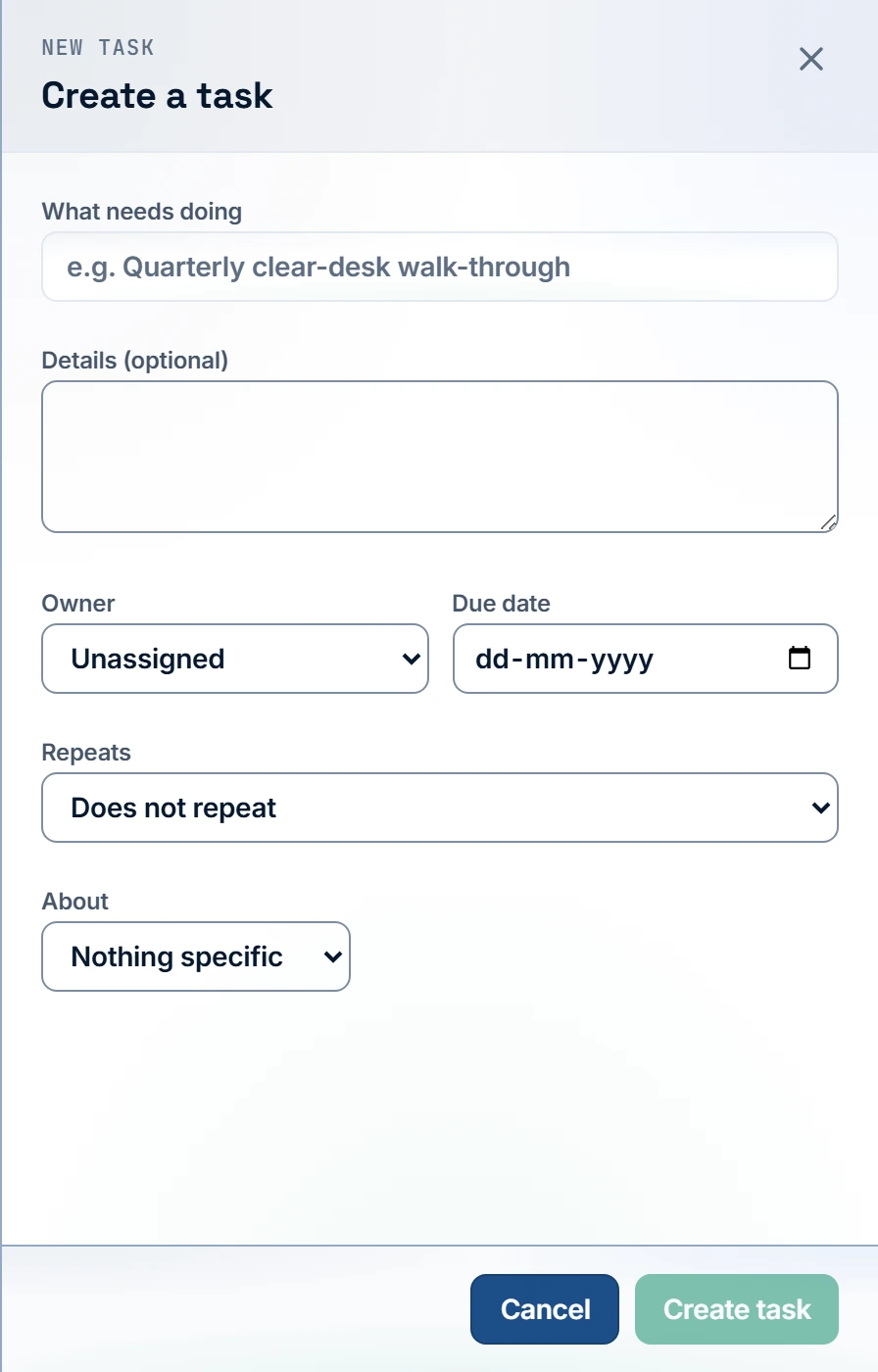
- One line for the work. Then any details, an owner and a due date. The task is listed in the Tasks inbox with its owner and due date.
- Work that comes round again. A repeating task is created anew at the start of each period, for the same owner. One left unfinished stays open and overdue.
- What it is about. Link it to a control or another record, so its row in the inbox opens that record.
A drawer, Create a task, with What needs doing, Details (optional), Owner, Due date, Repeats and About, and Create task. Editing a task opens the same drawer with Save changes.
In Dashboard and setup
Tasks on this screen
Create a task, once or on a scheduleLive
Give somebody a piece of work with an owner and a due date, linked to what it is about, and have it come back every month, quarter or year if it repeats.
As a member
- Not available. Ask an admin. A task assigned to you appears under Mine, and you are told in the app.
As an admin
- Open Tasks and click New task. The drawer Create a task opens.
- Fill What needs doing, up to 200 characters, and Details (optional) if it helps.
- Pick an Owner and a Due date.
- Choose Repeats: Does not repeat, Every month, Every quarter or Every year.
- Choose what it is About: Nothing specific, or a Control, Risk, Vendor, Policy, Evidence request or Evidence item, then pick the record.
- Click Create task. To change it later, click the pencil on its row, then Save changes.
Rules that apply
- A repeating task is created again at the start of each period, due on the same day of the period, for the same owner. An unfinished one stays open and overdue.
- New periods' tasks are created every six hours, so a new month's task appears within hours of the month starting.
- Only the latest occurrence decides whether a task repeats. On an earlier one, Repeats is locked, and changes there apply to that occurrence only.
- Deleting the latest occurrence of a repeating task is refused, because the schedule would create it again. Cancel it, so the series continues, or set it to not repeat, so the series ends.
- A task can only be given to an active member who can act, not to an auditor.
- The owner is told in the app when a task is assigned to them, unless they assigned it to themselves.
- A refused save keeps the drawer open with what you typed.
Turn a suggestion into a taskLive
The Suggested tab is what control health says needs attention. Nobody owes a suggestion until an admin tracks it as a task.
As a member
- Open Tasks and click Suggested. Each row is a control whose score says something is outstanding.
- Scope it with Assigned to me, Unassigned or Everything, each with a count, and read the tiles: Evidence missing, Evidence expired, Requested and Implementation gaps.
- Filter from the rail: Status, Evidence, Assignee, Risk (health), Due date, Issue type. Options inside one group widen the result, options across groups narrow it.
- Search with Search tasks. Read Control, Issue, Evidence, Status, Assignee and Health, and hover Health for the three factors behind it.
- Click a control code or its issue to open the control and do the work.
As an admin
- Click Track as task on a row. The task drawer opens with the control already linked. Add an owner and a due date, then click Create task.
- The row then carries Tracked, and the task is in the inbox.
- Click the Assignee cell to make someone the control's owner, or pick Unassign.
Rules that apply
- A suggestion reaches Assigned to me when you own the control, hold an open evidence request for it, or own an open task tracking it.
- If nothing is yours, the tab says so and offers Show unassigned and Show everything.
- Controls marked not applicable never appear. Ready controls are hidden until you pick the Completed status.
- There is no invite row in the assignee picker. New people join through Settings, Members.
1 question
Questions about this screen
How do I create a recurring task in Audix GRC?
As an admin, open Tasks, click New task, fill in What needs doing, an Owner and a Due date, and set Repeats to Every month, Every quarter or Every year. A new occurrence is created at the start of each period, due on the same day of the period, for the same owner.