Screen 05 of 8 · Dashboard and setup
Tasks
Your compliance work queue: tasks and evidence requests with owners and due dates, filtered to what is yours, overdue, escalated or due soon.
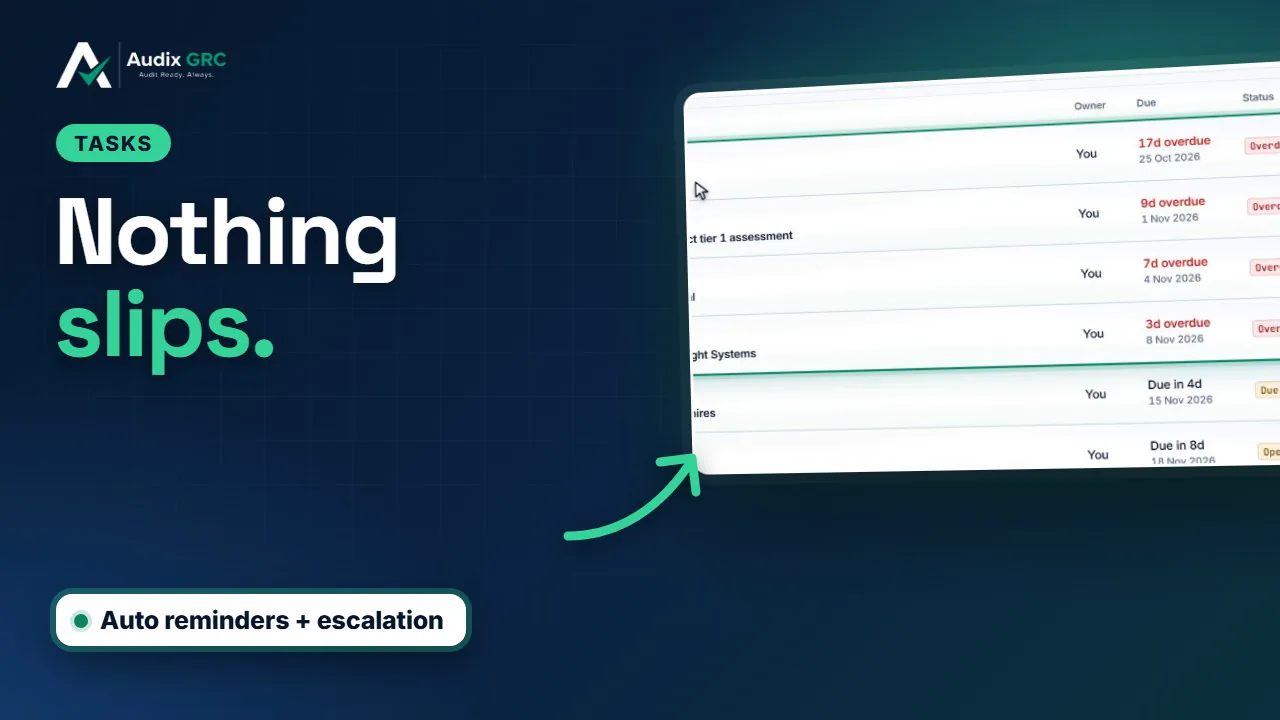
Two tabs, Inbox and Suggested, each with a count. The inbox has the views Mine, Overdue, Escalated, Due soon, All open and Completed, a search box, a Kind of work filter, and a table of Work, Owner, Due and Status.
Audix GRC Tasks: owners, due dates and reminders
In Dashboard and setup
Tasks on this screen
Work your queueLive
One inbox of everything someone owes: tasks, evidence requests and every dated record, each with its owner and due date.
As a member
- Open Tasks. It opens on the Inbox tab and the Mine view: the work assigned to you. The view is kept in the address, so the link in a reminder lands on it.
- Switch views: Mine, Overdue, Escalated, Due soon, All open and Completed, each with a count.
- Search with Search the inbox, and narrow with Kind of work when a view holds more than one kind: Task, Evidence request, Policy renewal, Vendor review, Vendor assurance, Contract notice, Access review, Evidence renewal, Risk review, Vulnerability, Risk treatment, Risk sign-off, Risk sign-off request, Policy review, Audit follow-up and others.
- Read the table: Work (the kind, the title and, for a task, what it is About), Owner, Due and Status. A repeating row shows its period, and an escalated one carries Escalated and the date.
- Click Done on a task assigned to you when it is finished, or Reopen to take it back. On an evidence request assigned to you, upload the proof, then click Fulfilled.
- Every other row links to the page that owns it, with Open. That is where the work is done.
As an admin
- Everything a member does, on anyone's work.
- Edit a task with the pencil, cancel it with the cross, or delete it with the bin. Cancelling an occurrence of a repeating task keeps the series going.
- Click New task in the header to create a task, or Request evidence to send an evidence request.
Rules that apply
- The inbox lists tasks, evidence requests and every dated record due within 120 days: policy renewals, vendor reviews and documents, access reviews, risk reviews, risk treatment steps and sign-offs, audit follow-ups, vulnerability deadlines and evidence due for renewal. A policy review or a risk sign-off sent to you by name is yours under Mine: a policy review is due on the review's date, and a sign-off request a week after it reached you. Overdue work is always included, except evidence past its renewal date, which the control's score and drift alerts flag instead.
- Due soon means due within the next 7 days. Completed shows tasks and evidence requests closed in the last 90 days.
- Only tasks and evidence requests can be closed here. A renewal or a review is a date on another record, and its row links there.
- A member can complete or reopen only a task assigned to them, and cannot reinstate or complete a task an admin cancelled.
- Owners are reminded 30, 7 and 1 day ahead and when work is overdue. Escalated lists overdue work that was passed on to an admin, or to people your organization chose, once an admin has turned escalation on in Settings, Notifications.
- The inbox keeps at most 500 open items per kind, and says so when it is cut. The counts are then a floor, not the total.
- If the inbox cannot be read, the tab says so: "This is a failed read, not an empty queue." The Suggested tab is unaffected.
Create a task, once or on a scheduleLive
Give somebody a piece of work with an owner and a due date, linked to what it is about, and have it come back every month, quarter or year if it repeats.
As a member
- Not available. Ask an admin. A task assigned to you appears under Mine, and you are told in the app.
As an admin
- Open Tasks and click New task. The drawer Create a task opens.
- Fill What needs doing, up to 200 characters, and Details (optional) if it helps.
- Pick an Owner and a Due date.
- Choose Repeats: Does not repeat, Every month, Every quarter or Every year.
- Choose what it is About: Nothing specific, or a Control, Risk, Vendor, Policy, Evidence request or Evidence item, then pick the record.
- Click Create task. To change it later, click the pencil on its row, then Save changes.
Rules that apply
- A repeating task is created again at the start of each period, due on the same day of the period, for the same owner. An unfinished one stays open and overdue.
- New periods' tasks are created every six hours, so a new month's task appears within hours of the month starting.
- Only the latest occurrence decides whether a task repeats. On an earlier one, Repeats is locked, and changes there apply to that occurrence only.
- Deleting the latest occurrence of a repeating task is refused, because the schedule would create it again. Cancel it, so the series continues, or set it to not repeat, so the series ends.
- A task can only be given to an active member who can act, not to an auditor.
- The owner is told in the app when a task is assigned to them, unless they assigned it to themselves.
- A refused save keeps the drawer open with what you typed.
Turn a suggestion into a taskLive
The Suggested tab is what control health says needs attention. Nobody owes a suggestion until an admin tracks it as a task.
As a member
- Open Tasks and click Suggested. Each row is a control whose score says something is outstanding.
- Scope it with Assigned to me, Unassigned or Everything, each with a count, and read the tiles: Evidence missing, Evidence expired, Requested and Implementation gaps.
- Filter from the rail: Status, Evidence, Assignee, Risk (health), Due date, Issue type. Options inside one group widen the result, options across groups narrow it.
- Search with Search tasks. Read Control, Issue, Evidence, Status, Assignee and Health, and hover Health for the three factors behind it.
- Click a control code or its issue to open the control and do the work.
As an admin
- Click Track as task on a row. The task drawer opens with the control already linked. Add an owner and a due date, then click Create task.
- The row then carries Tracked, and the task is in the inbox.
- Click the Assignee cell to make someone the control's owner, or pick Unassign.
Rules that apply
- A suggestion reaches Assigned to me when you own the control, hold an open evidence request for it, or own an open task tracking it.
- If nothing is yours, the tab says so and offers Show unassigned and Show everything.
- Controls marked not applicable never appear. Ready controls are hidden until you pick the Completed status.
- There is no invite row in the assignee picker. New people join through Settings, Members.
5 questions
Questions about this screen
What is the difference between the Inbox and Suggested tabs on Tasks?
Inbox is work someone owes: tasks, evidence requests and dated records such as policy renewals and vendor reviews. Suggested lists controls whose health says something is outstanding. Nobody owes a suggestion until an admin clicks Track as task.
What does Escalated mean in the Tasks inbox?
It lists overdue work that was passed to an admin, or to people your organization chose, after staying overdue. Work is escalated only once an admin turns on Chase overdue work and escalate it in Settings, Notifications.
Why can't I delete a repeating task?
The latest occurrence of a repeating task cannot be deleted, because the schedule would create it again. Cancel it so the series continues, or set it to Does not repeat so the series ends.
Who can mark a task as done?
The task's owner or an admin, with Done on its row, and Reopen takes it back. A member cannot reinstate or complete a task an admin cancelled, and an auditor cannot change anything.
When are task owners reminded about due work?
Owners get a notice in the app 30, 7 and 1 day before work is due and when it is overdue, at most once a day, linking to Mine on Tasks. The same list is emailed only when an admin ticks Email owners about their own due work.