Screen 08 of 9 · People and policies
Access Reviews
Access review campaigns by status, with a tile for access that was revoked but is still there, so you can certify who keeps access.
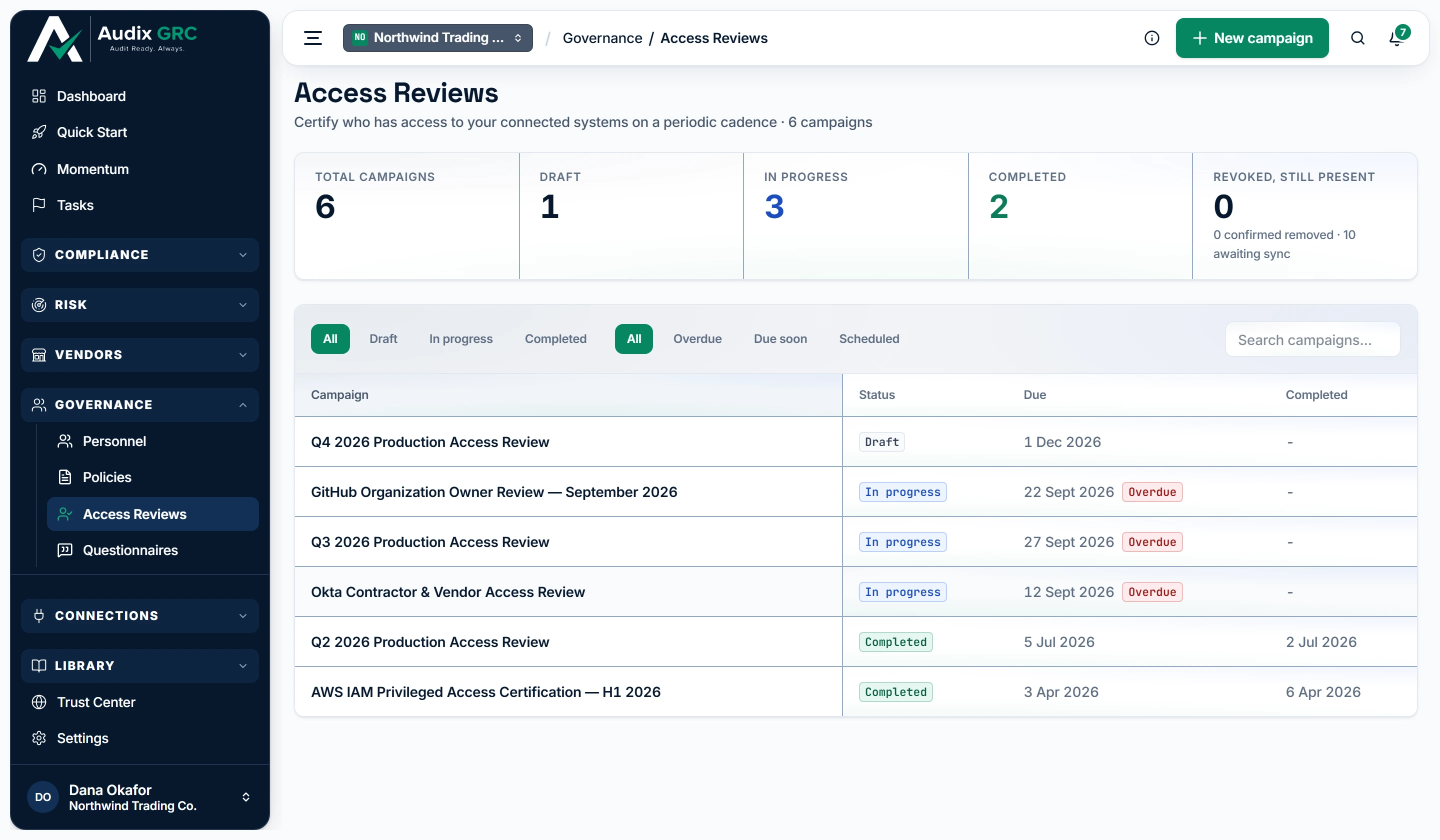
- Start a certification. Creating a campaign gives you an empty draft; generating it copies in every account your connectors have collected, so the review is against what is really there.
- Campaigns by state. Each campaign is one periodic review of who still has access, and these counts show how many are still open.
Campaign counts by status, a Revoked, still present tile across every review, and the campaign table with status and due-date filters.
Video
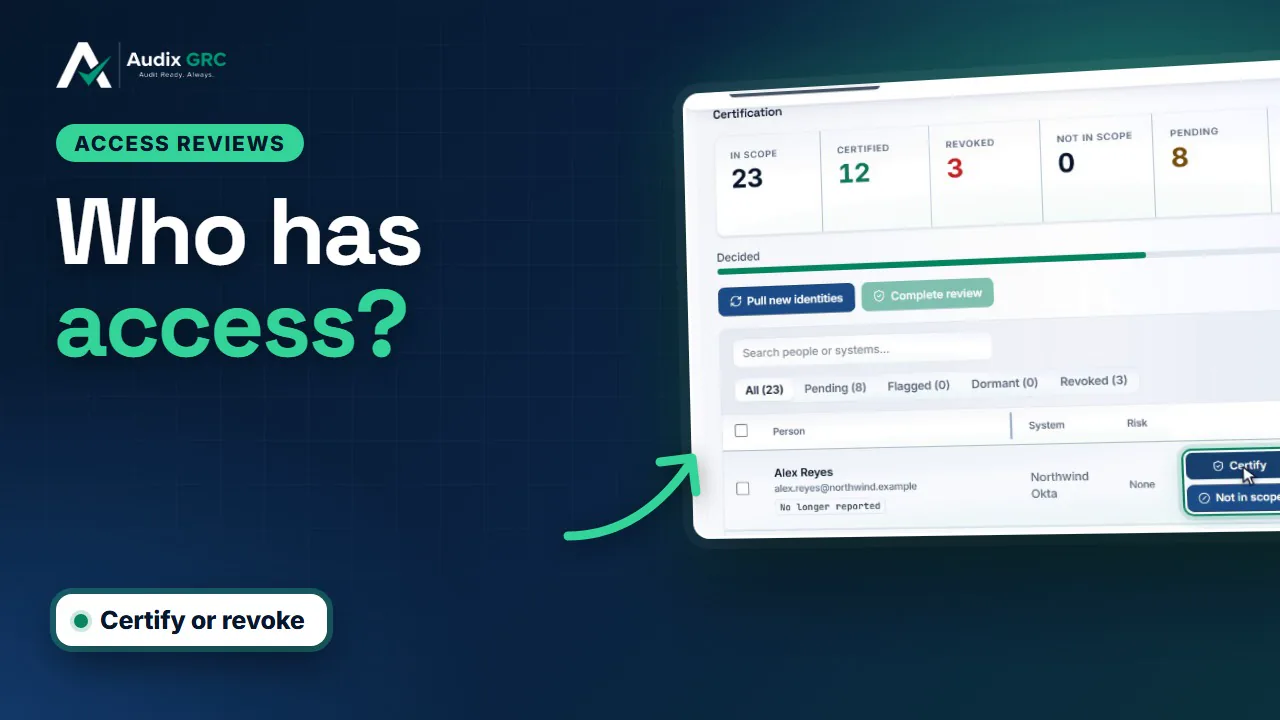
Audix GRC Access reviews: certify who has access
In People and policies
Tasks on this screen
Certify who still has accessLive
Run a periodic user access review. The platform takes a copy of every account your connectors found, flags the risky ones, and a human decides each one.
As a member
- Open Access Reviews. Tiles show Total campaigns, Draft, In progress, Completed and Revoked, still present.
- Filter by status, and by Overdue, Due soon or Scheduled when the data splits that way. Search by campaign name.
- Open a campaign to see In scope, Certified, Revoked, Not in scope, Pending and Flagged, and every account with its person, system, risk flags and decision.
- Filter the accounts by All, Pending, Flagged, Dormant and Revoked. When the review holds guest accounts, a second switch shows All accounts, Company and Guest.
- Each decision shows who made it and when, with the note. Decisions recorded before that was kept read "Not recorded".
- Names and addresses wrap instead of being cut short. Drag the edge of the Person column to widen it, from 200 to 560 pixels, or focus the edge and use the Left and Right arrow keys. Double-click the edge, or press Home, to put it back. Your browser remembers the width.
- The accounts come 50 to a page. Change it to 10, 25 or 100 with Show.
- Click an account's name to read it in full. See Read one account in full.
As an admin
- Click New campaign, give it a Campaign name and an optional Due date, then Create campaign.
- Open it and click Generate items. Every account your connectors collected is copied in and the campaign moves to In progress.
- Work down the list. On each row click Certify to keep the access, Revoke to say it must go, or Not in scope with a reason.
- To write a note first, click Note on the row, or Edit note once it has one. The account opens with the note box ready: type it and click Save note. Saving a note decides nothing.
- Or tick accounts on the page in view and choose Certify, Not in scope... or Revoke for all of them at once.
- Click Pull new identities at any point to bring in accounts collected since you generated. Your existing decisions are left alone.
- When nothing is pending, click Complete review. The campaign shows a Review completed pill and the decisions lock.
- To change a completed review, click Reopen. The dialog Reopen this review asks why, then Reopen review.
Rules that apply
- Flags come from data Audix already collected: Former employee (including a leave date that has passed), Administrator, No MFA, Dormant (more than 90 days without signing in, 45 for guests) and Not linked to a person. They are live while the review is open and frozen once it is completed. A disabled account is never marked Dormant.
- A guest carries the pill Guest: "An Entra ID guest (B2B) account: someone from outside the organization". An account that is gone reads Disabled at provider, No longer reported or Source not connected.
- Not in scope needs a reason, which goes into the evidence. The row's button then reads Edit reason: the reason can be changed but never emptied, because an auditor reads an unexplained exclusion as an account nobody reviewed.
- A note is up to 2,000 characters. It stays through the decision: a one-click Certify or Revoke keeps the note already there, and in the open account an unsaved note goes with the decision. The note is printed in the CSV and the PDF.
- Ticking accounts selects only the page in view, so one bulk decision covers at most 100 accounts. Choosing the same decision again only edits the note.
- Members read the notes but cannot change them. A completed review refuses changes to notes and decisions until it is reopened.
- Complete review is refused while anything is pending, and on a campaign you have not generated yet.
- Reopening needs a reason of 3 to 2,000 characters. Decisions become editable again, the attached evidence is marked expired until the review is completed again, and a review that was signed off once can never be deleted.
- Generating is safe to repeat and only ever adds. Every row names the system that grants the access, taken from the connection it came from.
- Revoking is a decision you record here. It does not remove the account in the tool. Do that yourself, and let Revocation follow-up confirm it.
- The list shows at most 200 campaigns. A campaign that is not complete produces due-date reminders.
Check that revoked access is really goneLive
Follow each revoked account until a sync confirms it is gone, and keep a trail of every step of the review.
As a member
- Read Revocation follow-up. It counts revoked accounts as Awaiting sync, Removed, Still present or Cannot verify.
- Read the Review trail: decisions, completion and reopening, newest first. It says how many older per-account decisions it leaves out.
- On Access Reviews, the Revoked, still present tile counts across every review, with how many were confirmed removed and how many await a sync.
As an admin
- Click Check now to follow up without waiting for the next sync.
Rules that apply
- Each revoked account is followed up after every clean sync. Only a complete sync confirms an account is gone.
- An account confirmed removed that comes back is flagged again: "Removed <date>, present again".
- Cannot verify means the connection the account came from was removed.
- Revoking in Audix removes nothing at the provider. Remove the account there.