Screen 01 of 9 · People and policies
Personnel
The roster of everyone who works for you, kept in step with your identity providers, with compliance status and why people fall short.
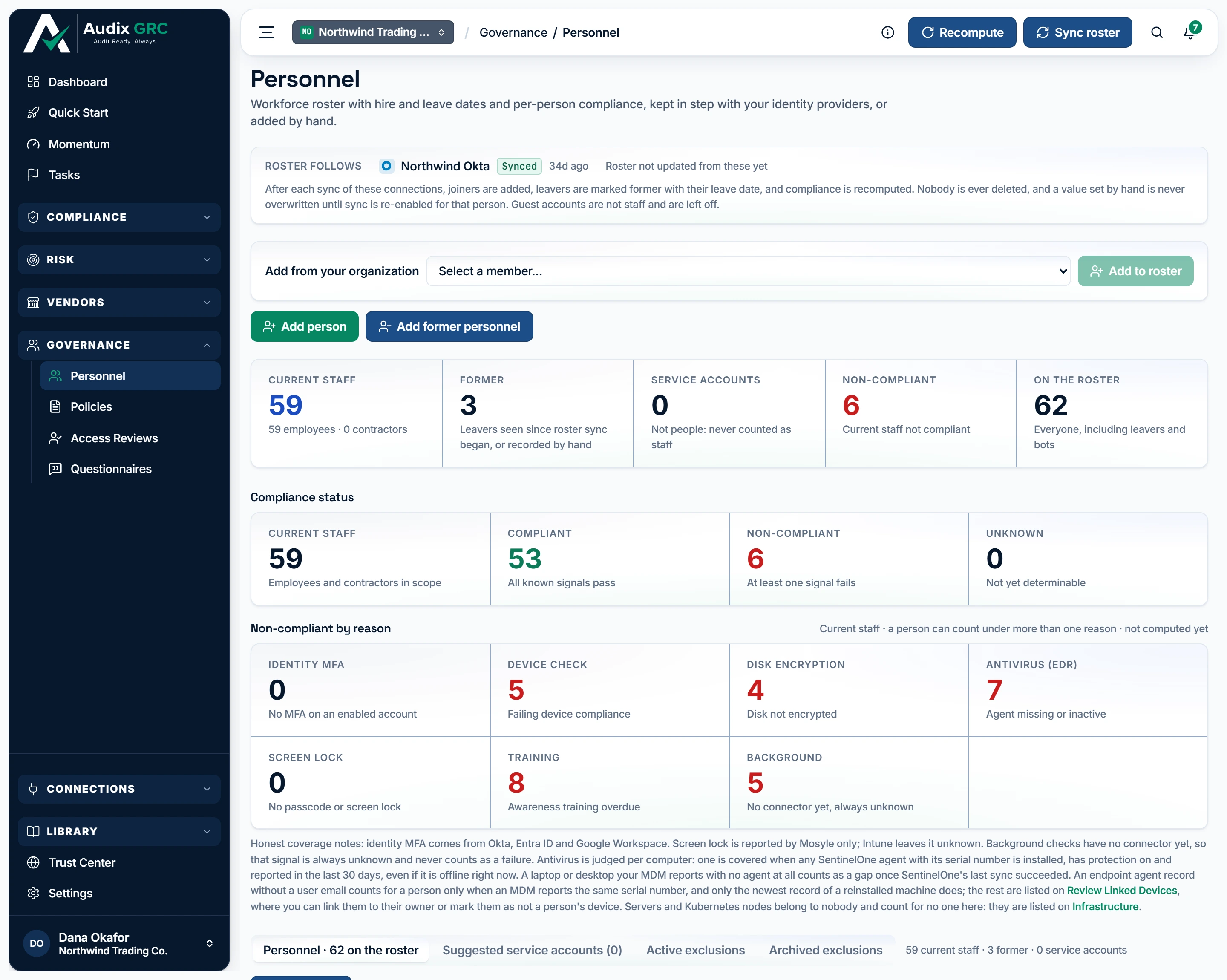
- Pull the roster from your identity providers. Okta, Entra ID and Google Workspace keep it in step. People are matched by email address and a sync never deletes anybody, so somebody dropped from a directory stays on the roster rather than vanishing from the record.
- Who is being measured. Only current people count towards compliance, so a leaver's old laptop is not treated as a live gap.
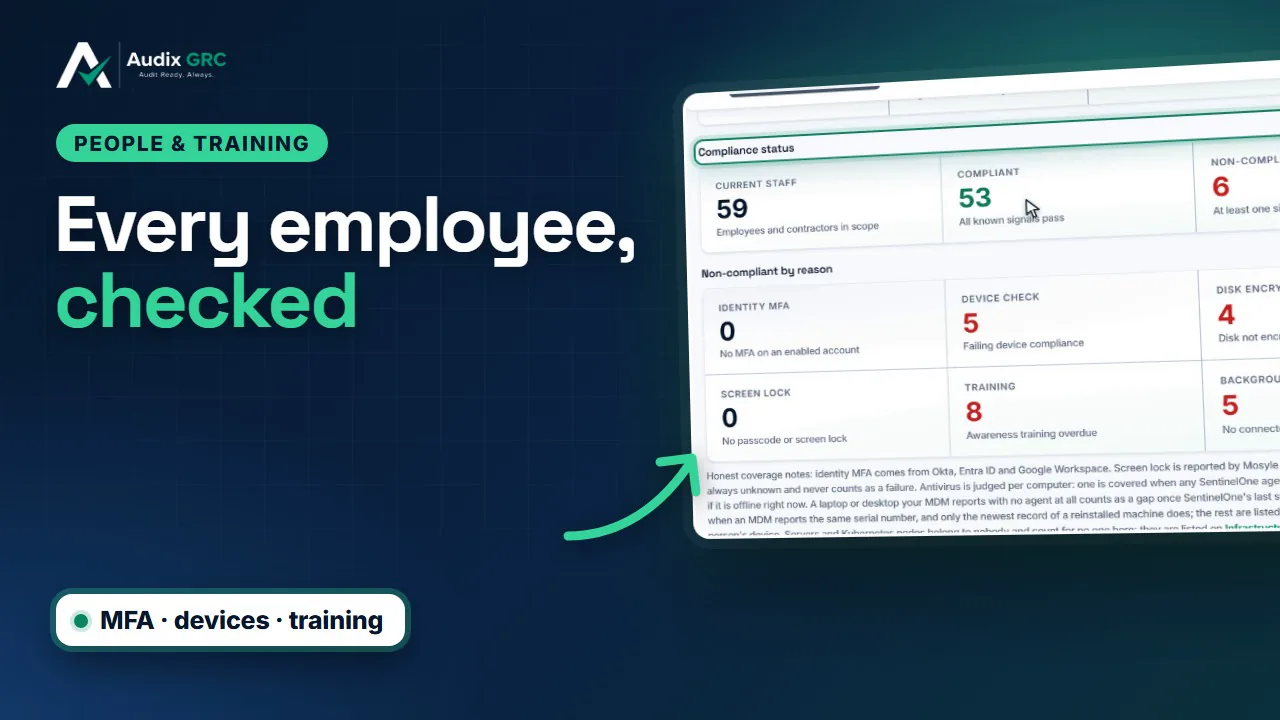
- Why anyone is failing. Each tile is one reason a person is not compliant — an unencrypted disk, a missing endpoint agent, overdue training — worked out from what your connectors collected rather than guessed.
Where a person's compliance verdict comes from
Wider than this screen: swipe sideways across the flow to follow it.
The Roster follows strip, tiles for Current staff, Former, Service accounts, Non-compliant and On the roster, the Compliance status band, the Non-compliant by reason tiles, and the roster with its tabs, filters and bulk actions.
Audix GRC People and training: staff compliance from real signals
In People and policies
Tasks on this screen
Keep the roster of who works hereLive
The roster is the list of people your programme is measured against. Every compliance tile and every policy acknowledgement percentage is counted over it.
As a member
- Open Personnel from the Governance section of the sidebar.
- Read the five tiles: Current staff (employees and contractors), Former ("Leavers seen since roster sync began, or recorded by hand"), Service accounts ("Not people: never counted as staff"), Non-compliant ("Current staff not compliant") and On the roster ("Everyone, including leavers and bots").
- The first tab reads "Personnel · N on the roster", with the current, former and service account split beside it. Its columns are Name, Compliance status, Personnel status, Last sign-in, Hire date, Leave date, IDP provider and HRIS provider. Hover a date to see whether it was set by hand or came from a provider.
- Filter on the left by Personnel status, Compliance, Sign-in (current staff), Sync status, Groups, IDP provider, HRIS provider or Failing signal, and narrow further with search.
- Click a name to open that person. A failing row names its reasons, for example
Disk unencryptedorTraining incomplete. - Click Download for a CSV. "Download all" exports what your filters show. "Download selected" exports the ticked rows.
As an admin
- Click Add person and fill in Full name, Email, Job title, Worker type (Employee, Contractor or Service account (not a person)), Hire date and an optional Planned leave date.
- Or pick somebody from Add from your organization and add them to the roster. Only people in your organisation whose email is not already on the roster are offered.
- Change anyone's status straight from the Personnel status column in the table.
- Tick several rows and use the bar that appears: Mark as former, Mark as current, Mark as service account, Mark as person, Exclude from MFA checks or Export CSV. The bar counts "N of M saved", and the ones that failed stay selected.
- Open a person and click Edit details to change Job title, Worker type, Status, Hire date, Leave date and Groups.
Rules that apply
- The list shows 100 people a page and holds up to 2,000. When it holds fewer than the roster, a banner says search, filters, bulk actions and downloads work on the loaded people only, while the counts include everyone.
- A search or filter drops the ticks on people it hides, so a bulk action and an export only ever touch the people on screen.
- Email addresses are lower-cased when saved, and an email already on the roster is refused: "<email> is already on the roster".
- Only current employees and contractors count towards the non-compliant tile and towards policy acknowledgement coverage. A former employee's old laptop is not a live gap, and a service account is not staff.
- The CSV adds worker type, hire and leave dates with where each came from, last sign-in and its basis, and identity MFA. No cell in it can run as a spreadsheet formula.
- There is no way to remove a person from any screen. Active exclusions and Archived exclusions are empty: excluding people from the Personnel compliance counts is not available yet.
Keep the roster in step with your identity providersLive
Treat Okta, Microsoft Entra ID and Google Workspace as the source of truth for who works here, instead of asking somebody to maintain a list by hand.
As a member
- Read the Roster follows strip at the top of Personnel. It names each identity provider connection that feeds the roster, with Partly synced, Last sync failed, Not synced yet, Paused or Connection error where that applies, and "Roster last updated" with how long ago.
- With no provider connected it reads "No identity provider is connected, so this roster only changes when someone edits it."
As an admin
- Connect Okta, Microsoft Entra ID or Google Workspace from Connections and let it sync. The roster updates after every sync on its own.
- To run it now, click Sync roster on Personnel. The toast says how many accounts were read from which providers, and who was added, left, came back or is no longer in the directory.
- Where you changed a field by hand, the person page shows a banner with Re-enable IdP sync to hand that field back to the provider.
Rules that apply
- After each sync joiners are added, leavers are marked former with their leave date when the provider gives one, and compliance is recomputed. Nobody is ever deleted.
- A scheduled sync that changed nothing re-runs the roster at most once a day. Sync roster always runs it.
- Someone who disappears from a directory is marked as left only when that provider's latest sync succeeded. A provider whose sync did not finish cleanly is named in the strip.
- If more people vanish from one provider at once than 5 or a fifth of its current people, whichever is larger, nobody is marked former: "That is too many at once to trust, so nobody was marked former. Check the connection, then review them here."
- Guest accounts are not staff and are left off. Disabled Entra ID accounts and suspended Google accounts never create a row.
- A value set by hand is kept, marked "Set by hand", until sync is re-enabled for that person. A service-account mark set by hand is never undone by the sync, and the sync never guesses one.
- A hire date taken from the provider's account creation date is labelled Account created, not Hire date.
- No HRIS tool is supported. The HRIS provider filter and column exist and nothing fills them.
Review suggested service accountsLive
Find the accounts on the roster that look like service accounts, without marking anything until an admin decides.
As a member
- Open the Suggested service accounts (N) tab on Personnel, shown when there are suggestions.
- Each row says why it is suggested, under "Why it is suggested", and how strong the lead is: "Your directory says so" or "Looks like one".
As an admin
- Click Mark as service account on a suggestion, or Not a service account to stop it being suggested. Both work one by one or on a selection.
- The reason is filled in with why it was suggested. Change it if you want.
- Dismissed accounts are listed apart. Suggest again puts one back.
- Admins see Review N suggestions on the Service accounts tile while suggestions wait.
Rules that apply
- Reasons include holding the Directory Synchronization Accounts role in Microsoft Entra ID, an address that reads like a shared mailbox, no device linked, no security training record, no job title, never signing in and a one-word name.
- Nothing changes until an admin marks an account.
- The list is worked out again after each roster sync.
Work out whether each person is compliantLive
Turn the identity, device and training records your connectors collected into a verdict per person, without inventing a failure where there is no data.
As a member
- On Personnel, read the Compliance status band: Current staff, Compliant, Non-compliant and Unknown.
- Read Non-compliant by reason: Identity MFA, Device check, Disk Encryption, Antivirus (EDR), Screen lock, Training and Background. One person can count under more than one reason.
- The line above those tiles says how long ago the figures were computed, and the notes under them say where each signal comes from.
- Open a person for the Compliance signals card: each signal with its source and a Pass, Fail or Unknown pill.
- Filter the table by Failing signal to get the list of people behind any one tile.
As an admin
- Same as a member, plus click Recompute at the top of the page.
- The toast reports how many people were recomputed, how many were matched, and how many devices and training records were read.
Rules that apply
- A signal with no data behind it never counts as a failure. No known signal at all gives Unknown. Any known failure gives Not compliant. Everything known passing gives Compliant.
- Identity MFA comes from Okta, Entra ID and Google Workspace, and counts an enabled account with no MFA. Screen lock is reported by Mosyle only. Intune leaves it unknown.
- Antivirus is judged per computer: one is covered when any SentinelOne agent with its serial number is installed, has protection on and reported in the last 30 days, even if it is offline now. A laptop or desktop your MDM reports with no agent at all counts as a gap once SentinelOne's last sync succeeded.
- Several devices for one person fold together and the worst one wins. An unencrypted laptop fails the person even if their phone passes.
- Servers and Kubernetes nodes belong to nobody and count for no one here.
- Background checks have no connector, so that signal is always unknown and the page says so.
- Compliance is worked out from the signals and recomputed after every identity provider sync. There is no manual override.
6 questions
Questions about this screen
How does Audix keep the personnel roster in sync with Okta, Entra ID or Google Workspace?
After every sync of an Okta, Microsoft Entra ID or Google Workspace connection, joiners are added, leavers are marked former with their leave date, and compliance is recomputed. Nobody is ever deleted, and a value set by hand is kept until you click Re-enable IdP sync for that person. Admins can also click Sync roster to run it now.
Why was someone who left not marked as former?
A person is marked as left only when their provider's latest sync succeeded, so check that connection in the Roster follows strip. If more people vanish from one provider at once than 5 or a fifth of its current people, whichever is larger, nobody is marked former and the strip says the removals were held. You can always mark someone former by hand with their leave date.
How do I stop the MFA checks failing on service accounts?
When you mark service accounts, keep Also exclude them from the 5 MFA checks for 12 months ticked and give a reason, or select service accounts and choose Exclude from MFA checks. Each exclusion has an end date, 12 months by default, and is listed on each check's Overrides tab. The dormancy, admin MFA and guest checks still grade these accounts.
What do Compliant, Non-compliant and Unknown mean on the Personnel page?
A person's compliance is worked out from seven signals: identity MFA, device check, disk encryption, antivirus, screen lock, training and background check. Any known failing signal makes them Non-compliant, every known signal passing makes them Compliant, and no known signal at all leaves them Unknown. A signal with no data never counts as a failure.
How do I add an employee who left before we connected our identity provider?
On Personnel, an admin clicks Add former personnel and fills in their name, email and Leave date, which must be in the past. What you type is kept over later identity provider syncs.