Screen 06 of 11 · Monitoring and Evidence
Evidence
Every current evidence artifact with its status, source, mapped controls, owner and last verified date, and the evidence requests open.
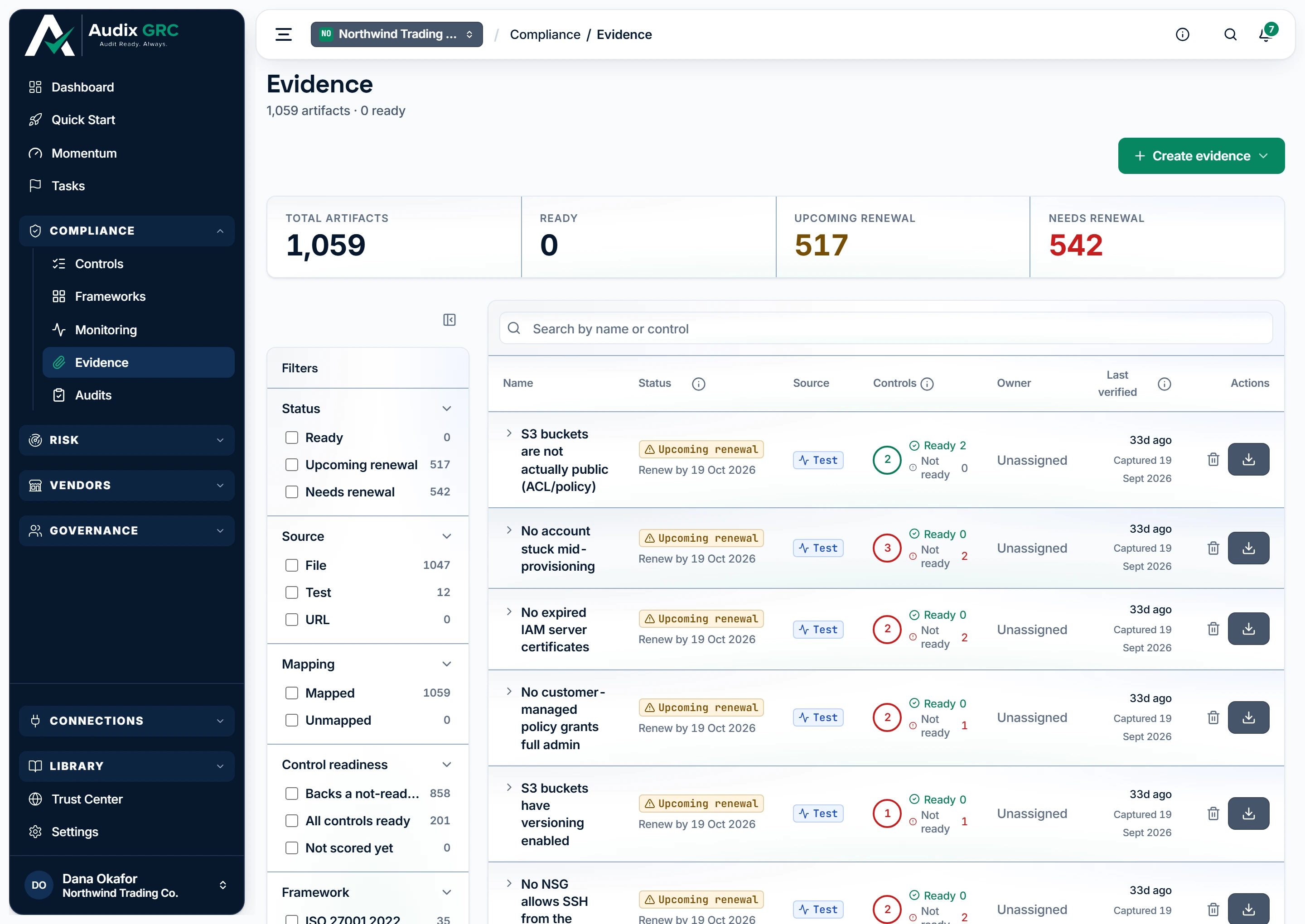
- Proof expires. Each artifact has a renewal date and an hourly sweep moves it on, so a control cannot stay green on a document nobody has looked at in a year.
- Where the proof came from. A file someone uploaded, a URL they linked, or an artifact a passing check filed on its own.
How an artifact arrives, and how it ages
Wider than this screen: swipe sideways across the flow to follow it.
Every current artifact with its status, source, mapped controls, owner and Last verified date, and underneath it the Evidence requests card. Opened from a check's Go to evidence, it lists only the evidence that check collected.
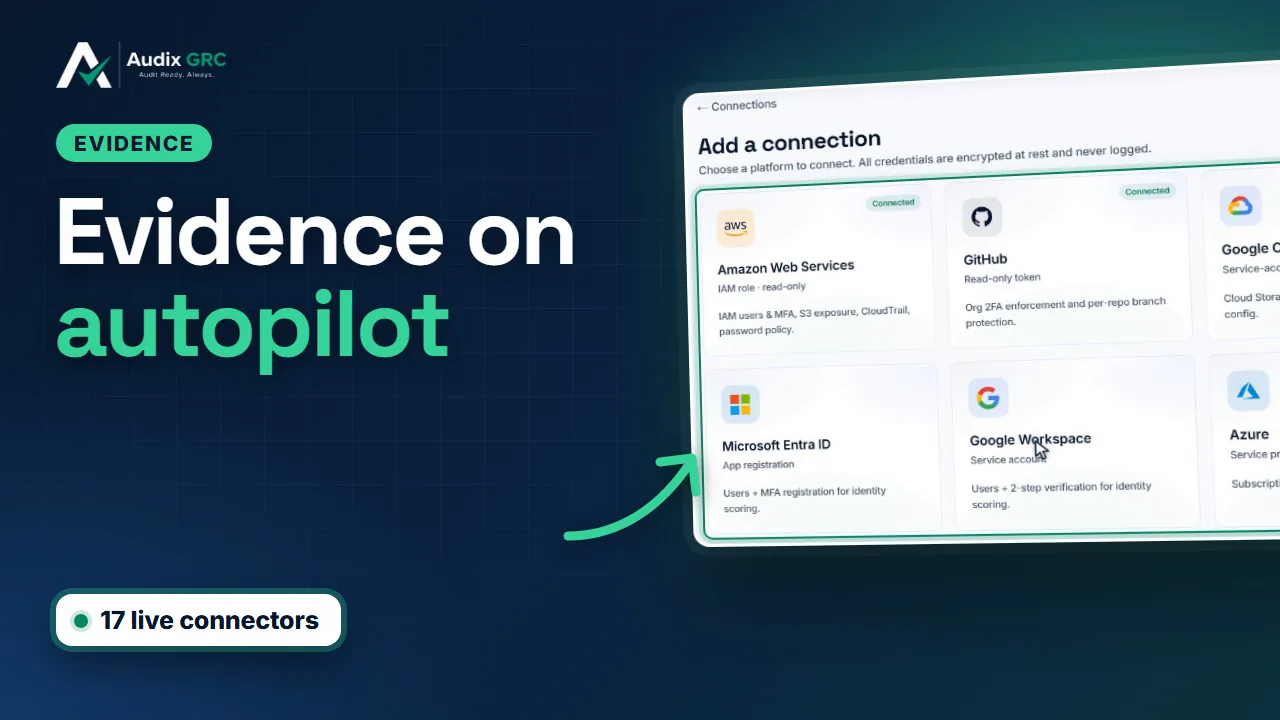
Audix GRC Evidence: collected automatically from your systems
In Monitoring and Evidence
Tasks on this screen
Read one checkLive
Understand what a single check evaluates, what it found last time, and what to do about it.
As a member
- Click a check from Monitoring. The header carries its key, its name, a Disabled pill when it is off, and the meta strip: Latest result, Latest run, Test lifecycle and Category. The result pill and any "not assessed" count have an ⓘ.
- When the check is off, a notice says who disabled it, when and why, and whether it still counts as failing.
- Take action lists numbered fix steps. It appears only when the latest result is a failure.
- Next steps gives three tiles: how many days the current pass or fail streak has run, how many resources are failing with View findings, and how many are excluded with View exclusions.
- Latest result gives the counts, the plain sentence, and the failing resources. A result that is neither a pass nor a fail prints the recorded reason, and a guidance card says what it means, for example "Not applicable: no tool it reads is connected" or "Everything this check covers is excluded".
- Supported connections lists the tools that can power this check, each with its state and its last sync time.
- Evidence from the last run shows everything the run recorded: its result, its counts and each resource it stored. View the recorded result opens that record further down the card, and Download resources (CSV) gives one row per resource the run stored.
- Open the Controls tab to see which controls this check supports. Each one links to its control page.
- Click Run AI review for a second opinion on whether the stored evidence supports the result, with its confidence and its concerns.
As an admin
- Same as a member, plus Test now in the header and the Enabled and Disabled control inside Details.
Rules that apply
- A count the page could not read shows Not available, never 0.
- A run stores at most 25 failing resources as examples. A check with more says "Showing 25 of the" total "resources this run recorded as failing" and links to See all on the Findings tab.
- Failures that triage set aside are listed apart, under "Failing, set aside by triage".
- Every run keeps its record, whether it passed or failed.
- What this run looked at says why a value is missing, for example "the check looked for it and this resource does not have it" or "the value is a list or an object, and its contents are deliberately not stored".
- On the dormant-account checks, a note says which accounts this check leaves out and links to the check that covers them, company or guest. When that check is switched off or not set up, the note warns that those accounts are not being checked.
- The rule a check applies is not shown anywhere. The page tells you what the check found, not how it decides.
- Go to evidence opens the Evidence library showing only the evidence this check collected, with Show all evidence to go back.
Add your own evidenceLive
Attach proof for the controls no connector can check: a policy document, a signed form, a screenshot, a hosted page.
As a member
- On the Evidence page, click Create evidence and choose Upload file or Add URL evidence.
- For a file: choose or drop it, or paste a screenshot. Set a Title, a Freshness window (days), a Description, and pick the controls it proves under Map to controls. Click Upload evidence.
- For a URL: enter a public HTTPS address, a Title, a freshness window and a Description, then click Add URL evidence. Only the first control you pick is linked.
- From a control page you can skip the mapping step. Open the Evidence tab, use Add evidence, and the artifact is mapped to that control for you.
Rules that apply
- A file is limited to 5 MB.
- Scriptable file types are refused: "That file type is not accepted as evidence. Upload a document, image, or data export (PDF, PNG, CSV, JSON, ...)".
- A URL has to be public HTTPS. Internal addresses are refused. The link is stored, never a copy of the page, and nothing behind it is ever fetched.
- The freshness window defaults to 30 days.
- Uploading identical bytes again does not renew the artifact already there. Adding the same URL again does renew it.
- Every new artifact recalculates the scores of the controls it is mapped to.
Ask a colleague for evidenceLive
Track who owes which proof and by when, once or on a schedule. The proof itself still arrives through the normal upload.
As a member
- On the Evidence page, scroll to Evidence requests. Each one shows its title, the control it belongs to, who it is assigned to, the due date and a status pill. A request a schedule made is marked Recurring.
- When an admin assigns you one, an inbox notification "Evidence requested" arrives with a link to it.
- You are reminded 30, 7 and 1 day before a request assigned to you is due, and again when it is overdue: an in-app notice, plus an email unless your organisation switched owner emails off.
- On a request assigned to you, click Upload, choose the file, then click Upload & fulfill. The file is mapped to the request's control and the request closes.
- Or click Fulfilled to close it without attaching anything here.
- The same card sits on a control page as Evidence requests, where the ones assigned to you carry a You tag.
As an admin
- Fill in What's needed, Assign to and Due date, then click Request.
- Create it from the control page when it belongs to a control. A request made on the Evidence page carries no control.
- Open Reusable templates to add a template with a name and a cadence, then click Use to spin a request from it.
- To repeat one, click Schedule on a monthly, quarterly or annual template and tick Create one request every month, quarter or year.
- Set Owner of each request, Due, days into the period (0 to 365, blank for the last day), Evidence stays fresh (days) (1 to 3650) and Control each request supports (optional), then click Save schedule.
- On any open request, click the X to cancel it or the trash icon to delete it. You can fulfil any request, not only your own.
Rules that apply
- A due date in the past shows overdue in red.
- Fulfilling is a flag. Nothing links the request to the artifact that satisfied it.
- A scheduled template creates one request at the start of each period, and its line says what it does, for example "Repeats every quarter". Switching a schedule on creates this period's request at once, unless this period's due day has already passed: then the first one is next period's.
- After a cadence change, the new cadence starts once the period already requested has ended. An ad hoc template does not repeat. Cancelling one period's request does not stop the schedule.
- Evidence stays fresh sets how long evidence uploaded against the template's requests stays valid, ahead of the control's interval. Left blank, the control's renewal interval applies, then the cadence default. A number typed on the upload still wins.
- A member or an approver can only fulfil a request assigned to them. Reassigning, rescheduling and cancelling are for admins.
2 questions
Questions about this screen
Why are some automatic evidence artifacts missing from the Evidence library?
A check that keeps passing renews its automatic artifact instead of filing a new one, and older artifacts that a newer one from the same check replaced are hidden by default. A line under the list says how many there are, and Show replaced artifacts lists them with a Replaced pill. They are kept for audits of the period they covered.
How do I set up recurring evidence requests?
An admin opens Reusable templates under Evidence requests, clicks Schedule on a monthly, quarterly or annual template and ticks Create one request every period. A request is then created at the start of each period for the owner you choose, and the owner is reminded 30, 7 and 1 day before it is due. Requests made this way are marked Recurring.