Screen 06 of 9 · Risk
Vulnerabilities
Every vulnerability against your assets with its severity, remediation status and due date, including findings imported from Wiz and SentinelOne.
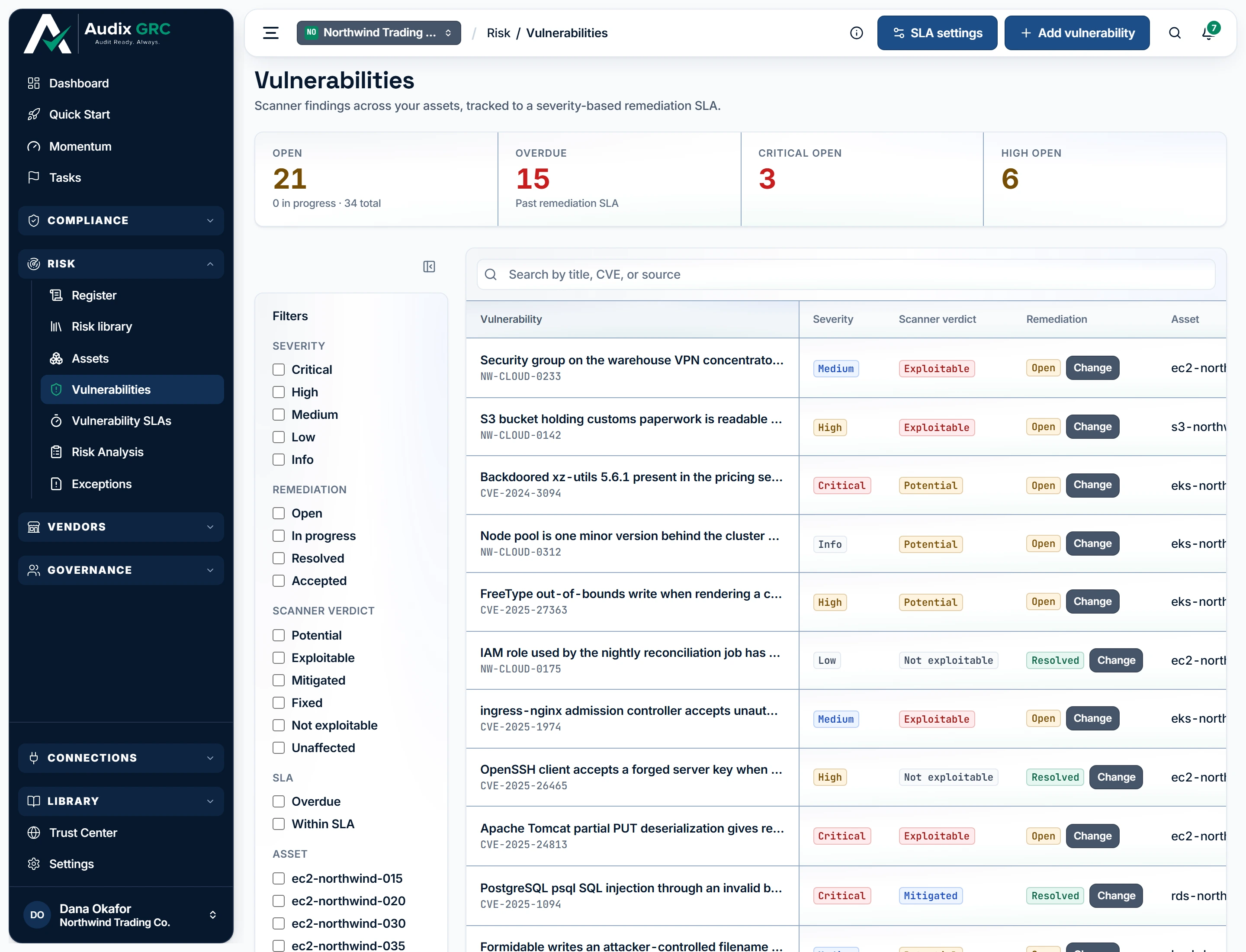
- The deadline policy behind the dates. How many days each severity band is allowed, and whether the clock starts from the detection date or the publication date.
- Open work, and how much of it is late. Only findings whose remediation status is Open or In progress count as open, and Overdue counts the ones whose remediation deadline has already passed.
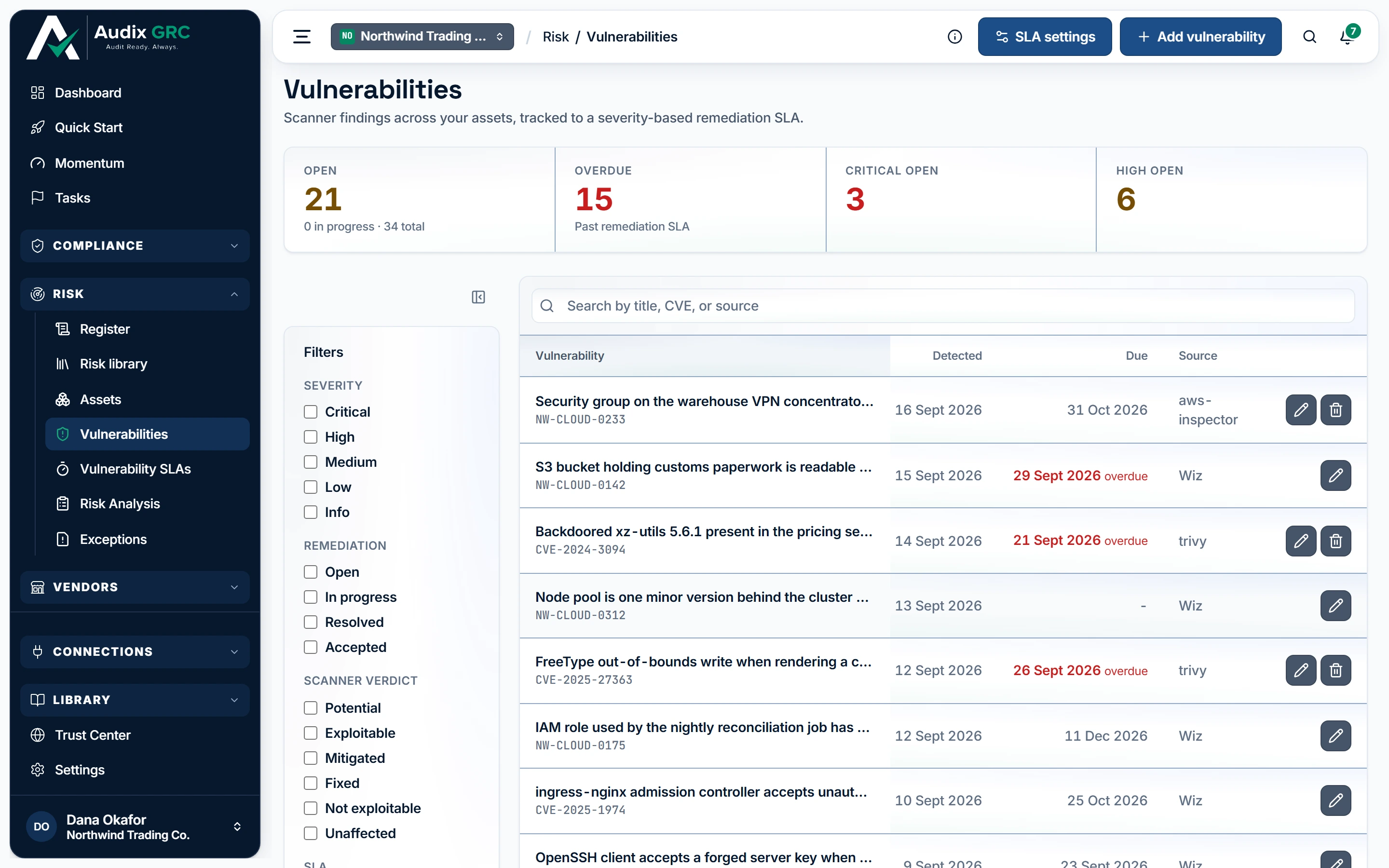
- Edit, and Delete for a finding added by hand. Edit changes what a finding says: its title, severity, asset, description, remediation and due date, while its scanner verdict, source and external id stay as recorded. Delete is offered only on a finding a person added that nobody has decided yet. Both are for admins.
Tiles for Open, Overdue, Critical open and High open, and a table of findings with the scanner verdict, the remediation status and the due date. Findings from Wiz and SentinelOne Cloud Security arrive after each sync, and Import from Wiz, Import from SentinelOne or Import from Wiz and SentinelOne shows when that tool is connected.
In Risk
Tasks on this screen
Record vulnerabilities against your assetsLive
Track scanner findings and CVEs, each with a remediation deadline and a remediation status, so overdue work is visible and every decision has a reason.
As a member
- Open Vulnerabilities under Risk.
- Read the tiles: Open, Overdue ("Past remediation SLA"), Critical open and High open.
- Read the table: Vulnerability, Severity, Scanner verdict, Remediation, Asset, Detected, Due and Source.
- Filter by Severity, Remediation, Scanner verdict, Asset and Source. An SLA filter (Overdue or Within SLA) appears when both kinds are present.
- SLA settings opens the policy page, which you can read but not change.
As an admin
- Click Add vulnerability. Fill in Title, CVE / external ID, Source, Severity, Status, "Affected asset (optional)", Detected, Published, "Due (auto if blank)" and "Remediation (optional)", then Add vulnerability.
- To correct a finding, click the pencil on its row: the title, severity, asset, description, remediation and due date. A finding you added by hand that nobody has decided also has a bin to delete it.
- To record what is being done about a finding, click Change beside its remediation status. The dialog Change remediation status takes a Status (Open, In progress, Resolved or Accepted) and a Reason, then Save.
- The reason is required for Resolved and for Accepted. Accepting also takes Accepted until, the day the acceptance ends: "Why living with it is acceptable, and what limits the exposure." For a fix, say how, for example "Patched in release 4.2.1".
- Hover a remediation status to read its reason and whether a person changed it or it was "Set by a scanner sync".
Rules that apply
- Each finding carries two statuses. The scanner verdict stays as the scanner reports it. The remediation status records what people are doing about it.
- Only Open and In progress count as open, in the tiles, in the overdue count and on the deadlines feed. A finding resolved or accepted stops being chased. The tiles count every finding in the register.
- A newer scan that still reports a finding you resolved by hand reopens it. A scan that reports a finding fixed resolves it, even while it is accepted.
- An acceptance ends on its date. The pill reads "Accepted until <day>", then Acceptance expired. It can run at most as long as Longest acceptance on the SLA page allows, 12 months unless an admin changed it.
- A due date you type in always wins. A blank one becomes the anchor date plus the SLA days for that severity, and stays empty if that band is set to 0 days.
- Changing a finding's severity moves a due date that came from the SLA, never one a person set.
- Only an admin edits, deletes, accepts or changes the remediation status of a finding. A finding a person resolved or accepted cannot be deleted.
Import findings from Wiz and SentinelOneLive
Bring in the vulnerabilities your Wiz or SentinelOne Cloud Security connection collected, each with a due date from your remediation SLA, without anyone pressing a button.
As a member
- Nothing to do. Findings from a connected Wiz or SentinelOne Cloud Security arrive in Vulnerabilities after each sync. The Source column and filter show which tool reported each one, as Wiz or SentinelOne.
As an admin
- Connect Wiz, or SentinelOne Cloud Security, on the Connections page. After each sync its findings arrive by themselves.
- To bring them in without waiting, click Import from Wiz, Import from SentinelOne or Import from Wiz and SentinelOne on Vulnerabilities. The button names the tools you have connected.
- The toast reads "Imported N findings from <tool>", with how many are new and how many were updated. When the sync got there first it reads "Already up to date: the register holds every finding <tool> reported. Each sync brings them in by itself."
- With SentinelOne connected, What does Import from SentinelOne bring in? explains what it reads.
Rules that apply
- The import reads what those connections already collected. With nothing collected the toast says "Nothing to import: your <tool> connection has not collected any findings."
- A slow import says it may still be running and that the list refreshes in two minutes. Check the list before you import again.
- Each finding is filed under the tool that reported it. One CVE both tools report is one row per tool.
- From SentinelOne come the open critical and high vulnerabilities, those known to be exploited, those with a fix, and mediums left open past their deadline. On a very large estate each sync reads a set number of each.
- With no findings yet the empty register says to connect Wiz or SentinelOne Cloud Security, or to record findings by hand.
1 question
Questions about this screen
How do I import vulnerabilities from Wiz or SentinelOne into Audix?
Connect Wiz or SentinelOne Cloud Security on the Connections page. After each sync its findings arrive in Vulnerabilities by themselves, each with a due date from your remediation SLA. An admin who does not want to wait can click Import from Wiz, Import from SentinelOne or Import from Wiz and SentinelOne, which says "Already up to date" when the sync got there first.