Screen 01 of 5 · Vendors
Current vendors
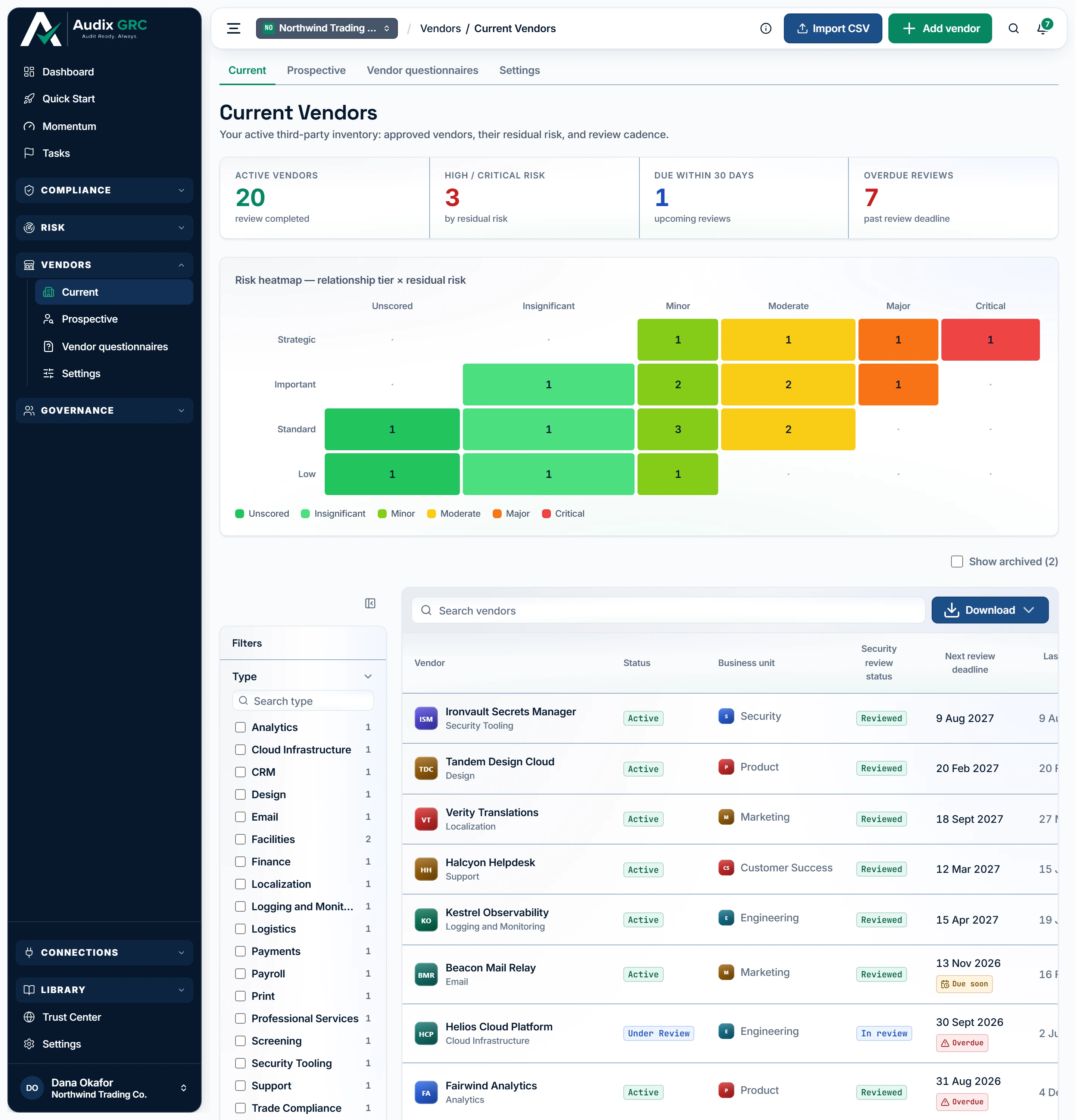
Every vendor you use, with risk tiles, a risk heatmap and a filterable table you can export, archived vendors included when you want them.
- Two ways to add a vendor. Admins get a three-step form for a single vendor, or Import CSV for a whole list, checked row by row before anything is added; everyone else has no button here at all.
- Four readings of the whole inventory. How many vendors are in use, how many score high or critical once their controls are counted, how many fall due for review within 30 days and how many are already past their deadline.
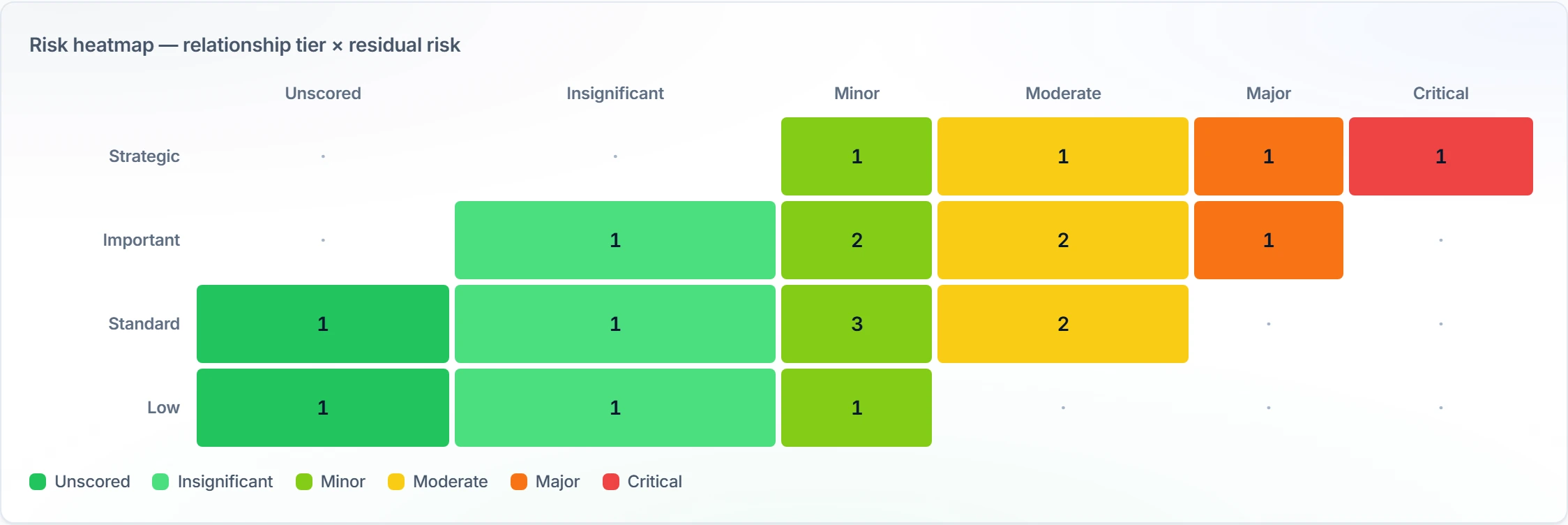
Four tiles, the risk heatmap, and the table of every vendor in use. Filter rail, search, CSV export and a Show archived toggle. Import CSV opens Import vendors from a CSV file above the table.
Audix GRC Vendors: third-party risk and security questionnaires
In Vendors
Tasks on this screen
Read the current inventoryLive
Answer "what do we use, and when was each one last looked at" without opening records one at a time.
As a member
- Open Current from the sidebar or the tab strip.
- Read the four tiles: Active vendors, High / critical risk, Due within 30 days and Overdue reviews.
- Narrow the table from the filter rail: Type, Security review status, Inherent risk, Residual risk, Next review deadline, Business unit, Security owner and Sub-processors.
- Type in Search vendors to match on name, business unit or category.
- Click a row to open the preview drawer, then Open full vendor to go to the record.
- Click Download, then Export as CSV.
- Tick Show archived to bring retired vendors into the same table.
As an admin
- Same as a member, plus Add vendor in the page header, which opens the guided form, and Import CSV beside it for a whole list.
Rules that apply
- The four tiles always describe the whole active inventory. Filtering the table or clicking the heatmap does not move them.
- Status pills follow one colour rule: green for finished well, blue for work in progress, amber for waiting on someone or due soon, red for late, failed or refused, and grey for not started or set aside. A vendor Under Review is blue, On Hold amber and Flagged red. Risk bands and relationship tiers keep their own scales.
- The CSV export covers every loaded row, not the filtered subset you are looking at.
- Overdue reviews reads "flagging disabled" and shows 0 when your organization has turned overdue flagging off in settings.
- The Show archived tick box only appears when there are archived vendors to show.
- The filter rail is built from values actually present in your rows, so it never offers a filter that would return nothing. Risk columns sort by severity, not alphabetically.
- A vendor's logo is fetched by the platform from the website on the record, not by your browser, so no vendor domain is sent from a person's machine to a third party. A vendor with no website, or one no icon can be found for, shows a generated initials seal instead.
Import vendors from a CSV fileLive
Bring in the vendor list you already keep in a spreadsheet, with a check of every row before anything is added.
As a member
- Not available. Only an admin sees Import CSV.
As an admin
- On Current, click Import CSV beside Add vendor. The panel Import vendors from a CSV file opens above the table.
- Click Download CSV template for a file with the headings already in it, and Show the column guide for what each column takes, with an example. Only Name is required.
- Choose your CSV file. Nothing is added yet: Audix checks every row and says how many vendors are ready to import into Current vendors, and into Prospective vendors when the List column says so.
- Read the rows that will not be imported, each with its line number and the reason, and the rows that will import with a note, such as a website another vendor already has or a next review date that has already passed. The first 20 vendors to import are shown as a sample.
- Click Import N vendors, or Choose another file to fix the file and check it again. The panel then says how many vendors were added.
Rules that apply
- Up to 1,000 rows and 3.0 MB at a time. Split a bigger list into smaller files and import them one after another.
- Save a spreadsheet as CSV first. A workbook is refused with "This is a spreadsheet workbook, not a CSV file. Save it as CSV (in Excel: File, Save as, CSV UTF-8), then choose that file."
- A vendor already in your list, archived ones included, is not added again: "Already in your vendors as ...". Names are matched ignoring capitals and spaces, so importing the same file twice adds nothing. Two rows for the same vendor in one file are refused as "Same vendor as line N".
- List takes Current or Prospective, and blank means Current. Archived vendors are not imported: import them as Current, then archive them.
- Inherent risk and Residual risk take Unscored, Insignificant, Minor, Moderate, Major or Critical. Medium is read as Moderate and High as Major. Low is refused, with a hint to use Insignificant or Minor.
- Security owner must be the email address of an active member of your organisation. Anyone else refuses the row: invite them first.
- Dates are read as YYYY-MM-DD or DD/MM/YYYY, never month first. Text is never cut short: a cell longer than its field allows refuses the row and says by how much.
- Review status, last review date, linked integrations and sub-processors are not read from the file, because an import is not a review. Set them on each vendor afterwards.
- If the import does not answer in time it may still have finished. Reload the page and check your vendors before importing the file again: rows already added then show as already in your vendors.
- Each import is recorded, and admins see it on Events as "Imported vendors from a CSV file".
2 questions
Questions about this screen
Can I import vendors in bulk?
Yes. Admins click Import CSV on Current, download the template if they need one, and choose a CSV file of up to 1,000 rows. Audix checks every row first and lists the ones it would refuse, each with its line number and the reason. Nothing is added until you click Import N vendors, and a vendor already in your list is never added twice.
Which columns does the vendor CSV import read?
Only Name is required. The import also reads the website, category, services, contacts, trust center, privacy and terms links, List (Current or Prospective), status, type, business unit, tier, inherent and residual risk, the security owner's email, personal data and sub-processor flags, data stored and its location, contract value and dates, notice period, relationship contact and notes. Download CSV template gives you the headings.