Screen 02 of 19 · Accounts and access
Two-step verification
The second step of signing in: a code from your authenticator app, a code sent by email, or one of your saved recovery codes.
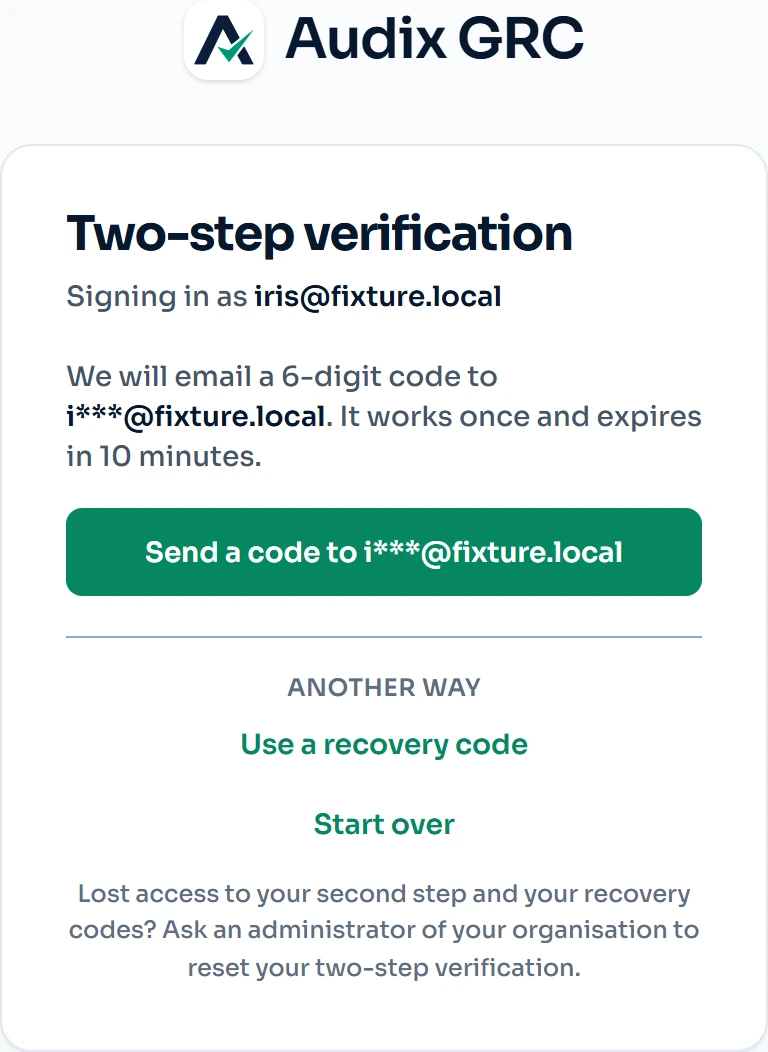
- After the password, before any session. Nothing is signed in until a code is accepted, so leaving this page leaves you signed out.
- A code by email, when you ask. It goes to your own address, works once and expires in 10 minutes. An account with an authenticator app is asked for the app's 6-digit code first.
- Another way. One of the recovery codes you saved when you set it up, or your other method if you have two.
- Start over. Back to the email and password.
The second step of signing in: the 6-digit code from your authenticator app, a code sent to your email, or a recovery code, then Verify and sign in. Another way switches between them and Start over goes back to the password. An account that has to set it up first sees Set up two-step verification instead.
In Accounts and access
Tasks on this screen
Sign inLive
Exchange your email and password for a session, and land in one of your organizations.
As a member
- Open the sign-in page, type Email and Password, click Sign In.
- The screen says "Signing you in..." and takes you to the dashboard of your first organization.
- If your account has two-step verification, or an organization you belong to requires it, the Two-step verification screen asks for the second step before anything opens.
- If Audix staff set your password for you, you land on Choose your own password instead.
- Errors appear on the form: "Invalid credentials", or "Too many failed sign-in attempts. Try again in a few minutes."
Rules that apply
- Ten failed attempts within fifteen minutes lock that address out until the window passes. A successful sign in, a password change or a password reset by Audix staff clears the count. A reset by email code does not, so wait for the window to pass.
- An account that has not verified its email yet is taken to the verification screen to finish, rather than refused.
- A disabled account gets "Invalid credentials".
- If Audix cannot be reached, the form says "We couldn't reach Audix just now. Please try again in a moment." rather than blaming your password.
- Belonging to no organization takes you to a screen that says so, or that shows the invitation waiting for you.
- If the organization you open is locked, a trial past its read-only days or a workspace Audix staff have paused, the Workspace paused page replaces the app.
- A link carrying
?from=/some-pagereturns you to that page after sign in, through the second step too. - Opening the sign-in page while already signed in shows the form again rather than the dashboard.
- Each sign-in opens a session of its own. Signing in on a second device leaves the first one signed in.
- Every sign-in attempt is recorded. A successful one also appears on the Events page of each organization you are an active member of; a failed one does not, unless it is the attempt that locks the account.
Finish signing in with two-step verificationLive
The second step after your password, for an account that has two-step verification on. No session starts until it is done.
As a member
- Sign in with your email and password. The Two-step verification screen opens and says who you are signing in as.
- Enter the 6-digit code from your authenticator app and click Verify and sign in.
- To use email instead, choose Send a code to … under Another way. A code goes out only when you press it. Enter the 6 digits from the email and click Verify and sign in.
- No phone and no email? Choose Use a recovery code and type one of the codes you saved when you set it up.
- Start over goes back to the sign-in form.
Rules that apply
- The second step has to be finished within ten minutes, in the browser you signed in with. After that the screen reads This sign-in has expired, and Back to sign in starts again.
- The screen offers only the methods your account has. The authenticator app comes first when you have it.
- An emailed code has 6 digits, works once and expires 10 minutes after it was sent. A new one can be sent after 60 seconds, and at most 5 an hour; the button counts down the wait.
- When email is slow the screen says the code may take a minute or two to arrive, and that it still works when it does.
- A code from the authenticator app changes every 30 seconds and cannot be used twice.
- Five wrong codes within 15 minutes hold further tries for a while: "Too many incorrect codes. Try again in N minutes."
- Each recovery code works once. When 3 or fewer are left after you use one, you are told how many remain and to create new ones from your profile.
- The foot of the screen says what to do if you have lost both your second step and your recovery codes: ask an administrator of your organization to reset your two-step verification.
Turn on two-step verification for your accountLive
Add a second step after your password: a code sent to your email, a code from an authenticator app, or both.
As a member
- Open Profile from the account menu and find the Two-step verification card. Its pill reads On, Required or Off.
- On the Email codes row, click Use email codes. Confirm it's you with your password and click Send me a code.
- Enter the 6-digit code from the email and click Turn on email codes. Email codes turn on only once that code comes back.
- Save the ten recovery codes that appear, with Copy codes or Download .txt, then click Done. They are shown once.
- To add an authenticator app such as Google Authenticator, Microsoft Authenticator or 1Password, click Set up on the Authenticator app row, confirm it's you, scan the QR code (or use Can’t scan? Enter this key instead), enter the code the app shows and click Turn on two-step verification.
Rules that apply
- An account that signs in with a password starts with email codes, because the first code proves the inbox is yours. Until then the app row reads "Start with codes by email: the first code proves the inbox is yours. You can add an authenticator app afterwards."
- Every change asks for your password first. On a sign-in that never proved a second step, it asks for a current code as well. If nothing on that sign-in can give one, the card offers Verify this sign-in.
- A set-up QR code waits 10 minutes and accepts 5 codes. After that, start again for a new one.
- Setting up the authenticator app, or moving it with Move to a new phone, gives you a fresh set of recovery codes, and the old set stops working. Adding email codes as a second method keeps the codes you have.
- New recovery codes replaces all ten, and the old ones stop working. The row shows N of 10 left, and with 3 or fewer it warns "You are running low on recovery codes. Create new ones."
- Send a test code emails you a code and checks it, so you know codes reach you.
- You can remove one method while the other stays on. The last one cannot be removed while your organization requires two-step verification, and the button says why.
- If Audix staff have exempted your account from required two-step verification, the card shows MFA exempt and the reason. A method you set up is still asked for at sign-in.
- Every change emails you a security notice.
2 questions
Questions about this screen
I lost my phone and can't sign in to Audix. What do I do?
On the Two-step verification screen, choose Use a recovery code and enter one of the codes you saved. Each code works once. If you have no recovery codes left, ask an admin of your organization to reset your two-step verification, then set it up again at your next sign-in.
Why was my two-step verification code not accepted?
An emailed code works once and expires 10 minutes after it was sent, and an authenticator code changes every 30 seconds, so always use the newest one. Five wrong codes within 15 minutes hold further tries for a few minutes. After 100 wrong codes in a row, app and email codes are paused until you use a recovery code or reset your password with Forgot password?.