Screen 07 of 8 · Connections
Connect an AI assistant
Connect Claude, ChatGPT, Cursor or a script to your Audix data over MCP, read-only, in three steps: your client, connect it, verify.
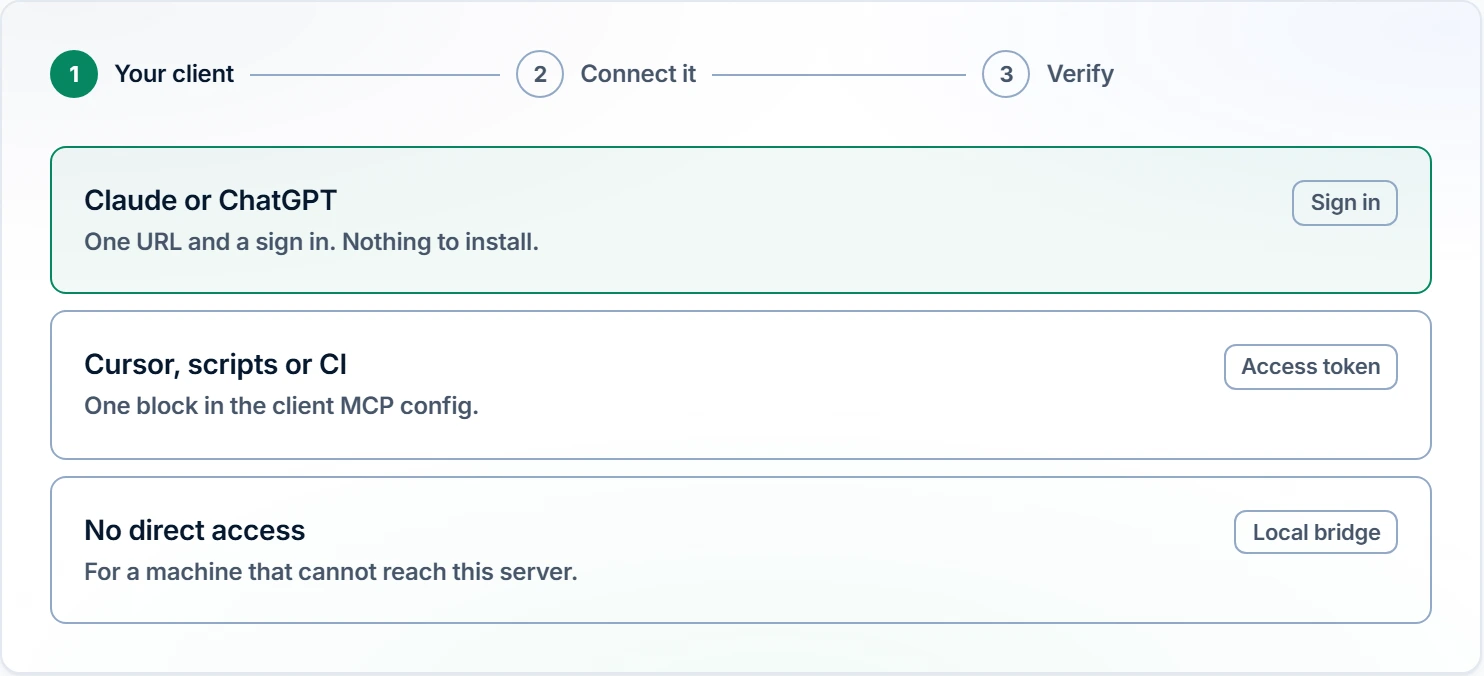
- Sign in, nothing to install. Claude or ChatGPT take the server URL and sign in here as you. On a Team or Enterprise plan the workspace Owner adds the connector first.
- A read-only token. For Cursor, scripts or CI: a token that can only read, expires after 365 days and is revoked from API Keys in Settings.
- A local bridge. For a machine that cannot reach Audix itself: the same token, through the bridge script that ships with Audix.
A three step setup: Your client, Connect it, Verify. Claude or ChatGPT sign in with the server URL; Cursor, scripts or CI get a read-only access token; a machine with no direct access uses a local bridge. What it can read lists compliance posture, controls, risks, vendors and policies.
In Connections
The task on this screen
Connect an AI assistantLive
Let Claude, ChatGPT or Cursor answer questions from your live compliance data, read-only.
As a member
- Click Connect an AI assistant on Connections. Admins also find an AI assistant tile on Add a connection.
- Your client: choose Claude or ChatGPT (sign in), Cursor, scripts or CI (access token) or No direct access (local bridge).
- For Claude or ChatGPT, pick Team or Enterprise or Pro or Max, copy the Server URL, and add it as a custom connector in your client. On Team and Enterprise plans only a Claude workspace Owner can add a connector, so Copy steps for your Owner gives you the steps to send them.
- For Cursor, scripts or CI, give the token a Token name, click Create read-only token, and copy the token (shown once) and the configuration block into your client. Then click Test connection.
- A signed-in assistant verifies itself. Ask it something to confirm, for example what is blocking SOC 2.
As an admin
- Same as a member.
Rules that apply
- It is read-only and scoped to one organisation, and it never sees more than your own account can.
- It can read your compliance posture, controls, risks, vendors and policies.
- A token made here is read-only and expires after 365 days.
- Signed-in assistants are listed under AI assistants on the Connections page, with when each last read anything. Revoke one in Settings, under API Keys.