Screen 06 of 8 · Connections
Manage tab
A connection's setup details and the choices some tools offer: which GitHub repositories are tested, which KnowBe4 trainings count, where Zendesk tickets go.
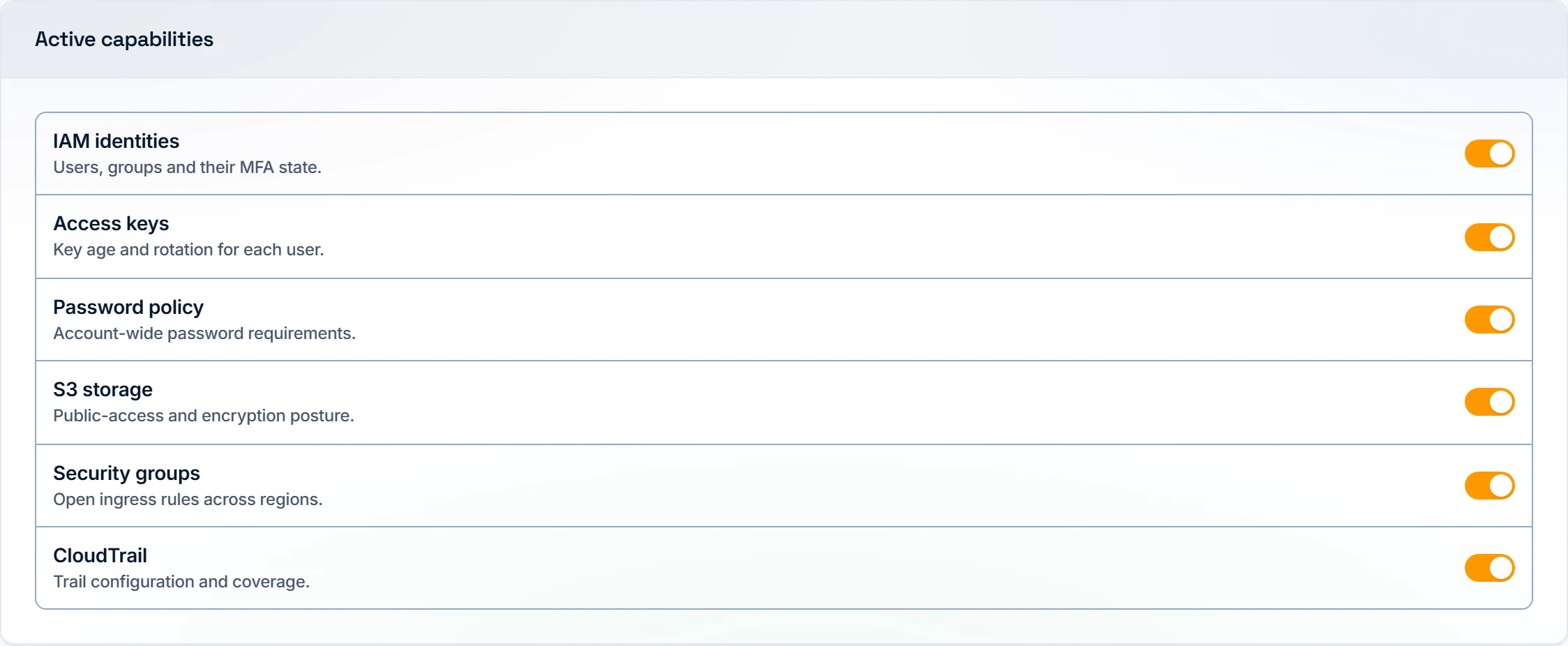
- What this connection collects. Each area this tool reads for your checks. They show what is collected; they are not switches.
Active capabilities and Setup details for every connection. GitHub adds Repositories tested, KnowBe4 adds Trainings that count, and Zendesk adds Zendesk sign-in, Where tickets go and Security tickets. A SentinelOne connection that reuses another's token shows API token as shared from that connection.
In Connections
Tasks on this screen
Connect SentinelOne Cloud SecurityLive
Bring the open cloud misconfigurations and vulnerabilities SentinelOne finds into the cloud and vulnerability checks.
As a member
- Not available. Once an admin connects it, everyone can read the connection.
As an admin
- Choose SentinelOne Cloud Security (API token · read-only).
- If your organisation already has a SentinelOne connection, keep Use the token from your SentinelOne connection. Otherwise choose Use a different token and enter the Management console URL, the same one your SentinelOne EDR connection uses, and an API token.
- To make a token: in the SentinelOne console open Settings → Users → Service Users and create a service user at Account or Site scope with the read-only Viewer role. Cloud Native Security does not accept Global-scope tokens.
- Click Connect.
Rules that apply
- The connection is refused until at least one cloud account or Kubernetes cluster is onboarded in Cloud Native Security and has finished a scan, so nothing can pass on an empty scan.
- It reads Misconfigurations (each open critical finding by cloud account and Kubernetes cluster, and the high and medium ones past their remediation window), Vulnerabilities (open ones that are critical or high, known to be exploited, or have a fix, and mediums left open past their deadline) and Cloud coverage (how many cloud assets SentinelOne can see).
- Remediation windows count from detection: 15 days for critical, 30 for high and 90 for medium.
- It feeds the eight cloud and vulnerability checks it shares with Wiz, and its own check that SentinelOne Cloud Security monitors your cloud accounts. Its vulnerabilities also reach the vulnerability register.
- If your licence or the token's role does not cover vulnerabilities, the connection is still made and those checks show as not assessed. A read SentinelOne refuses, or answers in a way that does not match, leaves its check not assessed, never passing.
- It syncs at most once an hour. Sync now ignores that.
- When SentinelOne caps a list, findings it did not return keep what earlier syncs stored, for at most 7 days.
- After a 401 or 403 the connection explains: "Cloud Native Security reads need a service-user API token at Account or Site scope (Global-scope tokens are refused) with at least the Viewer role."
Reuse the token from your SentinelOne connectionLive
Connect SentinelOne Cloud Security or AI SIEM without making another token, for example when your SentinelOne login is a Viewer that cannot create one.
As a member
- Not available.
As an admin
- On the SentinelOne Cloud Security or AI SIEM form, keep Use the token from your SentinelOne connection. It says Audix copies the token you already gave it for that connection, and that nothing changes in SentinelOne.
- With more than one SentinelOne connection, pick the one to copy from under SentinelOne connection. Its name and console URL are shown.
- To enter a token instead, choose Use a different token.
Rules that apply
- The token is sealed again for the new connection and is never shown. The new connection always uses the source connection's console URL, so a stored token only ever goes back to the console it was given for.
- The new connection's Manage tab shows API token as shared from the source, with "If you replace the token on that connection, this one follows it."
- A token is copied only between different SentinelOne products. A second connection of the same product cannot copy it.
- Disconnecting the source leaves each copy working with the token it holds, so its confirmation names every copy and says to disconnect them too to stop Audix reading SentinelOne.
- Each change to a copied token is written to the audit log.
Connect ZendeskLive
Read your security tickets for the four ticket checks, and let your team open a Zendesk ticket from a failing finding in one click.
As a member
- Not available. Once an admin connects Zendesk, members can create tickets from failing findings in Monitoring.
As an admin
- Choose Zendesk (OAuth client). Its Provider step reads Writes on request where other tools read Read-only.
- In Zendesk, as a Zendesk admin (ideally an account kept for integrations), open Admin Center > Apps and integrations > APIs > OAuth clients and choose Add OAuth client. Name it Audix GRC, give it an Identifier such as audix_grc, set Client kind to Confidential, and leave Scopes empty or allow read and write. If Zendesk asks for a Redirect URL, enter https://app.audixgrc.com (Audix does not use it). Save, then copy the Secret. Zendesk shows it only once.
- Under How Audix signs in to Zendesk, keep OAuth client. Enter the Zendesk subdomain (for https://acme.zendesk.com, enter acme), the Client identifier and the Client secret.
- Click Connect. Audix checks the client with Zendesk, and that it acts as an agent or admin, before it saves anything.
- Zendesk no longer issues API tokens. One made before 27 October 2026 works until 30 April 2027: choose API token and enter the Agent email and the token instead.
Rules that apply
- Audix writes to Zendesk only when someone asks: one ticket per finding when Create Zendesk ticket is clicked, and one internal note on that ticket when the finding is fixed. It never changes a ticket's status, assignee or anything else.
- Tickets and internal notes are made as the person who created the OAuth client (on an API token, as the agent whose email you entered), so that person must be an active agent or admin. An end user, or a suspended or deleted user, is refused.
- A pasted address such as https://acme.zendesk.com is reduced to the subdomain. Requests go only to
https://<subdomain>.zendesk.com. - When Zendesk refuses the client, the message says what to check: its Identifier, that Client kind is Confidential, and that the secret was copied whole (Zendesk shows it once: if it was not kept, make a new secret for the client, or a new client). On an API token, it says to check that the token still exists, that the email is the agent it should act as, and that API token access is allowed in Zendesk.
- It reads security tickets (the ones Audix created, plus the ones matching your Security tickets rule), your Zendesk groups, and the status of each ticket created from a finding.
- It feeds the four ticket checks: Security remediation work is tracked in tickets, Open security tickets are within the remediation SLA, No open security ticket is past its due date, and Open security tickets have an assignee.
- The stored secret is never sent to another subdomain or used for another client or agent: those change only together with a new secret or token.
- A connection still on an API token says so on its Overview, with the day Zendesk turns tokens off (30 April 2027). An admin switches it on the Manage tab under Zendesk sign-in: enter the client's Identifier and Secret and click Switch to OAuth client. Where tickets go and which tickets count are kept.
Choose where Zendesk tickets go and which tickets countLive
Send each one-click ticket to the team that fixes it, and decide which Zendesk tickets count as security work.
As a member
- Open the Zendesk connection's Manage tab to read Where tickets go and Security tickets. Only an organisation admin can change them.
As an admin
- Under Where tickets go, pick a Zendesk group for each Audix area: Identity & access, Devices, Cloud infrastructure, Code & pipelines, Security operations, Training & people, and Vendors & process. An area left on Default group uses the default.
- Pick the Default group, or None: Zendesk's own routing to send no group at all.
- Click Save where tickets go. The change affects new tickets only.
- Under Security tickets, type Tags separated by commas and tick Groups. The tag "audix" is always read: it marks the tickets Audix created.
- Click Save security tickets. A sync starts, so the ticket checks read the tickets the new rule selects within a few minutes.
Rules that apply
- A ticket goes to the group chosen for its resource's area, otherwise to the default group. With neither, no group is sent and Zendesk's own routing places it.
- Until a group is chosen, the connection's Overview says "No Zendesk group is chosen for tickets yet".
- With no rule chosen, the checks read tickets tagged "security". A rule can name up to 20 tags and 10 groups.
- The ticket checks read every unsolved matching ticket, plus the ones updated in the last 180 days.
- If more than 10,000 tickets match, the sync keeps none of them and says so, rather than judging part of the list.
- Audit packages list the rule and what it does.
Choose which KnowBe4 trainings countLive
Grade people only on the training campaigns that matter, so optional, remedial or cancelled campaigns do not pass or fail anyone.
As a member
- Open the KnowBe4 connection's Manage tab to read Trainings that count. It says "Only an admin can change which campaigns count."
As an admin
- Open the KnowBe4 connection, then Manage, then Trainings that count.
- Keep Every training campaign (default), where every enrollment counts, including optional, remedial and cancelled campaigns. Or choose Only the campaigns I choose and tick the campaigns that count.
- Read the notices before you save. One says how many current staff have no enrollment in the chosen campaigns, so their training would not be graded and the checks could pass without them.
- Click Save. It applies as soon as you save, with no KnowBe4 sync, and the three training checks run again.
Rules that apply
- The choice decides what counts toward the three training checks and each person's training status. Phishing results are not affected.
- Enrollments in other campaigns are set aside, and each check says so. A campaign added later does not count until you tick it, and is flagged New since you chose.
- A chosen campaign that KnowBe4 no longer lists is flagged No longer in KnowBe4, and its enrollments are still shown.
- Campaigns can be chosen only after a KnowBe4 sync has stored them.
- While every campaign counts, the connection's Overview says "Every training campaign counts". Setup details show the choice, and audit packages record it.
- The three training checks are: Assigned security-awareness training is completed, Assigned training is not past its due date, and Security-awareness training was completed within the last year.
Choose which GitHub repositories are testedLive
Stop archived or irrelevant repositories from dragging your results down.
As a member
- Open the Manage tab to see Repositories tested and which repositories are ticked. The tick boxes are read-only.
As an admin
- Run at least one sync so the repository list exists.
- Open Manage, tick the repositories you want tested, untick the rest.
- Click Save selection. Unticked repositories are skipped from the next sync.
Rules that apply
- If you select nothing, every repository the token can see is tested.
- The change takes effect on the next sync, not immediately.
- Audit packages list the repositories chosen.
1 question
Questions about this screen
How do I choose which KnowBe4 training campaigns count?
An admin opens the KnowBe4 connection, then Manage, then Trainings that count, and picks Only the campaigns I choose. The choice applies as soon as you click Save, with no KnowBe4 sync, and decides what the three training checks and each person's training status count. Phishing results are not affected.