Screen 05 of 9 · People and policies
Policy Center
Every policy from draft to published, with renewal tiles, archived and replaced versions, a framework filter and template recommendations.
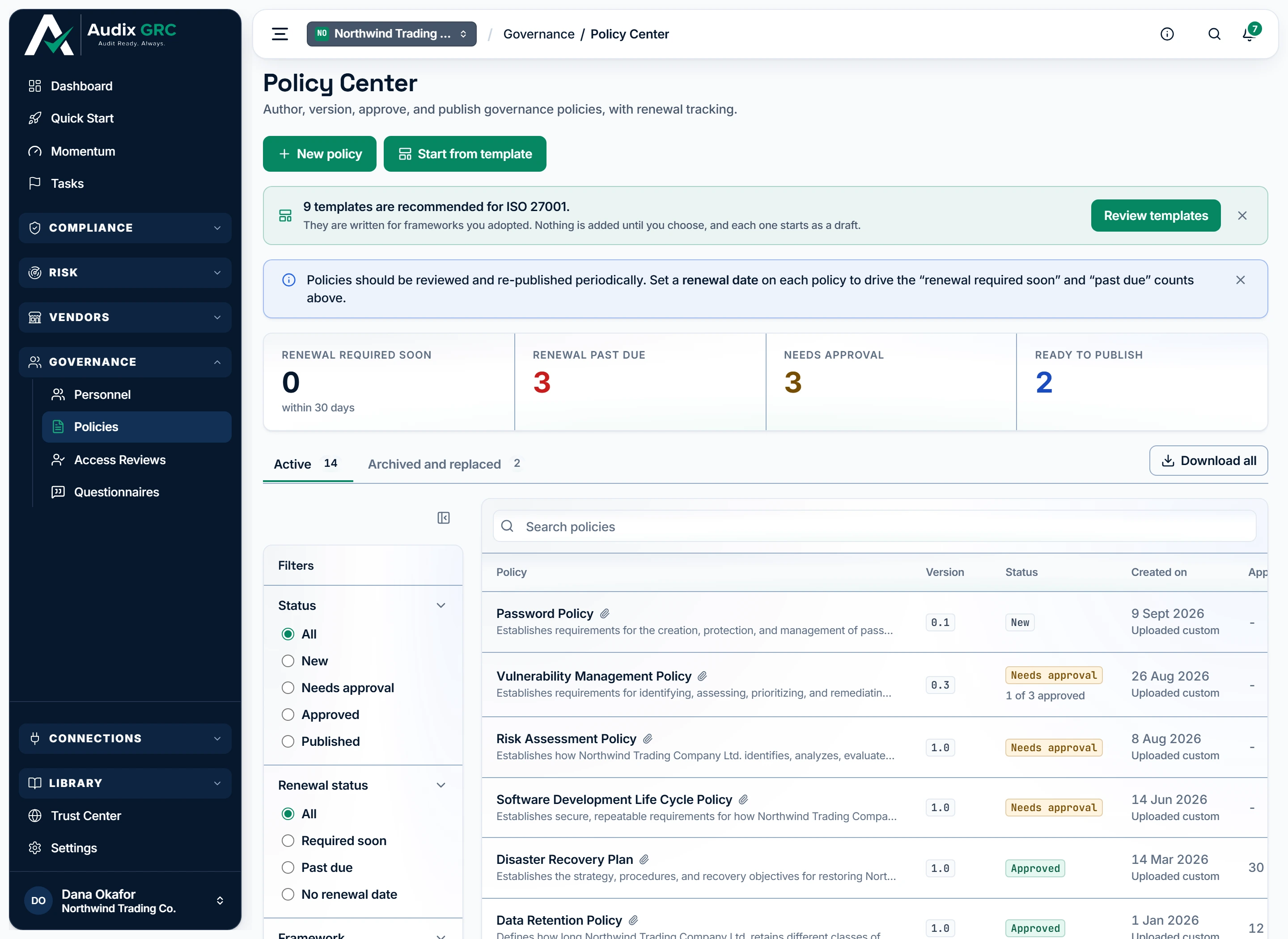
- Write one, or adopt one. The library holds 22 baseline templates and 20 written for particular frameworks, each already mapped to the controls it satisfies, so a full policy set does not have to start from a blank page.
- What is falling behind. Policies due for renewal, overdue, waiting on approval or ready to publish, counted so a quietly expired policy surfaces before an auditor finds it.
- Live and retired, kept apart. An archived policy stays readable as the record of what was in force at the time, without counting against anything today.
What publishing a policy sets off
Wider than this screen: swipe sideways across the flow to follow it.
Renewal and lifecycle tiles, a banner when templates are recommended for frameworks you adopted, an Active tab and an Archived and replaced tab, and the filterable policy table with a Framework filter. A policy waiting on its reviewers reads Needs approval, with how many have approved, such as "2 of 3 approved".
Audix GRC Policies: write, approve and renew policies
In People and policies
Tasks on this screen
Start from the policy template libraryLive
Get a full policy set without writing one from scratch. The library holds 22 baseline templates and 20 written for particular frameworks, each mapped to the controls it satisfies.
As a member
- Not available. Start from template is not shown to a member.
As an admin
- On Policy Center, click Start from template. The picker is titled Start from a template.
- Search, or filter by All, Recommended, Baseline and each framework family, with counts. Recommended templates carry a Recommended badge.
- Click one. The preview gives you an editable Policy name, Description and Document (Markdown), plus the read-only list of Mapped controls.
- Click Create policy. The toast reads "Policy created from template." and you land on the new policy.
- In the Recommended view, Add all N as drafts adds every recommended template at once.
- When templates are recommended for frameworks you adopted, a banner reads "N templates are recommended for <frameworks>." Click Review templates, or dismiss it.
Rules that apply
- The 22 baseline templates are seeded into a brand new organisation, one policy each, every one of them a Draft. Check Policy Center before you adopt anything.
- The 20 framework templates are never seeded. They are recommended once you adopt a matching framework: 9 for ISO 27001 (ISMS scope, objectives, roles, competence, documented information, internal audit, management review, nonconformity and risk methodology), 6 for GDPR and DPDP, 4 for HIPAA and 1 for PCI DSS.
- Nothing is added until you choose, and each template you add starts as a draft.
- Creating from a template twice does not make a duplicate. If a policy with that name already exists the picker says it is already in your library.
- Every template carries the token
[Company Name]. It is replaced with your legal name, or your organisation name if you have not set one. - Editing the body in the picker changes only the policy you are creating. The library is the same for every organisation and you cannot add a template of your own.
Write a policy and attach the documentLive
Create the policy record itself: a name, a version label, the document, a renewal date and the controls it satisfies.
As a member
- Not available for writing. Neither New policy nor Start from template is shown to a member.
- You can open any policy, read the document inline, and use Download or Download PDF.
As an admin
- On Policy Center, click New policy. A three-step card opens: Details, Document, Controls.
- In Details, set Policy name, Version, Status (Draft, Approved, Published or Archived), Renewal date and Description.
- In Document, use Upload document (PDF, Word, or text), or paste a link to a document you keep elsewhere.
- In Controls, pick a framework and browse it, or type an exact control code.
- Click Create policy. If the file upload fails the policy is still created, the toast tells you so, and you can retry the upload on the policy page.
- On the Policy tab, use Upload document or Replace document to change the file later.
- On the Overview tab, the Manage policy panel holds Edit and Delete. Delete turns into Confirm delete and Cancel, so nothing goes on the first click.
Rules that apply
- Status offers no In review. A policy goes into review only when it is sent to its reviewers: "A policy goes into review only when it is sent for review with its reviewers. Save it as a draft first, then send it for review."
- While a review is open, or once the policy is approved and not yet published, its document and its link are locked. A new upload or link is refused with "Send it back to draft first" and the reason.
- Documents are capped at 5 MB and limited to PDF, Word, and text or markdown files. Anything else is refused with "Unsupported document type. Upload a PDF, Word document, or text file."
- The file is encrypted before it is stored and is tied to your organisation. Your browser never sees the storage location.
- Download PDF renders a text or markdown policy into a branded PDF with your logo, legal name and a title block. A file that is already a PDF comes back unchanged. A Word file is refused with "This document type can't be exported as a PDF."
- Creating a policy straight as Approved or Published stamps the same dates the lifecycle would, including a renewal date a year out. A policy published that way still gets tracked for renewal.
- Policy Center shows at most 200 policies, newest first.
Move a policy from draft to publishedLive
Make approval and publication a recorded event with a date on it, rather than a field somebody edited. Approval comes from the reviewers an admin names, never from a button anyone can press.
As a member
- Open a policy. The Lifecycle card on the Overview tab says which state it is in: "Admins move it along; its reviewers approve it." It has no buttons for you.
- If you were named as a reviewer, the Review card below it asks for your decision.
As an admin
- Open a policy. The Lifecycle card on the Overview tab says which state it is in now.
- On a Draft, click Submit for review and choose who reviews it. While its reviewers decide, the card reads "Its reviewers are deciding it: see the review below."
- On an approved policy, click Publish, or Send back to draft to change it and send it for review again.
- On a published policy, click Archive. An archived policy shows no lifecycle buttons at all.
- A policy marked In review before reviewers were chosen in Audix offers Choose reviewers and Send back to draft.
Rules that apply
- A step out of order is refused with a message naming the state the policy is actually in. You cannot publish something that has not been approved.
- Archived is the end of the line. Nothing comes back out of it.
- Nobody approves a policy from the Lifecycle card. It is approved when its reviewers have, and only the people named on the review can decide it.
- While the policy is in review its status follows the review. Changing it by hand is refused with "This policy is in review, so its status follows the review. Withdraw the review to change it."
- Approval stamps the approval date the first time it happens, and sets the version to
v1if the policy has none. - Publish stamps the publication date, sets a renewal date 365 days out if you left it blank, and freezes a version snapshot.
- Every transition is written to the audit log.
- The Policy Center table and the policy page use different words for the same two states. The table says New and Needs approval where the policy page says Draft and In review. Under Needs approval the table shows how many reviewers have approved, for example "2 of 3 approved".
Keep policies from going staleLive
Force a periodic re-read and re-publish of each policy, and count what is falling behind.
As a member
- On Policy Center, read the tiles Renewal required soon, Renewal past due, Needs approval and Ready to publish.
- Filter by Renewal status: Required soon, Past due or No renewal date.
- A banner explains that both renewal counts are driven by the renewal date on each policy. Dismiss it once you have read it.
As an admin
- Same as a member, plus set the date on the create form or in the Manage policy panel on the Workflows tab.
Rules that apply
- Required soon means a renewal date inside the next 30 days. Past due means a renewal date in the past.
- Archived policies are left out of both counts. A retired policy is not due for renewal.
- Publishing a policy with no renewal date sets one 365 days out for you.
- A published policy with a renewal date turns into reminders at 30 days, 7 days and 1 day out, and again once it is overdue.
See which frameworks a policy supportsLive
Show, from the controls each policy is mapped to, which of your adopted frameworks it backs, so you can answer "what supports ISO 27001?" in one click.
As a member
- On Policy Center, use the Framework group in the filter rail: "Based on the controls each policy is mapped to." The address keeps your choice (
?fw=). - Open a policy for its Frameworks field in the preview drawer, and the Frameworks card on its Controls tab, which lists each adopted framework with the requirements its controls are linked to.
- The policy CSV export has a Frameworks column.
- On a framework's own page, the Policies tab lists the policies that support it.
Rules that apply
- A policy supports a framework when a control it is mapped to meets one of that framework's requirements. It is worked out on every load, so edit the policy's controls to change it.
- Only adopted frameworks are offered. With none adopted the filter says "Adopt a framework to see which policies support it." and links to Frameworks.
- For ISO 27001, clauses 4 to 10 are covered here, while policies for the Annex A controls show under ISO 27002.
- A policy with no controls reads "Map controls to link this policy to your frameworks."
1 question
Questions about this screen
How do I see which policies support a framework such as ISO 27001?
Use the Framework filter on Policy Center, or open the framework and its Policies tab. A policy supports a framework when a control it is mapped to meets one of that framework's requirements. For ISO 27001, clauses 4 to 10 show there, while policies for the Annex A controls show under ISO 27002.