Screen 06 of 9 · People and policies
Policy detail
One policy in full: its text, its reviewers and who approved it, the controls it satisfies, the frameworks it supports and every published version.
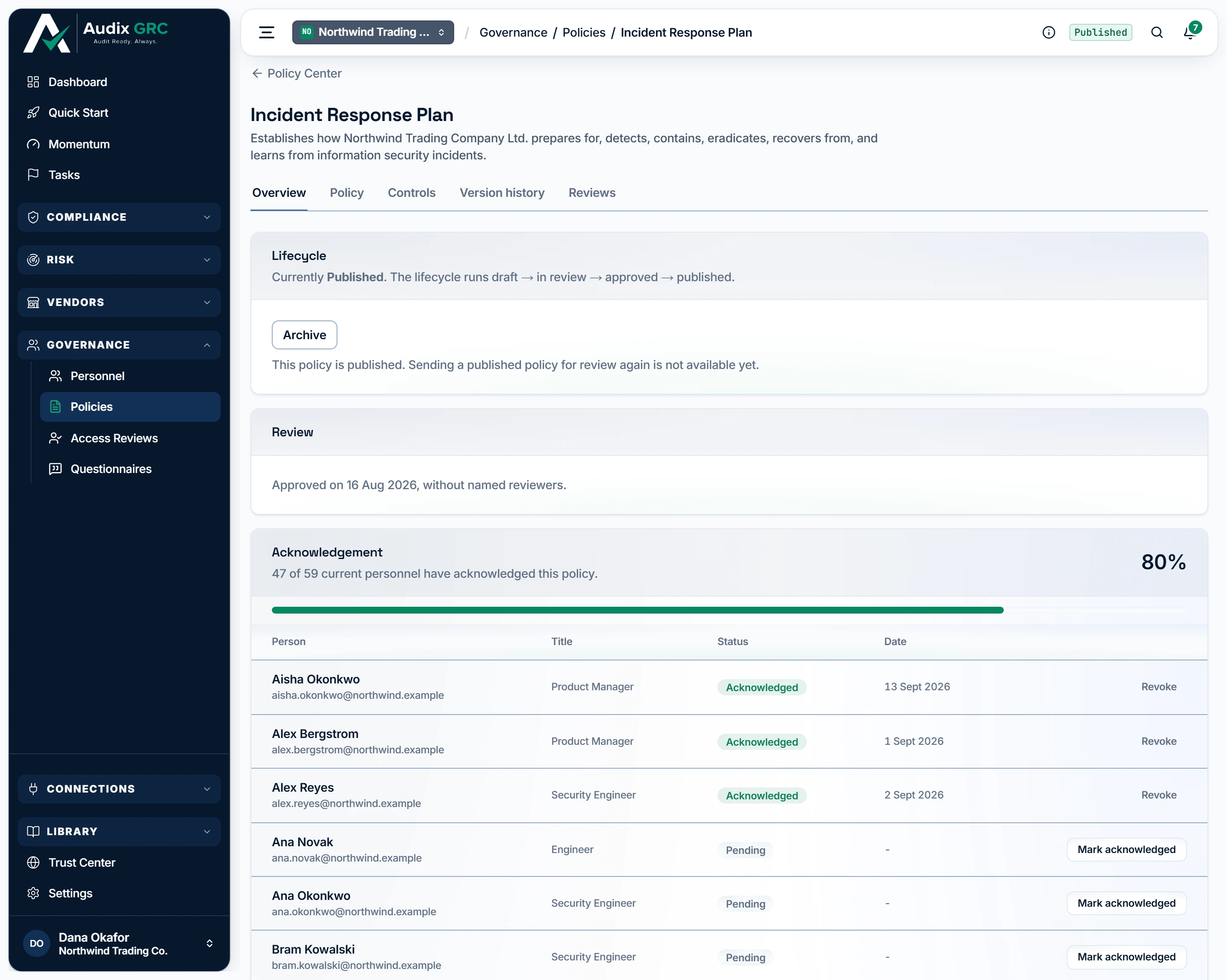
- Five tabs, one policy. Overview, the policy text, the controls it satisfies, every published version, and every round of review it has been through.
- How it was approved. Who approved it and when. This one was approved before reviewers could be named, and the card says so; a policy sent for review lists each reviewer and their decision instead.
- Who has read it. Acknowledgement is tracked per person against the current roster. An admin records each one and nobody outside the platform is emailed, so the bar stays below 100% while anyone is still pending.
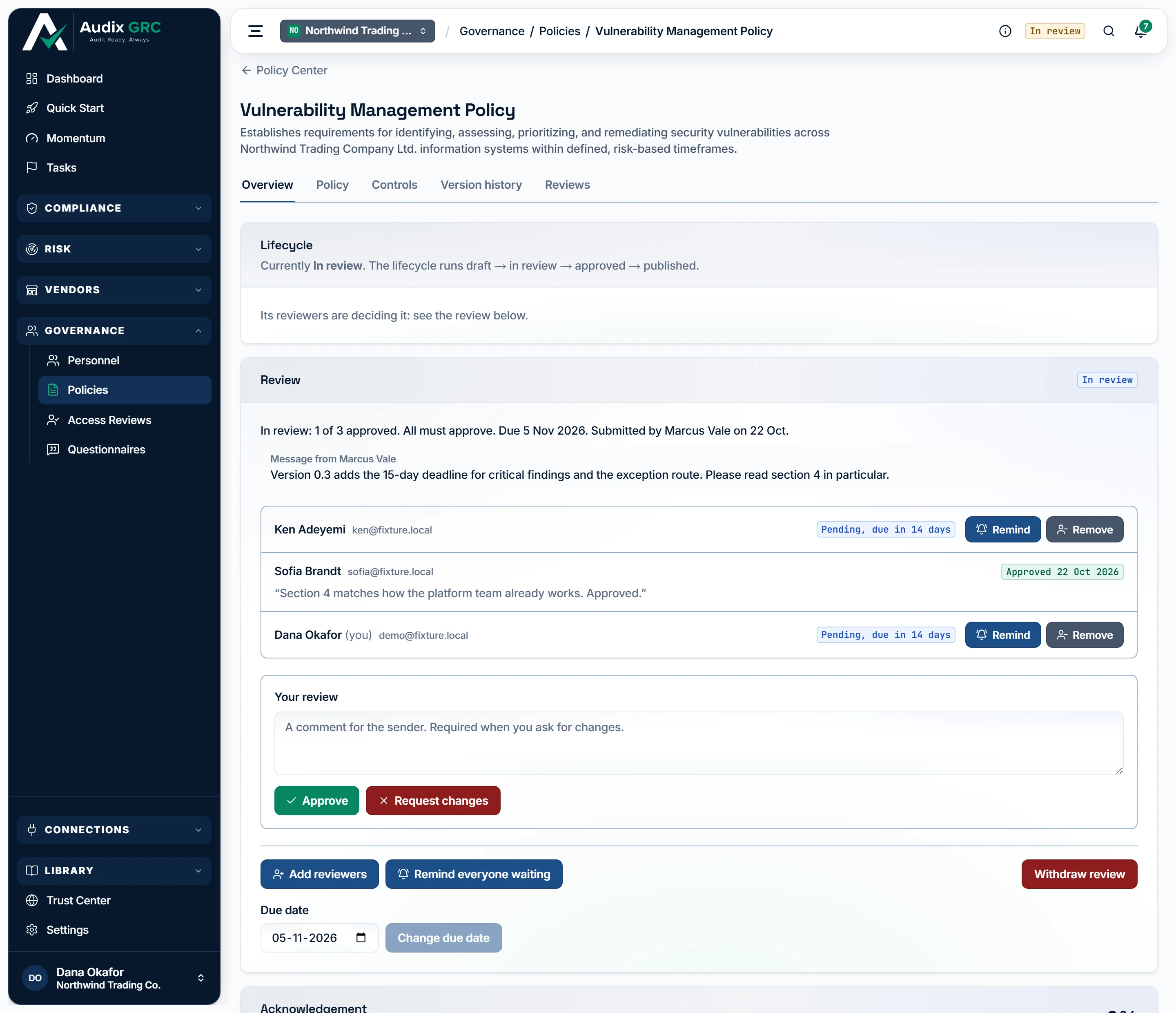
- Who has approved, and who has not. The line counts approvals against what the sender required, here all three reviewers, with the due date and who sent it. Each reviewer's row says pending with the days left, or the date they decided and what they wrote.
- Your own decision. Shown only to a named reviewer whose answer is still pending: approve, or request changes with a comment for the sender.
- Change who reviews it. Admins add reviewers, remind everyone still waiting, move the due date, or withdraw the review altogether.
Five tabs: Overview, Policy, Controls, Version history and Reviews. The Overview tab holds the Lifecycle card, with Submit for review for admins, then the Review card: who approved, who is still to and by when, the Your review box for a named reviewer, and Add reviewers and Withdraw review for admins. Below it sit the acknowledgements and, for admins, Manage policy. The Controls tab also lists the adopted frameworks the policy supports.
In People and policies
Tasks on this screen
Write a policy and attach the documentLive
Create the policy record itself: a name, a version label, the document, a renewal date and the controls it satisfies.
As a member
- Not available for writing. Neither New policy nor Start from template is shown to a member.
- You can open any policy, read the document inline, and use Download or Download PDF.
As an admin
- On Policy Center, click New policy. A three-step card opens: Details, Document, Controls.
- In Details, set Policy name, Version, Status (Draft, Approved, Published or Archived), Renewal date and Description.
- In Document, use Upload document (PDF, Word, or text), or paste a link to a document you keep elsewhere.
- In Controls, pick a framework and browse it, or type an exact control code.
- Click Create policy. If the file upload fails the policy is still created, the toast tells you so, and you can retry the upload on the policy page.
- On the Policy tab, use Upload document or Replace document to change the file later.
- On the Overview tab, the Manage policy panel holds Edit and Delete. Delete turns into Confirm delete and Cancel, so nothing goes on the first click.
Rules that apply
- Status offers no In review. A policy goes into review only when it is sent to its reviewers: "A policy goes into review only when it is sent for review with its reviewers. Save it as a draft first, then send it for review."
- While a review is open, or once the policy is approved and not yet published, its document and its link are locked. A new upload or link is refused with "Send it back to draft first" and the reason.
- Documents are capped at 5 MB and limited to PDF, Word, and text or markdown files. Anything else is refused with "Unsupported document type. Upload a PDF, Word document, or text file."
- The file is encrypted before it is stored and is tied to your organisation. Your browser never sees the storage location.
- Download PDF renders a text or markdown policy into a branded PDF with your logo, legal name and a title block. A file that is already a PDF comes back unchanged. A Word file is refused with "This document type can't be exported as a PDF."
- Creating a policy straight as Approved or Published stamps the same dates the lifecycle would, including a renewal date a year out. A policy published that way still gets tracked for renewal.
- Policy Center shows at most 200 policies, newest first.
Move a policy from draft to publishedLive
Make approval and publication a recorded event with a date on it, rather than a field somebody edited. Approval comes from the reviewers an admin names, never from a button anyone can press.
As a member
- Open a policy. The Lifecycle card on the Overview tab says which state it is in: "Admins move it along; its reviewers approve it." It has no buttons for you.
- If you were named as a reviewer, the Review card below it asks for your decision.
As an admin
- Open a policy. The Lifecycle card on the Overview tab says which state it is in now.
- On a Draft, click Submit for review and choose who reviews it. While its reviewers decide, the card reads "Its reviewers are deciding it: see the review below."
- On an approved policy, click Publish, or Send back to draft to change it and send it for review again.
- On a published policy, click Archive. An archived policy shows no lifecycle buttons at all.
- A policy marked In review before reviewers were chosen in Audix offers Choose reviewers and Send back to draft.
Rules that apply
- A step out of order is refused with a message naming the state the policy is actually in. You cannot publish something that has not been approved.
- Archived is the end of the line. Nothing comes back out of it.
- Nobody approves a policy from the Lifecycle card. It is approved when its reviewers have, and only the people named on the review can decide it.
- While the policy is in review its status follows the review. Changing it by hand is refused with "This policy is in review, so its status follows the review. Withdraw the review to change it."
- Approval stamps the approval date the first time it happens, and sets the version to
v1if the policy has none. - Publish stamps the publication date, sets a renewal date 365 days out if you left it blank, and freezes a version snapshot.
- Every transition is written to the audit log.
- The Policy Center table and the policy page use different words for the same two states. The table says New and Needs approval where the policy page says Draft and In review. Under Needs approval the table shows how many reviewers have approved, for example "2 of 3 approved".
Send a policy for review to the people you chooseLive
Ask named colleagues to approve a policy before it is published, with a due date, and see each answer as it comes in.
As a member
- Not available. Only an admin sends a policy for review. You can be one of the reviewers it is sent to.
As an admin
- Open a Draft policy and click Submit for review on the Lifecycle card. The policy needs its document or a link first: "Add the policy document or a link to it first, so the reviewers have something to read."
- Under Reviewers, search by name or email and pick up to 10 people. Add all admins adds every admin you can choose. The list starts from the reviewers of this policy's last review, or from the people you last sent a policy to.
- With more than one reviewer, choose Who must approve: All reviewers must approve or Any one reviewer.
- Set the Due date, 14 days from today unless you change it, and add an optional Message: "What changed, and what should the reviewers look at?"
- Click Send for review, or Send to N reviewers when you chose several. The policy moves to In review and the Review card appears under the Lifecycle card.
Rules that apply
- Reviewers are active admins, members or approvers of your organisation. An auditor cannot review, and you cannot review a policy you send.
- The due date can be any day from tomorrow to 90 days ahead. The message is up to 2,000 characters, and it becomes the change summary in Version history when the policy is published.
- Each reviewer is told in the app at once, and by email a few seconds later with the subject "Review requested", the policy and its due date. The email's button opens the policy, through sign-in when needed.
- With nobody to choose, the dialog says "Nobody else here can review this policy yet." and links to Invite a colleague.
- Each pending reviewer gets a Policy review item in Tasks, due on the review's date, with reminders 30, 7 and 1 day before it and once it is overdue. When an admin has turned on the chasing of overdue work, a late review is escalated like any other overdue item.
- A late review stays open. Its date never closes it, so an answer is still taken after the due date.
Review a policy you were asked to approveLive
Give your answer on a policy someone named you to review: approve it, or say what has to change.
As a member
- Open the policy from the notice, from the email, or from the Policy review item in Tasks.
- Read the document on the Policy tab, and the sender's message on the Review card.
- In Your review, click Approve, with a comment if you want to leave one. Or write what needs to change and click Request changes.
As an admin
- The same, when the review names you. Being an admin does not let you decide a review that does not name you: add yourself with Add reviewers if you should decide it.
Rules that apply
- Only the people the review names can decide it. Anyone else, an admin included, is told: "Only the people this review was sent to can approve it or ask for changes. An admin can add you to the review if you should decide it."
- A comment is optional when you approve and required when you ask for changes: "Say what needs to change: your comment goes back to the person who sent the policy for review."
- With All reviewers must approve, the policy is approved once everyone still on the review has approved. With Any one reviewer, the first approval approves it and the other reviewers read Not needed.
- One request for changes, from any reviewer, ends the review and sends the policy back to Draft. The comment is quoted on the Review card.
- When the policy is approved, the person who sent it and the policy's owner are told: "Approved by A and B. It can now be published."
- Your answer is recorded once. A second one is refused with "You already answered this review."
- A review waiting for you is listed under "Waiting for your review" in your weekly summary, and is emailed to you each Monday until you decide it, unless you turned your own summary off.
Follow a review, and change who is on itLive
See who approved and who is still to, chase the people who have not answered, and change the review while it is open.
As a member
- Open a policy in review. The Review card reads, for example, "In review: 2 of 3 approved. All must approve. Due 2 Nov 2026. Submitted by Priya Shah on 19 Oct.", then the sender's message.
- Each reviewer has a row: Approved with the date, Pending with how long is left or how many days overdue, Changes requested with the date and the comment, Not needed or Removed.
- Open the Reviews tab for every time the policy was sent for review: who decided, and what happened, newest first.
As an admin
- On a pending reviewer's row, click Remind. Remind everyone waiting reminds all of them at once.
- Click Remove on a pending row to take that person off the review. When everyone else has approved, the confirmation says removing them approves the policy now.
- Click Add reviewers to add people to an open review.
- Pick a new Due date and click Change due date.
- Click Withdraw review to stop it. The policy goes back to draft, and the reviewers who have not answered no longer need to.
Rules that apply
- Each reviewer can be reminded once a day. The row says when you can remind them again.
- Can no longer review marks a reviewer who left the organisation, was suspended or is now an auditor. Remove them and add someone else.
- Email not delivered means the request email to that reviewer was not accepted. They were still told in the app, and the review is in their Tasks.
- Someone who already answered stays on the review, because their decision is part of the record. A review keeps at least one reviewer and holds at most 10.
- After approval the card reads, for example, "Approved by A (20 Oct) and B (21 Oct)." A policy approved before reviewers were named in Audix reads "Approved on <date>, without named reviewers."
- Every step is on the review's timeline in the Reviews tab and on Events, for example "Sent a policy for review", "Approved a policy" and "Reminded a reviewer about a policy review".
- If the review cannot be loaded, the card says so: "The review could not be loaded, so who approved this policy, or who is still to, is not shown." It never reads as a policy nobody reviewed.
Read what the policy said at each publishLive
Keep a record of the policy as it stood on the day it was published, so an auditor can see what was in force at a given time.
As a member
- Open a policy and click the Version history tab.
- The top card gives Current version, Approved, Published, Renewal date, Created and Last updated.
- The Version snapshots table below lists Version, Status, Approved, Approved by, Published, Document, Size and Change summary, newest first.
- With none yet it reads "No version snapshots yet. One is captured when the policy is published."
Rules that apply
- A snapshot records which document was attached, its name, type and size. It does not keep a second copy of the file.
- One snapshot is written every time a policy is published.
- Approved by names the reviewers who approved that version. A version approved without a review in Audix reads "No named reviewers".
- Change summary is the message the admin wrote when sending the policy for review. A version published without a review has none.
- Publishing again under a version label that already has a published snapshot moves the policy to the next label, for example from
v1tov2, and records a new snapshot. - A policy with no version label at all is skipped and gets no snapshot.
Keep policies from going staleLive
Force a periodic re-read and re-publish of each policy, and count what is falling behind.
As a member
- On Policy Center, read the tiles Renewal required soon, Renewal past due, Needs approval and Ready to publish.
- Filter by Renewal status: Required soon, Past due or No renewal date.
- A banner explains that both renewal counts are driven by the renewal date on each policy. Dismiss it once you have read it.
As an admin
- Same as a member, plus set the date on the create form or in the Manage policy panel on the Workflows tab.
Rules that apply
- Required soon means a renewal date inside the next 30 days. Past due means a renewal date in the past.
- Archived policies are left out of both counts. A retired policy is not due for renewal.
- Publishing a policy with no renewal date sets one 365 days out for you.
- A published policy with a renewal date turns into reminders at 30 days, 7 days and 1 day out, and again once it is overdue.
3 questions
Questions about this screen
How do I record that an employee has read a policy?
Open the policy and, on the Acknowledgement card, an admin clicks Mark acknowledged on that person's row. Audix sends nothing to staff, so confirm they have read it first. Coverage counts current employees and contractors only.
How do I send a policy for review in Audix?
An admin opens a draft policy that has its document or a link, clicks Submit for review, picks up to 10 Reviewers, chooses All reviewers must approve or Any one reviewer when there are several, sets a Due date and an optional Message, and clicks Send for review. Each reviewer is told in the app and by email, and the review appears in their Tasks.
Who can approve a policy in Audix?
Only the people an admin named on the policy's review. They can be admins, members or approvers, never the person who sent it and never an auditor. Each one clicks Approve, or Request changes with a comment, which sends the policy back to draft. The Review card shows who approved, when, and who is still to.