Screen 03 of 11 · Monitoring and Evidence
Findings
Every resource that has failed one check, with its severity, first and last failure and any Zendesk ticket, ready to triage or exclude.
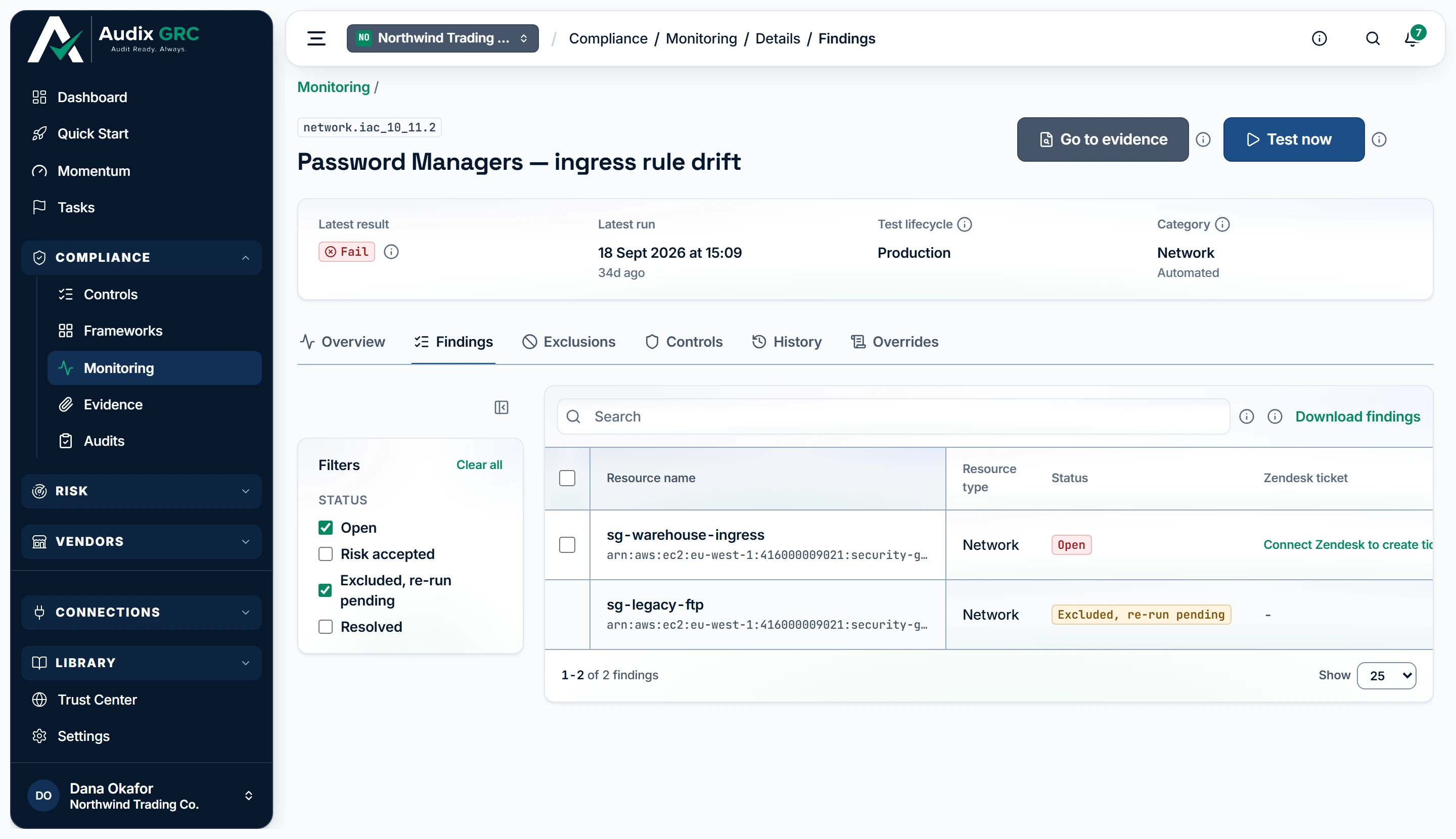
- Open, excluded or resolved. A finding belongs to the resource, not to the run: it stays open while the resource keeps failing, resolves itself once a later run no longer sees it failing, and one an admin excluded reads re-run pending until the next run applies it.
- A ticket per finding. With Zendesk connected, an admin raises a ticket for a failing resource from its row and the row follows that ticket; until then the column says Connect Zendesk to create tickets.
Every resource that has failed this check, with its state, severity, first seen and last failed, plus account type, last sign-in and its Zendesk ticket where they apply. It opens on the findings that still count as failing.
In Monitoring and Evidence
Tasks on this screen
Track which resources failLive
Keep a record per resource, so one failing bucket or repository can be followed over time instead of reappearing as a fresh problem every run.
As a member
- Open the Findings tab on a check. When some findings still count as failing and others are set aside, it opens on the ones that still count; Clear all lifts that filter.
- Read the table: resource name, resource type, status, Severity, first seen and Last failed. Identity checks add Account type (Company, Guest or Not recorded). The dormant-account checks add Last sign-in, for example "Not since 1 Dec 2023", or "None recorded" for AWS. With Zendesk connected, a Zendesk ticket column appears.
- Click Download findings for a CSV. It includes the exclusion reason where there is one.
- Click a row to open the drawer: the state in words, This resource over time with the continuous failing span and one column per run, How to fix this, What this check requires, Finding details, Not recorded and the Stored record.
- Use Previous and Next in the drawer to walk the list without closing it.
As an admin
- Same as a member, plus a tick box on the rows you can act on and a Triage section in the drawer.
- Select rows and click Exclude in the bulk bar, or click Exclude this finding in the drawer. Both open the exclude dialog.
Rules that apply
- A finding belongs to a resource, not to a run. It keeps its first-seen date, so the drawer can say how many days it has failed without a break.
- Last failed is the last run that found the resource failing.
- Findings are only reconciled when the check actually graded resources. A run that errored or found no data leaves the list as it was, and accounts that could not be judged on a run keep their findings, which the page says.
- Above a thousand findings on one check the page says how many of the most recent it shows, and that older findings are not loaded.
- A severity is only ever set by a person, in Triage. A finding nobody has rated says Not rated.
- The drawer's Not recorded section names what is deliberately not stored: the region, the connection and the cloud account a finding came from.
Exclude a resource from a checkLive
Declare that one resource is acceptable as it is, so it stops holding a check red, with a written reason an auditor can read.
As a member
- Open the Exclusions tab to read what has been excluded: Active shows the resource, the reason, who excluded it, when, and when it Expires; History shows how each one ended, "Put back by" a name or Expired.
- Click Download exclusions, or Download history on the History view, for a CSV.
- You cannot add or remove one. The finding drawer tells you "Only an organization admin can exclude a resource from a check."
As an admin
- On the Findings tab, select the rows you want and click Exclude, or open a finding and click Exclude this finding.
- Read What excluding changes in the dialog. It warns that the check can turn from Failed to Passed and that the readiness reported to auditors can change.
- Write an Exclusion reason, up to 2,000 characters. It is required.
- Set an End date (optional). The exclusion ends at the end of that day and the resource is tested again. Leave it empty to keep the exclusion until someone puts the resource back.
- Tick "I have confirmed these resources and understand this changes the readiness an auditor sees", then click Exclude N findings.
- To reverse it, open the Exclusions tab, open the row menu and choose Put resource back into the check. The exclusion moves to History, and the message says whether the checks have run again yet.
Rules that apply
- The reason is required. It is visible to anyone who can open the check, and audit packages list each exclusion with its reason and end date.
- Every exclusion, and every put-back, re-runs every enabled check for the whole organisation, not only the check you were looking at.
- An exclusion has no approval and no review. Any admin writes it. A control exception is the reviewed, time-boxed version, and the risk register lists both side by side.
- Every exclusion, change and put-back is recorded with who, why and when on the check's Overrides tab and in the audit log. An exclusion that reaches its end date is recorded there as Exclusion expired.
- An exclusion on a disabled check is recorded but takes effect only when the check is enabled and runs again.
- If part of a bulk exclusion fails, the result names which part, for example "2 of 3 excluded. These were not: ...".
See every override on a checkLive
One record of everything that changed what a check reports without changing your resources.
As a member
- Open a check and click its last tab, Overrides.
- Filter on All, Check, Exclusions or Findings. The device checks add Devices.
- Each event names what happened, such as Check disabled, Check enabled, Resource excluded, Exclusion changed, Resource put back, Exclusion expired, Finding triaged, Finding reopened, Triage expired, Triage ended, Device moved to Infrastructure or Device moved to Devices, with who, why, when and until when.
- Click Load older events to page back.
As an admin
- Same as a member. Nothing on this tab can be edited or deleted, by anyone.
Rules that apply
- Every override is also written to the audit log. Expiries are recorded by the system.
- With nothing on record the tab reads "No overrides on record".
- If the history cannot be loaded, the tab says so and asks you to treat the overrides as unknown, not as none.
- On Monitoring, Overrides in effect sums these up across the organisation. If it cannot load, it says so rather than showing no overrides.
2 questions
Questions about this screen
How do I accept a risk or mark a finding as a false positive?
An admin opens the finding on the check's Findings tab and, under Triage, chooses Risk accepted or False positive, writes a reason and clicks Save triage. A risk acceptance needs an end date within a year, and when that day ends the failure counts again and the finding reopens. While a decision is in force, the failure counts as neither a pass nor a failure.
How do I create a Zendesk ticket from a failing finding?
With Zendesk connected, an admin or member clicks Create Zendesk ticket on an open finding, or selects up to 50 findings and chooses Create Zendesk tickets. Each ticket is created at once as an internal note with why the check failed, how to fix it and a link back to the finding. When the resource passes, Audix adds one note to the ticket and your team closes it. With ServiceNow connected, Create ServiceNow incident does the same as an incident.