Screen 02 of 11 · Monitoring and Evidence
Check detail
One automated check: what its last run found, how to fix it, the connections behind it, its evidence, exclusions, history and overrides.
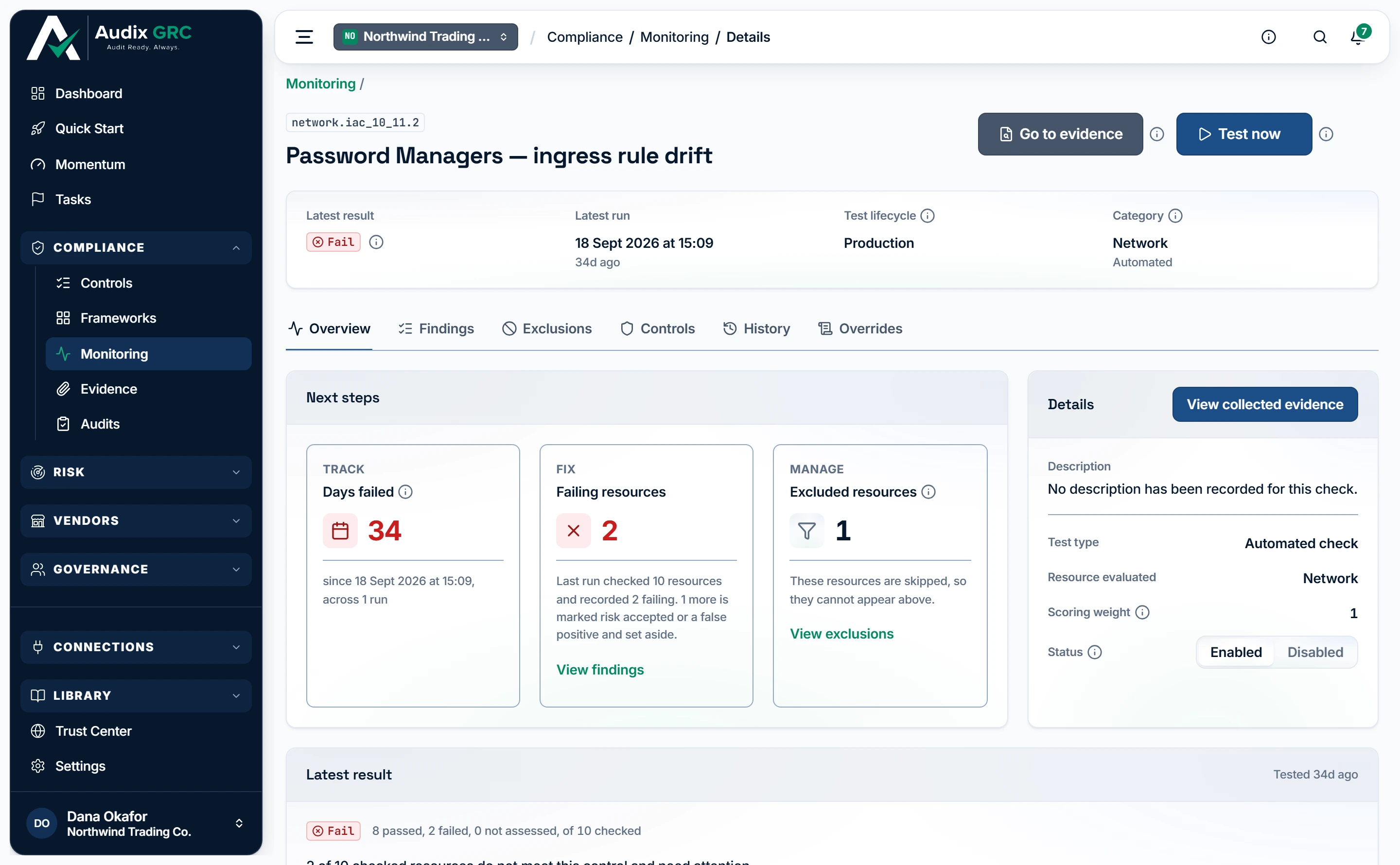
- Grade it again now. Re-runs this one check against the resources already collected and answers immediately, without fetching anything new or touching any other check.
- How long it has been wrong. The unbroken run of days since this check last changed verdict; zero means it only started failing today.
- Which resources are failing. Opens the list of individual buckets, repositories or security groups behind the count, which the next screen shows.
One check across six tabs: Overview, Findings, Exclusions, Controls, History and Overrides. The Overview shows what the last run found, the fix steps, the connections that power it, Evidence from the last run and, when the check is off, who disabled it, when and why.
In Monitoring and Evidence
The task on this screen
Read one checkLive
Understand what a single check evaluates, what it found last time, and what to do about it.
As a member
- Click a check from Monitoring. The header carries its key, its name, a Disabled pill when it is off, and the meta strip: Latest result, Latest run, Test lifecycle and Category. The result pill and any "not assessed" count have an ⓘ.
- When the check is off, a notice says who disabled it, when and why, and whether it still counts as failing.
- Take action lists numbered fix steps. It appears only when the latest result is a failure.
- Next steps gives three tiles: how many days the current pass or fail streak has run, how many resources are failing with View findings, and how many are excluded with View exclusions.
- Latest result gives the counts, the plain sentence, and the failing resources. A result that is neither a pass nor a fail prints the recorded reason, and a guidance card says what it means, for example "Not applicable: no tool it reads is connected" or "Everything this check covers is excluded".
- Supported connections lists the tools that can power this check, each with its state and its last sync time.
- Evidence from the last run shows everything the run recorded: its result, its counts and each resource it stored. View the recorded result opens that record further down the card, and Download resources (CSV) gives one row per resource the run stored.
- Open the Controls tab to see which controls this check supports. Each one links to its control page.
- Click Run AI review for a second opinion on whether the stored evidence supports the result, with its confidence and its concerns.
As an admin
- Same as a member, plus Test now in the header and the Enabled and Disabled control inside Details.
Rules that apply
- A count the page could not read shows Not available, never 0.
- A run stores at most 25 failing resources as examples. A check with more says "Showing 25 of the" total "resources this run recorded as failing" and links to See all on the Findings tab.
- Failures that triage set aside are listed apart, under "Failing, set aside by triage".
- Every run keeps its record, whether it passed or failed.
- What this run looked at says why a value is missing, for example "the check looked for it and this resource does not have it" or "the value is a list or an object, and its contents are deliberately not stored".
- On the dormant-account checks, a note says which accounts this check leaves out and links to the check that covers them, company or guest. When that check is switched off or not set up, the note warns that those accounts are not being checked.
- The rule a check applies is not shown anywhere. The page tells you what the check found, not how it decides.
- Go to evidence opens the Evidence library showing only the evidence this check collected, with Show all evidence to go back.
1 question
Questions about this screen
Does disabling a check hide a failure?
No. A check that is failing when you disable it keeps counting as failing for every control it feeds until it is enabled again and passes, and so does one whose last pass is older than the result time limit. Disabling needs a reason, which is shown on the check with your name and the date and written to the audit log.