Screen 09 of 9 · Risk
Exceptions
Dated exceptions that waive a control, with their state and window, beside the monitoring exclusions and accepted findings in force.
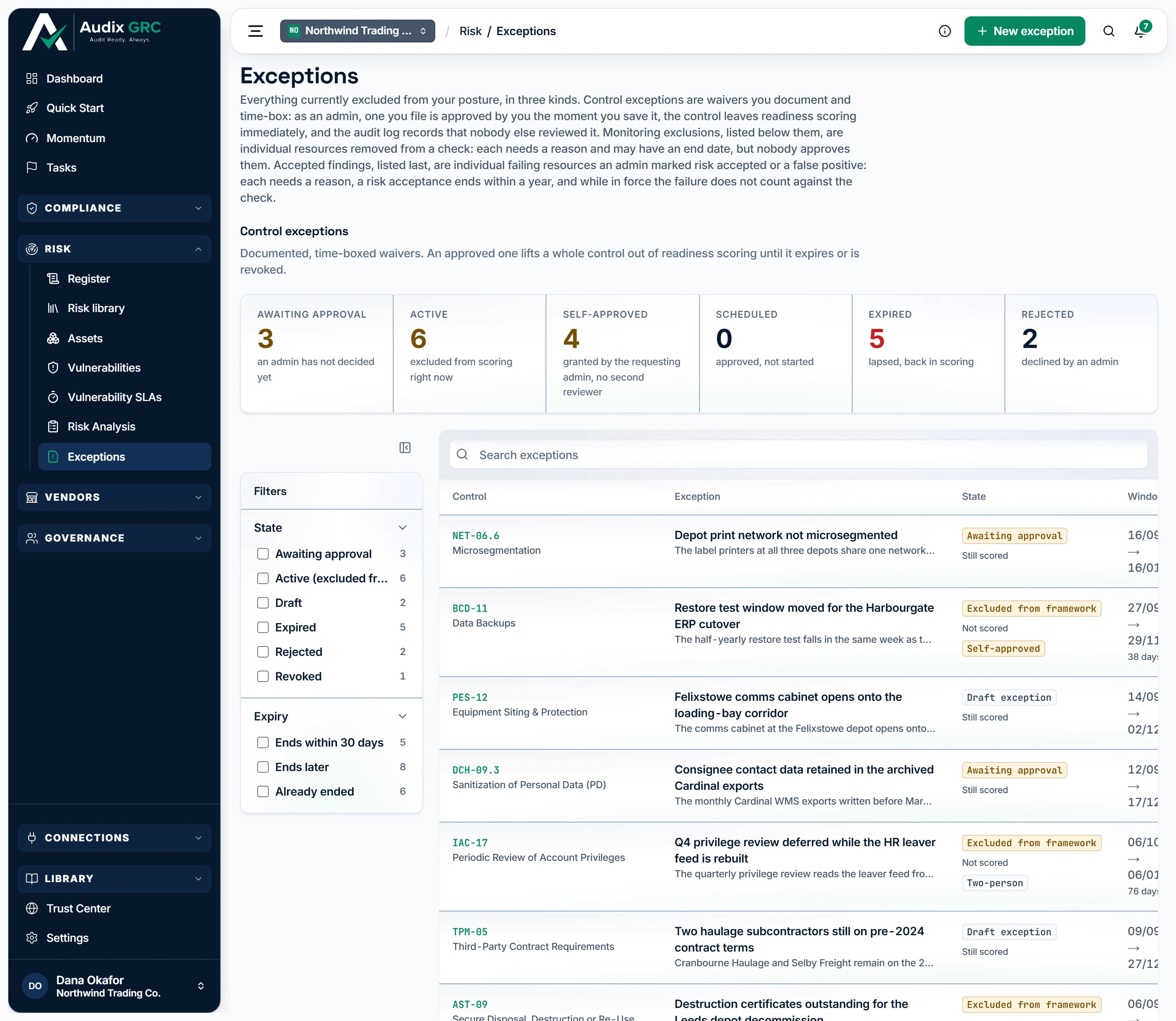
- Waivers here, exclusions below. A waiver is requested, approved by an admin and expires on a date; a monitoring exclusion, in the second table further down this page, is written by one admin, reviewed by nobody, and lasts until its end date, if it has one, or until someone puts the resource back.
- Six readings of the same queue. Awaiting approval is work waiting on an admin, Active is what has left readiness scoring right now, and Self-approved counts the waivers an admin granted themselves with no second reviewer.
How a waiver reaches the readiness score
Wider than this screen: swipe sideways across the flow to follow it.
Control exceptions with their state, window and actions, then two read-only lists: Monitoring exclusions and Accepted findings.
In Risk
Tasks on this screen
Waive a control with a dated exceptionLive
Record and date a decision that a control will not be met, so the gap is written down rather than hidden. While the waiver is in force the control stops dragging your readiness score.
As a member
- Open Exceptions under Risk and click New exception, or open a control and click Request exception.
- An amber banner tells you where you stand: "An exception takes effect only once an admin approves it. You cannot approve your own request. Until then the control keeps counting toward every framework it maps into."
- Pick a Control, write a Reason, and add "Risk accepted" and "Compensating controls" if you have them.
- Set Starts, which defaults to today, and Ends, which is required and defaults to 90 days out.
- Leave "Send for approval now" ticked and click Create exception. The request lands in the queue as Awaiting approval. Untick it and the request is saved as a draft that changes nothing.
- On a draft you own, click Send for approval to put it in front of an admin.
- While it waits, the Actions column shows why. "Needs an admin" when your organisation has one eligible approver, otherwise "You requested this".
As an admin
- The same entry points, but the banner is red: "With the box at the bottom ticked, this takes effect the moment you save. You are an admin, so you approve it yourself: nobody else reviews it."
- The checkbox reads "Approve it now and stop scoring this control". On the single-control modal the confirm button reads Exclude from framework now.
- Save with the box ticked and the waiver is approved on the spot, with you recorded as both requester and approver, a fixed note saying no second approver reviewed it, and a score recompute queued if the window is already open.
- On a draft you own whose end date is still ahead, the button turns red and reads Approve and apply now. If the end date has passed it stays Send for approval, beside "End date has passed, extend it to approve".
Rules that apply
- You can only waive a control your organisation has adopted. Anything else is refused with "Control not found or not adopted by this tenant".
- An end date is required, must be in the future, and must be after the start date. The whole window is checked again on every edit.
- You can edit only your own draft. Once it is with an admin, editing is refused: "This request is already with an admin for review and can no longer be edited. Ask them to reject it and raise a new one."
- In an organisation with one admin, a member's request is not rejected. It sits pending and the row says so: "This exception must be approved by an admin, and this workspace has only one. Ask an admin to approve it, or invite one."
- Every approved row carries a Self-approved pill in amber, or a Two-person pill in neutral, worked out from whether the approver is the requester.
- The register shows the 300 newest rows, and the Self-approved tile says when its count covers only what was loaded.
Approve, reject or revoke an exceptionLive
Decide the requests in the queue, and end a waiver early when it is no longer wanted.
As a member
- Not available. You cannot approve any request, including your own. You can watch its state change on the register.
As an admin
- Open Exceptions and find a row in Awaiting approval.
- Type a decision note if you want one, then click Approve or Reject.
- On an approved waiver, click Revoke to end it now. The control re-enters scoring immediately.
- On any row that is not approved, click Delete.
Rules that apply
- Approving a waiver whose end date has already passed is refused with "This exception has already lapsed. Extend the end date before approving".
- Rejection is final. To try again, clone the exception and raise a new one.
- An approved waiver cannot be deleted, only revoked: "Revoke an approved exception instead of deleting it".
- An approved waiver reads as Scheduled before its start date, Active inside the window and Expired after the end date. That is worked out on every read, so a lapsed waiver can never keep suppressing a control.
- Every decision that changes whether the waiver is in force queues a score recompute, and the Controls, Frameworks, Tasks and Dashboard pages are refreshed.
See which monitoring exclusions are in forceLive
Show the other thing that suppresses your posture, next to the waivers: individual resources taken out of an automated check.
As a member
- Open Exceptions and scroll to Monitoring exclusions, below the waivers.
- Read Origin, Resource, Excluded from, Controls affected, Reason given, Excluded by, Since and Ends.
- Search the list, or click Download CSV.
- Nothing here can be created or removed from this page. Exclusions are written and ended in Monitoring, on a check's Exclusions tab.
Rules that apply
- A waiver above is requested, approved by an admin and expires on a date. An exclusion is written by any admin in Monitoring with a reason, is approved by nobody, and lasts until its end date, if one was set, or until someone puts the resource back.
- An exclusion past its end date is flagged: the check grades that resource again, and the ended exclusion stays in the check's History.
- Exclusions are not counted in the waiver tiles.
- If the list cannot be read the page shows a red alert, "The exclusion list could not be read", instead of an empty table. Nothing read and nothing excluded are different claims.
See which failing findings were set asideLive
List every failing resource an admin marked risk accepted or a false positive, so no failure is set aside out of sight.
As a member
- Open Exceptions and scroll to Accepted findings, below the monitoring exclusions.
- Read Origin, Resource, Check, Decision, Reason given, Decided by, Decided on and Until. A decision past its end date is flagged.
- Search the list, or click Download CSV. With nothing set aside it reads "No failure is set aside".
- Decisions are made and changed on each check's Findings tab, not here.
Rules that apply
- An accepted finding is not an approved waiver. An admin marks one failing resource risk accepted or a false positive, with a reason, and nobody approves it.
- A risk acceptance on a finding must end within a year. Any decision also ends on its own once the resource stops failing, so a later failure needs a new one.
- While a decision is in force the check sets that failure aside, so the check can pass and the controls it feeds can gain health.
- When more decisions exist than the page reads at once, it shows the newest and says so. Each check's Findings tab lists its own in full.
1 question
Questions about this screen
What is the difference between a control exception, a monitoring exclusion and an accepted finding?
A control exception is a dated waiver an admin approves, and it lifts a whole control out of readiness scoring. A monitoring exclusion removes one resource from one check, with a reason and an optional end date, and nobody approves it. An accepted finding is one failing resource an admin marked risk accepted or a false positive, and a risk acceptance there must end within a year.