Screen 03 of 5 · Trust Center
Questionnaires
The queue of questions outside parties send through your Trust Center, with who asked, what they asked, the owner, the status and the date.
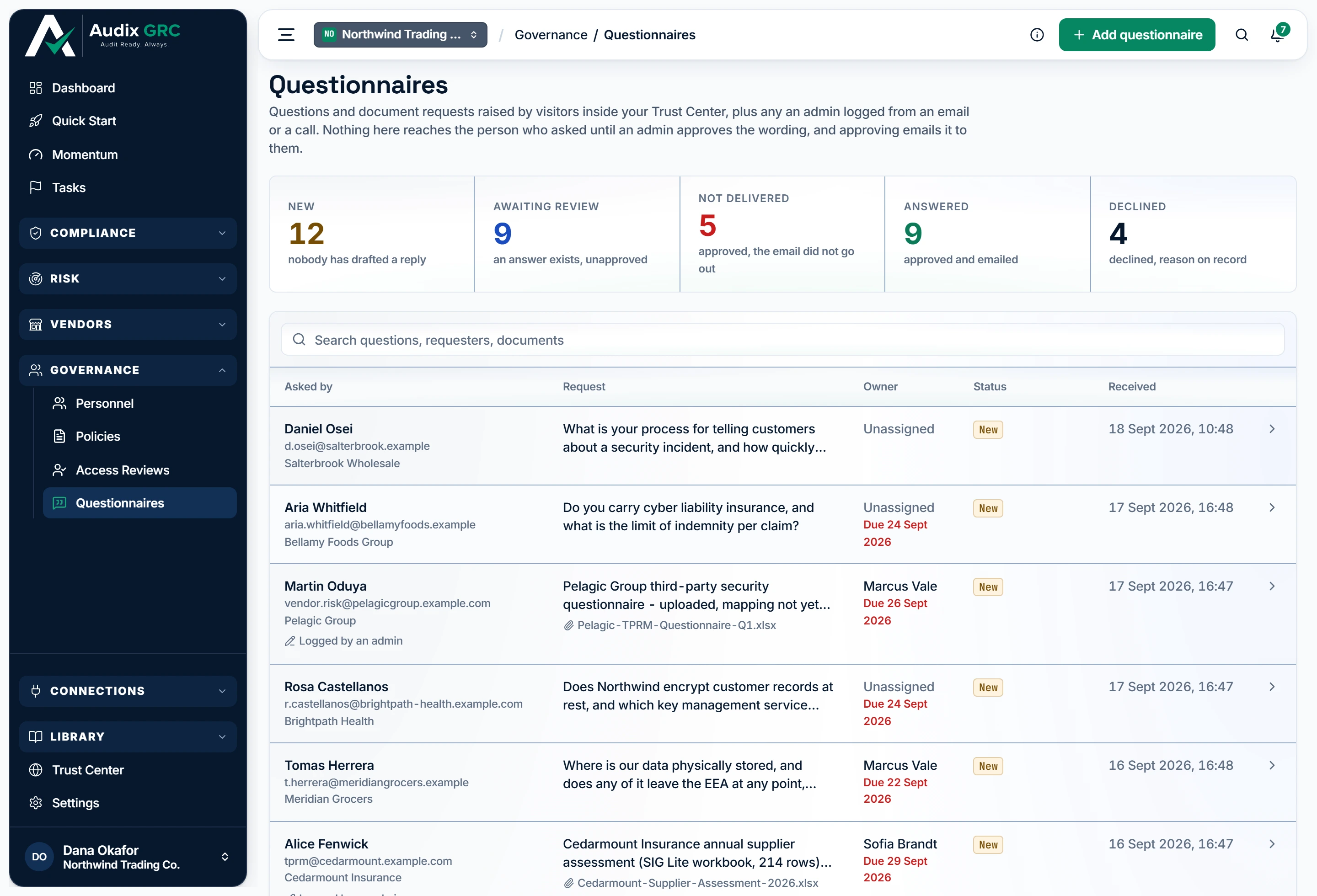
- Five buckets, whole-queue counts. Every question and document request an outside party raised sits in one of these, and the counts always describe the whole queue rather than the filter you are reading.
- Log one that arrived elsewhere. A questionnaire that came as an email attachment, or that lives in the customer's own portal, goes through exactly the same review as one raised on your page.
Flow
Three ways in, one queue, one gate
Wider than this screen: swipe sideways across the flow to follow it.
Five buckets, a search box, and a table of who asked, what they asked, the owner, the status and the date.
In Trust Center
Tasks on this screen
Answer what an outside party asksLive
Take everything an outside party asks in writing into one queue, and make a named person approve the wording of every reply before it goes out.
As a member
- Not available. Questionnaires does not appear in the menu for a member, and the page shows a lock panel.
As an admin
- Open Governance, then Questionnaires.
- Click a bucket to filter: New, Awaiting review, Not delivered, Answered or Declined. Or use the search box.
- Click a row to open the review drawer and read What was asked.
- Under Assignment set an Owner and a Due date, then press Save assignment.
- Press Draft with AI. It reads Draft from documents when AI is off, and Draft again once a draft exists.
- Edit the answer. Press Save without sending to stop there.
- Press Approve and send, read the confirmation, and press Approve and email. Or press Decline, give a reason, and press Decline.
As an approved reviewer
- In the portal, or the masthead dialog, choose Ask a question or Request a document.
- For a document request, pick one from Which document? if you know which you need.
- Write the question and press Send to the review queue.
- The confirmation says a person reads it, writes or checks the answer, and approves it before anything is sent.
- Your row shows With the reviewer until an admin approves an answer, then Answered with the approved wording, or Closed.
Rules that apply
- Not delivered means an admin signed the wording off and the email did not leave. Press Approve and send again to retry it.
- Approving an empty answer is refused: "Write or edit the answer before approving it. An AI draft is not an approved answer." Only the text in the answer box is ever sent.
- The draft tries your document catalogue before it calls a model, and only for a document request. Two possible matches means no answer. Digits always count as distinguishing, so "SOC 3" cannot match a SOC 2 report.
- The row records how the sender was identified. A question typed into the open page carries a name and email nobody verified, and the drawer warns you before you email an answer there.
- Web addresses in a visitor's name or question arrive broken in the notification email, for example
acme[.]com. The question is stored as written in the queue. - A reviewer's thread only ever shows the approved, sent wording. Everything before that reads With the reviewer.
- A sent answer cannot be edited. A declined question cannot be reopened, and the requester is not emailed. Ask them to raise it again.
- 20 questions per reviewer per day, 15 from the open page per day. Questions run to 4,000 characters, answers to 8,000, decline reasons to 2,000.
- Owner and due date can be set on any row in any status, including a sent one. The due date is advisory. Nothing escalates or blocks on it.
- The counts on the buckets always cover the whole queue, never the filter you are looking at.
Log a questionnaire that arrived elsewhereLive
Put a questionnaire that came as an email attachment, or as a link to the customer's own portal, through the same review as one raised on your Trust Center.
As a member
- Not available. Only an admin can open the queue.
As an admin
- On Questionnaires, press Add questionnaire.
- Choose the File or Portal tile.
- Attach the file, or paste the Questionnaire URL.
- Fill in Display name if you want one, and Email, which is required because approving emails the answer there.
- Pick an Account from the vendor picker. The form will not submit without one.
- Pick a Questionnaire owner and a Due date if you know them.
- Press Add, Add and continue, or, in Portal mode, Add and go to portal, which also opens the URL in a new tab.
As an approved reviewer
- Open the Questionnaires dialog in the masthead and pick Send a questionnaire.
- Choose File or Portal, add a Display name, a note and a Due date.
- Press Send questionnaire. The From field is read-only and comes off your approved access.
Rules that apply
- Attachments are capped at 5 MB and refuse the same file types documents do.
- A row you log yourself is marked as typed by an operator and records your name. Creating one is refused if you cannot be identified.
- A portal link is folded into the question text, so the stored record always names the portal.
- An owner has to be an active member of your organization, otherwise you get "That person is not an active member of this organization".
- Picking a vendor copies that vendor's current name onto the row. Renaming the vendor later does not change it.
- Logging a row raises no alert. You are standing right there.
- A reviewer sending their own questionnaire is never asked for an email, an account or an owner. The address comes off their approved access and anything the form claims is ignored.