Screen 02 of 5 · Trust Center
Configure Trust Center
Where an admin sets what the Trust Center publishes: page settings, notifications and approvers, badges, practice cards, documents and requests.
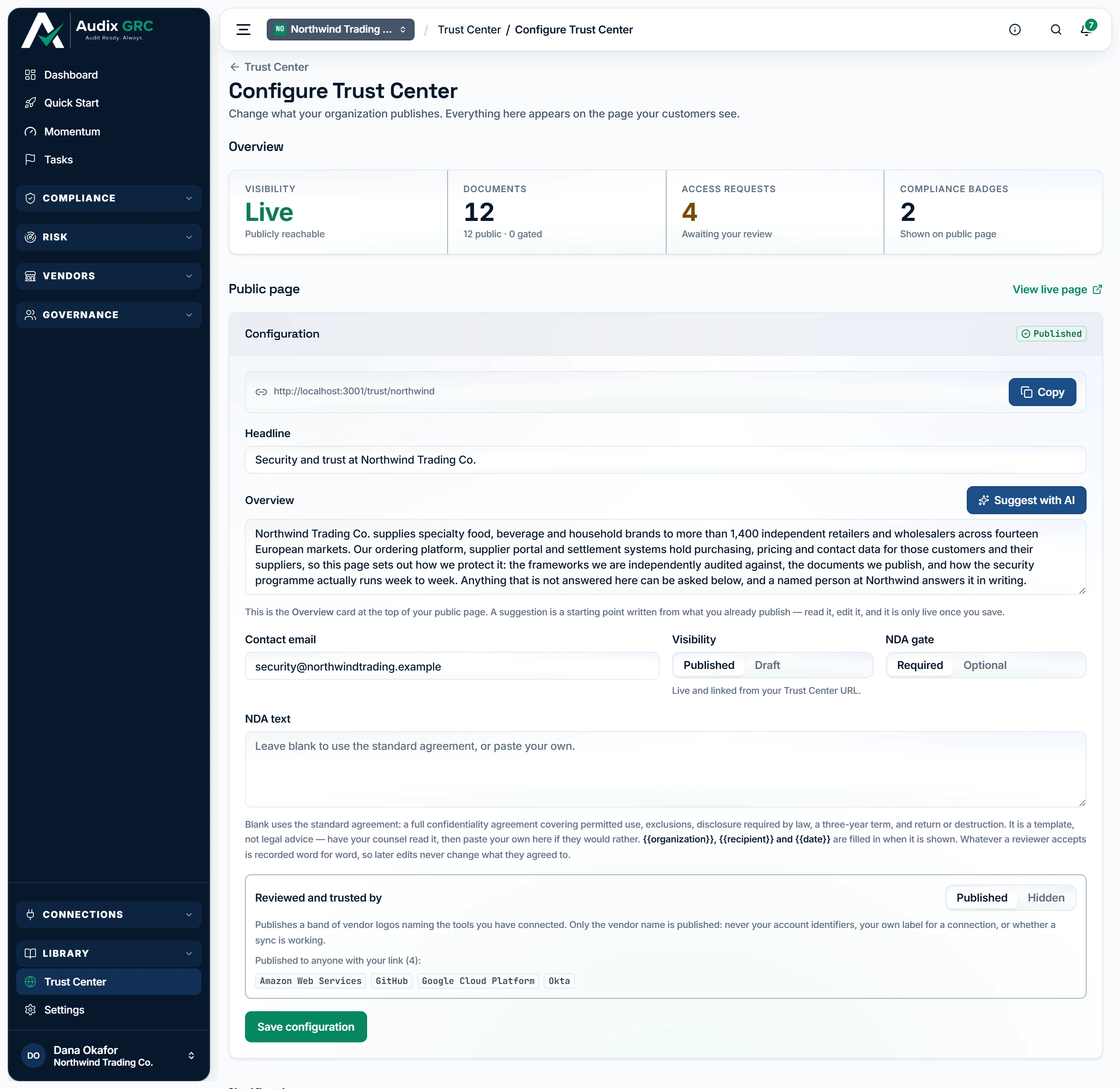
- The overview a reviewer reads first. Suggest with AI drafts it from what you already publish, and nothing is live until you save it yourself.
- The agreement that stands before a download. Left blank it serves a full standard agreement, and whatever a reviewer accepts is stored word for word so a later edit cannot change what they agreed to.
Four tiles (Visibility, Documents, Access requests, Compliance badges) and the public page settings, then Notifications (where Trust Center mail goes, and Access approvers), Compliance badges, Practice cards, Documents and Access requests.
In Trust Center
Tasks on this screen
Publish your Trust Center pageLive
Give reviewers one address that answers their security questions, so reviews stop arriving as email threads.
As a member
- Open Trust Center in the sidebar.
- Read the banner. It says Published or Draft, and prints the page's own address.
- Read the page below it. That is what a visitor sees.
- Click Open live page to open the real thing in a new tab.
As an admin
- Click Configure.
- Fill in Headline and Overview, or press Suggest with AI to draft the overview from what is already published, then edit it.
- Set a Contact email if you want one.
- Set Visibility to Published or Draft.
- Set the NDA gate to Required or Optional, and paste your own NDA text if you have one.
- Decide whether Reviewed and trusted by is Published or Hidden. The exact vendor names that would go out are printed beside the switch.
- Press Save configuration.
Rules that apply
- Draft does not mean private. The address opens for anyone who has it in either state. Draft is a label for your team, and the console says so.
- A free trial is the exception: its page answers "not found" to the public until the trial is converted. Trust Center and Configure Trust Center say so, "Your Trust Center page goes public when your trial is converted. You can prepare it now.", and the editor works as usual. The trial keeps the address it was given until then.
- The address is issued when your organization is created and there is no field to change it. It is unique across the platform.
- Reviewed and trusted by starts hidden for every organization, because that band names the tools you connected.
- When it is published, the band says in as many words that these are systems you connected as evidence sources, and that they are integrations rather than customers, auditors or endorsements.
- The band names each tool once, in alphabetical order, up to 24 of them. Several SentinelOne connections show as one SentinelOne. A connection that has not finished setting up is left out. One whose last sync failed stays listed, so the band never gives away a broken sync.
- Overview holds 4,000 characters, Headline 200, NDA text 20,000. The overview prints as plain paragraphs, so links and headings do not work there.
- The At a glance summary is written by a model from the page's published facts, and rewritten when those facts change, when you switch AI off or pick a different model, and when the platform changes how the summary is written. A practice line still reading Not published or Not assessed is not among the facts it is given, and neither is a card whose lines all read that, so the summary describes only what you have actually published.
- Setting a Contact email prints that address under Ask a person, and the assistant's way to a person becomes Email the security team instead of Request access.
- The request buttons are missing from the in-app view on purpose, so you cannot file an access request against your own page.
Publish the certifications you holdLive
Show the frameworks you are certified against, with the certificate behind each one where you have the file.
As a member
- They appear in the Compliance card on the page. Nothing to do.
As an admin
- On Configure, scroll to Compliance badges.
- Search the picker and add a framework. It lists only the frameworks you have adopted.
- Reorder with the up and down arrows, or press Remove.
- Pick a certificate for a badge from the documents you already uploaded. The row offers No certificate plus every document.
- Press Save badges, or Save configuration, which sends the same field.
As a visitor
- Each badge shows the framework logo, its name and a Monitored chip. The chip is missing while the organization's check results are out of date.
- A Certificate link appears when a file is attached to that badge.
- Without a session that link is a Certificate button that opens Sign in to this Trust Center.
Rules that apply
- Twelve badges is the limit.
- No readiness score, band or percentage is ever published. You choose the list by hand.
- A framework you no longer have adopted is dropped from the list on save, rather than failing the whole form.
- Monitored follows the same rule as Results are out of date in Monitoring. While your results are out of date the badges stop saying it, and it comes back on its own once your checks run in full again. A visitor is told nothing more: no time, no count and no check name.
- Your own Trust Center page tells your team why the badges do not say Monitored, and links to See Monitoring.
- Attaching a certificate saves at once, separately from the settings form.
- With no badges the card reads "This organization has not published any certifications here."
Describe how you work with practice cardsLive
A grid of short statements about your security practices, written by an admin and printed word for word on the public page.
As a member
- They appear as cards on the page. Nothing to do.
As an admin
- Open Configure and scroll to Practice cards.
- Press Add card, or Add the six standard cards on an empty page.
- Set a Card title, an Icon, and Lines on the card. A line with a value prints as a label and a value. A line without one prints as a ticked capability.
- Press Suggest with AI to draft a value for each empty line from the documents you uploaded. Nothing it writes is saved until you save the card.
- Press Save and publish, or Save without publishing when the card has no lines.
- Hide a card to take it off the page without losing its lines.
Rules that apply
- Twenty four cards per organization, twenty lines per card.
- A card stays off the public page while it is hidden, and while it has no lines.
- Saving a card replaces its whole line list. Hiding uses a separate control, so it never rewrites what the card says.
- Every new organization is seeded with the standard set of cards, each line carrying the value Not published, so a fresh page claims nothing until you edit it.
- A line left at Not published or Not assessed is not given to the model that writes At a glance, and a card whose every line reads that is left out of it altogether. The card itself still prints on the page.
- The AI suggestion reads at most eight documents, newest first.
- Everything you write here is public. The panel says so.
Turn a stranger into an approved reviewerLive
Take an anonymous reader through approval and, when you require one, a non-disclosure agreement, so they can download files and hold a written conversation with your team.
As a member
- Not available. Only an admin can see or answer an access request.
As an admin
- A bell notification and an email arrive. With no approver chosen, every admin gets Trust Center access requested in the app, and the email goes to every admin or to your shared mailbox. When the visitor chose one of your Access approvers, only that person is told: Trust Center access: your approval is requested.
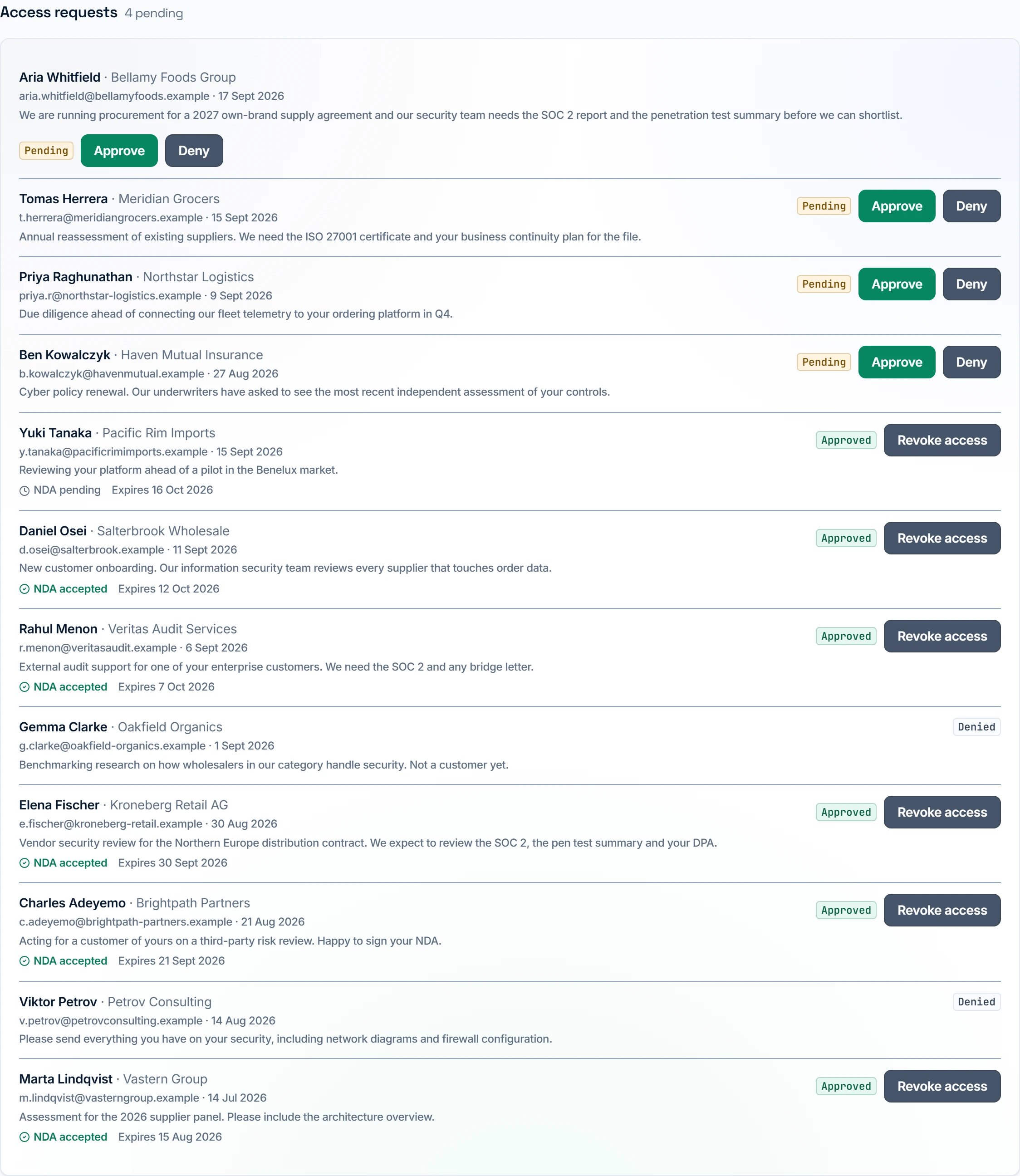
- Both link straight to Access requests on the configure page. Read the name, company, email, date and stated purpose. When the visitor picked an approver, the row names that person ("Asked ... to approve").
- Press Approve or Deny. Any admin can decide, whoever was asked.
- On approval the console either says the requester was emailed a link that opens their access straight away, or tells you email is unavailable and prints a copyable One-time access link for you to send yourself.
- An approved row shows NDA accepted or NDA pending, and the date access expires. Click NDA accepted to read the exact text they saw, with the date.
- To end someone's access early, press Revoke access on their row, then Revoke now. Keep access backs out.
As a visitor
- Press Get access at the top of the page, or Request access under Ask a person.
- Fill in Your name, Work email and Company. All three are required. Answer "What do you need access for?" if you want to.
- If the organization lists approvers, pick one under Who should approve your request?. You have to choose someone before you can send.
- Press Request access. The confirmation says who reviews it, that a sign-in link is emailed to you if they approve, and that there is no password to set up. A person does the review, so there is no set turnaround.
- When you are approved, press Open Trust Center in the approval email. The link opens your access straight away.
- If the organization requires one, read the Non-disclosure agreement and press I agree, continue. Your documents open.
Rules that apply
- The order is fixed and enforced on the server: approval, then the agreement when you require one, then the portal. Until the agreement is accepted, no document list, download, datasheet or question is available.
- There is no password. The approval email's link is the way in, and Email me a sign-in link is the way back.
- Asking again from the same address never creates a second row. Within six hours nothing happens. After six hours a reminder goes out: to the approver chosen this time, or else the one chosen first if they are still an approver, or else every admin. What the visitor sees is identical either way.
- Access lasts 30 days from approval. Each time the reviewer first uses a new sign-in link, it runs 30 days from that moment. Revoke access ends it at once and records the request as denied.
- At most 10 access-request emails go out per hour for your organization. Requests past that are still stored and listed here, and every admin gets one in-app alert: "More than 10 access requests arrived within an hour, so emails about them are paused until the pace drops."
- Web addresses a visitor types into the form arrive broken in the email, for example
acme[.]com, so nothing a stranger wrote reaches your inbox as a clickable link. - The agreement is stored word for word at the moment it is accepted, with the organization, recipient and date already filled in, so editing the template later cannot change what somebody agreed to. Requests accepted before that was recorded say plainly that no copy was kept.
- Leaving NDA text blank serves a full default agreement, not a placeholder.
- The approval email names your organization, says the link opens access with no password to set or remember, and asks the reviewer not to forward it, because the link is unique to them.
- Approving also drops an in-app notification carrying the link into the reviewer's own account, when they happen to have one.
Choose who approves access requestsLive
Let a visitor ask a named admin to approve their access request, so it reaches the person who knows them instead of every admin.
As a member
- Not available. Only an admin can see or change Access approvers.
As an admin
- On Configure, under Notifications, find Access approvers.
- Tick the admins a visitor may ask. Every active admin of your organization is listed, with their email so you can tell them apart.
- Press Save approvers. Saved appears beside it.
- Your public request form now asks Who should approve your request? and lists the people you ticked, by name.
- To go back to sending each request to every admin, or to your shared mailbox if you set one, untick everyone and save.
As a visitor
- Press Get access or Request access.
- Under Who should approve your request?, pick a person. With one approver listed, they are already chosen. The form notes that anyone who looks after the Trust Center can still approve it.
- Press Request access. The confirmation names the person you chose.
Rules that apply
- Visitors see names only, never an email address. A name that only repeats an email address reads "Administrator 1", "Administrator 2" and so on.
- The person chosen is the only one told, by bell and by email. The email's subject reads "You were asked to approve Trust Center access for" followed by the visitor's address, and the email says the visitor chose them and that any admin can approve or deny it in the Trust Center console. A shared mailbox does not take over a chosen approver's request.
- Any admin can still approve or deny the request in Access requests, where the row names who was asked.
- Someone who leaves, is suspended or stops being an admin drops off the list on their own and stops receiving requests. A choice that no longer matches anyone on the list goes to every admin instead.
- Members of the Audix support team who hold a membership in your organization are never offered as approvers.
- Approvers only route access requests. Questions raised from the page still go to every admin, or to your shared mailbox.
Choose who gets the emailLive
Decide which mailbox receives the message when a visitor asks for access or raises a question.
As a member
- Not available. Only an admin can change routing.
As an admin
- On Configure, open Notifications and read Where Trust Center mail goes: who questions and access requests reach, the address visitors see on your page, and where approved answers are sent.
- Under Send questions and access requests to, choose Every admin or One mailbox.
- For a mailbox, type it into Shared mailbox.
- Press Save routing. Saved appears beside it.
Rules that apply
- For questions, and for access requests where no approver was chosen, the in-app bell reaches every active admin whatever the routing says. A shared mailbox cannot receive one.
- An access request whose visitor chose one of your Access approvers goes to that person alone, by bell and by email. The shared mailbox does not take it over, and the panel then lists the approvers under "Access requests reach the approver the visitor chooses".
- Approved answers always go back to whoever asked the question.
- Routing is stored apart from the page settings, so saving a headline never redirects your mail.
- The destinations printed on screen are worked out by the same code that sends, so the two cannot disagree.
5 questions
Questions about this screen
How do I choose who approves Trust Center access requests?
Open Trust Center, press Configure, and under Notifications tick the admins in Access approvers, then press Save approvers. The public request form then asks Who should approve your request? and lists those people by name only. The person a visitor picks is the only one notified, and any admin can still approve or deny the request.
How do I revoke someone's access to our Trust Center?
On Configure Trust Center, scroll to Access requests, press Revoke access on the approved row, then Revoke now. Their link stops working at once and the request is recorded as denied.
Who receives Trust Center access requests and questions?
By default every admin gets the in-app bell and the email. Under Notifications, Where Trust Center mail goes lets you send the email to One mailbox instead, while the bell still reaches every admin. An access request whose visitor chose one of your Access approvers goes only to that person.
Does setting our Trust Center to Draft hide it?
No. Draft is a label for your team, and the page's address opens for anyone who has it, whether it says Published or Draft. The page shows only what you put on it.
Why did Trust Center access request emails stop arriving?
At most 10 access-request emails go out per hour for your organization. Past that, the emails pause and every admin gets one in-app alert saying so. Every request is still stored and listed under Access requests.