Screen 01 of 5 · Trust Center
Trust Center
Your public security page exactly as visitors see it, whether it is published or a draft, and the way into configuring it.
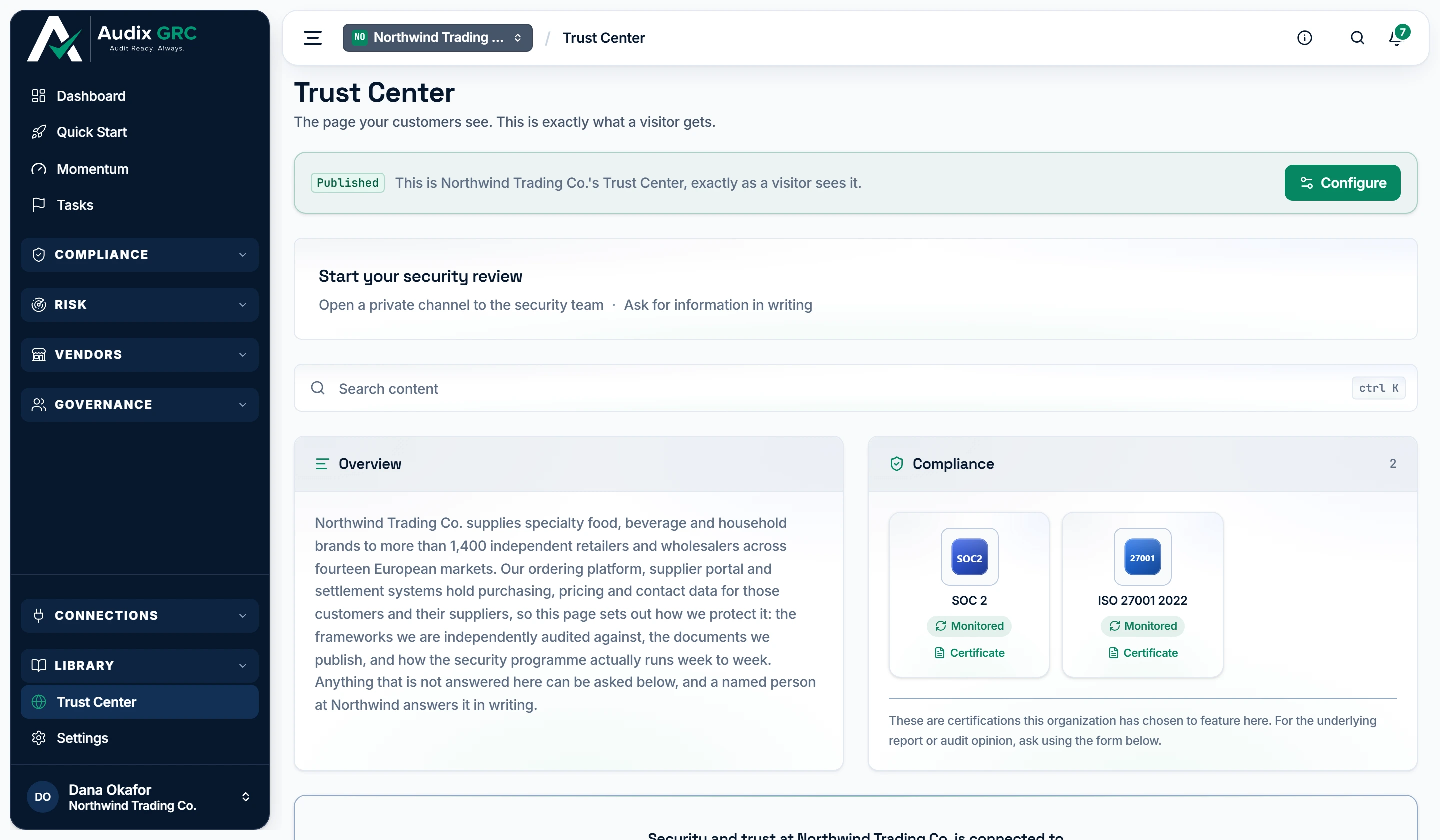
- Published, or a draft. Draft is a label for your own team rather than a lock, because anyone holding the address can already open the page.
- The way in to change it. Only an admin is offered this; every other member gets a link that opens the live page instead.
What the public page is published from, and what never reaches it
Wider than this screen: swipe sideways across the flow to follow it.
A Published or Draft banner, then your real public page rendered inline. Admins get Configure, everyone else gets Open live page. While your check results are out of date, a note above the page says why your certifications do not say Monitored, with a See Monitoring link.
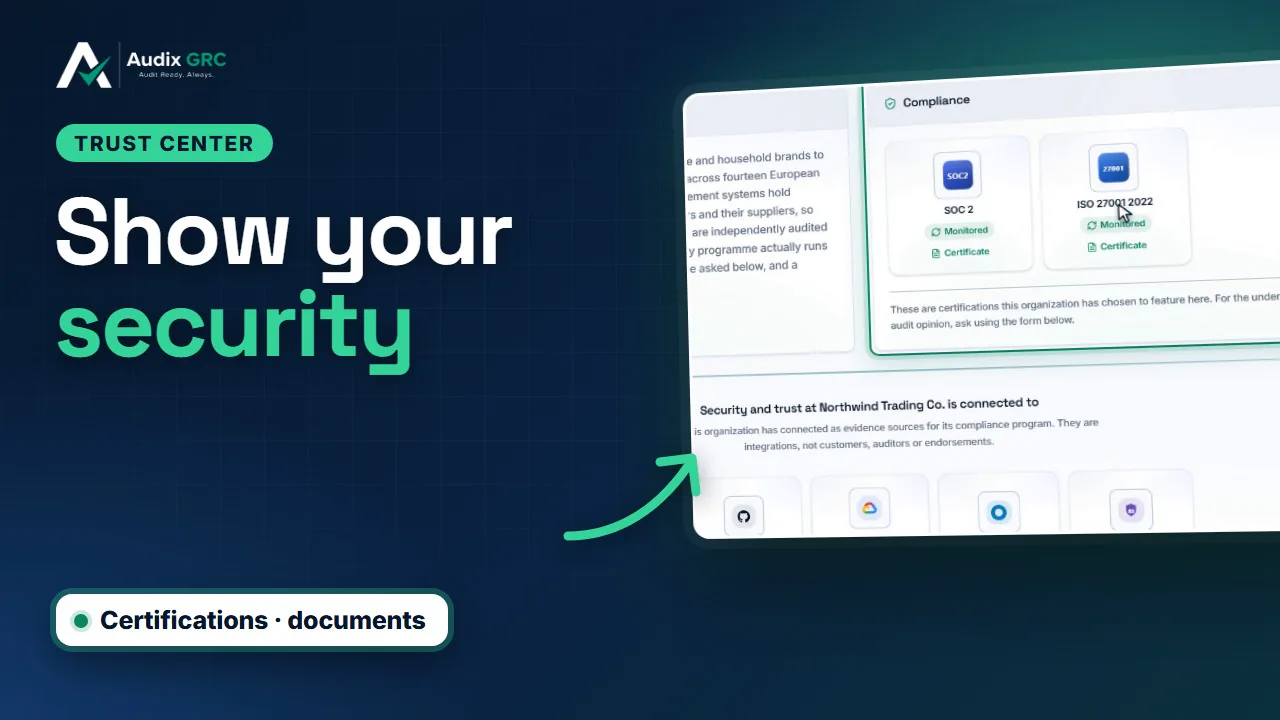
Audix GRC Trust Center: show customers your security posture
In Trust Center
Tasks on this screen
Publish your Trust Center pageLive
Give reviewers one address that answers their security questions, so reviews stop arriving as email threads.
As a member
- Open Trust Center in the sidebar.
- Read the banner. It says Published or Draft, and prints the page's own address.
- Read the page below it. That is what a visitor sees.
- Click Open live page to open the real thing in a new tab.
As an admin
- Click Configure.
- Fill in Headline and Overview, or press Suggest with AI to draft the overview from what is already published, then edit it.
- Set a Contact email if you want one.
- Set Visibility to Published or Draft.
- Set the NDA gate to Required or Optional, and paste your own NDA text if you have one.
- Decide whether Reviewed and trusted by is Published or Hidden. The exact vendor names that would go out are printed beside the switch.
- Press Save configuration.
Rules that apply
- Draft does not mean private. The address opens for anyone who has it in either state. Draft is a label for your team, and the console says so.
- A free trial is the exception: its page answers "not found" to the public until the trial is converted. Trust Center and Configure Trust Center say so, "Your Trust Center page goes public when your trial is converted. You can prepare it now.", and the editor works as usual. The trial keeps the address it was given until then.
- The address is issued when your organization is created and there is no field to change it. It is unique across the platform.
- Reviewed and trusted by starts hidden for every organization, because that band names the tools you connected.
- When it is published, the band says in as many words that these are systems you connected as evidence sources, and that they are integrations rather than customers, auditors or endorsements.
- The band names each tool once, in alphabetical order, up to 24 of them. Several SentinelOne connections show as one SentinelOne. A connection that has not finished setting up is left out. One whose last sync failed stays listed, so the band never gives away a broken sync.
- Overview holds 4,000 characters, Headline 200, NDA text 20,000. The overview prints as plain paragraphs, so links and headings do not work there.
- The At a glance summary is written by a model from the page's published facts, and rewritten when those facts change, when you switch AI off or pick a different model, and when the platform changes how the summary is written. A practice line still reading Not published or Not assessed is not among the facts it is given, and neither is a card whose lines all read that, so the summary describes only what you have actually published.
- Setting a Contact email prints that address under Ask a person, and the assistant's way to a person becomes Email the security team instead of Request access.
- The request buttons are missing from the in-app view on purpose, so you cannot file an access request against your own page.
Publish the certifications you holdLive
Show the frameworks you are certified against, with the certificate behind each one where you have the file.
As a member
- They appear in the Compliance card on the page. Nothing to do.
As an admin
- On Configure, scroll to Compliance badges.
- Search the picker and add a framework. It lists only the frameworks you have adopted.
- Reorder with the up and down arrows, or press Remove.
- Pick a certificate for a badge from the documents you already uploaded. The row offers No certificate plus every document.
- Press Save badges, or Save configuration, which sends the same field.
As a visitor
- Each badge shows the framework logo, its name and a Monitored chip. The chip is missing while the organization's check results are out of date.
- A Certificate link appears when a file is attached to that badge.
- Without a session that link is a Certificate button that opens Sign in to this Trust Center.
Rules that apply
- Twelve badges is the limit.
- No readiness score, band or percentage is ever published. You choose the list by hand.
- A framework you no longer have adopted is dropped from the list on save, rather than failing the whole form.
- Monitored follows the same rule as Results are out of date in Monitoring. While your results are out of date the badges stop saying it, and it comes back on its own once your checks run in full again. A visitor is told nothing more: no time, no count and no check name.
- Your own Trust Center page tells your team why the badges do not say Monitored, and links to See Monitoring.
- Attaching a certificate saves at once, separately from the settings form.
- With no badges the card reads "This organization has not published any certifications here."
Let the assistant answer firstLive
Answer a reviewer's question in seconds from the page's own published facts, and hand them to a person when that is not enough.
As a member
- Open Trust Center and read the Ask the assistant panel as a visitor sees it.
- Whether the assistant answers is set under Settings, AI. There is nothing to configure on this page.
As a visitor
- In Ask the assistant, read What this platform does, then click an opener chip or type a question.
- Answers appear as chat bubbles, with follow-up chips under Ask next.
- A standing line says the answer was written by a model from this page's published facts and nothing else, and that nobody at the organization has read the wording.
- Press Put this to a person, fill in Your name, Email for the reply and Company, then press Send to the team.
Rules that apply
- The assistant only ever reads the published page. Control results, findings, evidence and personnel are never part of what it is given.
- 200 answers per page per day, 80 per approved reviewer, and 12 turns in one conversation. After that the box is disabled and says why.
- A question runs from 5 to 1,000 characters.
- In the reviewer portal the assistant is grounded on the documents that reviewer's access covers, and there is no escalation form, because they already have a question thread.
- Where you require an NDA, the portal shows the assistant only after the reviewer has accepted it.
- When AI is switched off, or no model can be reached, the panel says the assistant is not answering questions on this Trust Center and offers the way to a person instead. A visitor is not told which.
- A question raised from the open page is capped at 15 per page per day, and the same address asking the same thing twice is not duplicated.
1 question
Questions about this screen
Why don't our Trust Center certification badges say Monitored?
Monitored shows only while your check results are current. While they are out of date the badges on your public page drop it, and it comes back on its own once your checks run in full again. Your own Trust Center page explains this to your team with a See Monitoring link, and visitors are told nothing more.