Screen 04 of 5 · Vendors
Prospective vendors
The vendors you are evaluating before you use them, with a security review to start and an approval that promotes them to current.
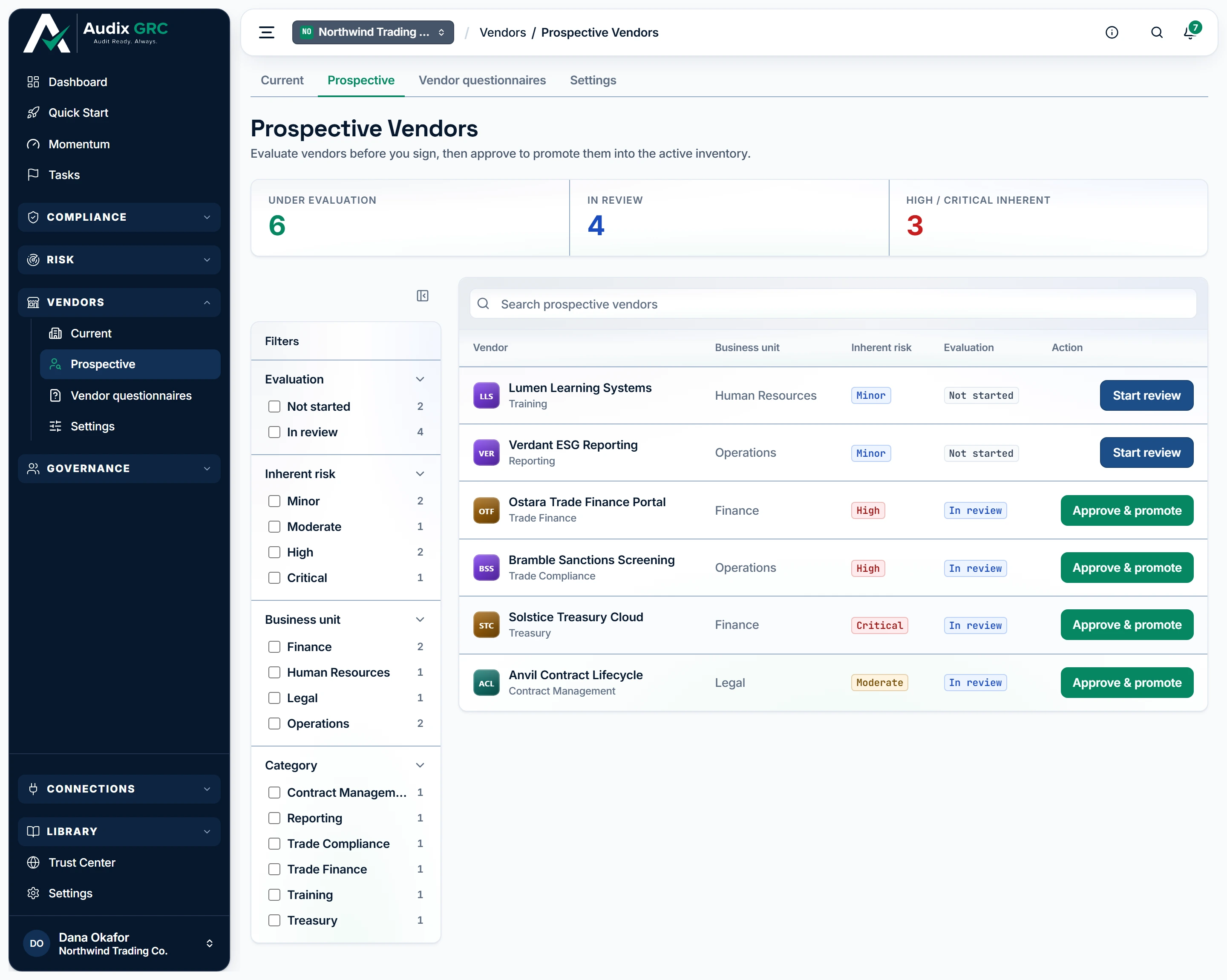
- What is still being decided. Everything under evaluation, how much of it has a review under way, and how much of it would be high or critical risk if you signed today.
- One move per row, and it changes. A vendor nobody has opened yet offers Start review; once the work is done the same column offers Approve and promote, which moves the vendor into the active inventory.
How a vendor becomes one you use
Wider than this screen: swipe sideways across the flow to follow it.
Three tiles and the table of vendors under evaluation, with Start review or Approve & promote on each row.
In Vendors
Tasks on this screen
Evaluate a vendor before you use itLive
Hold vendors that are being assessed, and promote one into the active inventory once it clears every requirement.
As a member
- Open Prospective to read everything under evaluation, with tiles for Under evaluation, In review and High / critical inherent.
- Start review and Approve & promote are shown to you, but the server refuses both. Pressing one puts a role error above the table.
As an admin
- Open Prospective.
- On a vendor whose review has not begun, click Start review. Its evaluation pill moves from Not started to In review.
- When the work is done, click Approve & promote.
- If anything is outstanding, a yellow card appears saying the vendor is not ready to approve, and lists every requirement. Met ones are struck through. Unmet ones carry the reason, and a badge where the requirement only applies because of the risk band.
- Fix the outstanding fields on the vendor record, then click Approve & promote again.
- When everything is met the review status becomes complete, today's date is stamped as the last review, and the vendor moves out of this list into Current.
Rules that apply
- The check before the button is a courtesy, not the control. The server runs the same requirements again on the way through and refuses with every outstanding item named, so a stale page cannot approve an unready vendor.
- The requirements are checked against the vendor as it will be after your edits, so a last round of changes and the approval can go in one save.
- Finalizing a security review promotes a vendor out of procurement too. Those are the only two ways it happens.
- A vendor is never moved backwards on its own. Only an admin sets Lifecycle to Procurement or Archived, by hand, on the record.
Run and record a security reviewLive
Give a vendor a review history: named reviews, each with a kind, a reviewer, the risk band it was conducted against and a written conclusion. The vendor's review status and last review date are worked out from these rows.
As a member
- Read the Security reviews card. Each review shows its kind, start date, finalize date, reviewer, conclusion and a status pill.
- With none on file it reads "No reviews of this vendor yet." There is no Create, Finalize or delete control.
As an admin
- Click Create review and pick a kind: Security review for a full assessment, SOC report review to record findings from their SOC 2 or ISO report, or Uploaded report to file a report somebody else produced.
- The dialog pre-fills Review name with today's date. Pick a Reviewer from the roster if you want one, then click Start review.
- When the work is done, click Finalize on the open review.
- The dialog warns that this closes the review, updates the vendor's review status and last reviewed date, and cannot be undone. Add a Conclusion if you have one.
- Click Finalize. Who finalized it and when are stamped on the row.
- The bin icon deletes a review.
Rules that apply
- Only one review can be open at a time. Starting a second is refused with a message naming the open one, and the refusal only appears after you have filled in the dialog and clicked Start review.
- A finalized review cannot be edited or reopened.
- The vendor's review status is the status of the newest review by start date. It is not "complete if any review is complete", so starting a new review moves a reviewed vendor back to In review.
- The last review date is the finalize date of the newest completed review only. An open review does not restart the cadence clock.
- The risk band a review was conducted against is stamped when the review is created. Re-rating the vendor later does not rewrite what an old review says it assessed.
- Deleting the newest review rolls the vendor's summary back to whatever the one before it said.
- The vendor's review status reads Not started in grey, In review in blue or Reviewed in green.
1 question
Questions about this screen
How do I move a vendor from Prospective to Current?
On Prospective, press Approve & promote on the vendor. If anything is missing, a card lists every unmet approval requirement and the vendor stays where it is. When all of them are met, the review is marked complete, today becomes the last review date and the vendor moves to Current.