Screen 03 of 6 · Activity and settings
Notifications
The notices addressed to you, such as a task assigned to you or work that is due soon or escalated, to filter and mark as read.
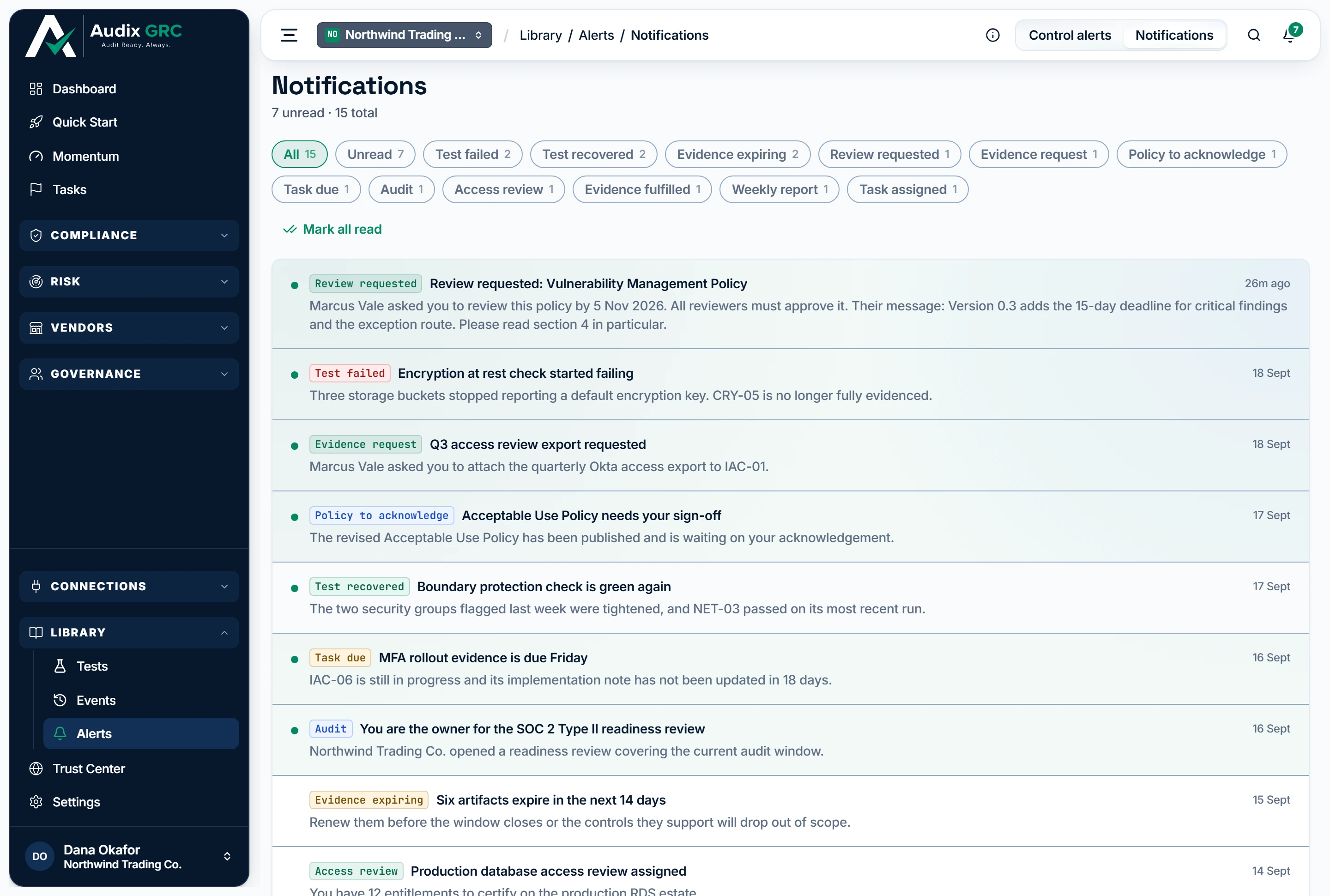
- Two feeds, one page. Control alerts is what happened to the controls; Notifications is what was addressed to you personally. The bell's "View all notifications" link lands on the other tab, so this switcher is how you get here.
- Filter by state, or by kind. Each chip counts what is behind it, so an evidence request waiting on you is one click away from a weekly summary you can ignore.
- Clear the unread state. Your notices are yours alone: nobody else can see or clear them, and clearing them changes nothing in anyone else's inbox.
Where a notice comes from, and what reading it does
Wider than this screen: swipe sideways across the flow to follow it.
Your own notices, newest first, with All, Unread and per-kind chips such as Task assigned, Due soon and Escalated, and a Mark all read button.
In Activity and settings
Tasks on this screen
Read the notices addressed to youLive
A per-person feed: a task or evidence request assigned to you, your own due work, overdue work escalated to you, a policy review or risk sign-off asked of you, a risk you now own, an invitation you sent being answered, a Trust Center visitor asking a question, and the weekly summary.
As a member
- Click the bell in the header. The badge counts your unread notices plus any invitations waiting for you.
- Click a notice. It is marked read, and if it links somewhere you are taken there.
- Click Mark all read to clear the unread state in one go.
- Open the Notifications tab on the Alerts page for the full feed, with All, Unread and per-kind chips such as Task assigned, Due soon, Escalated, Review requested, Sign-off requested, Risk assigned and Weekly summary.
- The empty state reads "You're all caught up".
As an admin
- Same as a member. Admins also receive Trust Center access requests and questions, because those are addressed to admins by name.
Rules that apply
- The feed holds the fifty most recent notices. The badge uses the full server count, so the two never disagree.
- A Due soon notice lists your own work at 30, 7 and 1 day before it is due and when it is overdue, at most once a day, and links to Mine on Tasks. An Escalated notice links to the Escalated view.
- Nobody else can see or clear your notices, and you cannot clear theirs.
- The bell refreshes every twenty seconds while the tab is visible, stops while it is hidden, and refreshes at once when you come back to it.
- An auditor cannot mark anything read. The row looks read until the next refresh puts it back.
- View all notifications at the foot of the bell panel opens the Control alerts page, not this feed. Use the Notifications tab from there.
Send drift alerts to Slack and emailLive
Push control drift out of the product, so a failing control is noticed without anyone opening the app.
As a member
- Open Settings, then Notifications under Configuration.
- Read whether alerts are on and who receives email. The webhook address is for admins only: you see "Set. Only admins can see or change the address." or "Not set."
- The form is locked and the page says "Only an admin can change notification settings."
As an admin
- Open the same panel.
- Tick "Send drift alerts to the destinations below".
- Paste a Slack incoming webhook URL into Slack Incoming Webhook URL, or leave it blank to skip Slack.
- Type comma-separated addresses into Email recipients, or leave it blank to skip email. Leave both blank and the alerts are emailed to your organization's admins, and the page names them.
- Click Save. The page confirms "Notification settings saved."
Rules that apply
- Delivery is off until you tick the box. With it on and no Slack webhook or address, alerts are emailed to the organization's admins, never to Audix staff. If there is no admin to email either, nothing is sent and the page says so.
- Switching alerts on sends only alerts raised from then on: "Only alerts raised from now on are sent." The page counts the alerts that were never sent, and they stay on the Alerts page.
- Only a Slack URL starting
https://hooks.slack.com/services/is accepted, and it is checked again at the moment of posting. The address is a credential, so only admins see it. - At most 25 email recipients, each checked as a real address.
- In a free trial, Email recipients takes only people in the workspace. Anyone else is refused with "During a trial, email notifications can only go to people in this workspace."
- At most 50 alerts go out per run. An alert is marked as sent only when a channel accepted it, so a total outage leaves them for the next run.
- It is workspace-wide and admin-owned. Every drift alert goes to the same destinations. Per-control and per-severity routing does not exist.
Automatic reminders and the weekly summaryLive
Reminders arrive without anyone logging in: each owner hears about their own due work, a daily digest goes to your Slack and email destinations, and every Monday each person gets a summary of the work waiting on them.
As a member
- Nothing to set up. When work you own is 30, 7 or 1 day from due, or overdue, one notice in the app lists it and links to Mine on Tasks.
- If an admin has ticked Email owners about their own due work, the same list arrives by email too, at most once a day.
- Every Monday at 12:00 UTC, a Weekly summary notice counts what is open for you: what waits for your review, your requests still waiting on others, what is overdue and what is due in the next 60 days. It opens Mine on Tasks. The email version lists each item under "Waiting for your review", "Your approval requests waiting on others", "Overdue", "Due in the next 60 days" and "No due date".
- To stop it, open Settings, Notifications and, under Your notifications, untick Send me the weekly summary of my open work.
- A weekly note on your score also lands in your inbox, titled "Your week: +N to X" or "Your week: holding at X".
As an admin
- Open Settings, Notifications. Tick Email owners about their own due work to send owners the email copy. It starts off.
- Tick Email everyone their weekly summary to email the Monday summary as well as showing it in the app. It starts off.
- The daily deadline digest goes to the drift-alert Slack and email destinations, when alerts are on and a destination is set.
Rules that apply
- Whoever owns a task, an evidence request, an audit follow-up, a policy renewal, a risk review or a vendor review is reminded. The notice in the app is sent whether or not the email is on.
- Each item is chased at most once per threshold for each due date. The thresholds are overdue, one day out, seven days out and thirty days out, and moving a due date starts them again.
- The digest looks thirty days ahead. Anything already overdue is always included, however old. It spells out at most 50 items and counts the rest.
- It covers open evidence requests, unsubmitted questionnaires, unresolved vendor follow-ups, access-review campaigns, policy renewals, policy reviews, vendor review dates, vendor documents and contracts, evidence renewals, risk reviews, risk treatment steps and sign-offs, vulnerability deadlines, tasks and audit follow-ups.
- A vendor contract is dated at the last day you can still give notice, not at the renewal date.
- The weekly summary goes to admins, members and approvers with something open, never to auditors. A person with nothing open gets none, and each person gets at most one a week in each organization. If Monday's run is missed, it is caught up later that week, never at the weekend.
- When one kind of work has more than five lines in a section, the summary gives it one line with a count, for example "12 vulnerabilities overdue, the oldest by 40d".
- With Email everyone their weekly summary off, a person asked by name to review a policy or decide a risk sign-off is still emailed those requests each Monday until they decide them. Turning your own summary off stops all of it, those emails included.
- A workspace that is read-only or locked gets no weekly summary.
- The weekly note on your score is built only from score movement. A quiet week sends nothing, and losses are reported next to gains.
Chase overdue work and escalate itLive
Remind an owner again when work stays overdue, then pass it to someone who can act on it.
As a member
- Read the setting under Overdue work: "Off. Overdue work is reminded once, to its owner.", or what it does when on. Only an admin can change it.
- Work escalated to you arrives as an Escalated notice, and by email, and is listed under Escalated on Tasks.
As an admin
- Open Settings, Notifications and find Overdue work.
- Tick Chase overdue work and escalate it.
- Set Remind the owner again when it is N days overdue, 7 by default, and Escalate it when it is N days overdue, 14 by default.
- Under Escalate to, choose All admins, or These people and tick who.
- Click Preview to see what the next daily check would send with these settings, then Save. The first save that turns it on shows the preview first: "Check what turning this on would send (under Overdue work), then press Save again."
Rules that apply
- The second reminder can be set from 1 to 90 days overdue, and escalation from 2 to 180 days, always later than the second reminder. These people takes up to 25.
- Work with no owner, or whose owner can no longer act on it, is escalated on its first overdue day.
- Whoever created the item is told too, when they can act on it and are not its owner. Auditors never receive escalations.
- Each item is escalated once for each due date. Everyone gets at most one reminder email a day, listing what is assigned to them and what was escalated to them.
- Work already that far overdue when you turn this on is escalated by the next daily check, in one email per person.
- While it is on, owners are emailed the second reminder and the escalation notice about their own work, even with owner emails off.
- It starts off. Nothing is escalated until an admin turns it on.
1 question
Questions about this screen
What notifications appear under the bell?
Notices addressed to you: a task or evidence request assigned to you, your own due work, work escalated to you, a policy review or a risk sign-off someone asked you to decide, a risk you now own, answers to invitations you sent, Trust Center requests and questions for admins, and the weekly summary of your open work. Click one to open what it is about and mark it read.