Screen 03 of 9 · Risk
Risk detail
One risk in full: its scores, its treatment plan and sign-off, the controls that reduce it, the assets at stake and every change made to it.
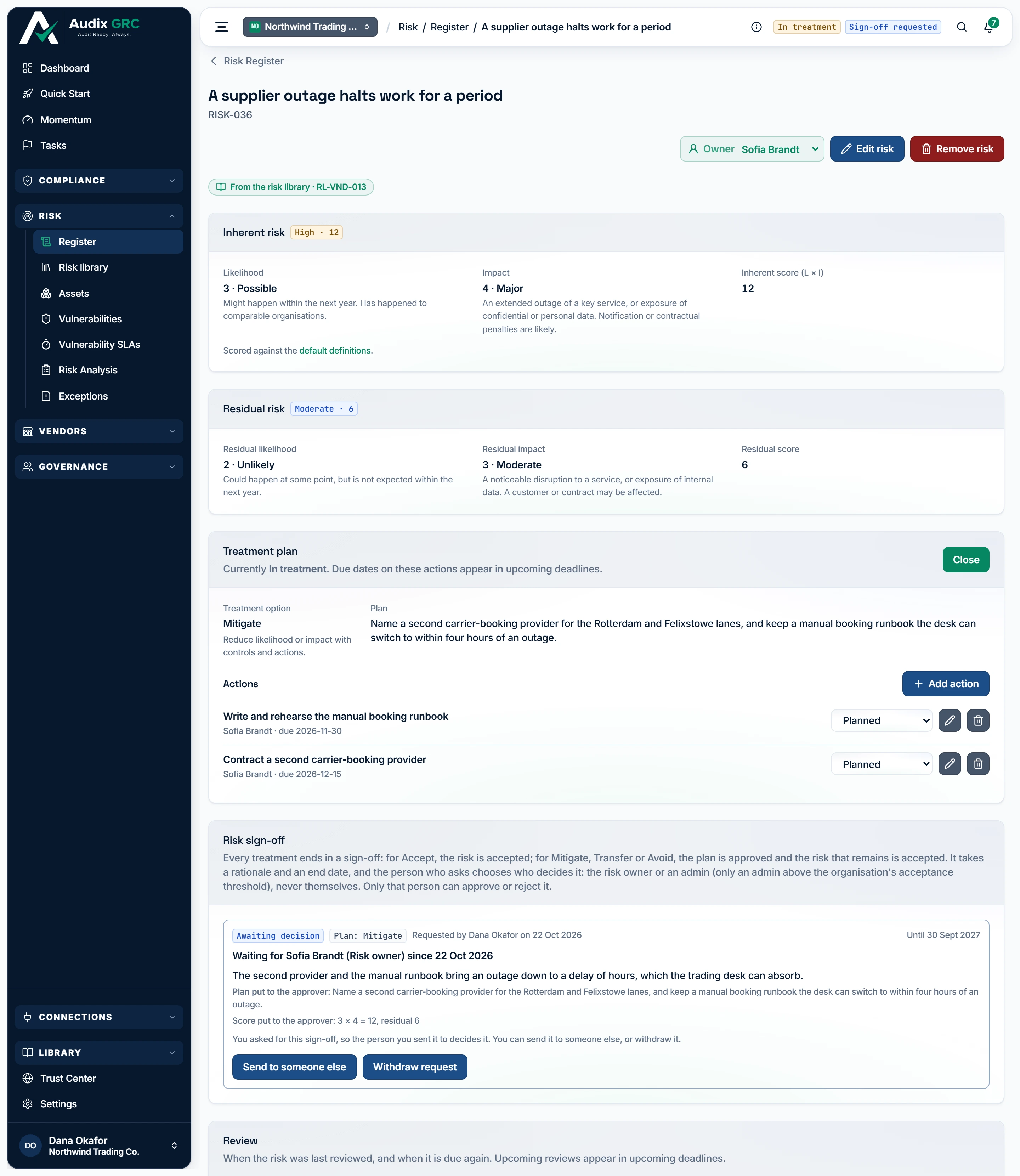
- Where it came from. A risk added from the risk library carries the entry it came from, and the chip opens that entry with the controls it suggested.
- One named person decides. Whoever asks for the sign-off chooses who decides it: the risk owner or an admin, never themselves, and only an admin above the acceptance threshold. Until then it reads Awaiting decision, with the plan and the scores that were put to them.
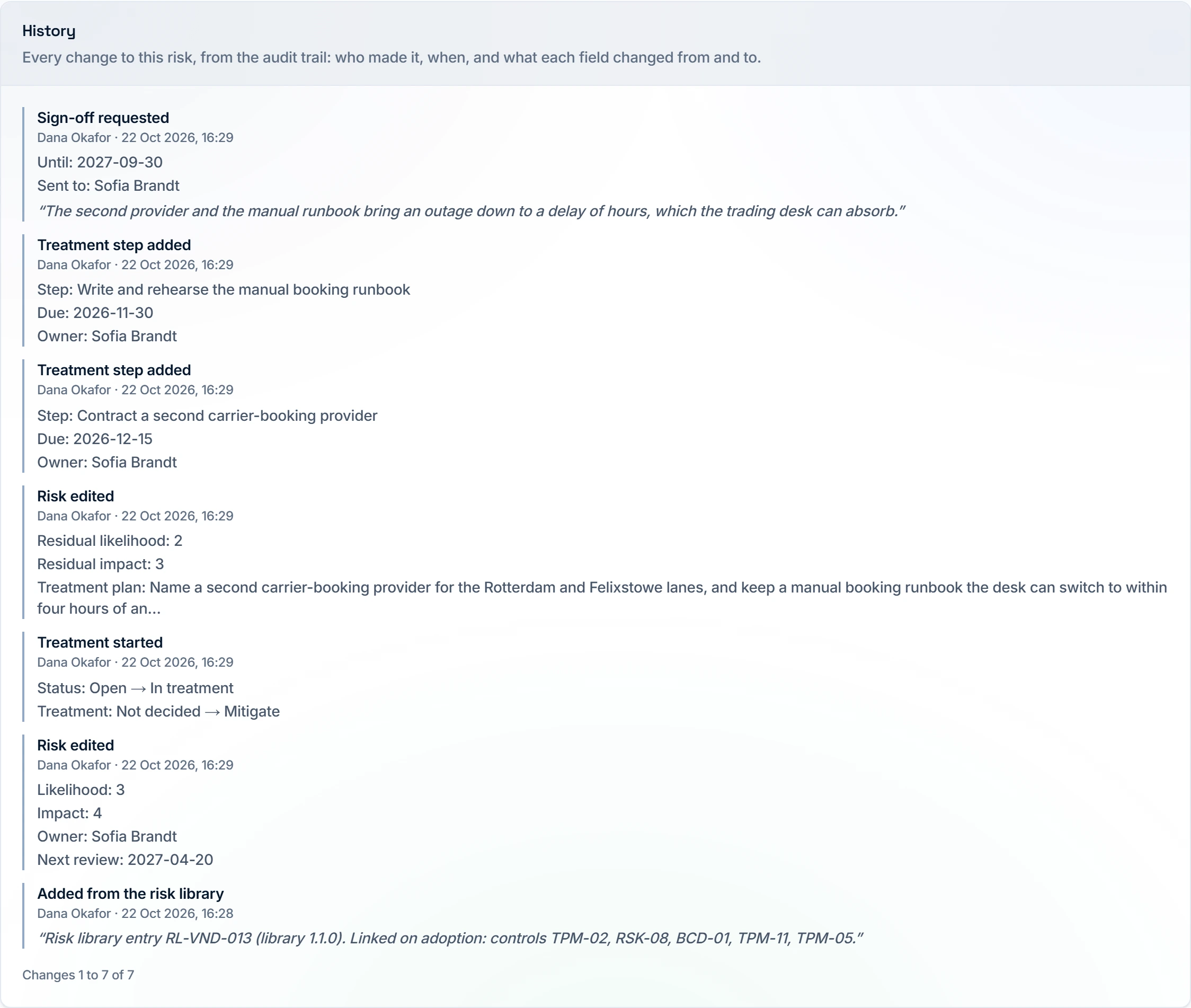
- What changed, from and to. Each entry names who made the change and when, and every field it changed with the old value beside the new. It is read from the audit trail, so nothing here can be edited.
- Where it began. A risk added from the library records the entry and the library version it came from, and the controls that were linked to it on adoption.
The four statuses, and the only moves between them
Wider than this screen: swipe sideways across the flow to follow it.
The status and sign-off pills, a From the risk library chip when it came from the library, the owner beside Edit risk and Remove risk, then Inherent risk, Residual risk, Treatment plan, Risk sign-off, Mitigating controls, Affected assets, Threats & risk exposure (SCF), Overview and History.
In Risk
Tasks on this screen
Keep a register of what could go wrongLive
A numbered list of named risks, each assessed against your written level definitions, owned and given a treatment decision, so you can show an auditor you know your own risks.
As a member
- Open Register under Risk. The page is titled Risk Register.
- Read the tiles: Total risks with how many are live and closed, Inherent critical (≥15) and Residual critical (≥15) with the high counts beneath them, Not scored, Risks needing attention and Reviews overdue. Every tile counts the whole register, and the bands count live risks only.
- Filter by Status, Treatment, Inherent band, Residual band, Needs attention, Owner, Category and Review due. Needs attention offers Not scored, Sign-off needs re-review, Sign-off awaiting decision, Accept decided, not approved, Treatment actions overdue, Duplicate reference, Above appetite, no sign-off, No owner, Owner left the organisation and Re-assess.
- Search every risk by reference, name or category. Click the Inherent or Residual column header to sort by score: highest first, then lowest first, then newest.
- The table shows 25 risks a page. Choose 10, 50 or 100 with Show.
- Click a row to open the risk.
As an admin
- Click New risk. Step 1, Identify, takes a Reference ID such as
RISK-001, a Category, a Name and a Description. - Click Continue. Step 2, Score, takes Likelihood and Impact. Each option shows the level and its label, for example
3 · Possible, and the written definition sits under the picker. Leave both on Not scored until the risk has been assessed. Residual likelihood (optional) and Residual impact (optional) follow. - Click Continue. Step 3, Treat, takes the Treatment option, Treatment plan (optional), Owner and Next review date (optional). A new risk always starts Open.
- Click Add risk. The inherent score is likelihood times impact.
- To change a risk later, open it and click Edit risk: name, category, description, both pairs of scores, treatment option, plan and next review date. Click Save changes. The risk's owner can do the same on a risk they own.
Rules that apply
- Inherent score is likelihood times impact. The bands are fixed: Critical at 15 or more, High 10 to 14, Moderate 5 to 9, Low below 5. Inherent and residual each have their own band. A risk that is not scored sits in no band and reads Not scored wherever a score would be.
- Set both likelihood and impact, or leave both blank. One on its own is refused with "Set both likelihood and impact, or leave both blank until the risk is assessed". The residual pair follows the same rule.
- A residual score higher than the inherent score is refused: "Residual is what is left after treatment, so lower the residual likelihood or impact, or re-score the inherent risk."
- Each reference is used once in your organisation, ignoring capitals. One already in use is refused with "The reference … is already used by … Each risk needs its own reference: choose another one." References shared before this rule are flagged Duplicate reference, and a banner above the table says how many there are.
- A risk with no owner reads Unassigned in the Owner column, and one whose owner left reads A former member. Both count under Needs attention. Editing a risk never clears its owner.
- A risk becomes Accepted only when an Accept sign-off is approved by the person it was sent to.
- A next review date in the past reads overdue, on the table and on the risk page.
Start the register from the risk libraryLive
Fill the register with specific risks written for you, each arriving with the SCF controls that mitigate it, instead of typing every one.
As a member
- Open Risk library under Risk, or click Browse the risk library on the register.
- Pick a category in the rail. Each one shows how many risks it holds and, under the search, what it covers. Everything shows them all, and the SCF risk catalogue and the SOC 2 starter risks sit below the 13 categories.
- Search by name, code or summary, and tick Not in my register to hide what you already have.
- Each row reads its title, its category and its controls, for example "5 controls, 3 already in your controls". A risk you already added reads In your register.
- Click a risk to read What the risk is, the Suggested controls, each with a pill saying how ready it is in your organisation, and the Related entries that overlap it.
As an admin
- On Risk Register, click Start from the risk library, or open Risk library from the sidebar.
- Tick the risks that apply, one by one, or tick Select all N shown that are not in your register for the category, search or filter on screen.
- Keep Link suggested controls ticked to link each risk's suggested controls as it is added. Tick Skip controls we have not adopted to link only controls already in your scope.
- To leave one suggested control out of a risk, open the risk and untick that control.
- Click Add N to register. The toast reads, for example, "Added 12 risks to the register, unscored, ready to assess."
Rules that apply
- The library holds 219 risks in 13 categories: Access, People, Vendors, Data protection, Privacy, Systems, Assets, Availability, Physical, Detection and response, Governance, Legal and regulatory, and Artificial intelligence. Each suggests 2 to 6 SCF controls.
- An added risk arrives unscored and untreated, ready to assess. Its page carries a From the risk library chip with its code, such as
RL-ACC-001, and its History starts with "Added from the risk library", naming the library entry and version and the controls it linked. - A risk already in your register cannot be added twice, not even by a double click. At most 300 risks are added at a time.
- A suggested control you left out, or unlinked later, stays on the risk's page as a suggestion with a one-click Link. Nothing links it again on its own, and a later version of the library never changes a risk already in your register.
- SCF risks come without suggested controls, because SCF relates each one to far more controls than anyone could link. Link controls on the risk's page once it is in your register. The two SOC 2 starter risks, on fraud and on significant change, link their controls like library risks.
- A control retired from the catalogue is never linked.
- The register CSV has a Catalogue entry column naming where each added risk came from.
- Only an admin adds risks: "Only an admin can add risks from the library to the register. You can browse every entry and its controls."
Plan the treatment in owned, dated stepsLive
Say how a risk will be treated, in words and as steps that each have an owner and a due date, so the plan can be chased.
As a member
- Open a risk and read the Treatment plan card: the treatment option with what it commits to, the Plan in words, and the Actions.
- Each action shows its owner, its due date, "(overdue)" in red once that date has passed, and its status: Planned, In progress, Done or Cancelled.
- On a risk you own, you plan the treatment the same way an admin does.
- On an action you own, change its status from the select on its row. Choosing Done opens Mark the step done, with "What was done (optional)", and Mark done.
As an admin
- Write the plan in words with Edit risk, in Treatment plan.
- Click Add action. The New action form takes What will be done, Detail (optional), Owner, Due date and Status. Click Add action.
- Change an action's status from the select on its row, or click the pencil to edit it in place and Save changes.
- Click the bin to remove an action. The confirmation says cancelling it keeps the record instead.
Rules that apply
- Treatment option offers Not decided ("No treatment decided yet."), Avoid ("Stop the activity that creates the risk."), Mitigate ("Reduce likelihood or impact with controls and actions."), Transfer ("Share the risk with a third party, such as an insurer or supplier."), with Transferred to (optional) for who takes it on, and Accept ("Live with it. Needs an acceptance approved by the risk owner or another admin, with an expiry.").
- While a sign-off is in force, the treatment option and a Transfer's counterparty are locked: "End the sign-off first (in Risk sign-off) to choose another option."
- A mitigation with no actions reads "A mitigation needs dated, owned steps to count as a plan."
- The owner of an action changes its status and adds a completion note. Everything else about it is for the risk's owner or an admin.
- An action is overdue the day after its due date while it is Planned or In progress. A closed risk's actions are never marked overdue.
- A change to an action is kept on the risk's History, naming the action and what each field was before. A removed action keeps its title, owner, due date and status there.
- Action due dates appear in Tasks and on the dashboard's Upcoming card, and owner reminders go to the action's owner, else the risk's owner.
Assign owners and remove risksLive
Give every risk an owner who is accountable for it, one at a time or many at once, and take risks added by mistake out of the register.
As a member
- Open a risk. The owner sits under its name. You cannot change it, and there is no Remove risk for you.
- When an admin makes you the owner of a risk, you are told in the app: "You own this risk now. You can edit it, plan its treatment and ask for its sign-off."
As an admin
- On a risk's page, pick a person in the Owner select under its name and click Save owner, or Assign on a risk that has none.
- On Risk Register, click Assign in the Owner cell of a risk that reads Unassigned or A former member.
- For many at once, tick risks on the page in view, or Select every risk on this page, then click Assign owner or Remove in the bar that appears.
- Assign owner opens a dialog listing the risks. Choose the Owner, an active admin or member, and click Assign.
- Remove lists every risk first, then removes them one at a time, "Removing 3 of 12…", and reports what was removed, what was kept and what failed.
- To take out a single risk, click Remove risk on its page. The dialog Remove “<name>”? says "<RISK-ID> leaves the risk register for good. This cannot be undone." Read what is Removed with it and what is Kept, then click Remove risk.
Rules that apply
- Only an admin changes who owns a risk: "Only an admin can change who owns a risk. Ask an admin to reassign it." An owner must be an active admin or member.
- A new owner is told once, in the app. Assigning many risks to one person sends them one notice naming the risks.
- A risk whose sign-off was ever decided, approved, rejected or ended, cannot be removed. A single remove explains why, and a bulk remove keeps it on record: "Kept … on record: its sign-off was decided, so close it instead."
- The dialog advises: "Remove a risk that was added by mistake or twice. If it was dealt with, close it instead, so its record stays."
- Each removal is written to the audit log with a copy of the risk, and each owner change shows on the risk's History.
- A bulk action covers the risks ticked on the page in view, at most 100.
5 questions
Questions about this screen
How does Audix calculate a risk score?
The inherent score is likelihood times impact, each scored from 1 to 5. The bands are fixed: Critical at 15 or more, High 10 to 14, Moderate 5 to 9 and Low below 5. Residual likelihood and impact are optional and work the same way.
How do I accept a risk in Audix?
Score the risk, then click Request acceptance on its page, say Why is this risk acceptable?, pick a Signed off until date, and under Send to choose who decides it: the risk's owner or an admin, never yourself. Click Send for approval. Only that person can approve or reject it, and only an approved acceptance makes the risk Accepted.
Why does a risk say "Score changed since approval: re-review"?
An approved acceptance covers the scores the risk had when it was approved. The risk has been re-scored since, so nobody has approved the level it shows now. Request a renewal at the current score, treat the risk, or end the acceptance.
Can I delete a risk in Audix?
Admins can click Remove risk on the risk's page, which removes it for good with its treatment plan and its links. To remove several, tick them on the register and click Remove in the bar. A risk whose sign-off was ever approved, rejected or ended is kept on record instead: close it, so its record stays.
Who can approve a risk sign-off in Audix?
Only the person the request was sent to. Whoever asks for a sign-off chooses under Send to between the risk's owner and the admins, never themselves, and above your acceptance threshold only an admin can be chosen. Anyone else, admins included, is refused. The requester or an admin can use Send to someone else while it waits.